How to Enable Live Streaming on YouTube
If you're excited to go live on YouTube, the first step is to enable live streaming for your channel. Don’t worry! It’s super easy, and this guide will walk you through all the simple steps to get you started.
Last updated 12 months ago

To enable live streaming on your YouTube channel, you need to activate this feature in your settings. You can use live streaming software to publish your videos. One advantage of using live streaming software for YouTube live broadcasts is that there are no minimum requirements, such as a specific number of followers or minimum watch time hours, that you need to meet.
Let's get started:
You must enable live streaming for your YouTube channel.
This is a two-part process.
Part 1: Verify your YouTube channel with a valid phone number.
Part 2: Wait 24 hours for YouTube to enable live streaming.
🌟Bonus: Unlock Advanced Features
Step 1 - Log in to YouTube Studio
Begin by logging into YouTube Studio using the appropriate Google Account.
Step 2
In the top right corner, click the Create button.

Step 3
Select Go Live From the Menu

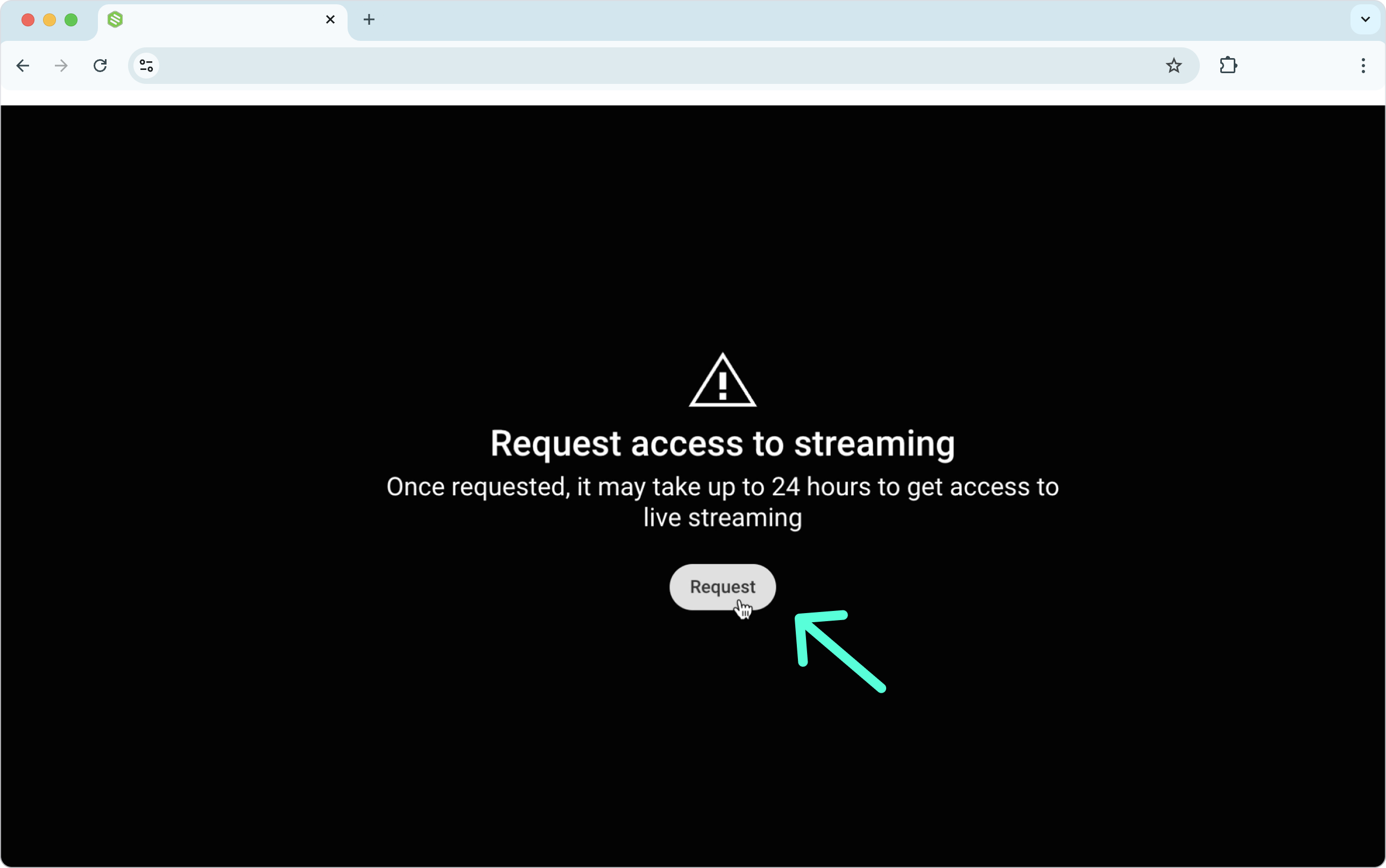
Step 4 - Request Live Streaming
The YouTube Live Control Room will open. Click the Request button to access live streaming.
Step 5
You will need to verify your YouTube Account with a phone number. Click the "Verify" button to begin the process.

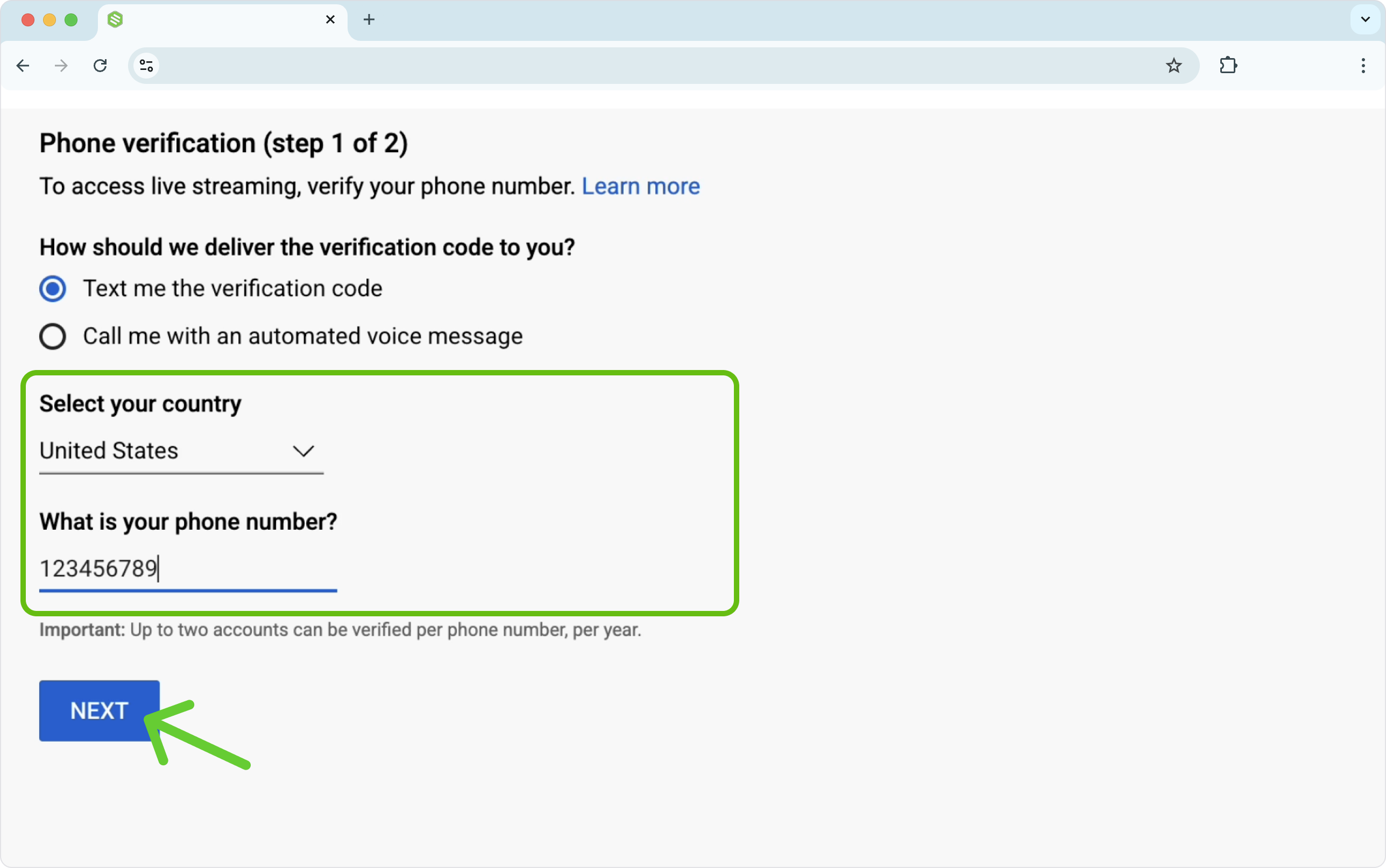
Step 6 - Verify your account
Select your country and the delivery type of the Six (6) digit verification code. Phone call or Text message.
Type in your Phone number and press Next.
Step 7
Enter the verification code that you received. Press "Submit".

Step 8
You will receive confirmation that your YouTube account has been successfully verified.

🥳 After 24 hours, your YouTube channel will have live streaming enabled!
You can start multistreaming from your Switchboard account to your YouTube channel.
How to check the live streaming status
So how do you know you've been approved?
After 24 hours, click the "Create" and "Go Live" buttons again.
🌟 Bonus: Unlock Advanced Features
Now that you've enabled live streaming, here’s a Bonus Tip: take the final step and enable Advanced Features. This unlocks powerful options, such as adding clickable external links to your descriptions, embedding your live streams directly on your website, and making you eligible to apply for monetization.
Here’s how
Open YouTube Studio, click Settings at the bottom left.
Choose Channel, and then click the Feature Eligibility tab.
This time, find the Advanced Features section and click Access Features.
From here, follow the prompts. YouTube will provide you with several options to complete the process, such as using video verification or submitting a valid ID.


