How to find the RTMP info for my Switchboard Account
This resource provides quick steps for finding the streaming information for your Switchboard account, allowing you to easily connect it with your live streaming software. You can use any live streaming software that supports RTMP.
Last updated 12 months ago
Find the Streaming information
The Switchboard Connect streaming information, the Stream/Server URL and Stream Key is located at the top left of the workflow page. Each workflow has its stream of information.

The easiest way to connect to most encoders is to copy the RTMP URL and Stream Key, and then paste each value into your live streaming software's (encoder) stream settings.
Step 1: Open Switchboard Workflow and Live Streaming Software
You will need to have both Switchboard and the live-streaming software open.
In the following steps, you will alternate between Switchboard and your encoder (live-streaming software) as you copy and paste the RTMP URL and Stream Key from the Switchboard workflow into the live streaming software.

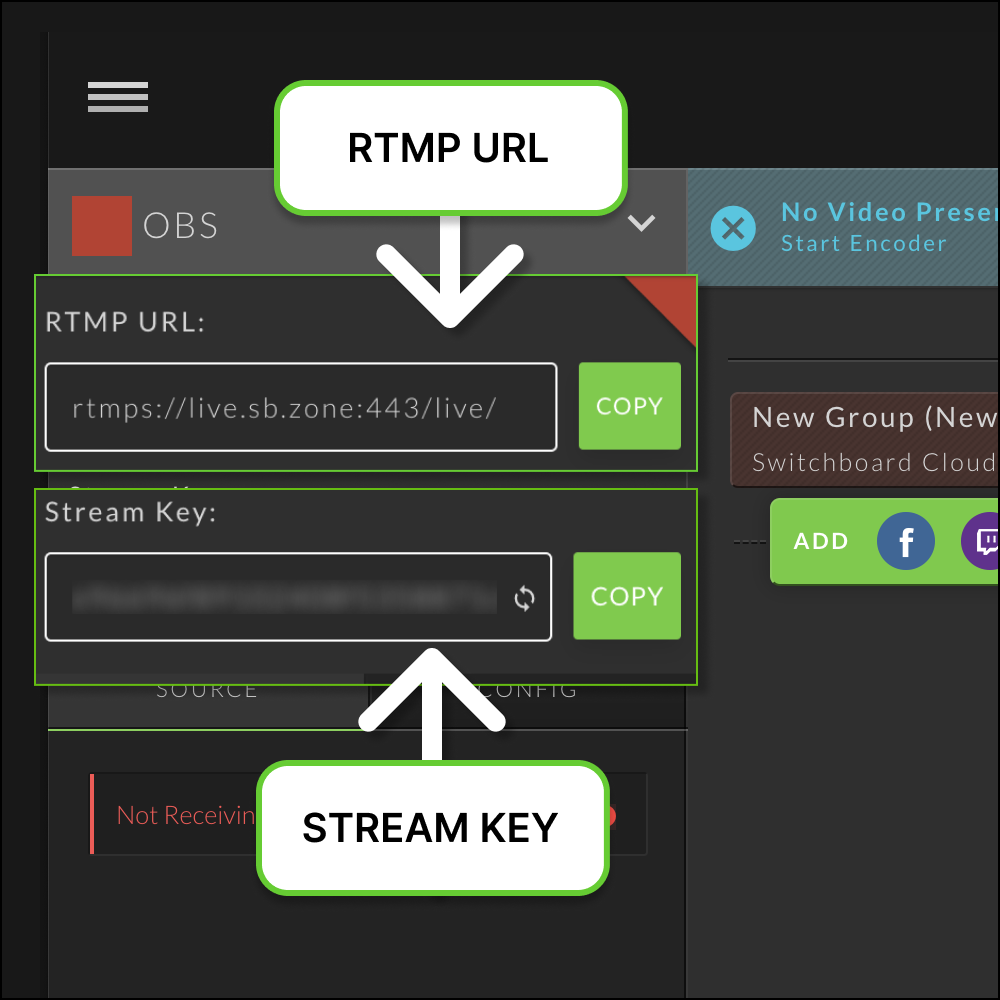
Step 2: Copy the Switchboard RTMP URL
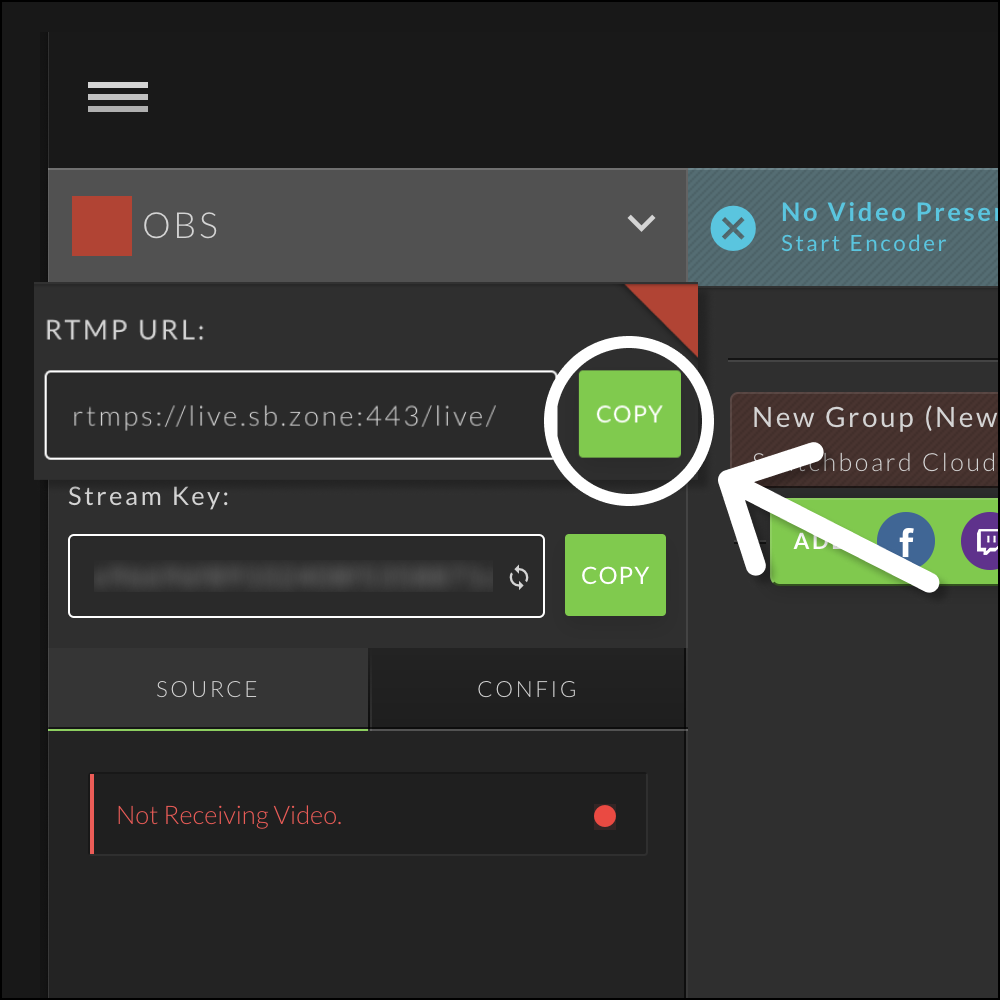
Copy the RTMP URL and paste it into the stream settings of your encoder.
Step 3: Copy the Switchboard Stream Key
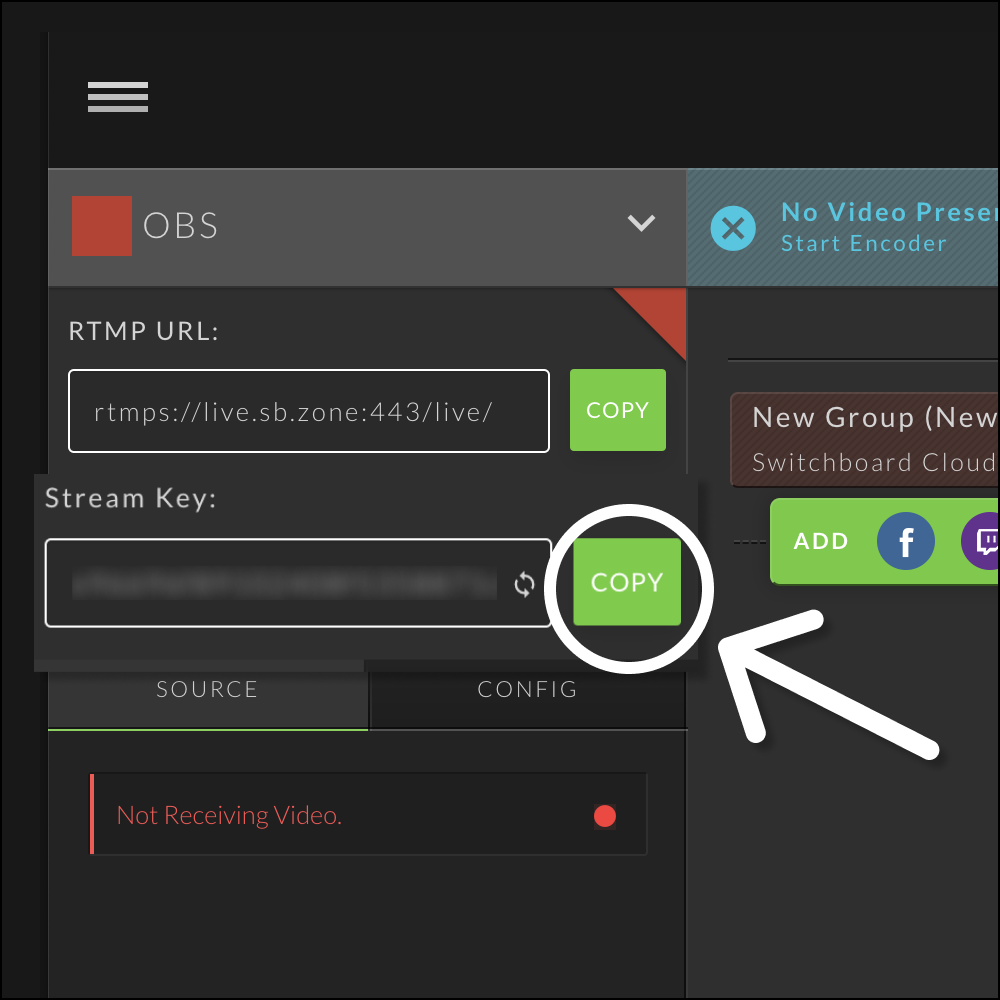
Copy the Stream Key from Switchboard and paste it into the stream settings of your encoder.
NOTE: Special Encoders Single Line
Some encoders (like Larix Broadcaster) only provide one line for your URL and Stream Key.
In this case, provide the URL and Stream Key as one string of characters, separated by a forward slash (/).
Stream URL "/" Stream Key.
See below:

Ready to Go Live!
Start sending video from your encoder to Switchboard Live.
Verify that the video is displaying on the Switchboard confidence monitor.
Go Live to your destinations individually or bulk select using the white box at the top of the destination group.