Connecting Zoom Meeting to Switchboard
Need to broadcast a virtual city council meeting, remote press conference, or community webinar? Integrating Zoom with Switchboard Live allows you to take any Zoom meeting and multistream it reliably to all your social media channels simultaneously. Whether you are a Zoom Administrator or a daily host, this guide will walk you through enabling Custom RTMP streaming in Zoom and securely connecting it to your Switchboard workflow for a professional, uninterrupted broadcast.
Last updated 5 months ago

Phase 1: Unlock Live Streaming in Zoom (Account Admins Only)
Note: If you are not the Zoom Account Owner or Administrator, you may need to share these steps with your IT team to activate this feature globally for your organization.
Log in to the Zoom web portal as an administrator.
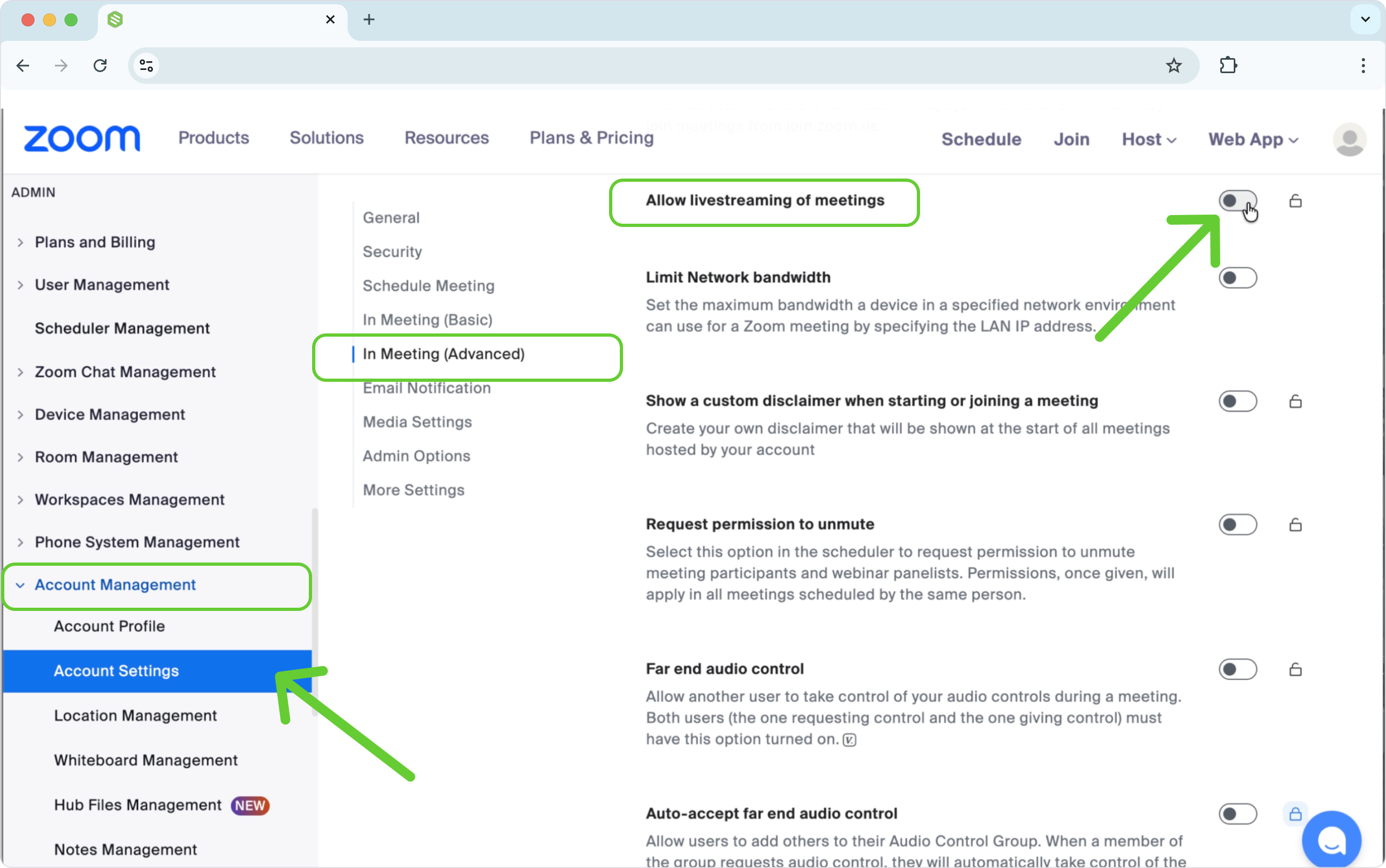
On the left navigation menu, click Account Management and then select Account Settings.
Click the Meeting tab at the top.
Select In Meeting (Advanced) from the sub-menu, then scroll down until you see "Allow livestreaming of meetings".
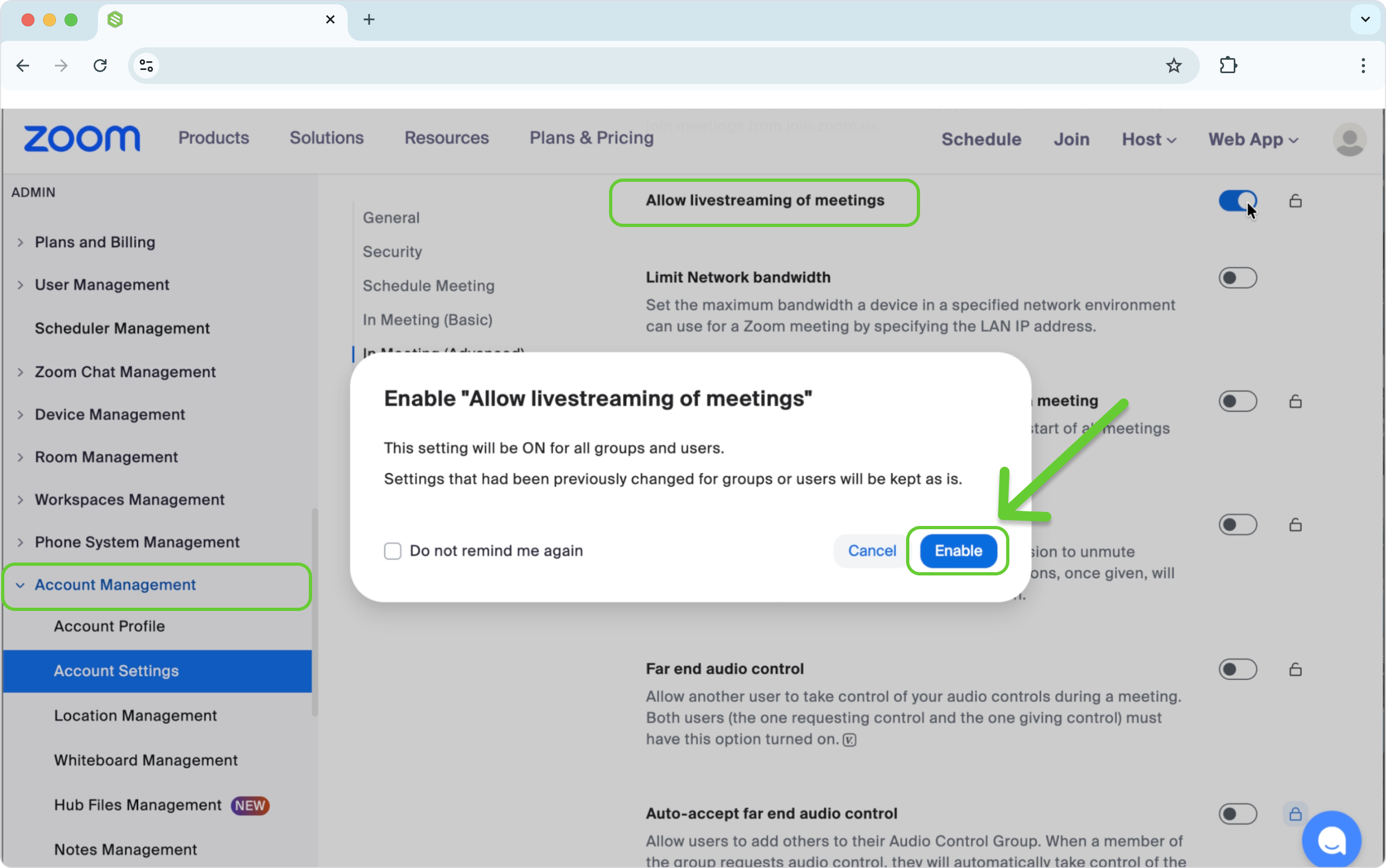
Click the toggle button to turn it on. If a verification dialog displays, click Enable to confirm.
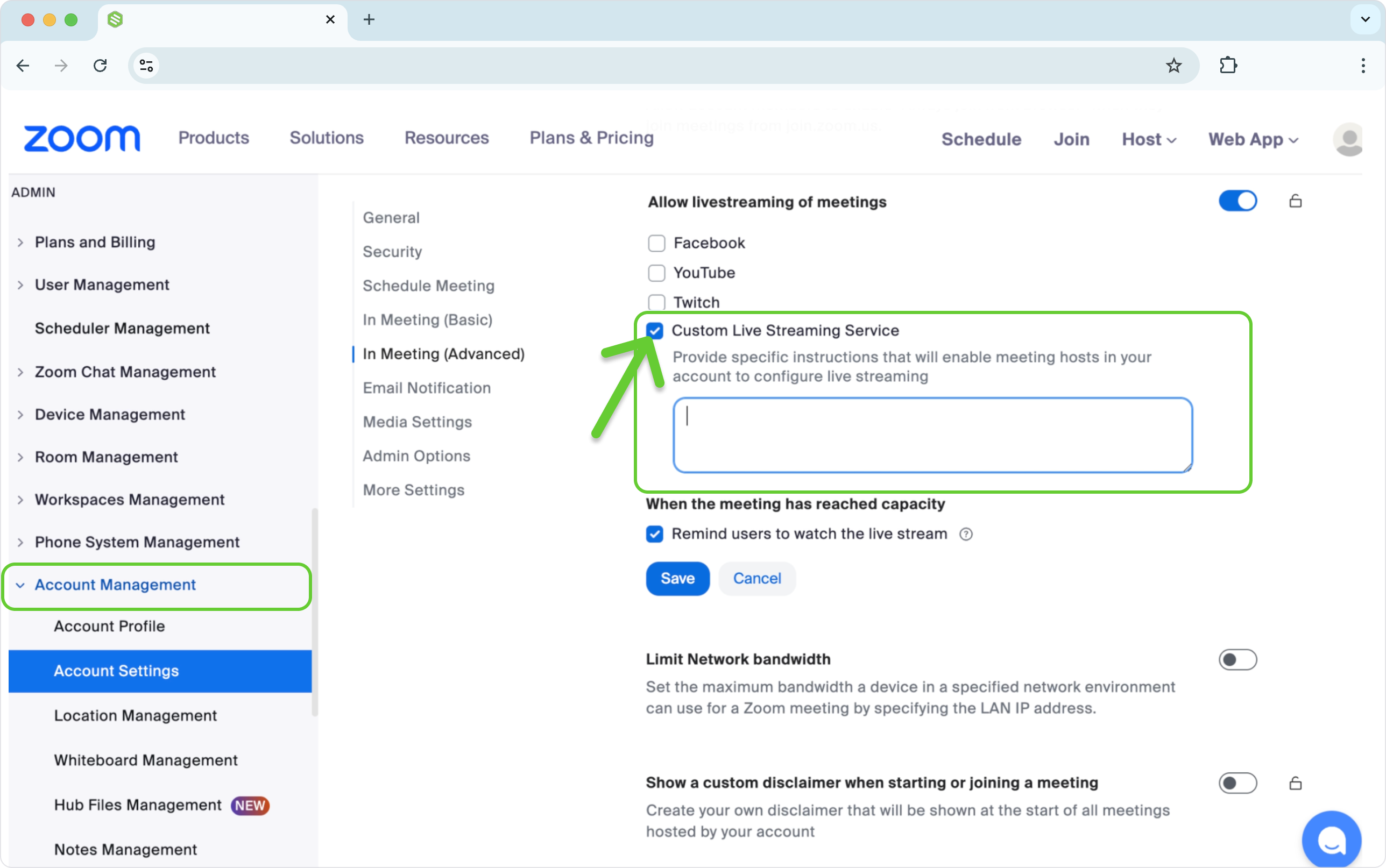
Check the specific box for Custom Live Streaming Service. (Note: You can leave the text box below it blank for now, or add the streaming information from your Switchboard Account to the field.)
Doing this will ensure the information always displays for reference whenever you go live.
Phase 2: Enable Live Streaming on Your Personal Profile
Now that the feature is globally unlocked, you need to enable it on your personal Zoom profile to host streams.
In the Zoom web portal, click Settings from the left-hand menu.
Click In Meeting (Advanced).
Scroll down and verify that the Allow livestreaming of meetings toggle is turned on.
Check the box for Custom Live Streaming Service.
Important: Check the sub-box that says "Configure the live stream during the meeting". This ensures a pop-up will display right before you go live, allowing your team to verify the connection. Click Save.
🛑 Troubleshooting Tip: If this option is grayed out, it has been locked at the account level. You will need to contact your Zoom Administrator to complete Phase 1.

Phase 3: Connect Zoom to Switchboard (RTMP Setup)
Next, you will tell your Zoom Personal Room exactly where to send its video feed (your Switchboard account).
Log in to your Switchboard Live dashboard to grab your RTMP Server URL and Stream Key.
Go back to Zoom. Scroll to the top of the left menu and click Meetings, then select the Personal Room tab.
Click the Live Streaming tab.
Click the Configure Custom Streaming Service button.
Copy and paste the Stream URL and Stream Key from Switchboard into the corresponding Zoom fields.
Live Streaming Page URL: Enter the URL of the webpage you want to stream (e.g., https://www.yourcitywebsite.com or your Facebook page). Make sure it begins with "https://".
• 7. Click Save.
Phase 4: How to Go Live During Your Event
Your systems are now connected! Here is the workflow for the day of your event.
Start your Zoom Meeting or Webinar as the Host.
In the bottom Zoom control bar, click the More button (the three dots).
Select Live on Custom Live Streaming Service.
Because you enabled the pop-up in Phase 2, a confirmation window will appear. Verify that your Switchboard Server URL and Stream Key are populated correctly. Click Save to confirm.
Zoom will now begin sending your video feed to Switchboard.
Log in to your Switchboard Live account. You should now see your Zoom video playing in the preview monitor!
Select your desired social destinations (or your entire Stream Group) and click Start Streaming. Within a few seconds, your Zoom meeting will be broadcasting reliably to your audience.
To End the Broadcast: Click Stop Live Stream in the Zoom menu, or simply end the Zoom meeting. Then, click Stop Streaming inside Switchboard.


FAQ
Q: Why is the "Custom Live Streaming Service" option grayed out or missing in Zoom?
A: This usually means one of two things: either your Zoom Administrator has locked this setting at the organization level, or you are using a basic (free) Zoom account. Zoom requires a paid tier (Pro, Business, Education, or Enterprise) to use Custom RTMP streaming.
Q: Can I stream a Zoom Webinar instead of a standard Zoom Meeting?
A: Yes! The setup process is virtually identical. Just ensure that when you configure your webinar settings in the Zoom portal, you navigate to the "More" tab for that specific webinar and configure the Custom Live Streaming Service there.
Q: Does Switchboard capture the Zoom Chat?
A: No. Switchboard will reliably broadcast the video and audio of your Zoom meeting to your social destinations, but the internal Zoom text chat will not be visible to your live viewers on Facebook or YouTube.
How to update the live streaming information in Zoom
On a Desktop web browser, log in to your Zoom account.
Click Meetings in the left-side menu.

Select Personal Room.

Choose Live streaming.

Scroll down to Custom Streaming Service Configuration.

Click the edit button.

Log in to Switchboard Cloud.
Open the appropriate workflow, copy the streaming information from your Switchboard Cloud account, and paste it into Zoom.
Click the green button to copy the RTMP URL and paste it into the Zoom Server URL field.
Click the green button to copy and paste the Stream KEY into the Zoom Stream KEY field.
Click Save.


🤝 CONGRATS! You have updated and reconfigured Zoom to use the new workflow in your Switchboard Account.
⭐️ Next, test the connection by starting a meeting on Zoom and live-streaming it into Switchboard Cloud; the steps are explained above.
How to Remove the Zoom Watermark
Note: If you would like to update the watermark image (Zoom logo) displayed in the lower-right corner of your video, please see the following Custom Live Streaming Watermark article. Keep in mind that this is a free feature to enable, but you need a paid plan with more than 10 hosts, such as Business or Education.
How to disable RTMPS settings in Zoom
As an Administrator of a ZOOM account, you may find that sub-accounts do not have the ability to add a Custom Live Streaming Service like Switchboard.
Here are the steps to disable the encryption (RTMPS) setting in your ZOOM admin account. Even though ZOOM recommends an RTMPS URL for Facebook and Facebook Workplace, this is not required for YouTube and the Custom Live Streaming Service.
Open ZOOM
On the left panel, go to Settings.
Select: In Meeting (Basic).
At the top of the list, you should see the setting "Required Encryption for 3rd party endpoints (SIP/H.323)"
Toggle the button to the "grey".
Congrats! You have disabled the encrypting(RTMPS) settings in your ZOOM account.
👇🏽 Download Below: A Free Guide on How to Create a Zoom Meeting Template for Live Streaming
A Free Guide How to Create a Zoom Meeting Template for Live Streaming.pdf
4.7 MB• Document