How to Delete an Encoder Workflow
Keeping your Switchboard account organized may require removing old or unused workflows. This guide will walk you through the process of permanently deleting a workflow from your account. Please read this article carefully, as this action is irreversible and will also permanently delete all destinations that you have created within that workflow.
Last updated 12 months ago
Concepts covered in this support article.
Delete a Workflow
How to Add a New Workflow
Rename the Workflow
Important note: All Switchboard accounts will have at least one workflow by default. Your ability to add additional workflows depends on your Switchboard Subscription.
How to Delete an Encoder Workflow from your Switchboard Account
Click the SETTINGS tab below the confidence monitor.
Click the DELETE Workflow button.
Click the Delete button to confirm.

CAUTION: You will lose any Destination Groups in the deleted workflow.
You will keep ALL Templates.
You will keep ALL Destinations.
Important Concept
Please note that each workflow operates independently and contains its own set of destinations.
If you delete a workflow, the destinations within that workflow will be returned to the destination manager page.
The destination manager page displays all the destinations associated with your Switchboard cloud account.
The Workflows page will open after you delete a workflow.
You will see different options depending on your account. If you have multiple workflows in your Switchboard account, you can click the view button to open one of the existing workflows or create a new one.
How to Add a New Workflow
Click the Add New Workflow button at the top.

Select your live streaming software (encoder) from the list.


Create a Stream Group
Click the Create Group Button.

Give the Group a Name.

Add Destinations
Use the toggle button to add destinations already saved to the account or click Connect More to add new destinations to Stream Group.

Click Submit.
Configure your live streaming software with the new workflow.
Very Important Step
Please update the RTMP URL and Stream Key information in the live streaming software to ensure a proper connection to the new workflow you just created.
Copy the RTMP info and paste it into the appropriate corresponding fields of the live streaming (encoder) you use.


Test the Connection between your Live Streaming Software and your Workflow
Send a video signal from your live streaming software to the newly created workflow.
A successful test will display a video in the Switchboard preview window, and the text "receiving video" will be visible.
Rename the Workflow
Click the "SETTINGS" located below the confidence monitor.
Type the new name in the field. Press Enter.
Change the color of the workflow.
Click Settings.

Click the color chip.
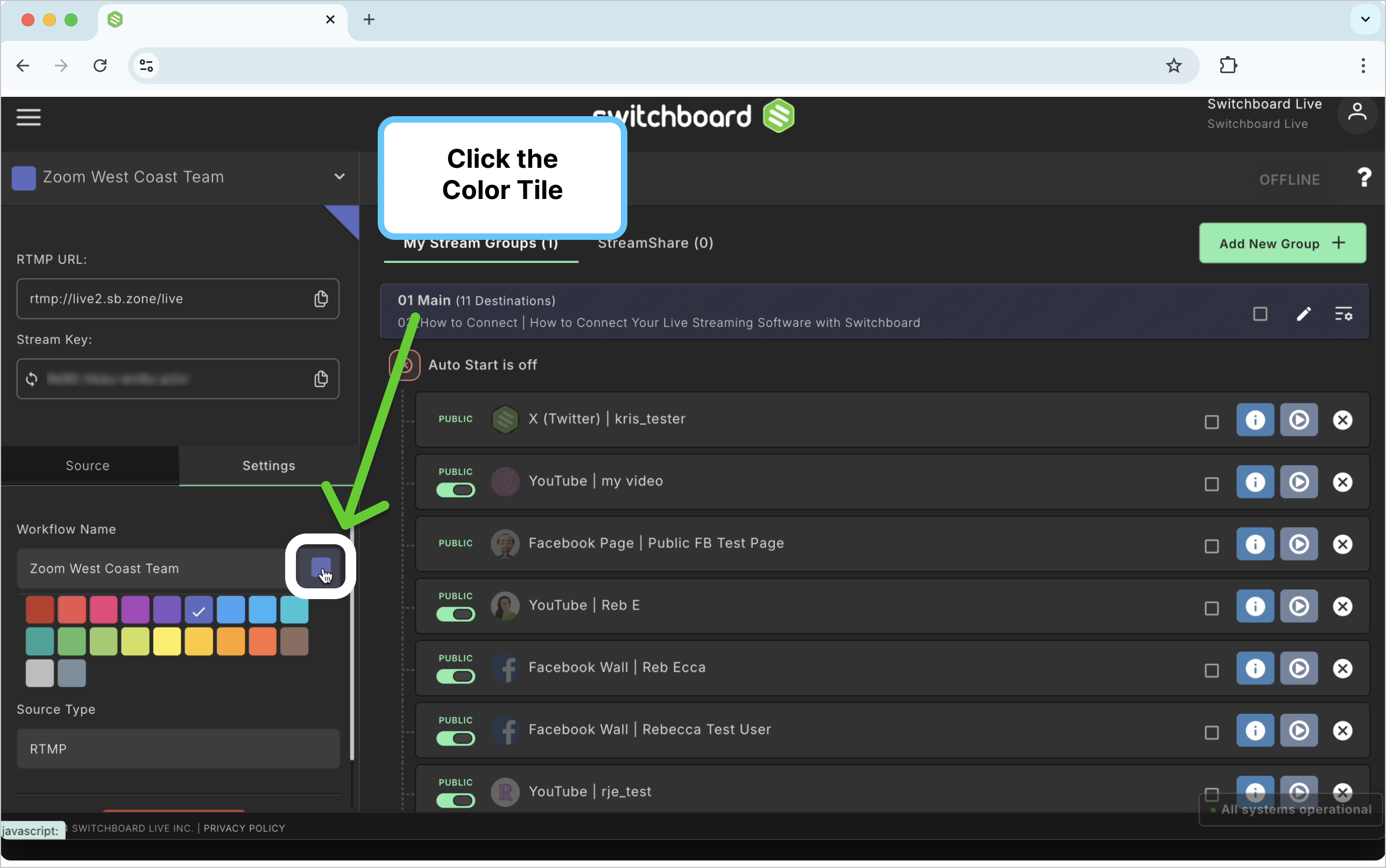
Choose a Color

Success!

Why would you need to rename a Workflow?
You've decided to use a new encoder and want to maintain the existing workflow setup.
Your Switchboard Account has more than one encoder workflow with the same name, and it may be beneficial to rename each one to help identify them more clearly.
Take a look at this account below.
It has 3 OBS encoder workflows. Two separate team members will use two, and the primary Switchboard Account holder will use the other one.
In this scenario, it makes sense to rename the encoder workflow so that each person can quickly identify theirs.
