Stream Groups
Need to manage multiple live broadcasts or collaborate with a team? Creating Stream Groups in Switchboard Live is the best way to keep your multistreaming workflow organized, fast, and reliable. By grouping your social channels (like Facebook, YouTube, or Custom RTMPs) together into specific folders, your entire team, regardless of technical skill level, can confidently schedule and go live to multiple destinations at once. This guide will walk you through creating your first Stream Group, adding destinations, and setting up your workflow for success.
Last updated 6 months ago
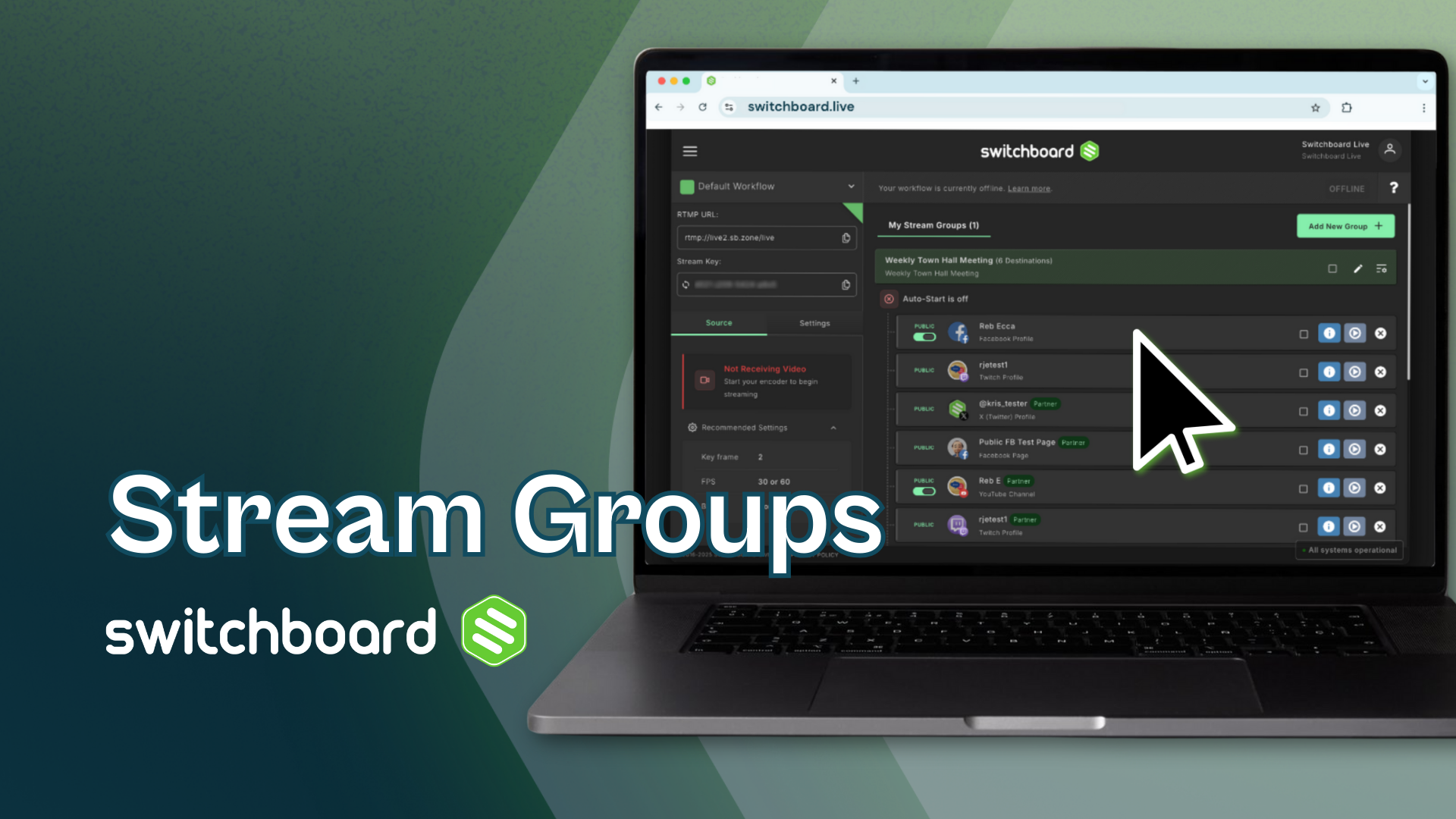
What are Stream Groups, and why do you need one in your Switchboard account?
One essential feature for multistreaming in your Switchboard account is setting up stream groups. You can add your social channels (such as YouTube, Twitch, Facebook, X, LinkedIn, etc.) for multistreaming, set stream titles and descriptions, and select destinations for live streaming.
Topics Covered
Add a New Stream Group
Add New Destinations to the Group
Add Existing Destinations to a Group
Delete a Stream Group
Let's Begin!
💡 Pro Tip for Teams: Use Clear Naming Conventions
When multiple team members are working inside the same Switchboard account, organization is critical. Avoid generic names like "Stream Group 1" or "Test." Instead, use descriptive titles that indicate the event and the platforms (e.g., "City Council Meetings - FB & YT" or "Emergency Broadcasts - All Platforms")—ensuring that anyone on your team, regardless of technical background, can confidently select the right group during a high-stakes event.
Create a New Stream Group
When you open a brand-new workflow, you’ll need to create a new Stream Group and add destinations (social channels) to it.
Log in to your Switchboard Live dashboard and navigate to your Workflow page.
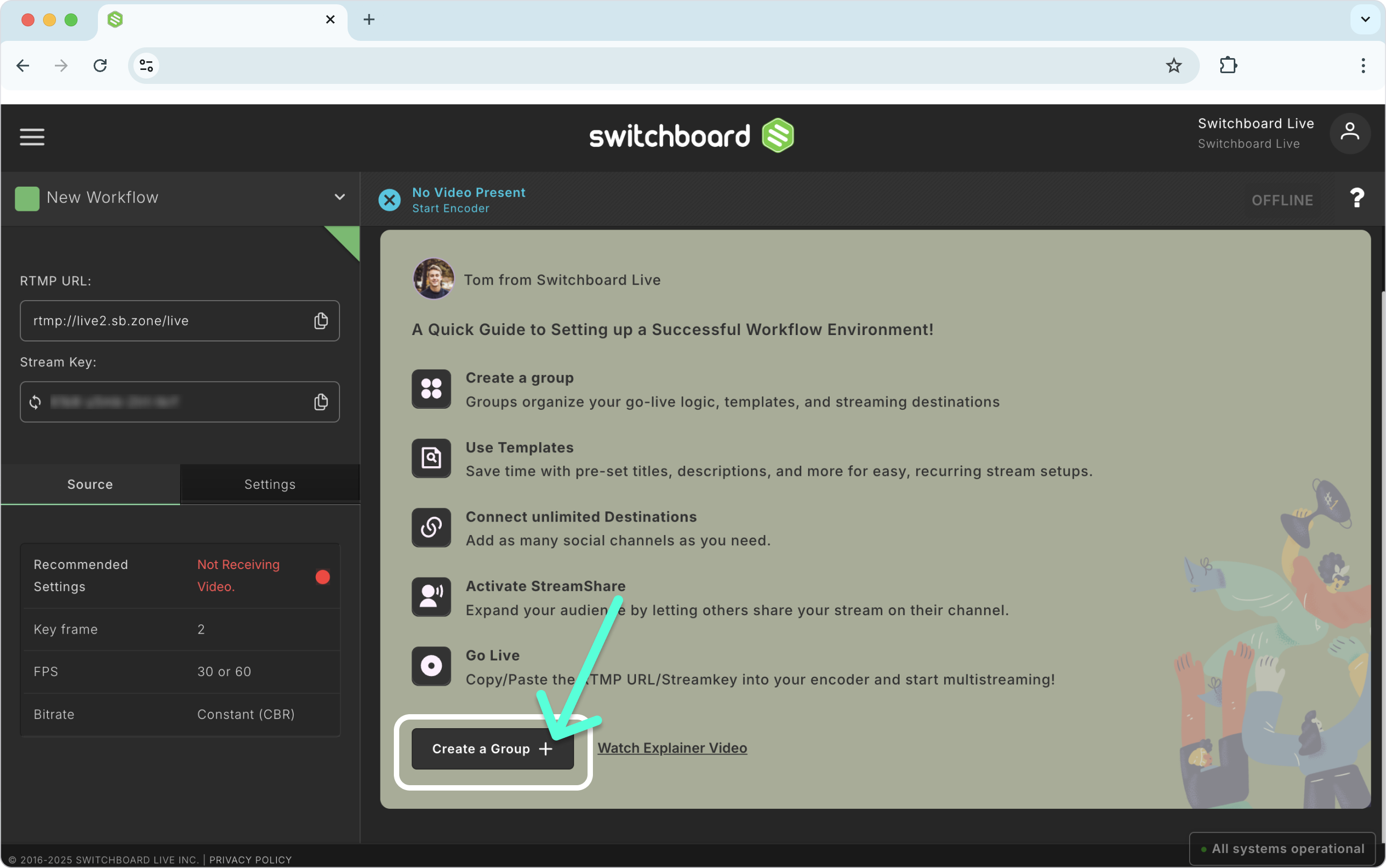
Click the Create Group button to create a new, empty Stream Group.
Name your group: Type a clear, recognizable name (see our Pro Tip above!). Note: This name is for internal organization only and will not be published to your live viewers.
Fill in your broadcast details: Provide the information that will be published to your viewers when you go live. This includes:
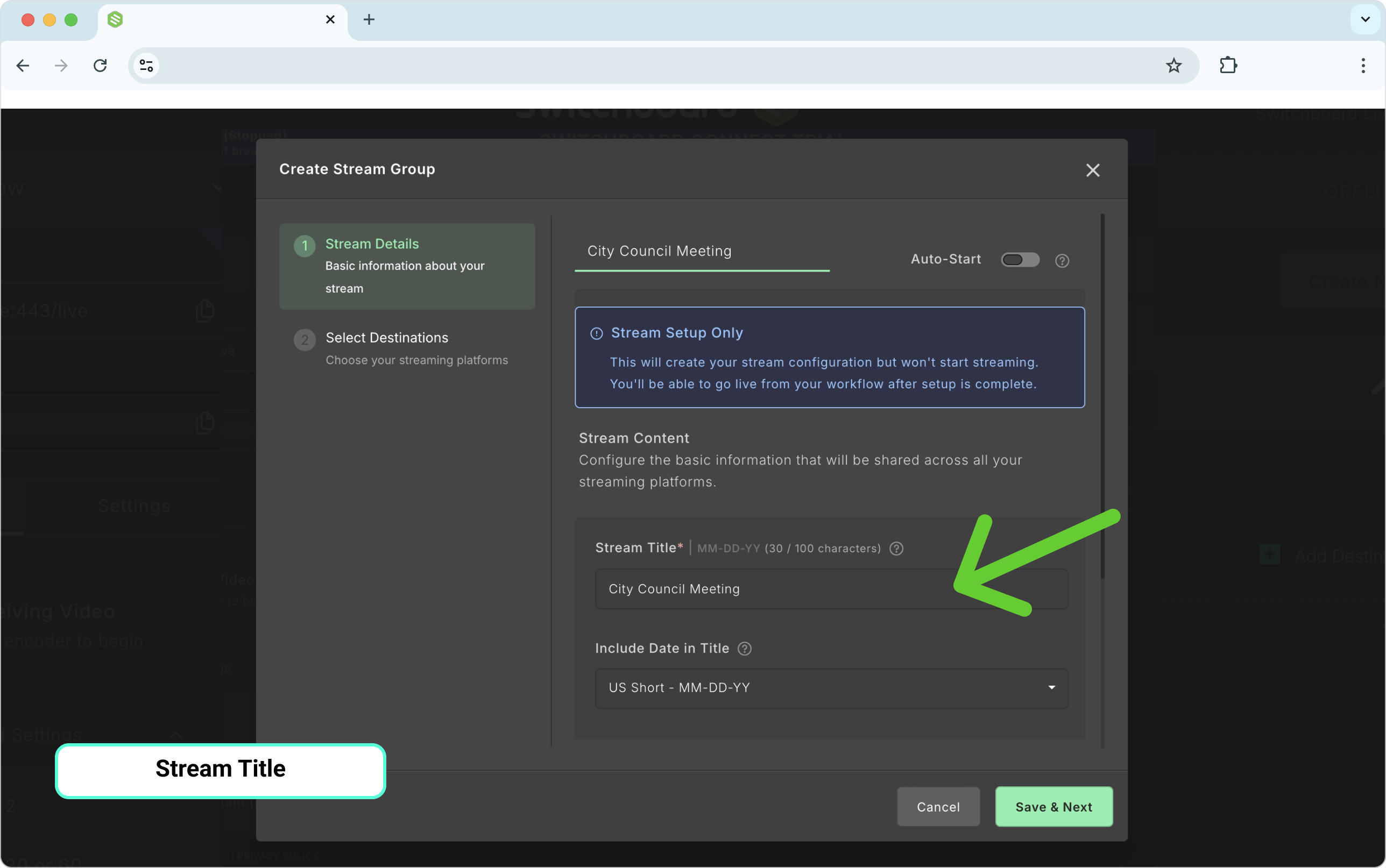
Stream Title: The public name of your video.
Date: Add a date to the title if you host recurring events (like a weekly broadcast).
Description: What your video is about.
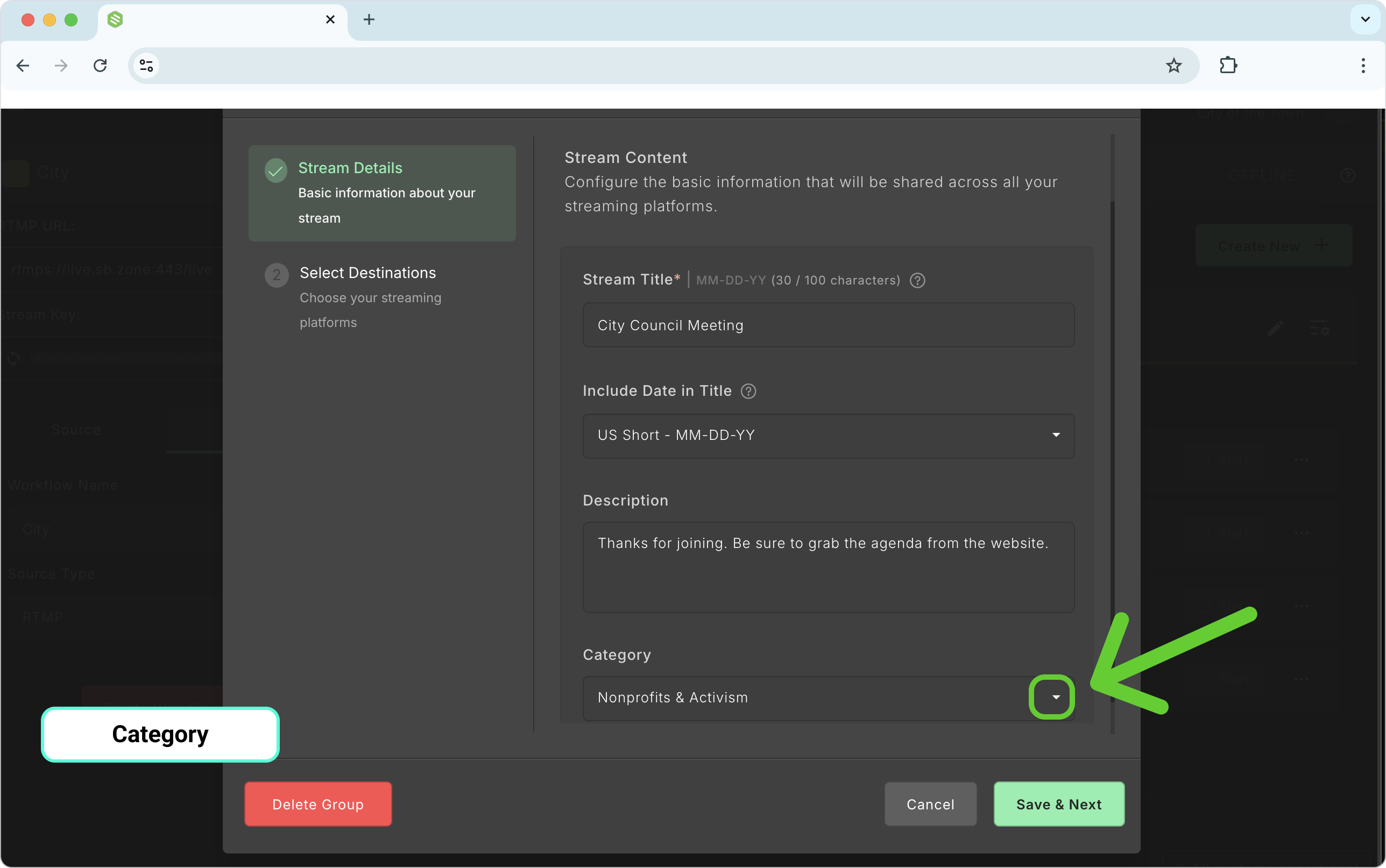
Category: The genre of your stream (e.g., Education, News, Gaming).
AutoStart (Optional): Toggle this on to start the stream automatically.
Once complete, click Save and Next.
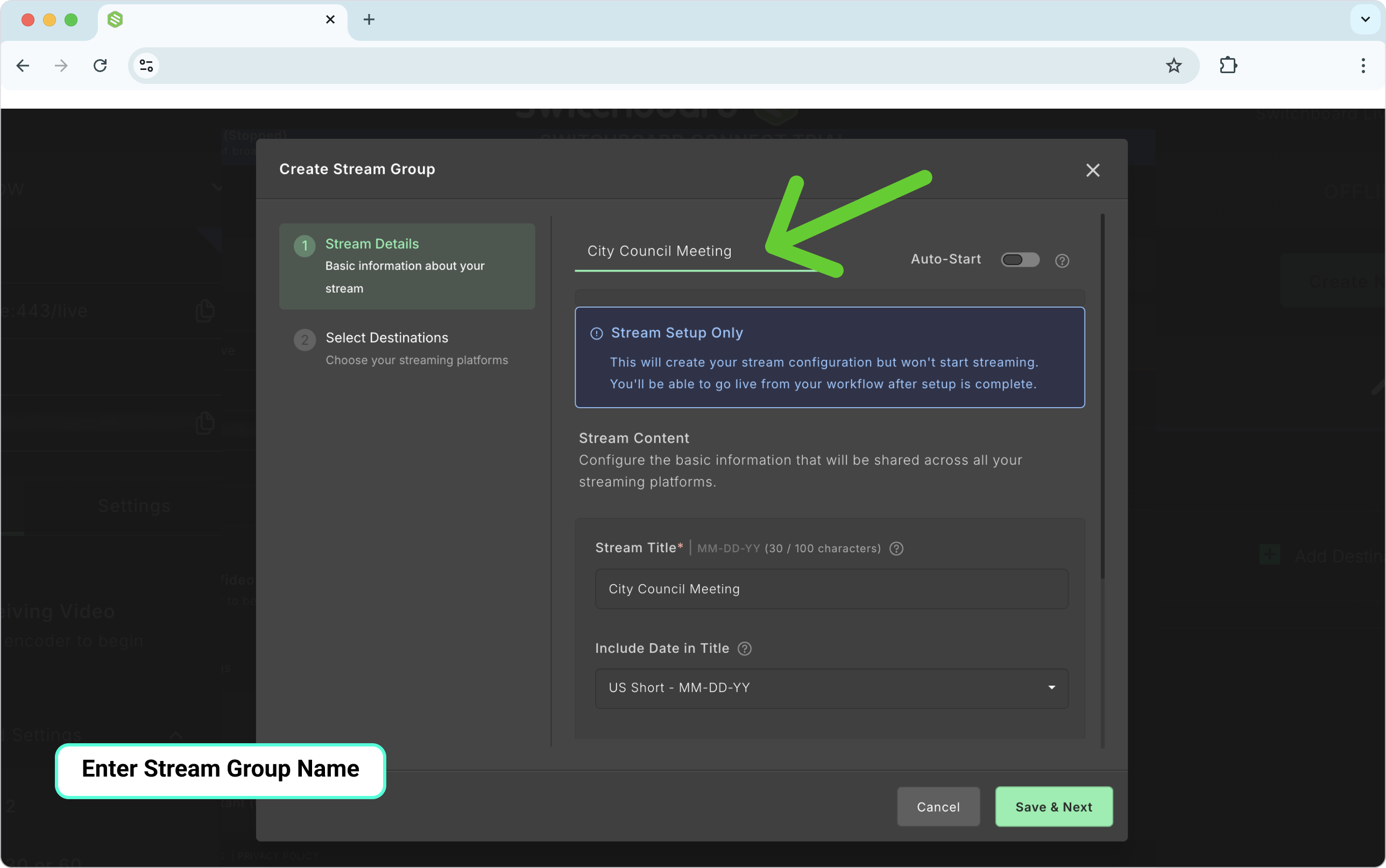
Provide details for the stream group, such as the stream title and description; turn on autostart; add a date to the stream title if you plan to have repeat live events; and go live weekly.
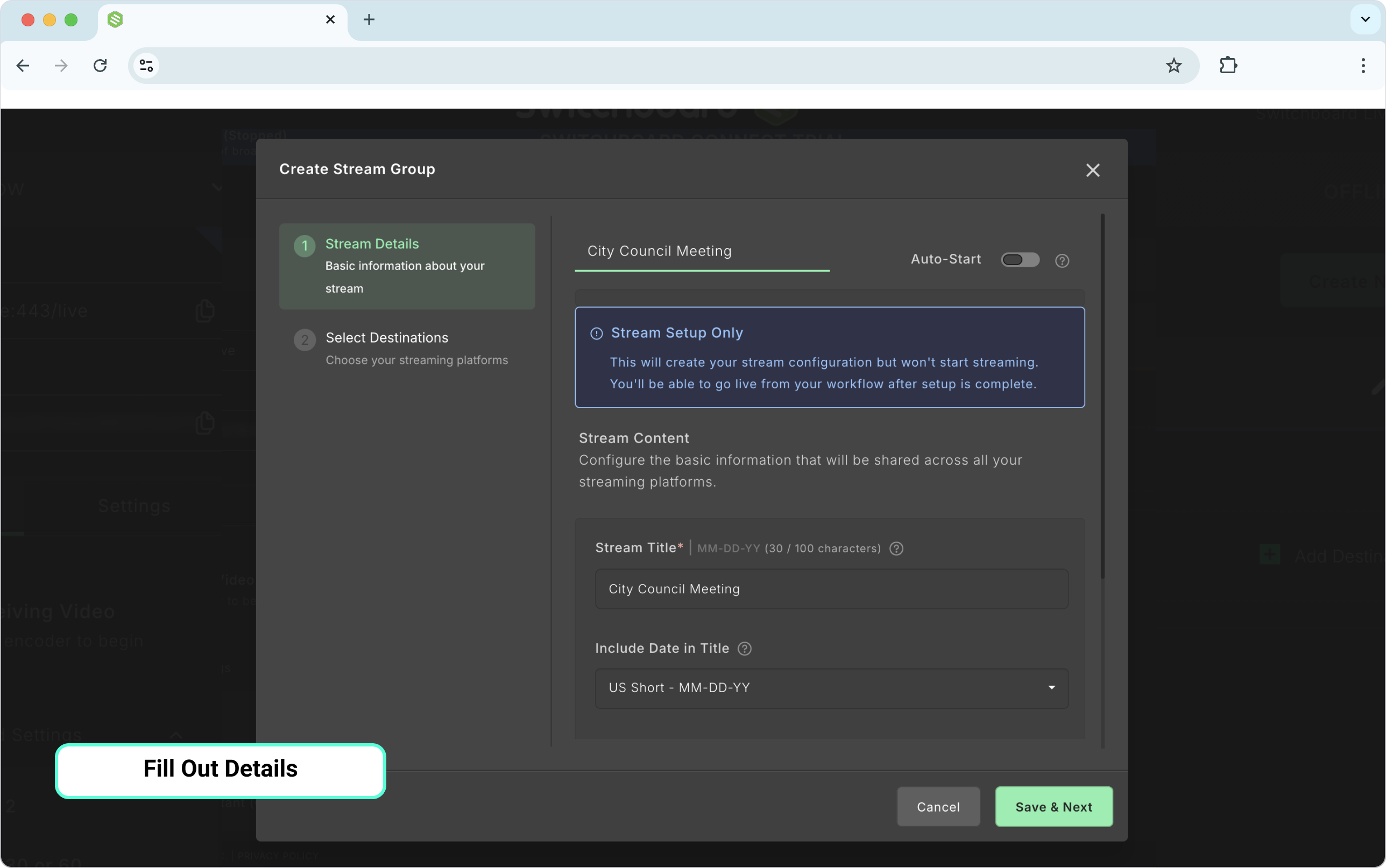
Option to turn on AutoStart

Stream Title
Date


Description

Category

Add Destinations to Your Group
You’ll be given the option to connect destinations or add existing destinations (destinations that have already been connected to the Switchboard account) to the stream group.
How to Connect a new destination
Click the Connect More button.
Choose the Platform type from the menu.
Follow the Prompts for logging in.
Complete the steps until you reach the Success Window.
Repeat the steps above to add new destinations to your Switchboard account.


How to Add Existing Destinations to a Stream Group
If you already have destinations connected to your Switchboard account.
Use the Filter or Sort By to find the specific ones you want to add.
Click the toggle button next to the destinations you want to add to the Stream Group.
Click Done.

Add Custom RTMP Destinations
Check out this resource for connecting RTMP destinations to your Switchboard account.
Adding Multiple Stream Groups to Your Workflow
You can build up your workflow by adding multiple Stream Groups. Click the Create New button at the top of the workflow. Select Stream Group.
Set up the Stream Group
Give the Group a Name
Add Stream Title
Add Date
Choose Category
Click Save and Next.
Add Destinations to the group by toggling on the destinations you've already connected to your Switchboard account; you won't need to log in again or reauthorize these social channels.
Click Next.
Add Partner Destinations
Click Done
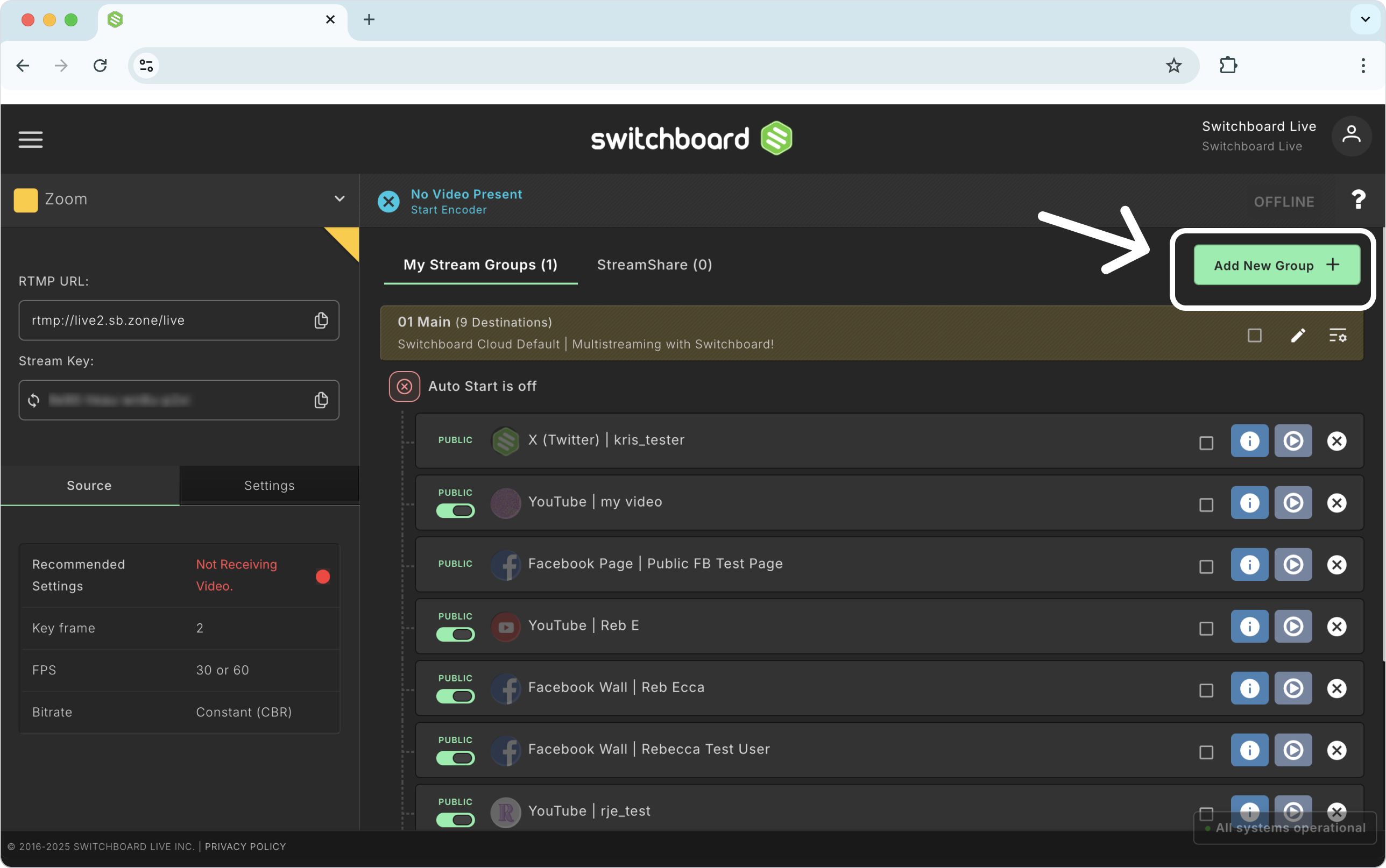

We successfully created another group on the workflow, along with the destinations we activated for it.
What’s Next? Going Live!
Once your Stream Group is created and your destinations, titles, and descriptions are saved, you are officially set up for success. Whenever you are ready for your event, simply send your video feed from your encoder to Switchboard and click the Go Live button at the top of your group. Switchboard will simultaneously distribute your stream to every activated destination in that group.
Delete a Stream Group
Removing a Stream Group from the workflow is easy if you no longer want to keep a group in your workflow.
Click the pencil icon to open the Group Editor.
Select Delete Group in the new window.
Confirm your selection.


FAQ
Q: What is a Stream Group in Switchboard Live?
A: Think of a Stream Group as an organizational folder inside your Switchboard workflow that allows you to bundle multiple streaming destinations (like YouTube, Facebook, and Twitch) together. Instead of selecting individual channels each time you broadcast, you can select all destinations in the group and send the video to the Stream Group to go live everywhere at once.
Q: Can I add the same destination to multiple Stream Groups?
A: Yes! Once you authorize a destination (like your main Facebook Business Page), it is saved in your Destination Manager. You can toggle that exact same destination "on" across as many different Stream Groups as you need without having to log in or reauthorize it again. Some destinations have restrictions and can only be used in one stream group at a time.
Q: Is there a limit to how many destinations I can put in one Stream Group?
A: No. Switchboard Live allows you to broadcast to an unlimited number of destinations simultaneously. You can add as many social channels or Custom RTMPs to a single Stream Group as your event requires.
Q: Will deleting a Stream Group also delete my connected social media accounts?
A: No. Deleting a Stream Group only removes the organizational folder from your workflow. Your actual destination connections remain safely stored in your Switchboard account