How to Connect Your Channels with PartnerShare
Did you receive a PartnerShare™ invite? This support article explains how to opt in and authorize your social channels so that you can carry out the next live stream and provide content to your audience.
Last updated 7 months ago

Sharing your social channels on the PartnerShare™ page is super simple.
You don't need a Switchboard account to share your destinations.
You need the proper credentials to successfully authorize the social channels.
The Social channels you wish to add need to meet the live streaming requirements set by the individual platforms.
You can authorize your social channels on a desktop or mobile device.
You don't need to download anything.
Recommendations
We recommend that you log into the Social channels you plan to connect. Begin connecting the Social channels you want to share with the partner.
Generate a Verification Code
Open the PartnerShare Link that was shared with you.
You’ll be brought to the login page.
Provide an email address.
Check your email for a verification code.
Note: Providing an email address is required to receive the verification code; we do not collect your email address.
You’ll receive the following email:
Sender: Partner Share via Switchboard Live <partnershare@switchboard.live>
Subject Line: Switchboard Live | Partner Share
If you don’t receive the verification code, check your spam or junk folder. Try re-sending the code.


Try to resend the code if you don’t receive it the first time.

Provide a name for your Team or organization
The first time you access the link with a specific email address, you'll be prompted to provide a team name. Providing a team name helps the Switchboard Account Owner know who is sharing their social channels. It helps to keep their account organized for live stream management.
If you manage multiple organizations, you can create a second team under your partner account. Click the dropdown menu and select "Add Another Team."
Note: Only the email address used to create the different team organizations will be able to view multiple teams and their destinations.

The Partner Page
Partner Profile
In the top right corner, you can find your organization's name and the email address you are currently logged in with.

Team Name
You can see the current Team you’ve created. Click the dropdown to add more team members if necessary. Please note that the email address used to create the Team will be the only one authorized to manage it.
Add more teams under the same partner account.
Click the drop-down menu, then click "Add Another Team."
Provide a new team name, then click “Create Team.”
Start Connecting Destinations.


Connected Channels
Social channels added under the team name will be displayed here.

How to Connect Social Channels
Now it's time to add your Social channels. You'll have complete control over which social channels you add, and you can opt in or out anytime. Remember, you need to have the proper credentials, and the live stream requirements must be met as set by the individual platforms.
Step 1: Click on a Social Platform
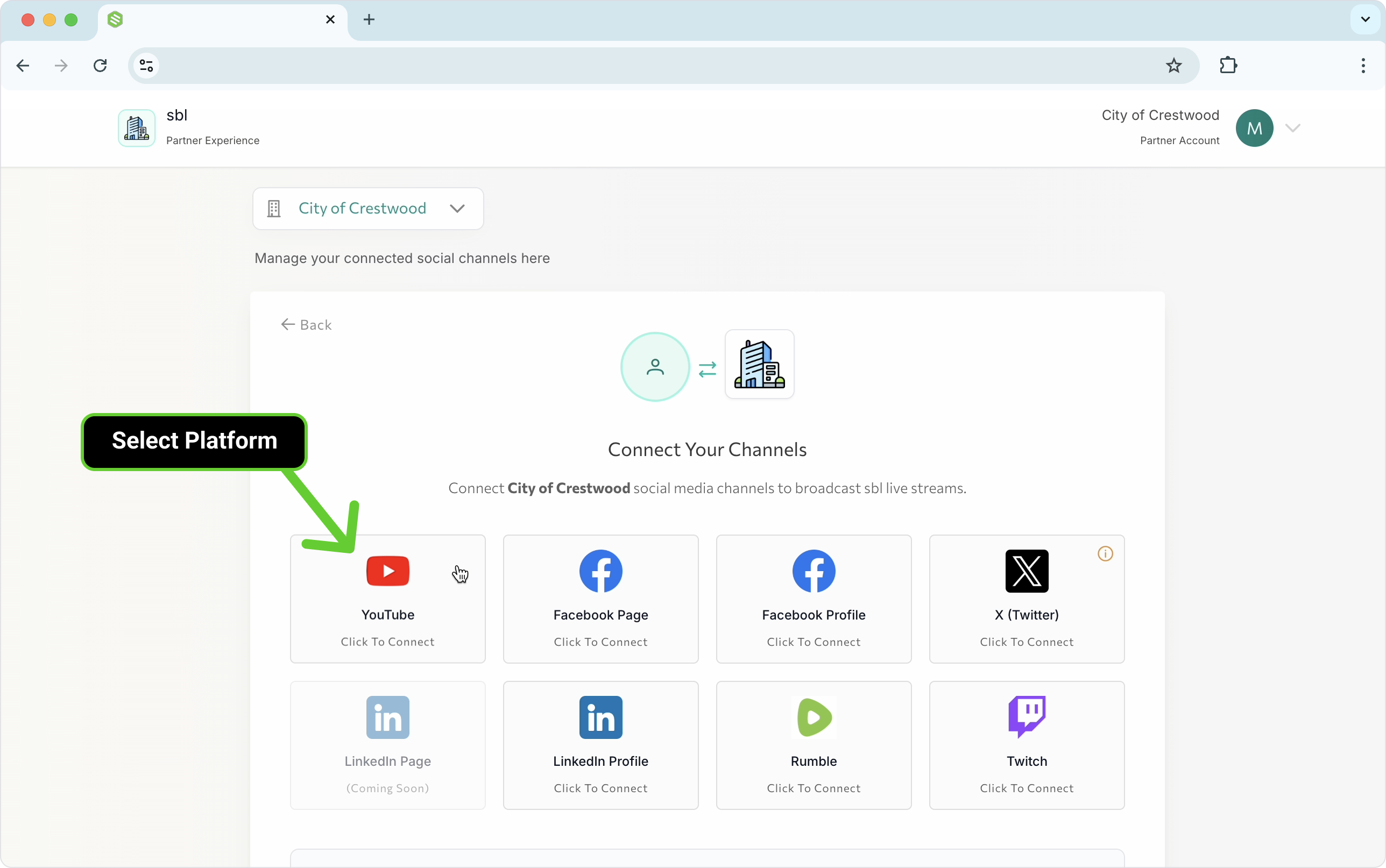
Click the social icon to begin the authorization process. You will be asked to log in to the social platform if you aren't already logged in. The screens vary depending on the social destination, but the process is relatively the same. You can connect YouTube, X (formerly Twitter), Rumble, LinkedIn (new), Twitch, Facebook Profile, and Page.

Connect YouTube
Click the YouTube icon and follow the prompts, ensuring to select the correct YouTube Channel.
Note: You'll need to enable live streaming on your YouTube channel. This process can take up to 24 hours to complete. Click on this link to learn how to enable live streaming on YouTube.

Step 2: Add more Social Channels
Click "+ Add" to continue adding the Social Channels you wish to connect.

Connect X (formerly Twitter)
Click the X icon and follow the prompts until you reach the success screen.

Connect Rumble
Click the Rumble icon and follow the prompts until you reach the success screen.

Connect Twitch
Click the Twitch icon and follow the prompts until you reach the success screen.

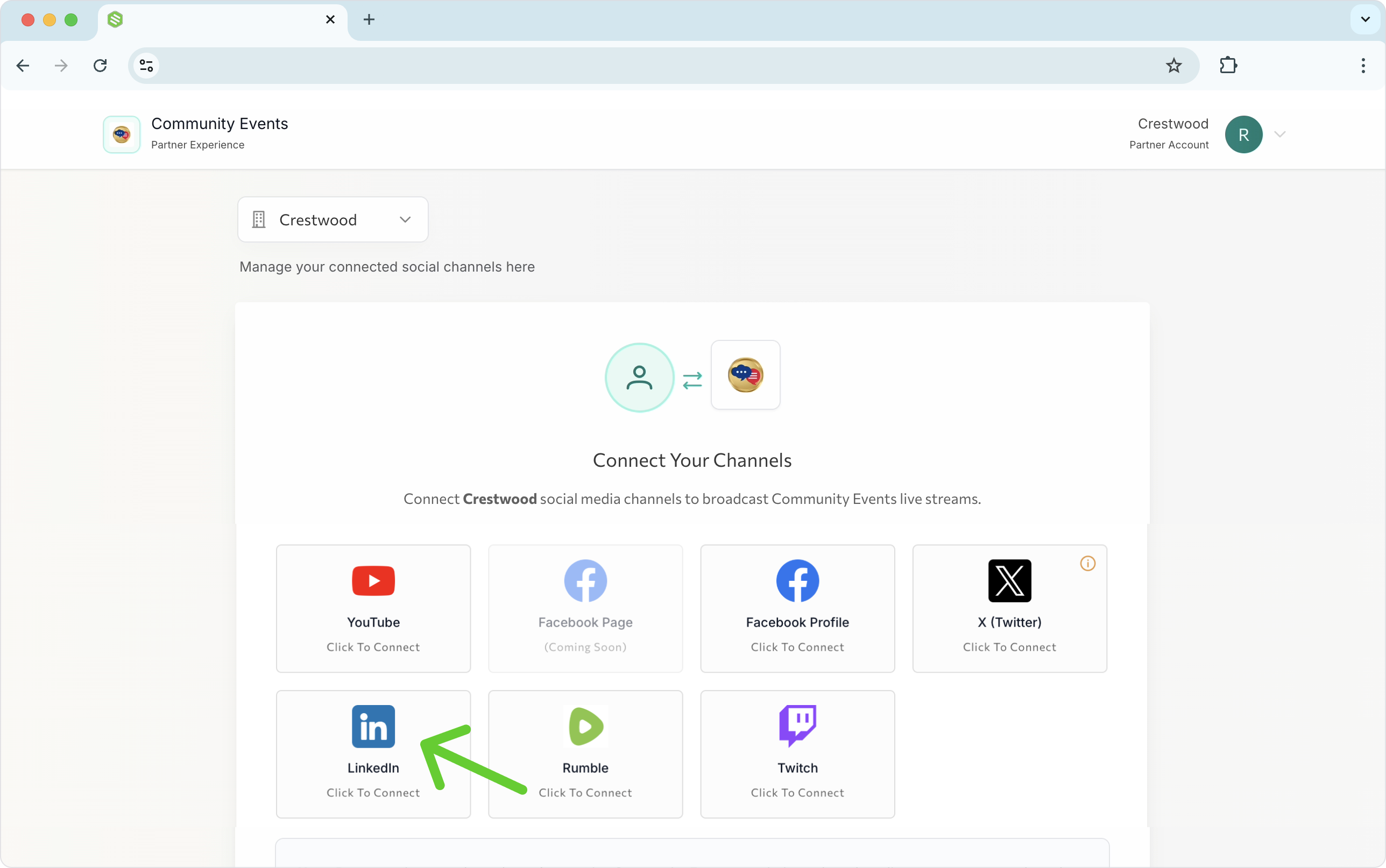
Connect LinkedIn
Click the LinkedIn and follow the prompts until you reach the success screen.
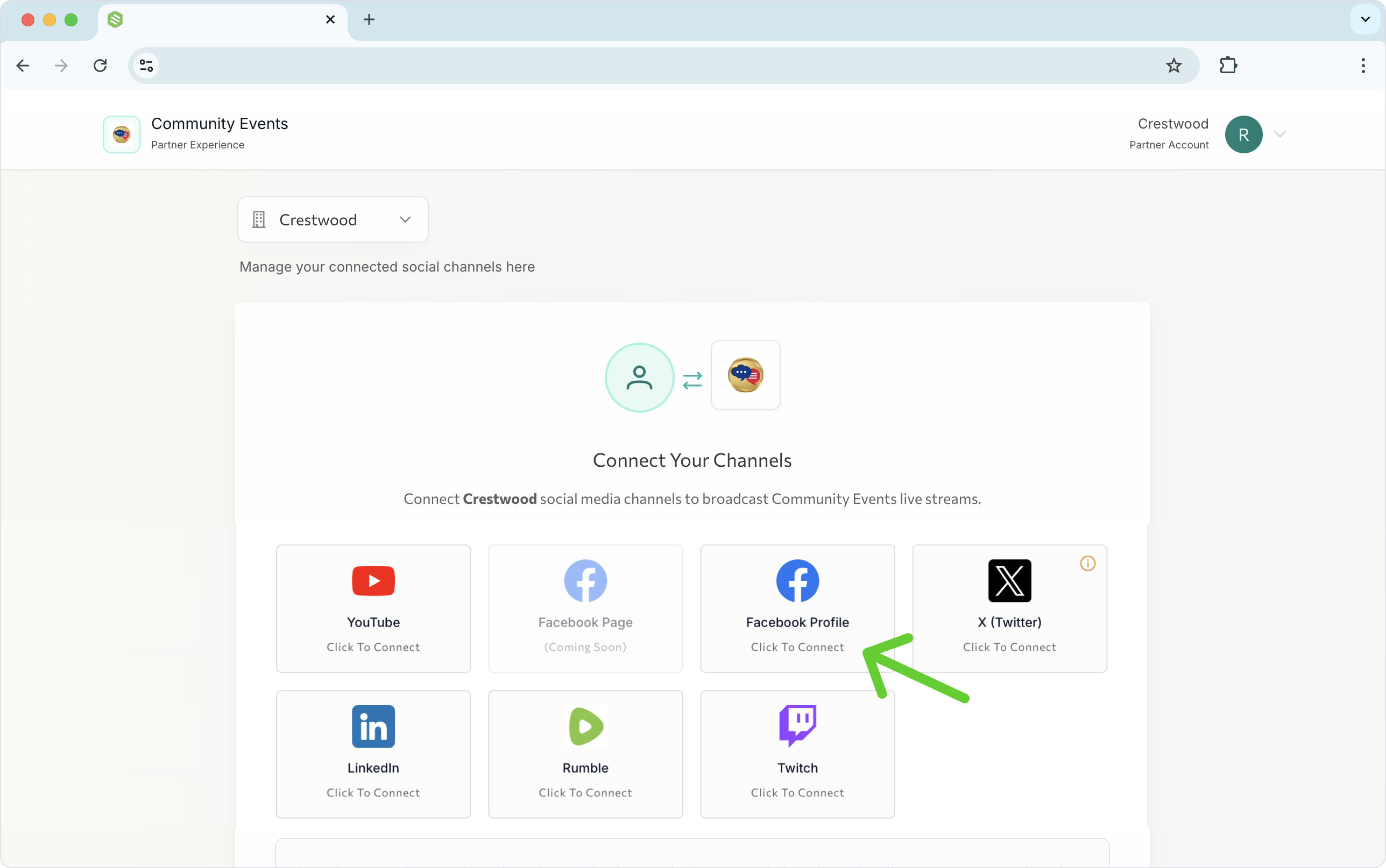
Connect Facebook Profile
Click the Facebook Profile icon and follow the prompts until you reach the success screen.
Connect Facebook Page
Click the Facebook Page and follow the prompts until you reach the success screen.
What happens next?
Now that you've connected the Social channels for the live stream event, the Switchboard Account owner will be able to live stream on their social channels and the ones you've connected. Authorizing your social channels will "automagically" appear in the Switchboard Account Owner.
🎥 When they Go Live, you Go Live!
When the Switchboard account owner goes live, they’ll be livestreaming on their social channels and yours simultaneously. Your audience gains access to valuable content without requiring any additional work from you.
When the live stream begins, your subscribers will be notified that your channel is live, allowing them to watch the stream on their preferred devices and platforms.
🗣️ What you can do: Share the information within your network, just as you would for your own live streams. Let your audience know about the upcoming live stream and that you are helping to amplify and expand its reach.
Removing Connected Social Channels
At any time, you can remove a connected destination. You can choose to keep the connected social channels for future live broadcasts or remove them.
Open the PartnerShare™ page (the link shared with you).
Log in to the Partner Page using the email address that you used to connect the social channels.
Click the trashcan icon next to the social icon you wish to remove.
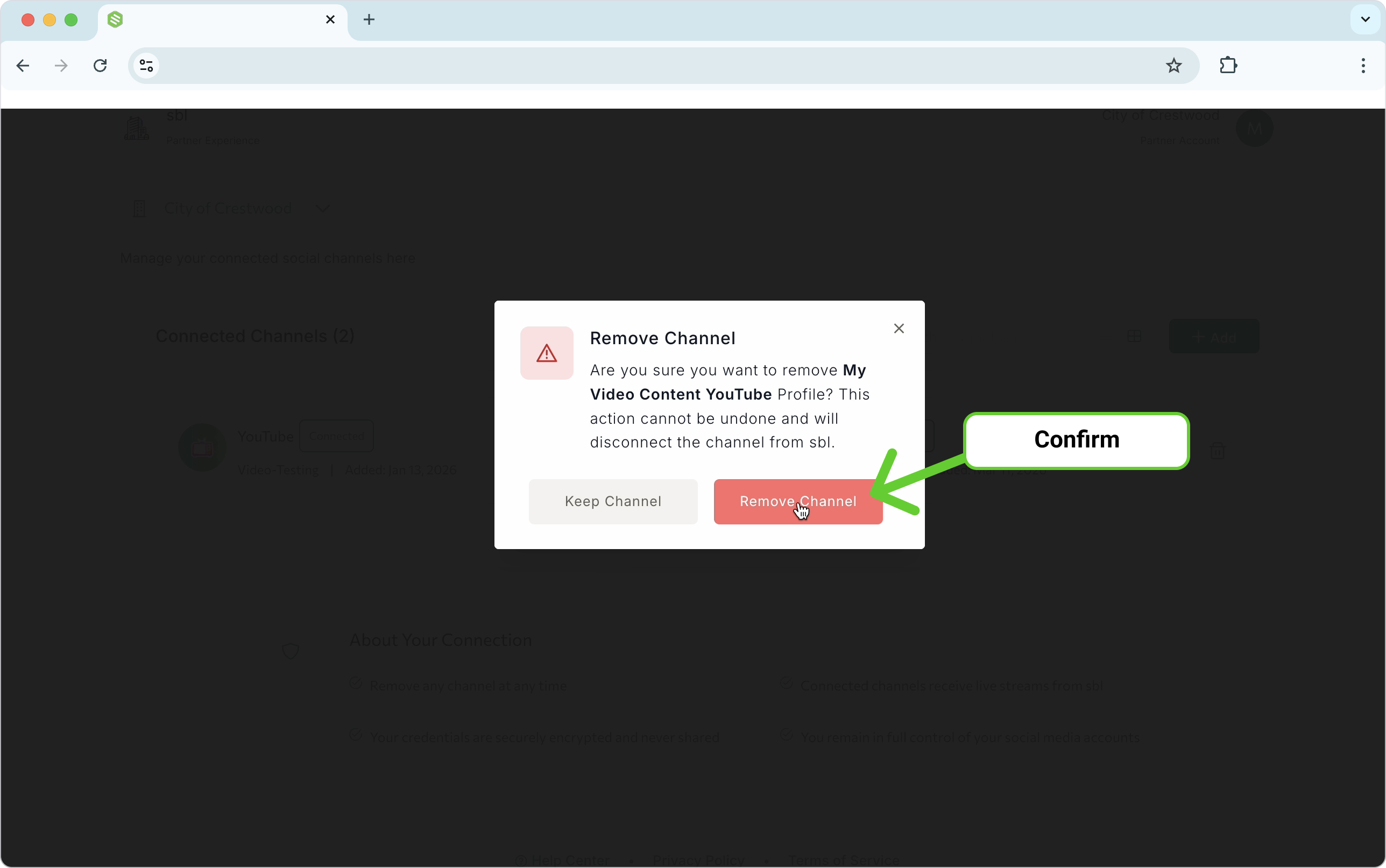
A pop-up warning will display.
Click Remove Channel to remove the channel you wish to disconnect. Repeat for any other social channels you wish to remove.
The social channel will be removed, and the Switchboard account owner will not be able to go live on the removed Social channel.


How to Re-Authorize a Social Channel
If you need to reauthorize your social channel, follow the steps below.
Log in to your Partner Portal using the provided link and verification code.
2. Locate the social channel that you need to reauthorize.
Remove the selected social channel.
Click on the platform icon to re-add the social channel.
Follow the prompts until you reach the Success Screen.
Date Added will update.