How to Use the Stream Mirroring Feature
What is Mirroring? Instead of the Workspace Manager sending their own video into Switchboard, Stream Mirroring allows the Primary Account to send its live video feed directly into the Workspace. The Workspace Manager can then broadcast that shared video to their own unique Destinations.
Written By Rebecca E.
Last updated About 2 months ago
Part 1: The Primary Account Owner Activates Mirroring
Switch to your Main Primary Account. You'll see "MAIN" next to the account name in the account switcher.

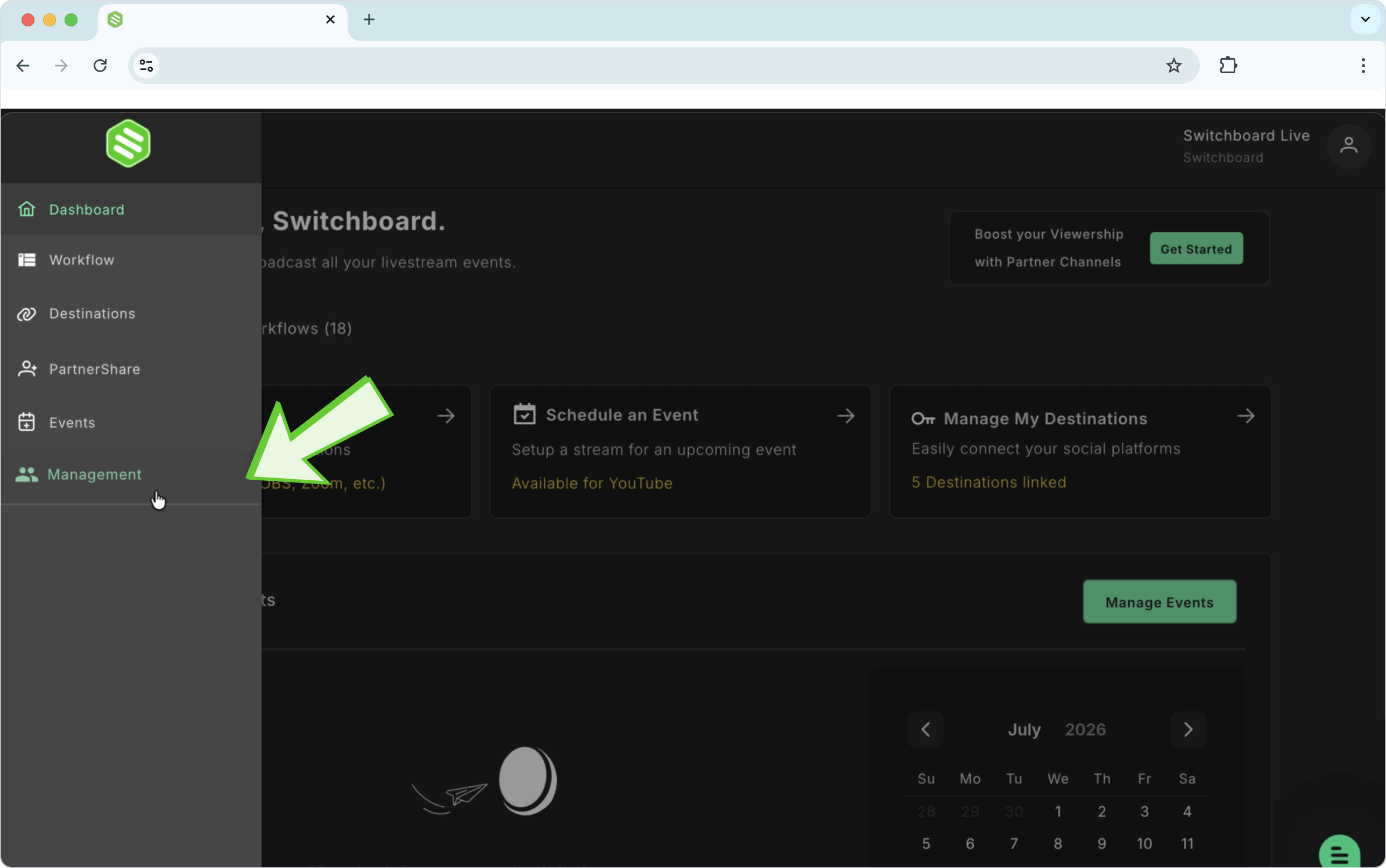
Click the Main Menu > Management.
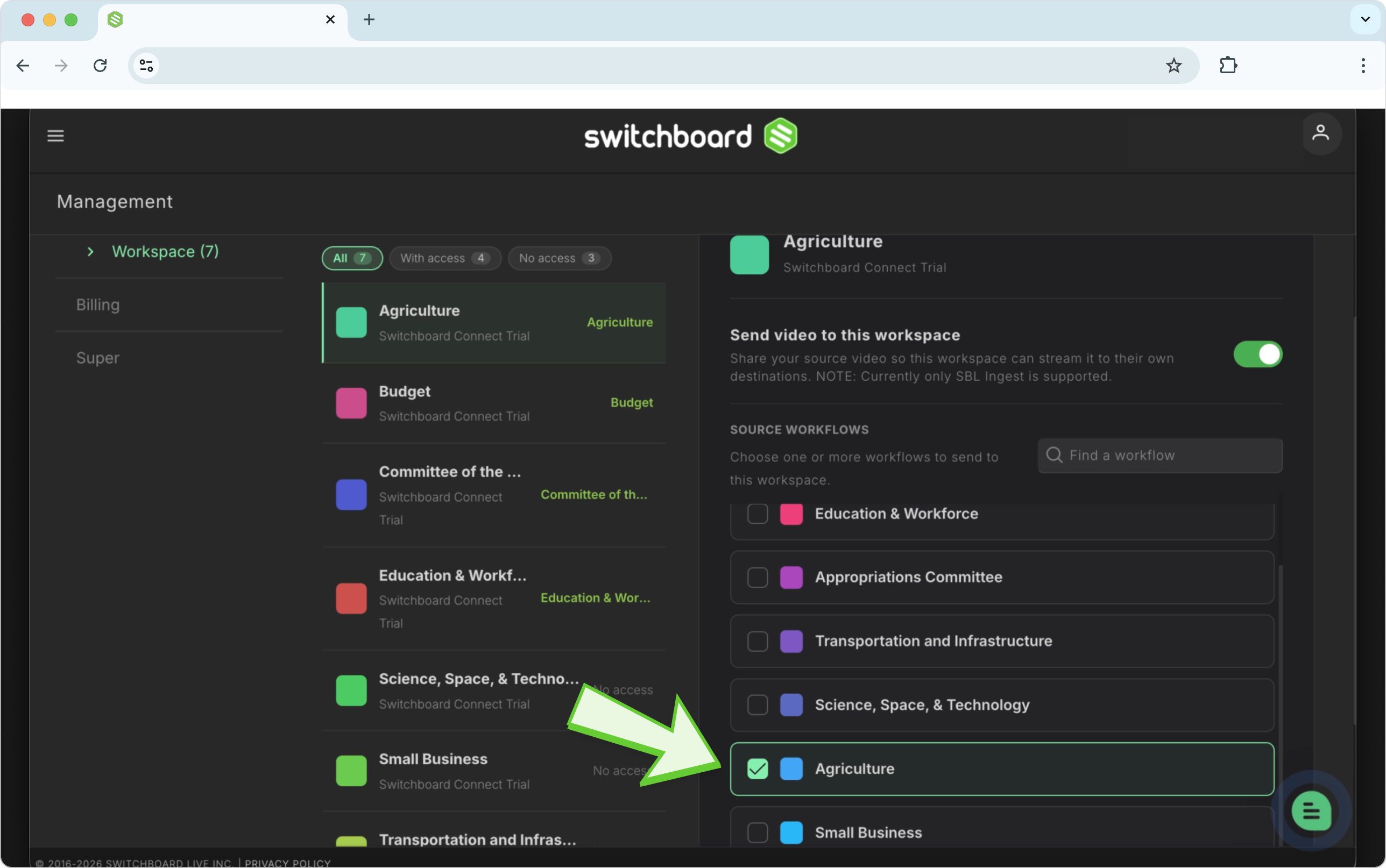
Select Workspace.
Turn on the toggle to activate this Workspace for receiving video.

Select the Source Workflow (from your primary account) that will be sending the video feed. Use the search to find the workflow you want to select. (Note: Only workflows utilizing the SBL Network will appear as options here).
Part 2: Create a Stream Mirror Workflow
Once the Primary Account Owner turns on mirroring for a Workspace, either the Primary Account Owner or the Workspace Manager can create the Stream Mirrored Workflow that receives the feed.
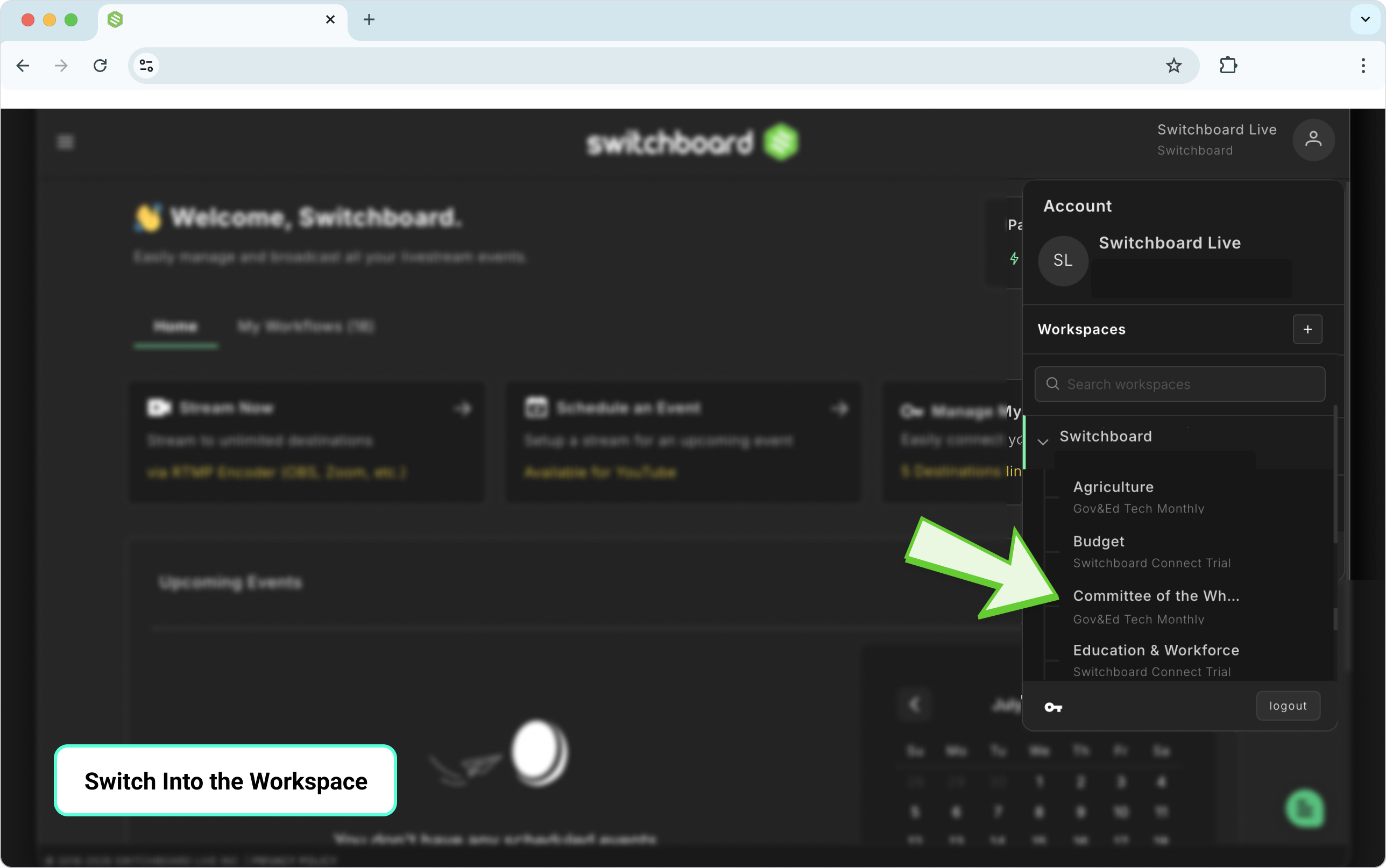
Switch into the Workspace. Click the profile icon at the top right, and click on the Workspace to open it.
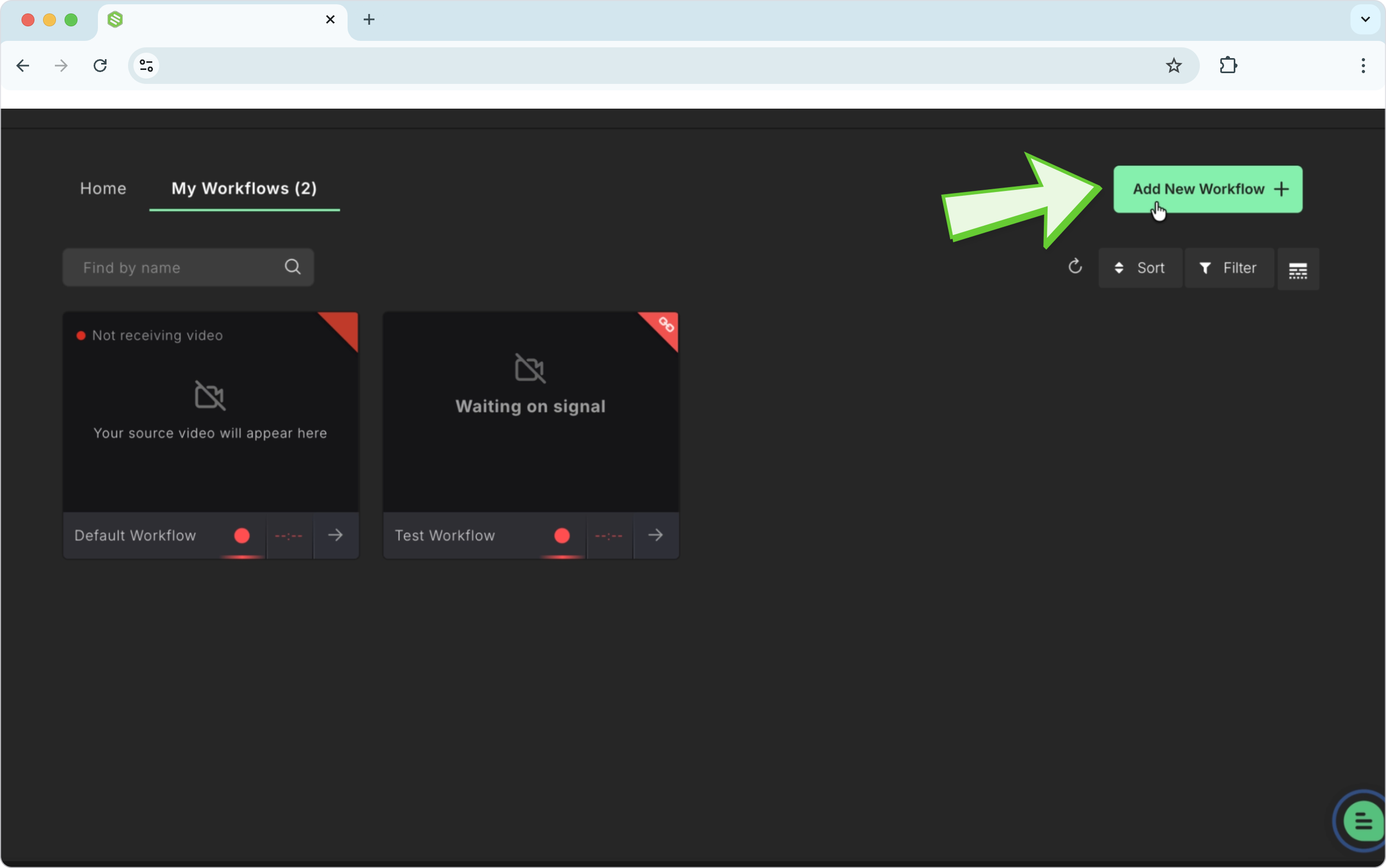
Click the My Workflows Tab and Click Add New Workflow.
Enter a descriptive name for the workflow.
Choose Shared Video.

Select the available Source Workflow provided by the primary account.
Click Create.

Part 3: Set up the Workflow
Create the Stream Group with destinations and Stream Titles.
Create a Stream Group and add Destinations.
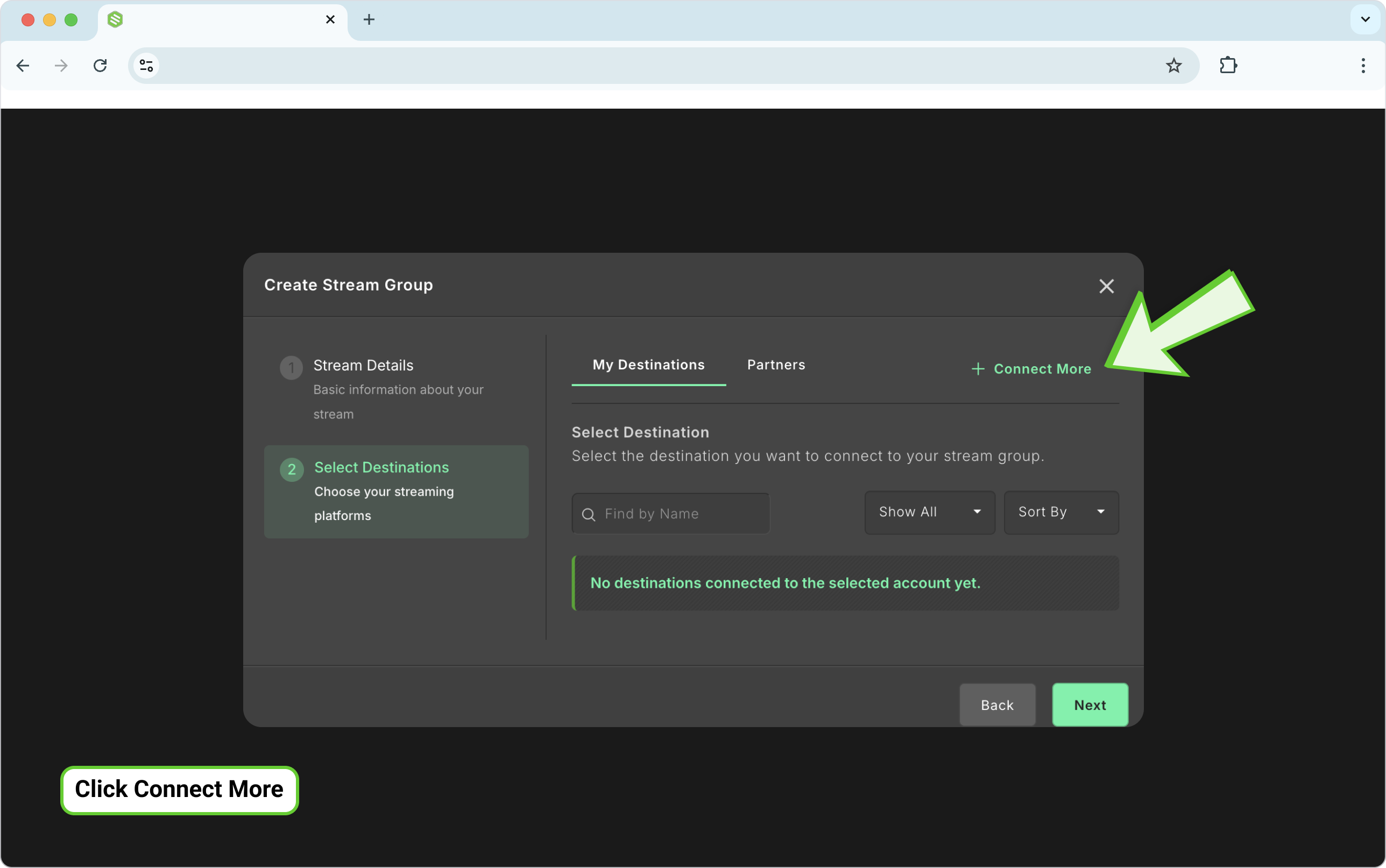
Click Connect More to connect new ones.
Choose destinations from the platform list. And follow the prompts to add destinations until you reach the success screen.


Part 4: Go Live!
The Stream Mirrored Workflow, now equipped with a Stream Group and Destinations, is ready to go live.
The Primary Account activates their workflow; the video feed will populate the preview window, enabling the Workspace Manager to start live streams on the chosen Destinations.
How Can You Identify a Regular Workflow from a Stream Mirrored Workflow?
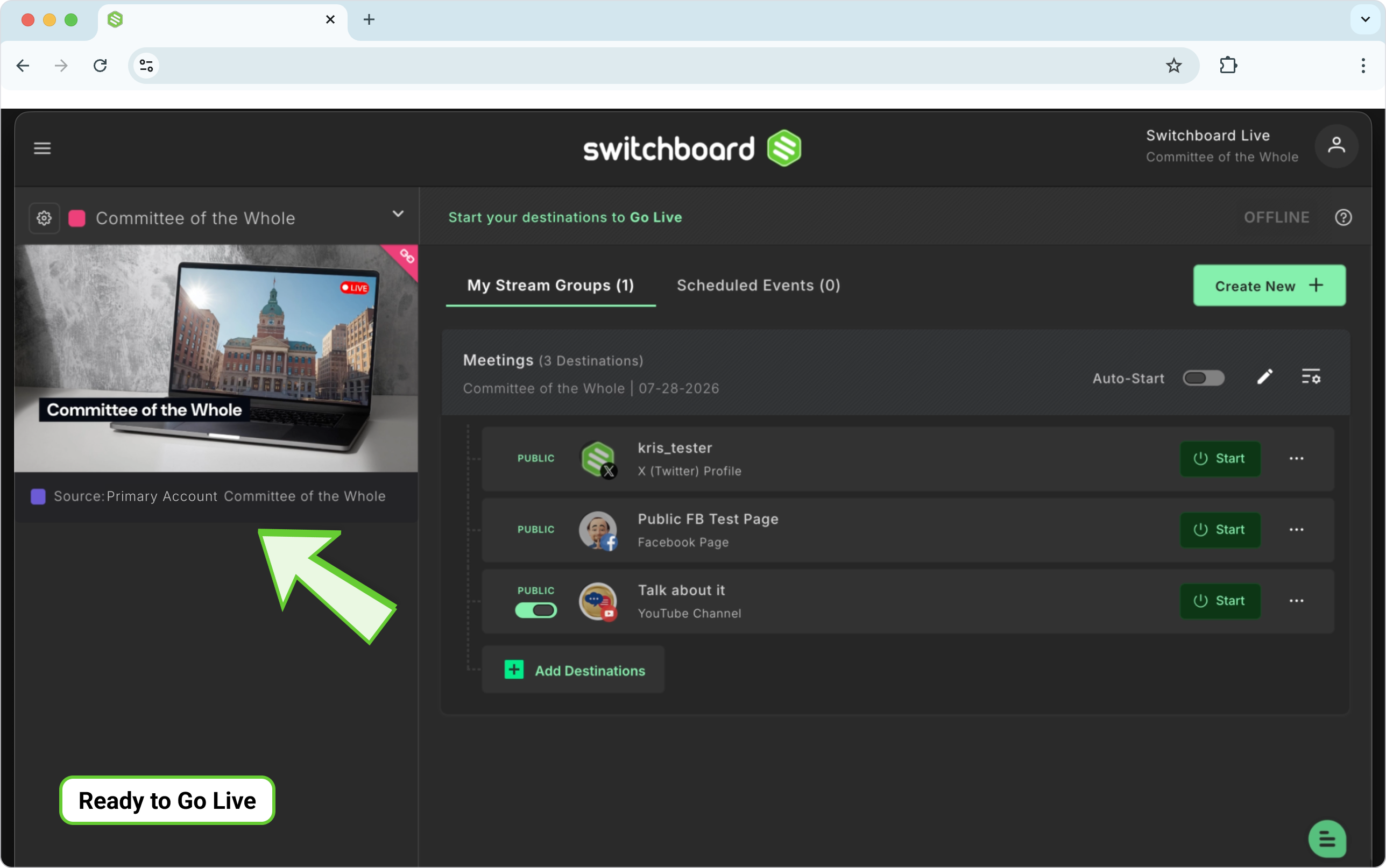
On the Workflow Overview page, a link icon marks a Stream Mirrored Workflow.

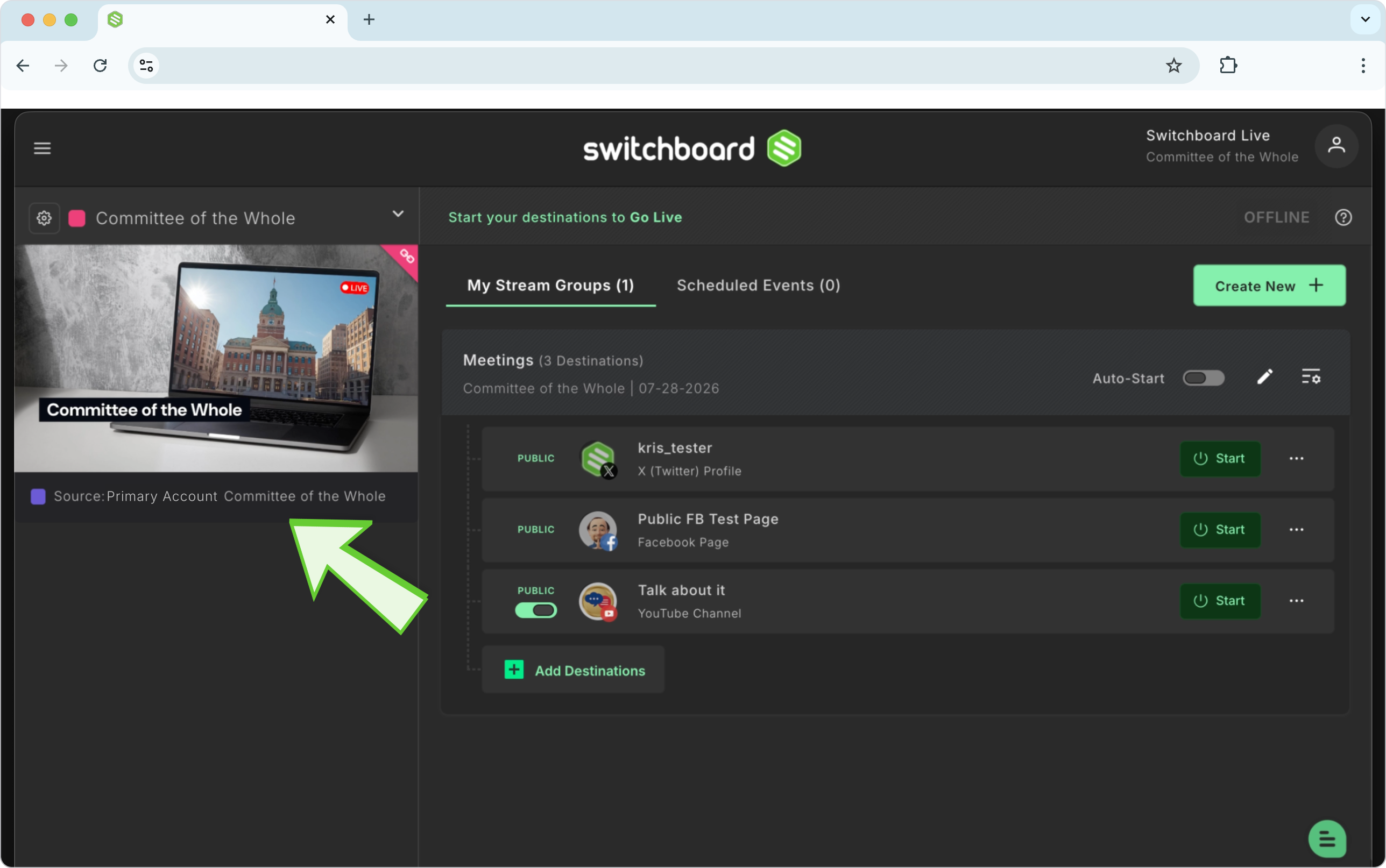
Stream Mirrored Workflows don't display stream health or RTMP information, since the feed originates from the Primary Source. Instead, you'll see which source workflow is feeding it.
Revoking Access
The Primary Account Owner can revoke access at any time.
Switch into the Primary Account. Profile icon > Primary Account (Main).
Go to Main Menu (top left) > Management > Workspace.
Find the Workspace you want to revoke mirroring access for.
Press the toggle button to revoke access.
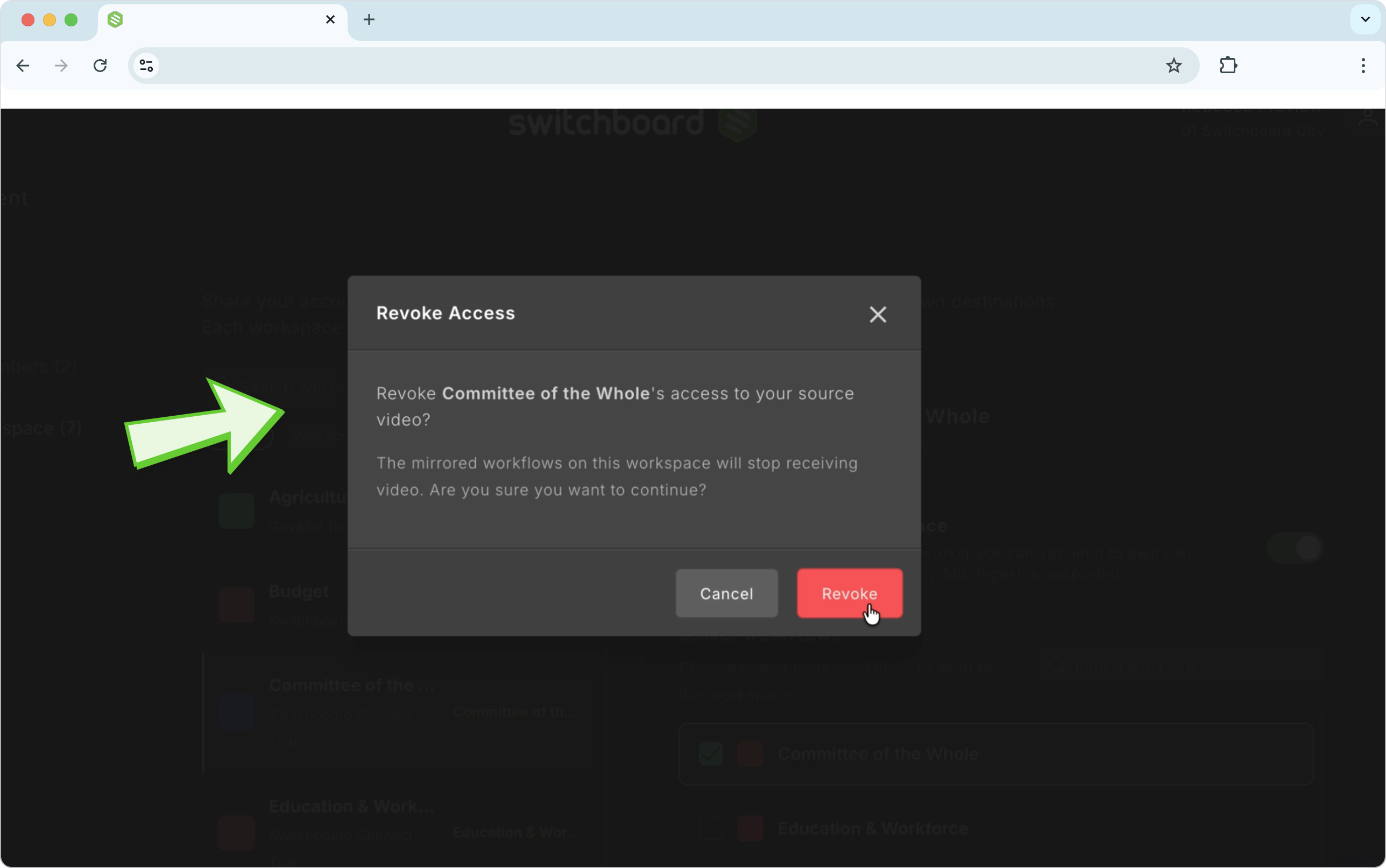
Click Revoke to confirm.

Important
You will not be able to revoke access while a Stream Mirrored Workflow is live streaming.
