Destination Details
Last updated 12 months ago
Destination Information
Each destination in your Workflow is loaded with information you may want to view during your broadcast. This streaming information can easily be accessed within the destination groups.
Click the blue Info button next to the destination.

The Destination Information Window will pop open.
Click on each tab to open more options for the destination.
Destination Settings Tab
Basic Setup:
Platform: Displays the platform's name, such as YouTube, Facebook, Twitch, etc.
Name: Default name of the destination. Type in the field to rename the destination name is only visible to you. It is an internal change.

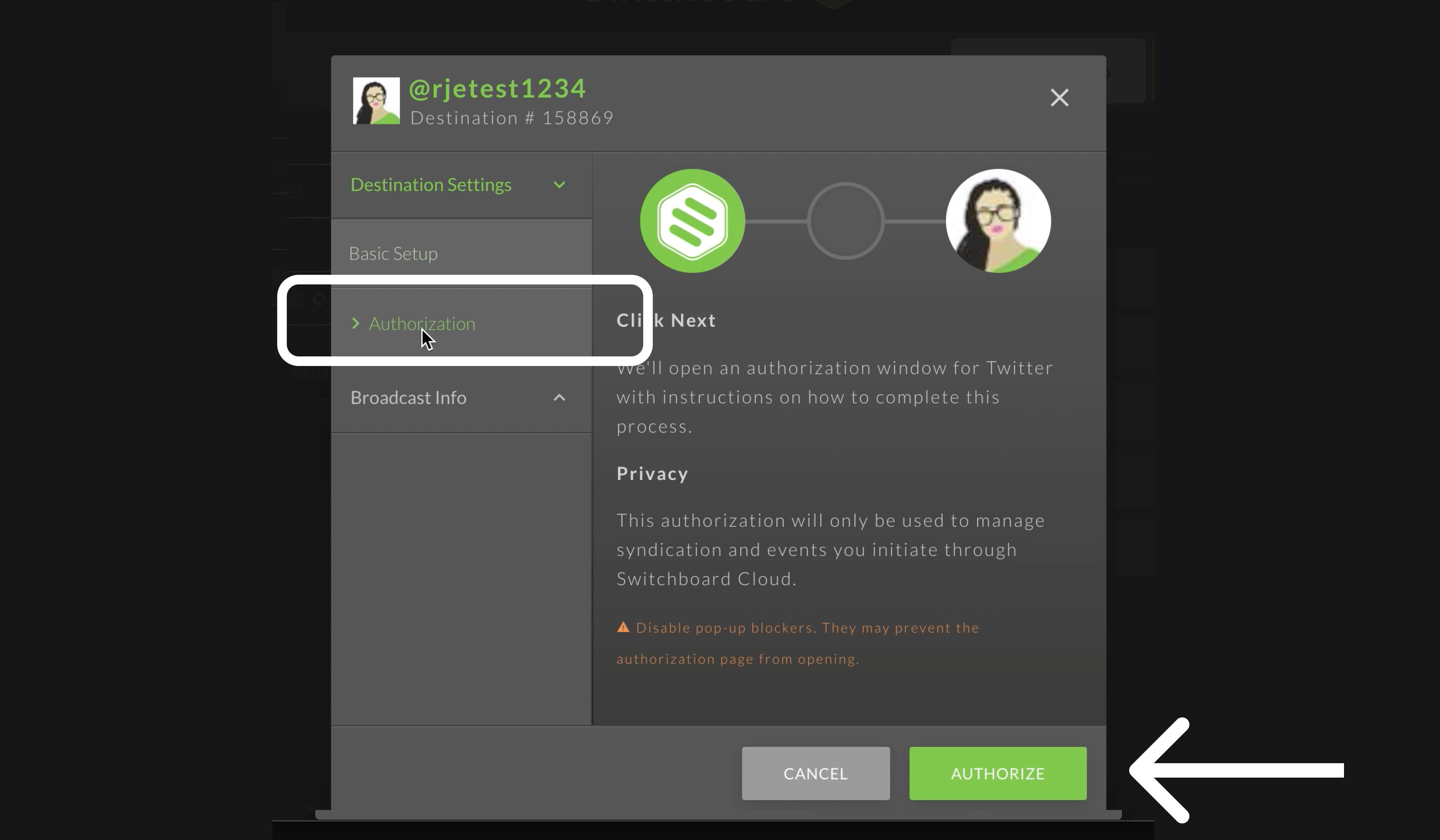
Authorization:
Confirms that your destination is authorized with Switchboard.
Click the green Authorize button if you need to re-authorize.
Broadcast Info Tab
Broadcast Status: The status will display that the destination is stopped.
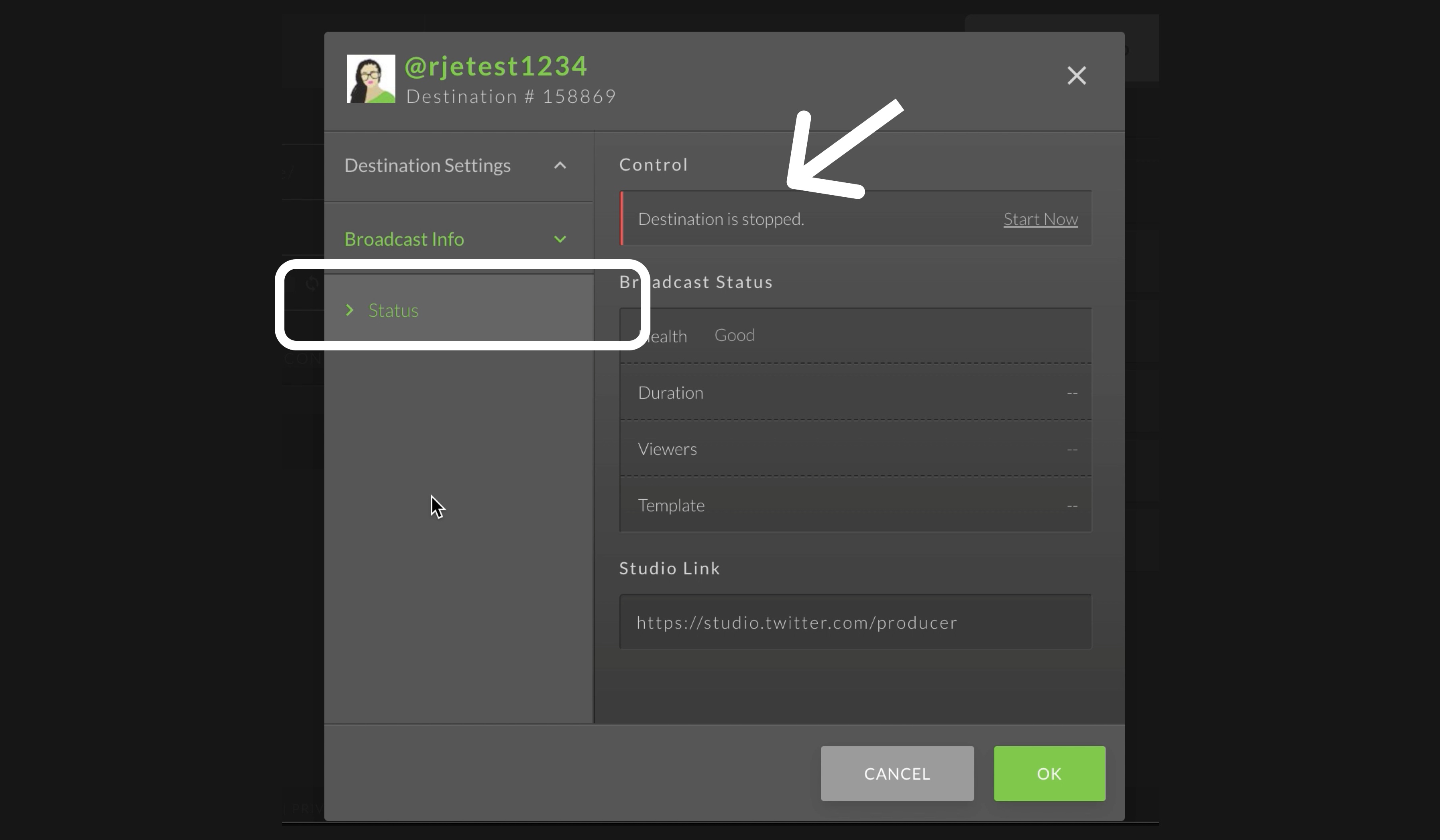
Control: If you have a video showing in your confidence monitor, click on the START NOW button to immediately GO LIVE.

Broadcast Status: It will display "Destination is live" if you are live streaming.
Control. If you are live streaming to the destination, click on the Stop Now button to immediately stop the live stream.

Click Copy to Clipboard and paste the URL into the web browser to view the live stream.
Tip: You can share the link with people so they can watch the video.


Configuration
RTMP destinations have an extra menu option to update the Stream URL and Key.
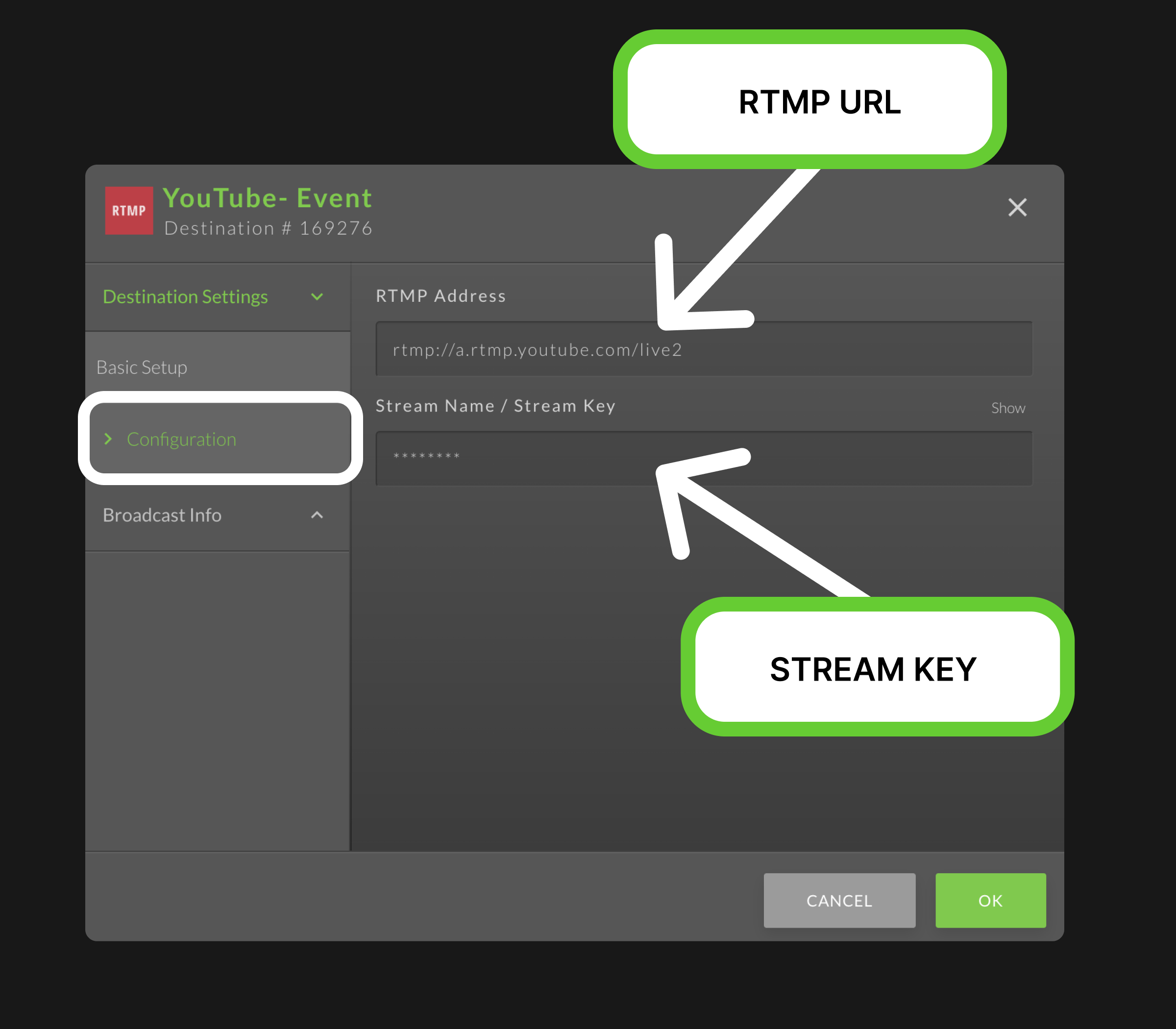
Click in the respective fields to update the information.
Click the Show button to reveal the stream and paste the new key.


Click Okay to confirm the update.

Additional Resources
Click here to learn how to Add a Stream Title to your Live Video.