How to create a scheduled YouTube Event and Go Live with Switchboard
If you want to go live on a scheduled YouTube event using Switchboard Live, this guide walks you through everything you need from setting up the event in YouTube Studio to connecting it through Switchboard using a persistent stream key or a one-time event custom RTMP setup.
Last updated 12 months ago
What's Covered:
Add YouTube Channel as a Custom RTMP
Create a scheduled YouTube Event and add it to your Switchboard account
How to Add your YouTube Channel as a Custom RTMP destination in your Switchboard Account
Access YouTube Live Control Room
Go to YouTube Studio.
In the top right corner, click the Create button, then choose Go Live.
YouTube Live Control Room will open.
📍 Navigate the YouTube Live Control Room
Preview window, Stream title, Privacy Setting, Category, and edit button.
Click the Edit button to change your live stream's details.
Below the Preview window, you should see "Stream Settings."
Under Stream Settings are the Stream Key and Stream URL.
YouTube Stream Key and Stream URL
You'll need to copy and paste both the Stream URL and Stream key from YouTube and paste them into Switchboard.
Stream Key
The Stream Key has a name, and it is usually set to the default name of your YouTube Channel. The actual stream key is hidden by default; clicking on the "eye" button will reveal the stream key.
Stream URL
The Stream URL is visible by default.
Latency options
Keep the latency set to its default unless you have specific instructions.
There are more streaming options on the right that you can adjust.
To connect it with your Switchboard account, you'll need to copy and paste both the Stream URL and Stream key from YouTube and paste them into Switchboard. You can use the default Stream URL and Stream Key. However, we recommend creating a new stream key that you can use for future scheduled events.

Create a new YouTube Stream Key for your events
To do this, click the down arrow next to the Stream Key Name.
Select "Create New Stream Key".
Give the Stream Key a name, such as the name of the recurring live event. Fill out the required information.
Click Create.
A new Stream Key has been created.
Now you can add this information to your Switchboard account.
Connect Switchboard to the YouTube Stream Key and Stream URL.
Log in to your Switchboard Account.
Navigate to the Stream Group you want to add the destination.
Click Add Destinations > Connect More>Custom RTMP
Copy and paste the YouTube Stream Key and Stream URL into the appropriate fields.
⚠️ Important: Pay attention and copy the Stream Key into the Stream Key field and the Stream URL into the Stream URL field.
Give the destination a name so that you can identify it later (if using for recurring events)
When you are Ready to Go Live.
Start sending live stream video from your encoder to Switchboard.
Select the destinations you want to go live on.
Click Go Live.
After a few seconds, the video will display in the YouTube Live Control Room, and you'll be live on the channel.
How to Schedule a Live stream event on YouTube and connect it with Switchboard?
At present, we do not have support for streaming directly to YouTube scheduled events.
However, in a few minutes, you can manually create and connect a YouTube live stream scheduled event and connect it with your Switchboard Account.
The steps below are for a "One-Time" YouTube scheduled event.
Part 1: Create the Scheduled YouTube Event
Part 2: Add the YouTube Event as a Custom RTMP destination
PART 1: CREATE THE SCHEDULED YOUTUBE EVENT
Go to YouTube Studio.
In the top right corner, click the Create button, then choose Go Live.
YouTube Live Control Room will open.
Step 1
Create the event inside the YouTube Control Room.
Choose Manage from the top left menu.
Step 2
Press the blue Schedule Stream button located in the top right.

Step 3
Press the Create New button.

Step 4
Fill out the information: stream title, visibility, description, tags, date, and time.
Upload a thumbnail and decide the audience.
Press the blue Create Stream button.
Step 5
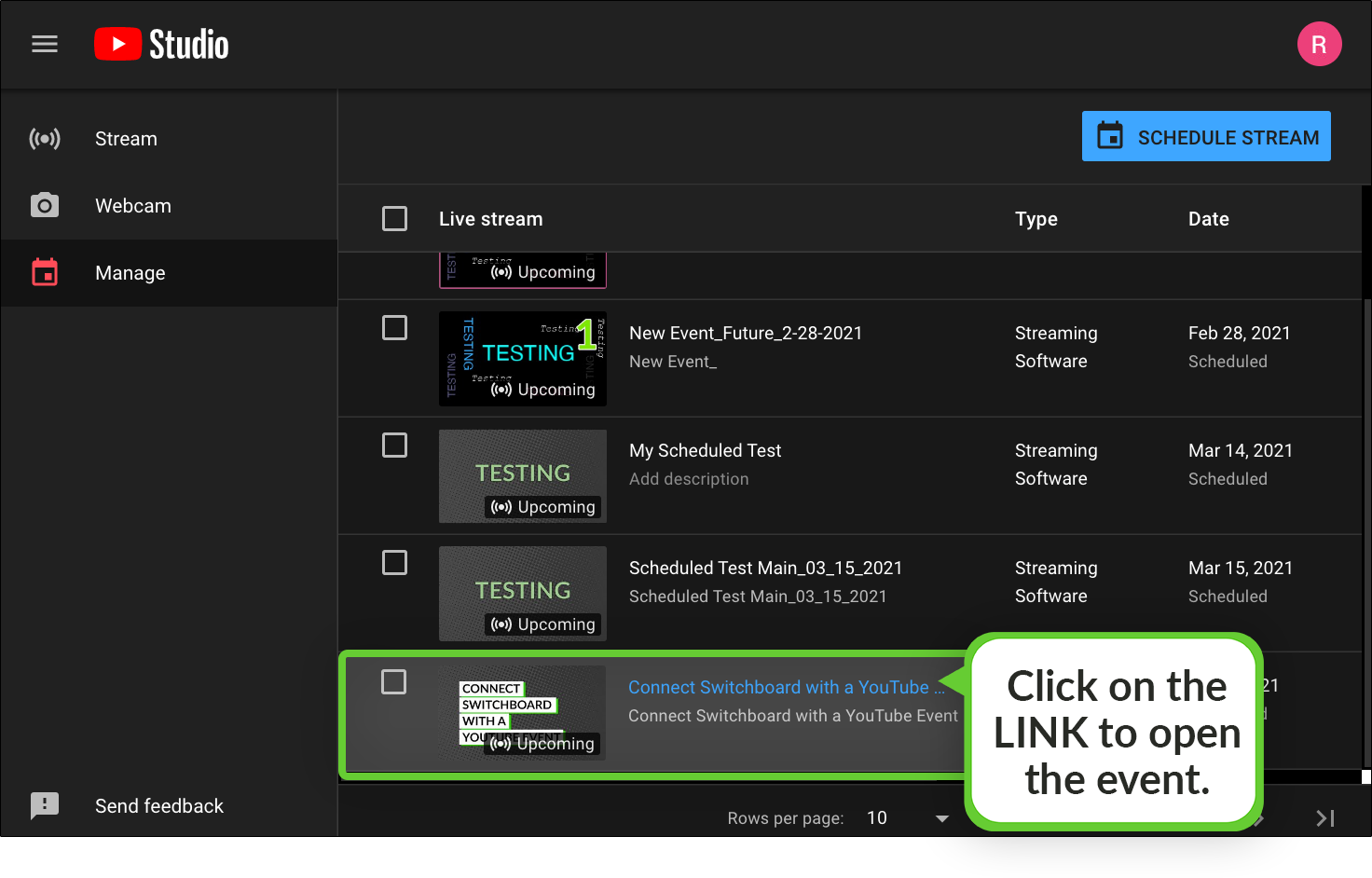
The newly created scheduled stream will be listed on the YouTube Live Control Room Manage Page. You will need to grab the Stream URL and Stream Key to add to your Switchboard Account.
Step 6
Click on the link or thumbnail to open the scheduled stream.
Step 7
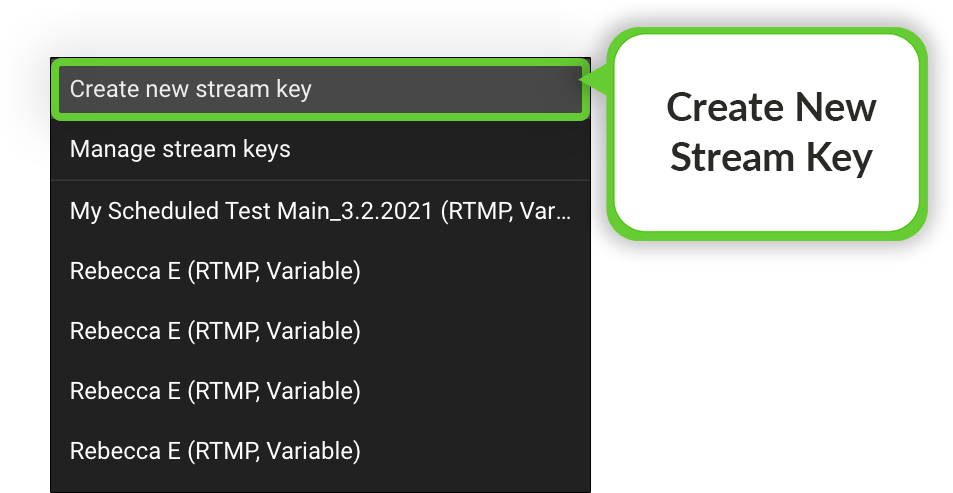
We recommend creating a new stream key for the scheduled event.
Doing this will ensure that your live stream video will post to the specific event.
Press the down arrow.

Step 8
Select Create new stream key.
Step 9
Rename the stream key so that you can easily identify it for later use.
We recommend the name and date of the event. Press “create”

PART 2: ADD THE EVENT AS A DESTINATION IN SWITCHBOARD
Next, you will add the scheduled YouTube event to your Switchboard Account as a custom RTMP destination.
Log in to your Switchboard Account.
Navigate to the Stream Group you want to add the destination.
Click Add Destinations > Connect More > Custom RTMP
Copy and paste the YouTube Stream Key and Stream URL into the appropriate fields.
⚠️ Important: Pay attention and copy the Stream Key into the Stream Key field and the Stream URL into the Stream URL field.
Give the destination a name so that you can identify it later (if using for recurring events)
PART 3: GO LIVE!
You will need to have the YouTube Control Room and Switchboard open on the event date.
Turn on your Encoder.
Check the Switchboard Confidence monitor for video.
Press the green go-live button next to your destination.
Press the blue GO LIVE button in the YouTube control room when the video displays on the YouTube preview monitor.

Important Information and Tips
About the YouTube Auto-Start toggle.
If you enable the YouTube Auto-Start button for your YouTube event, the video will start streaming when it receives the video from your Switchboard Account. Thus, eliminating the extra step of pressing the Go Live button inside of YouTube Control room.


