How to Use the Switchboard PartnerShare Feature
Elevate your reach and boost your views with Switchboard Live's PartnerShare feature. We've created a simple, branded link that allows partners in your network to connect easily. This invitation link directs you to a professional Partner Invitation page featuring your logo, custom messaging, and a secure email verification process, ensuring that only trusted collaborators can join. PartnerShare also includes smart error handling to check if partners meet live streaming requirements. It’s the perfect tool for amplifying your streams.
Last updated 9 months ago
So, how does the PartnerShare Feature work?
You share a link with a friend or colleague, and they open it. With just a few clicks, they can introduce their social audience to your excellent content. The PartnerShare Feature allows you to multistream to your social channels and theirs.
When you Go Live, they Go Live!
Follow the steps below to build your partner network effortlessly.
The Partner Network Hub
The Partner Network hub is where you’ll spend most of your time when managing partner organizations and their destinations, editing the Partner Invite, and quickly obtaining the invite link. Once you’ve set up the Partner Invite, you can make changes and updates whenever you’d like.
Part 1 | Access the Partner Network Hub
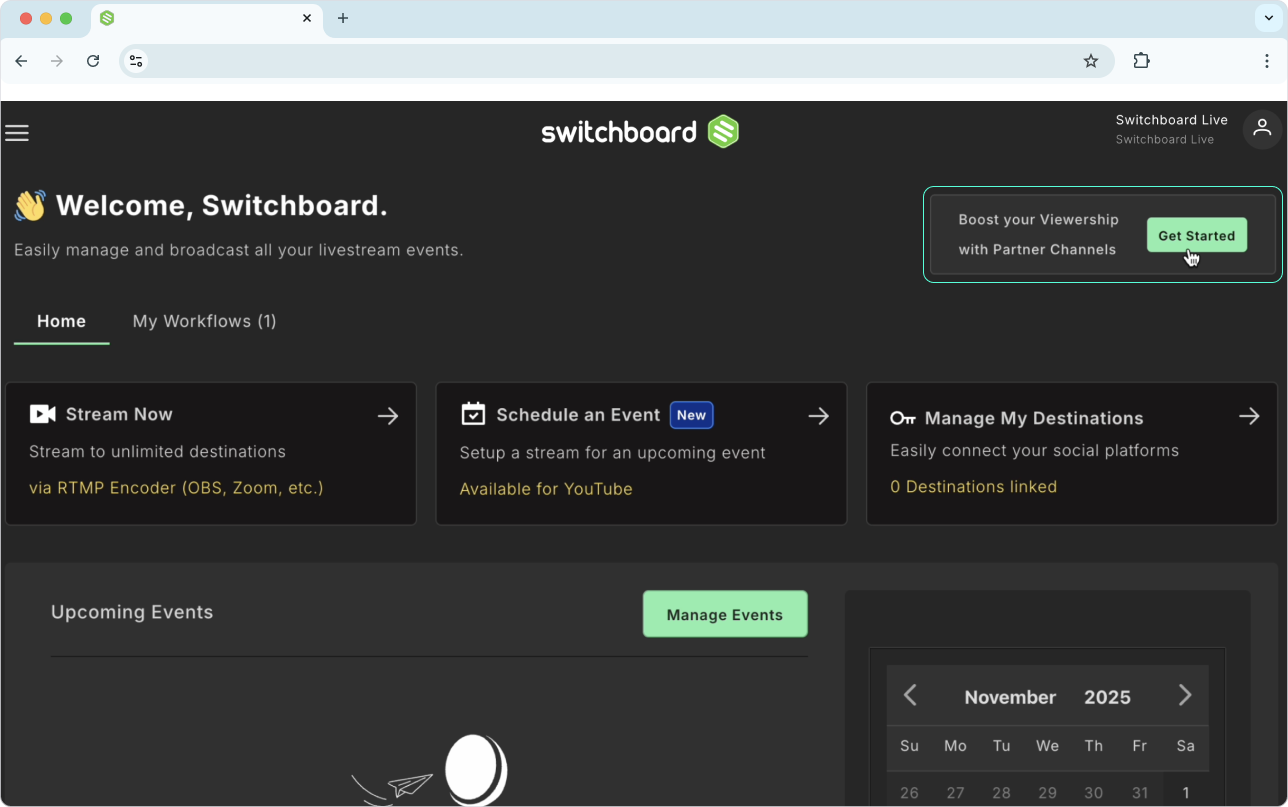
When you log into your Switchboard account, click the PartnerShare Button on the top right of the home dashboard. Alternatively, you can open the Main Menu on the left and select PartnerShare.
Left side panel
Quick Link to the shareable Partner Invite Link
What is PartnerShare - A brief explanation
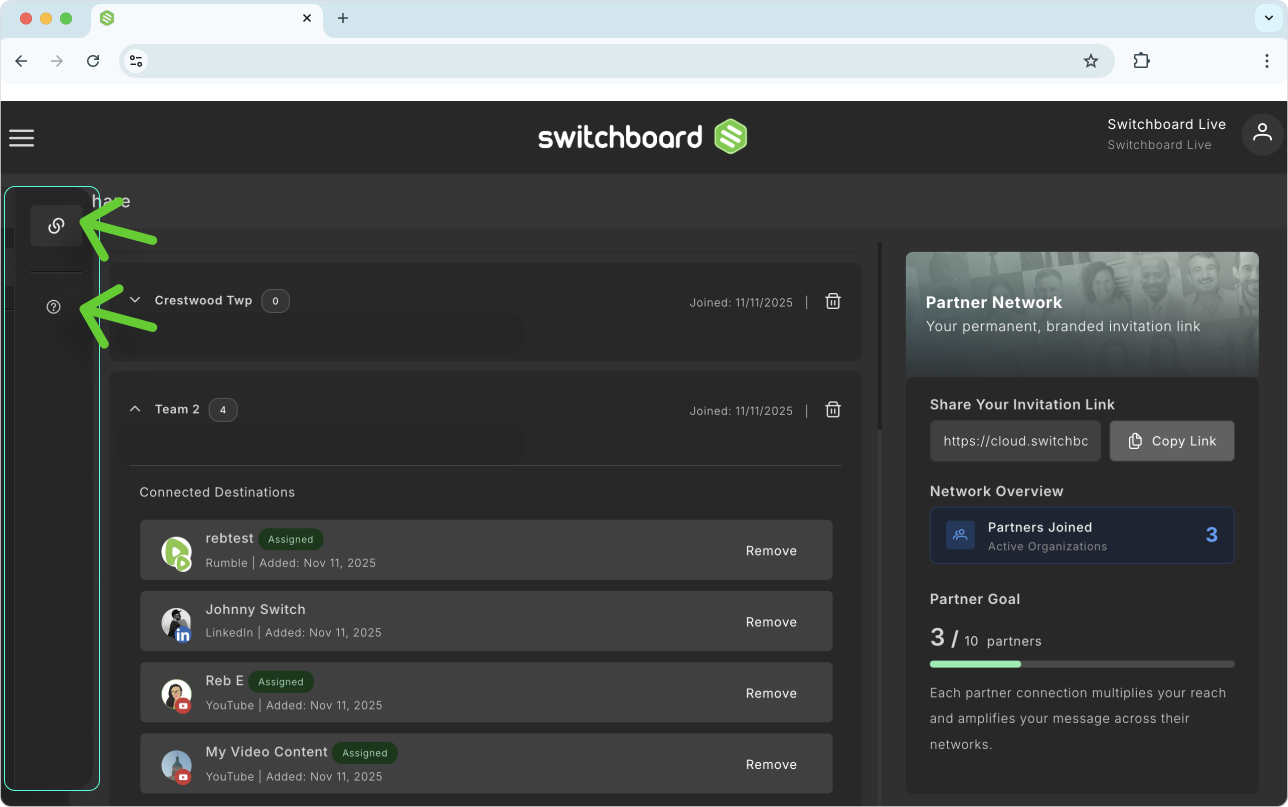
Middle Panel
Partner Network
Preview the Partner Invite by clicking the “View” button.
Click “Edit Invite” to begin editing the Partner Invite.
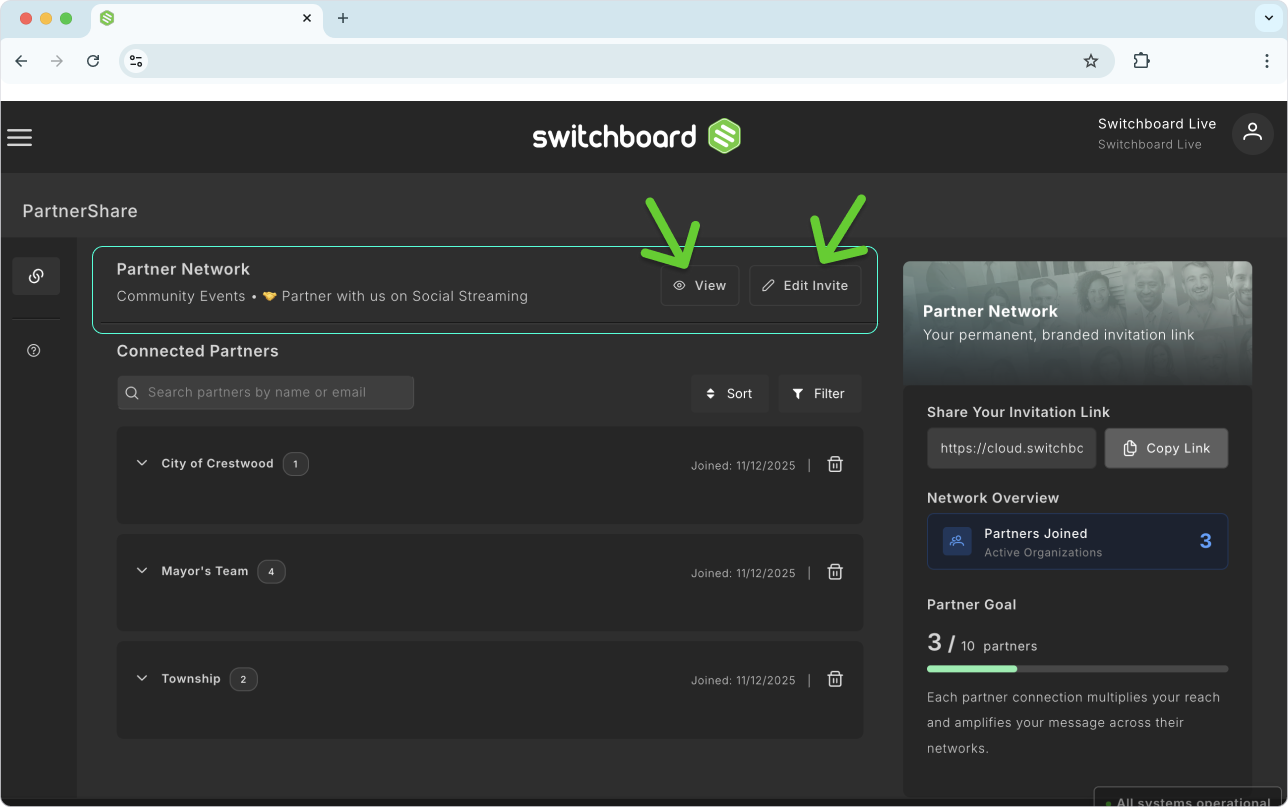
Connected Partners
The Partners and their destinations will be listed here; this is where you can manage the connected destinations.
You can sort, filter, and search Partner destinations.
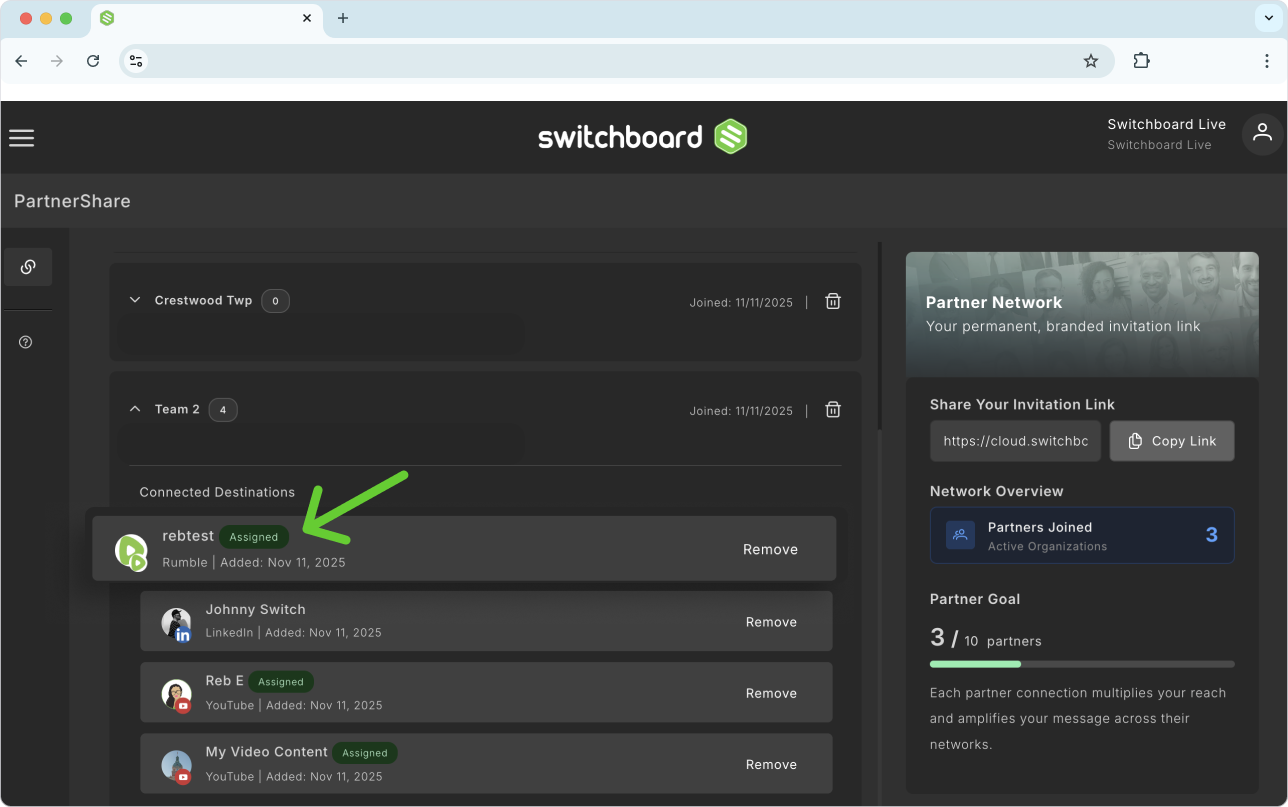
See what destinations have already been “Assigned” to a Stream Group (or a Scheduled Event).
Remove Partners as a whole.
Remove specific destinations.
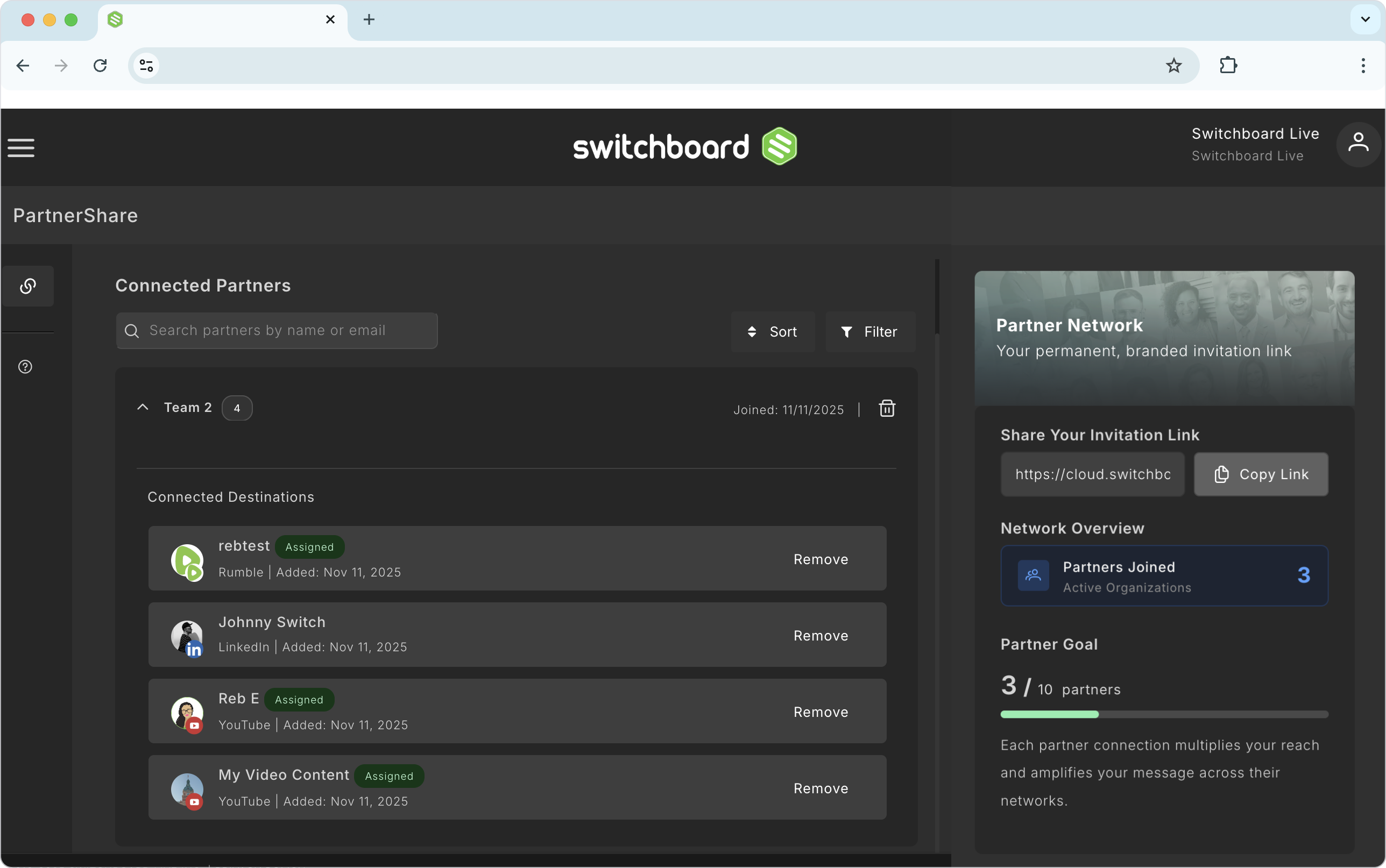
Destinations with the “Assigned” tag have been added to a Stream Group ( or a scheduled Event)
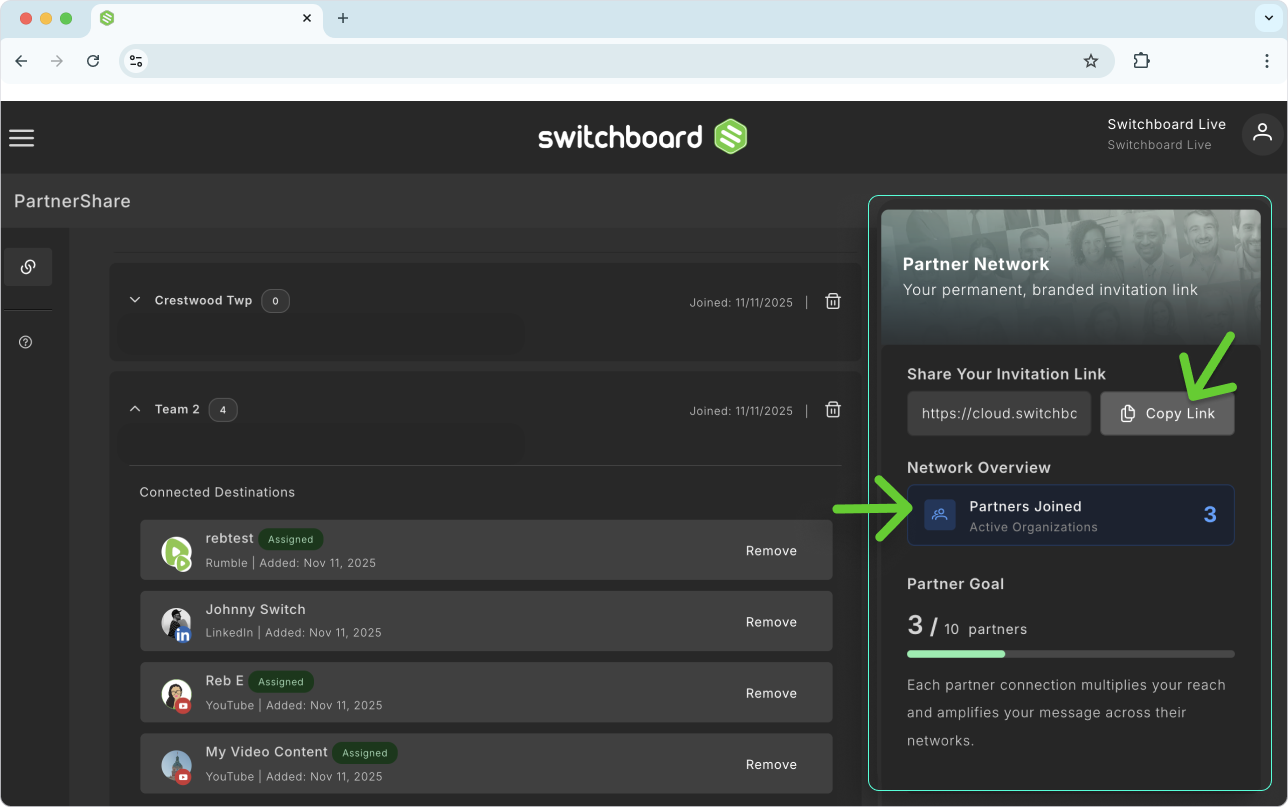
Right Side Panel
The total Number of Partners that have joined the Network
Quickly access the PartnerShare Link. After editing the Partner invite, click Copy Link to retrieve the shareable Link.
Part 2 | Customize the Partner Invite Page
Now it’s time to edit the Partner Invite page. This is the page that your partner network will be greeted with when they open the PartnerShare Link you send them. This is your opportunity to customize the Partner Invite page to align with your organization's branding, like the logo, tone, and voice.
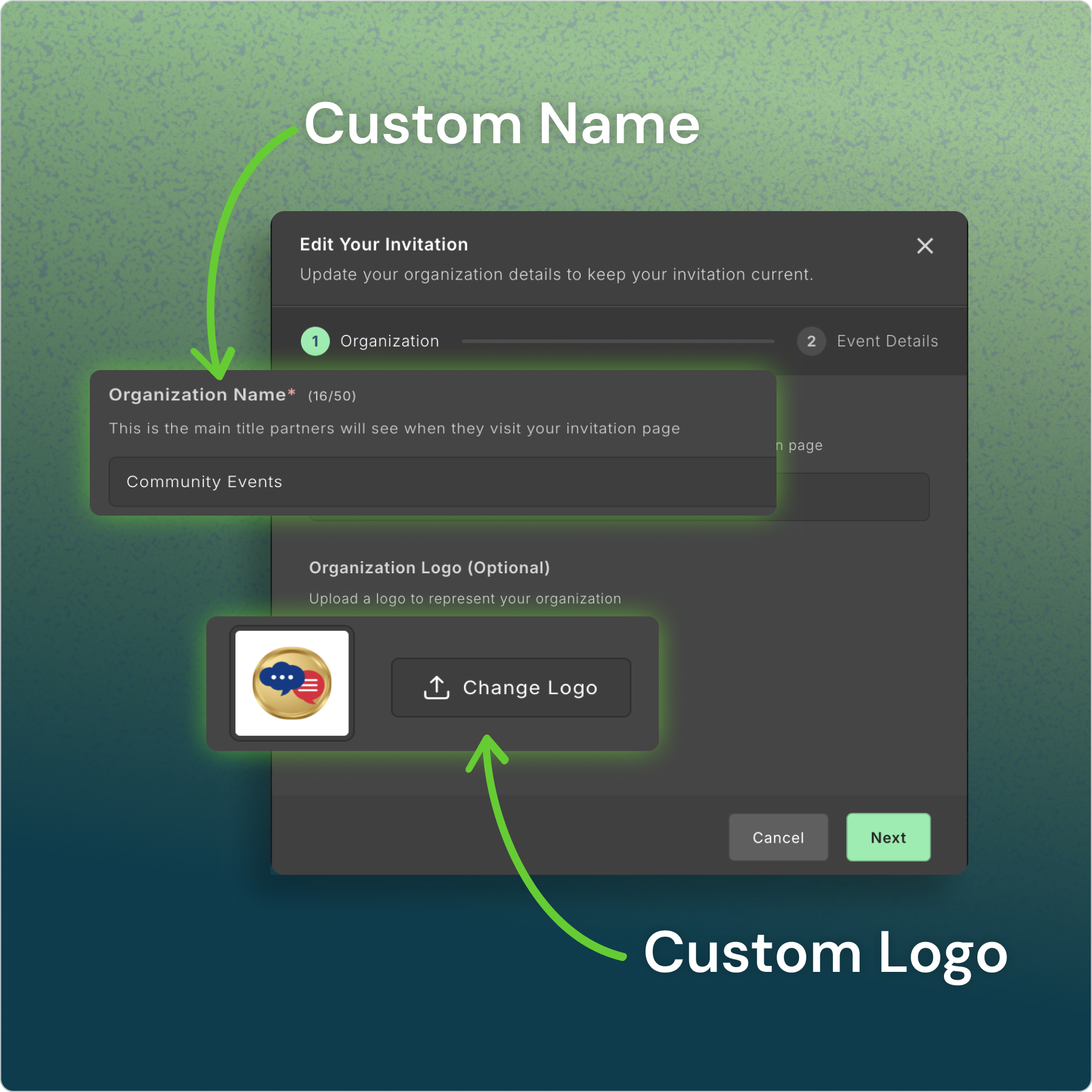
Organization Name and Logo
This is the main title partners will see when they visit your invitation page.
🌟[New] The default logo can be changed. Click Change logo and upload an image.
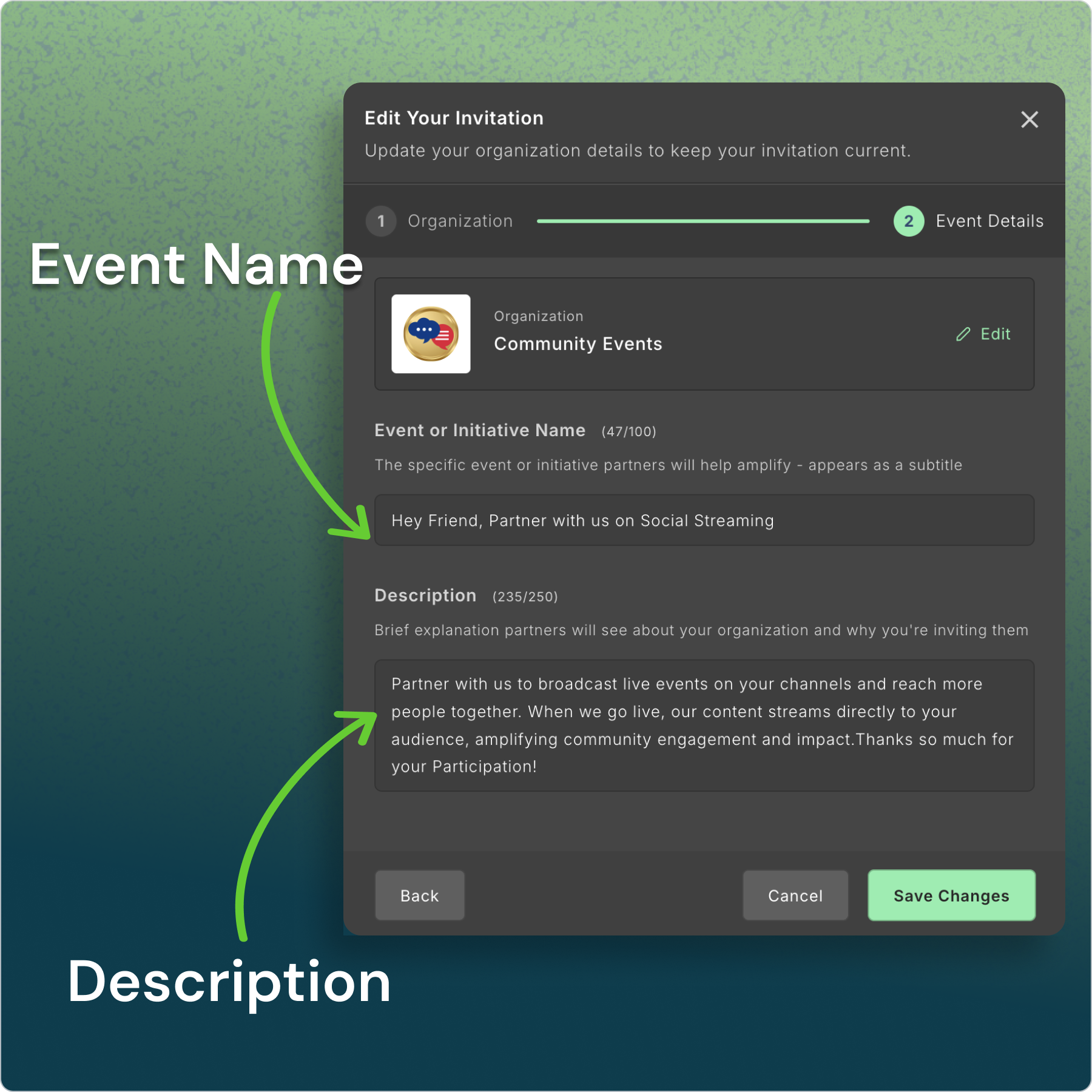
Event or Initiative Event
Provide a Page Title for the Partner Invite Page.
Description
The information you provide here is tied to this page and will not be displayed when you go live. You can be as generic or specific about your goals and purpose as you like.
Your friends will see the Partner page when they open the PartnerShare link.
When you are finished customizing your Partner Page, click Save Changes.
A confirmation will appear, confirming the changes you’ve made.
You can click the Link to review the update and/or click the Copy to Clipboard button to share the Link with your Partner Network.
Compare the Edit Invite with the Partner Invite Page
After editing the Invitation, you can compare the Partner Invite landing page before sharing it with your Network.
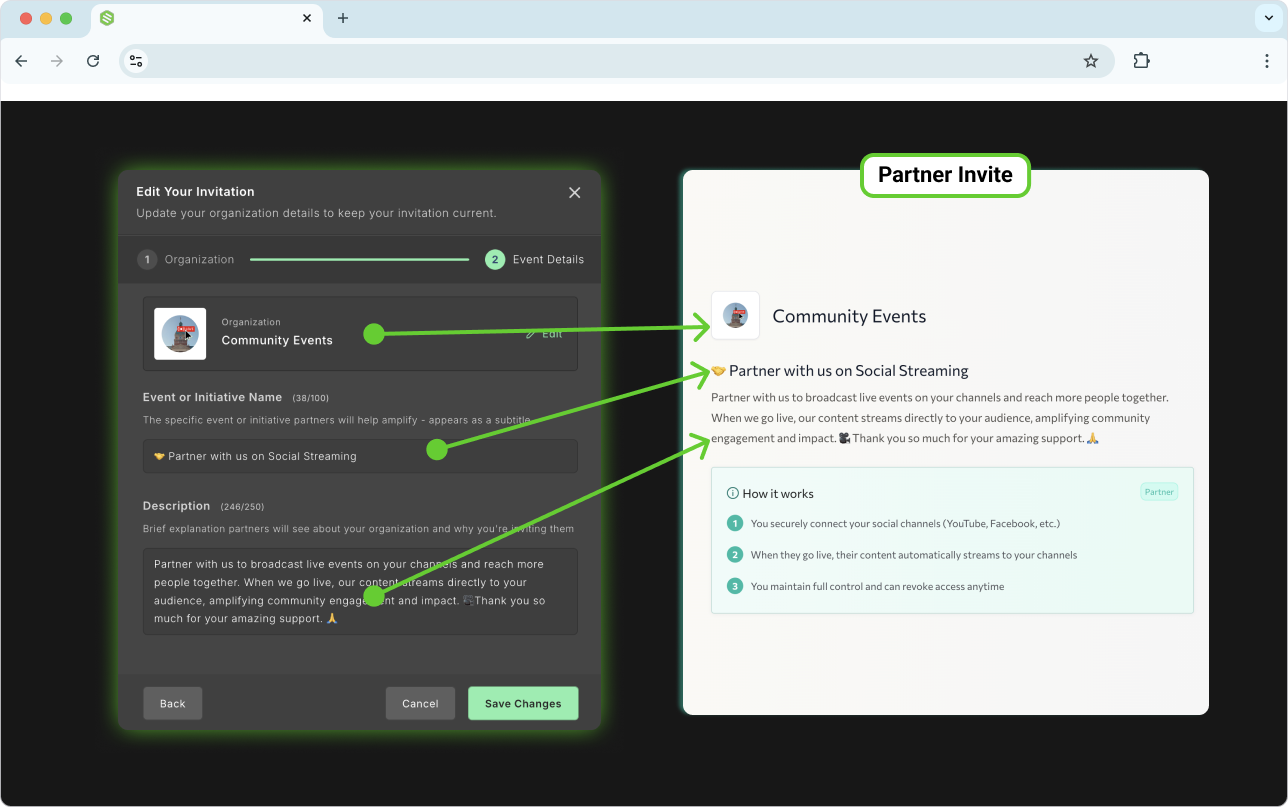
Here’s a closer look at the Partner Landing Page when they open the shared link:
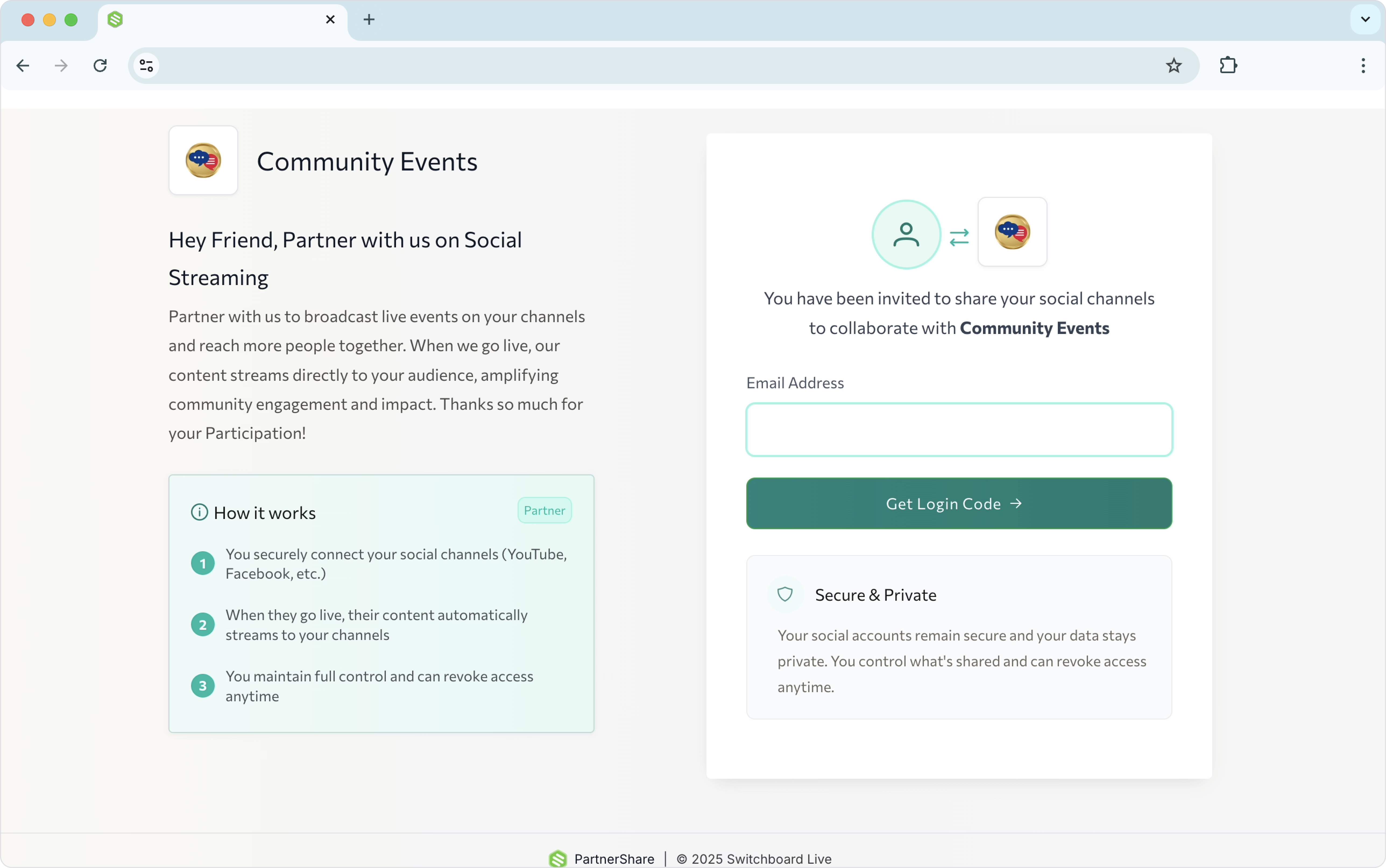
Part 3 | Share the Partner Link
Now that you’ve successfully customized the partner invite, you can share the PartnerShare link with your Network via email, SMS text, or other methods.
Share the Link with your network when you're finished setting up your Partner Page.
👉 Let your partners know they can follow this resource for steps on “How to connect their Social Channels.”

Partners can add their social media accounts without sharing their passwords with you.
They can opt in and remove access at any time through the same Link and email address combination.
When a friend or colleague clicks on the Link and authorizes their social channels, their opted-in social channels will "automagically" appear in your Switchboard Account.
PartnerShare Link
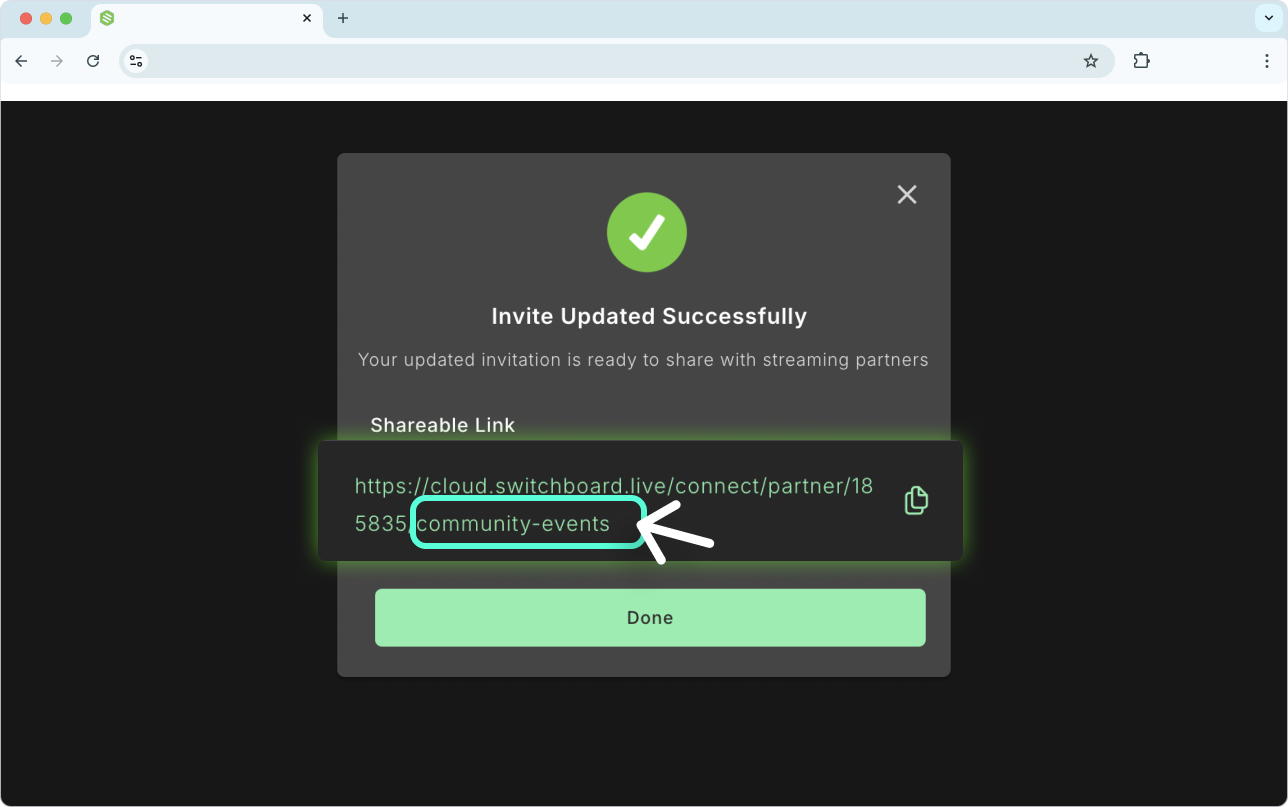
🌟New PartnerShare Invite Link is now shorter and cleaner!
With the feature update, the Link that you’ve shared will be shorter and customizable!
Updating the Organization Name will also update the tail end of the Link.
Part 4 | Add the Shared Destinations to a Stream Group
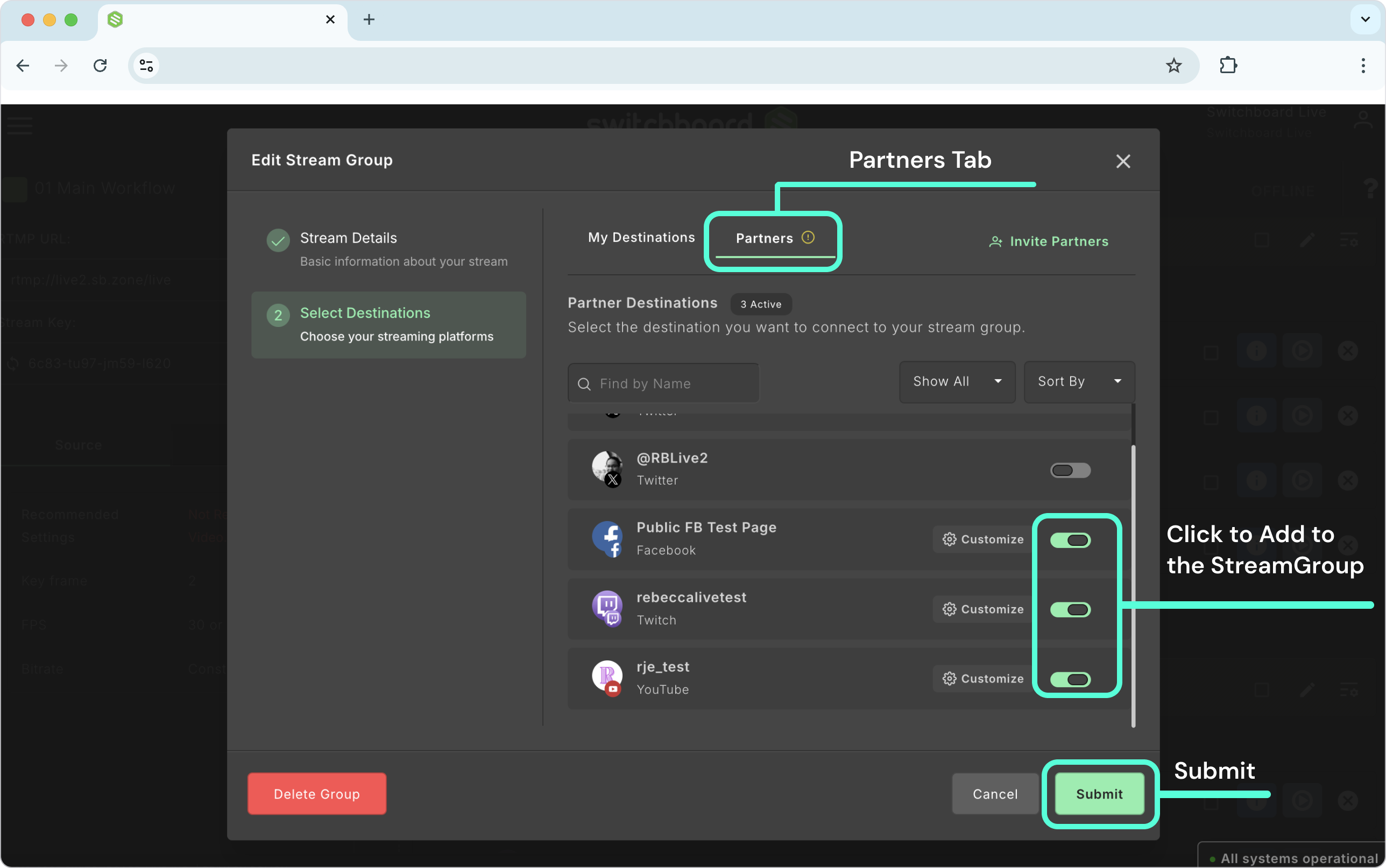
Now it's time to add the shared pages to a Stream Group.
Click the "Add Destination" button and select the "Partners" Tab.
Click the Activate toggle next to the destination you wish to add.
Click Submit to Finish.
Successfully Added Destinations
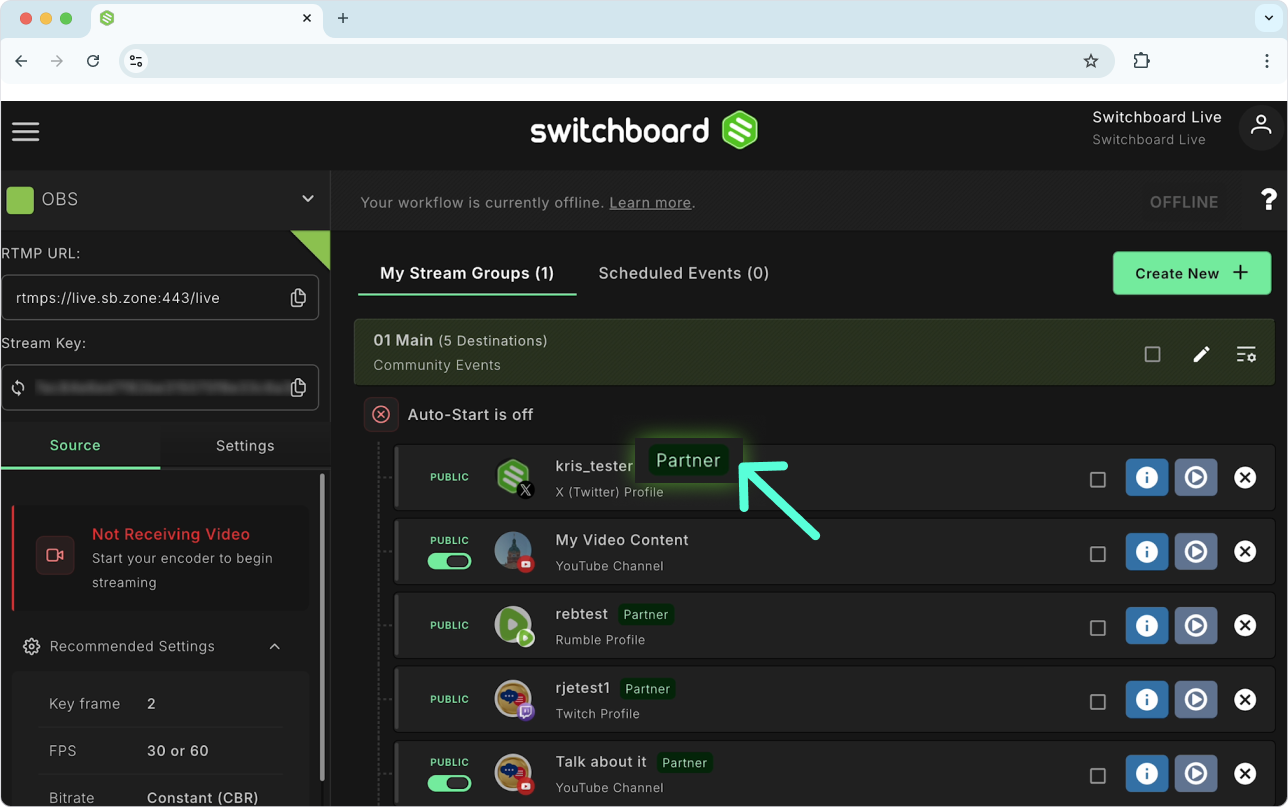
Successfully added destinations will appear in the stream group with the Partner Tag next to their name.
🌟 New - Add Partner Destinations to a Scheduled Event
With the recent update, you can now add Partner Destinations to a scheduled event, go live, and view analytics post the live stream.
Here’s a resource explaining how to Schedule Events in your Switchboard Account.
Part 5 | Go Live!
Now that you’ve increased your partner network, added destinations to the stream groups, and prepared the stream title and description, you are ready to go live!
When you are ready to GO LIVE, send the live stream video from your Live Streaming Software into your Switchboard account.
You're ready to go live when the video is in the preview window!
Select the destinations and click Go Live!
When you Go Live, they Go Live!
Manage the PartnerShare Destinations
After a broadcast, you may want to remove the shared destinations from your Switchboard account. Managing shared destinations in a Switchboard account is easy; you can remove shared destinations at any time in your Switchboard account. The partner can also remove their shared destinations by opening the Link you shared with them and logging into their Partner Page using the same email address they used to sign up, and then removing the destination. Share this resource for specific steps on how to remove connected destinations.
Remove Shared Destinations
Follow these steps to permanently remove shared destinations from your Switchboard account.
Click the main Menu, select PartnerShare.
Use the sort and filter features to find the shared destination you want to remove.
Click “Remove” next to the destination ( or Partner) you wish to remove permanently.
A confirmation warning will pop up. Click “Confirm” to remove the destination.
Note: When you remove a Partner and their destinations, they will also be removed from any stream group to which they’ve been added.
⚠️ You will not be able to remove destinations while they are live streaming. You will need to stop streaming for that specific destination and then remove the shared destination.
‼️ Legacy PartnerShare Destinations
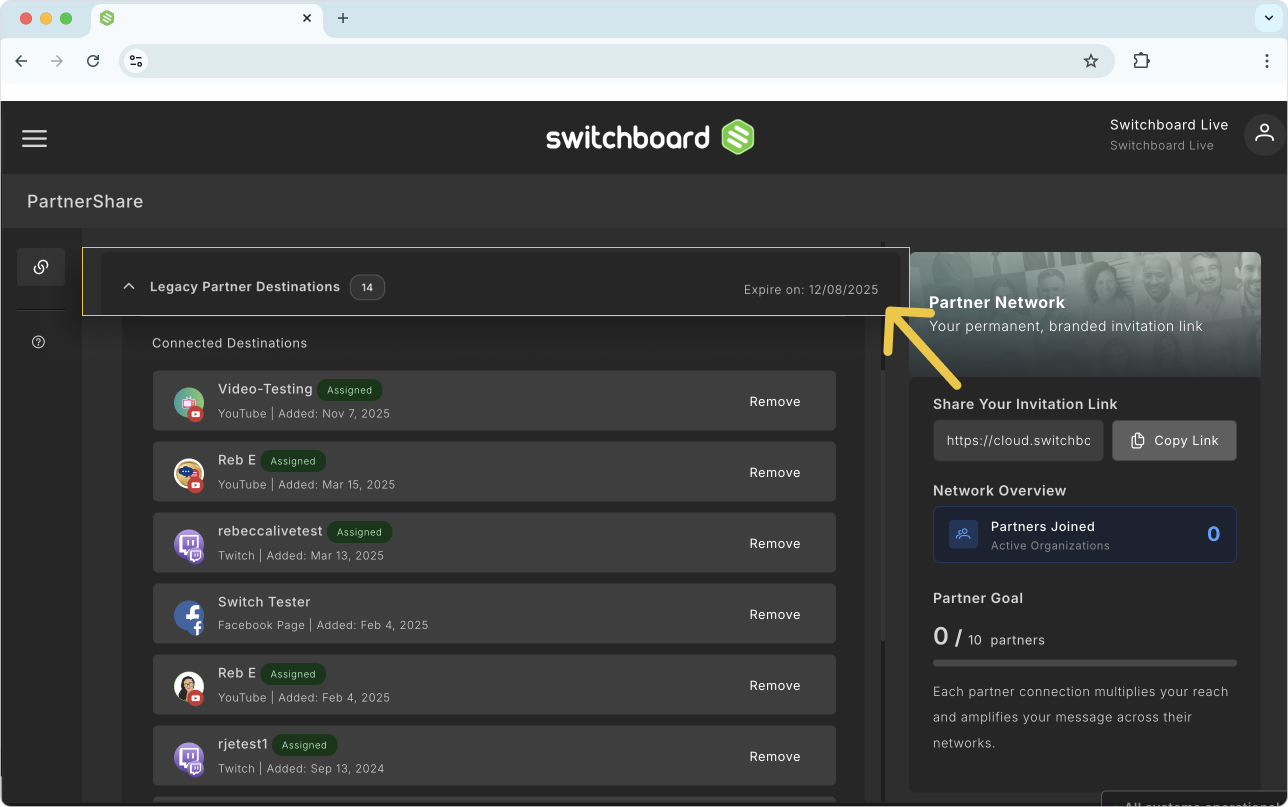
If you have legacy partner destinations in your Switchboard account, you will need to reauthorize them using the new process. The old link is no longer valid, so please contact your partners to have them reauthorize their connections to your Switchboard account for live streaming.
In the PartnerShare Hub, you can easily identify these legacy Partner Destinations.
To check if you have any legacy partner destinations, follow these steps:
Open the Partner Network Hub.
Scroll to the bottom of the list to view your destinations.