Scheduled Events
This guide will walk you through the process of setting up your broadcasts ahead of time, allowing you to promote your events to residents and ensure your communications are seamless and professional.
Last updated 10 months ago

How to Create a Scheduled Event
You can start creating a scheduled event in two ways. Creating from a Workflow is best when you are already working within a specific Workflow. Using the Events Page manager is ideal for getting an overview of all your upcoming events.
Path 1: Start from a Workflow
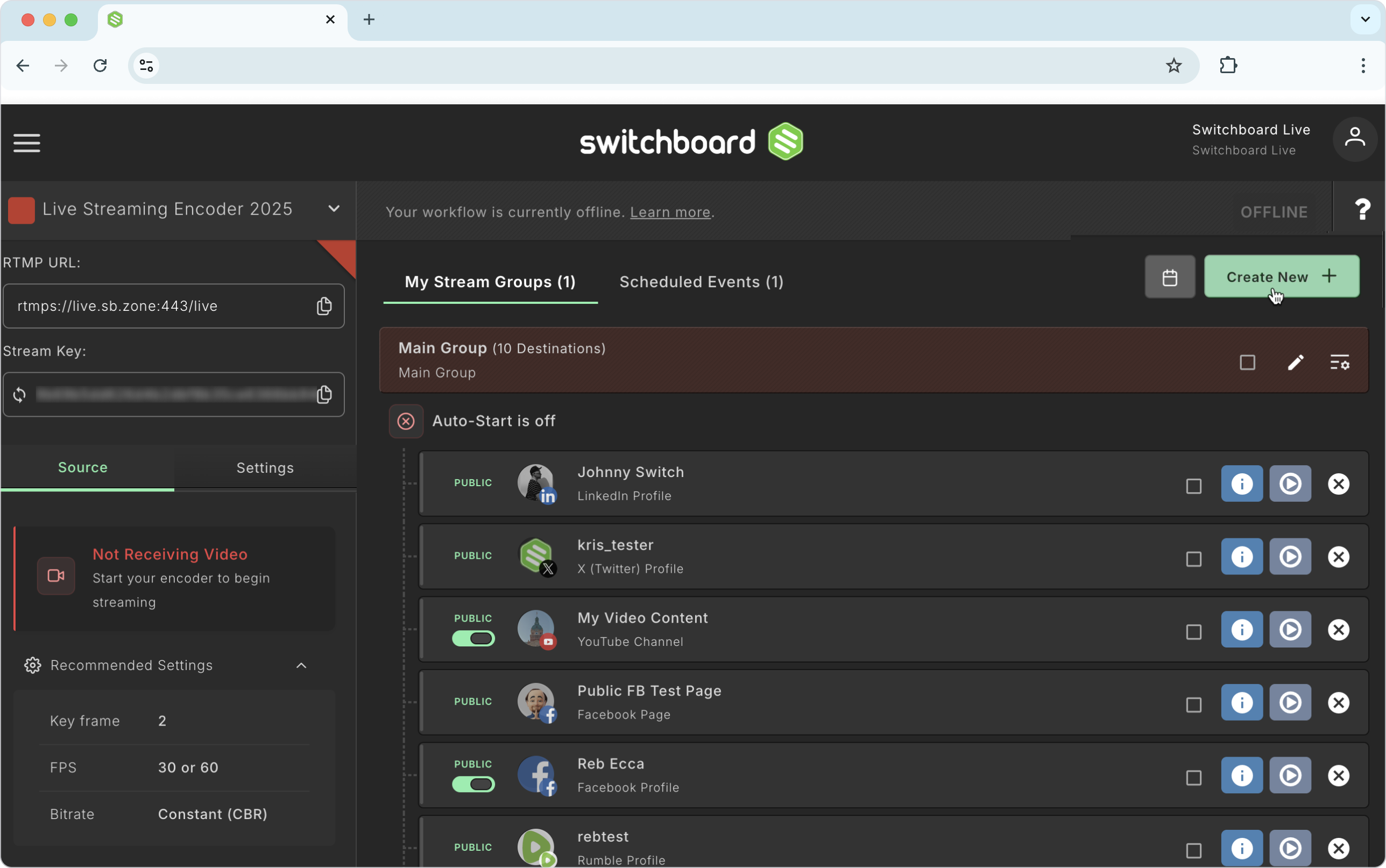
Navigate to the desired workflow page and click Create New.
Select Scheduled Event. A new window will open.
Proceed to the "Filling out the Event Details" section below.
Path 2: Start from the Events Page Manager
Navigate to the Events Page Manager from the main dashboard or side menu.
Click "New Event" in the top right. A pop-up window will open.
Proceed to the "Filling out the Event Details" section below.


Filling out the Event Details
Event Name: This is for your internal reference only and will not be published. Use it to keep your events organized.
Select the Stream Source (Events Page Manager Only): If creating from the Events Page Manager, you must select the workflow you’ll be using.
Enter the Stream Title and Description.
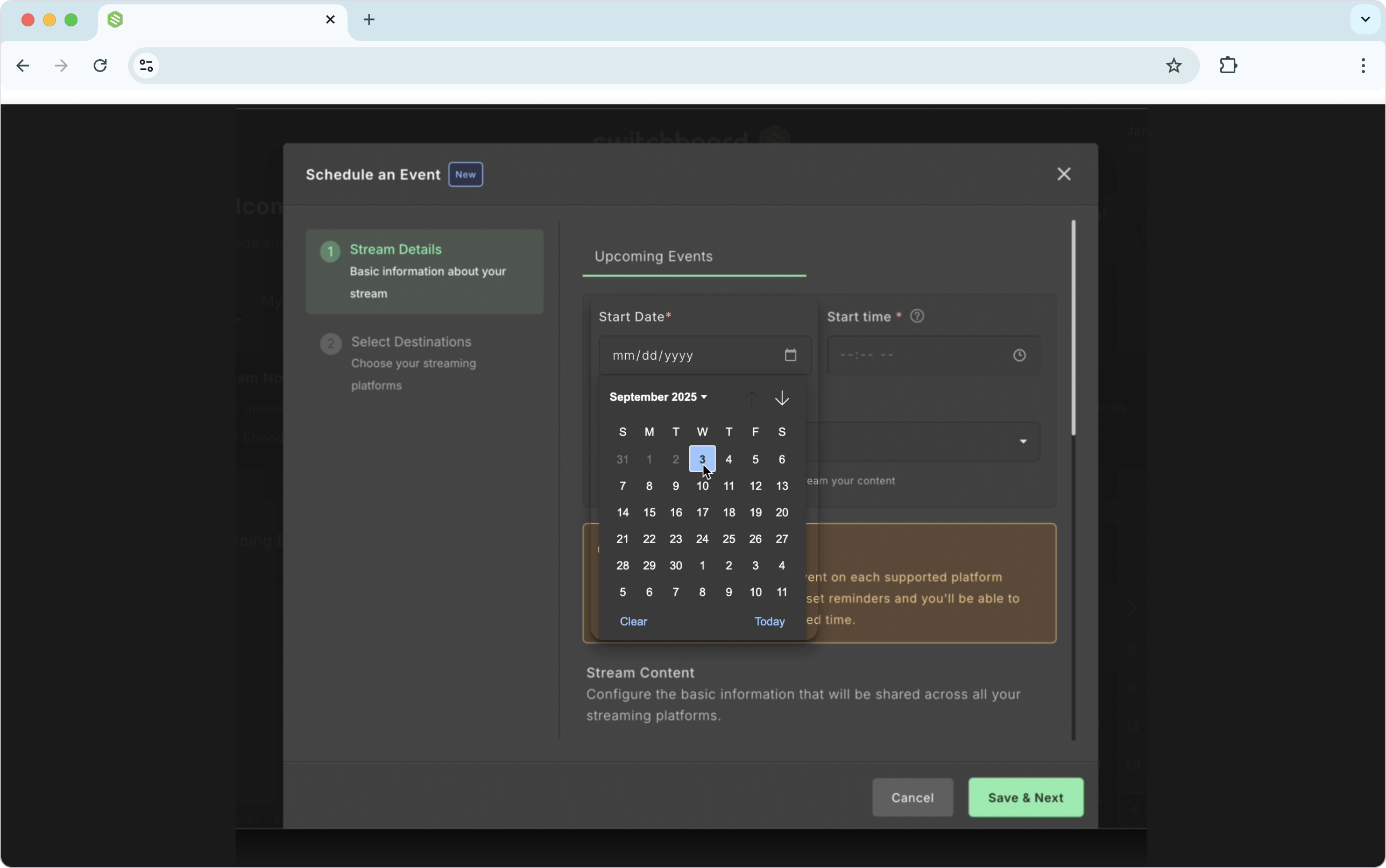
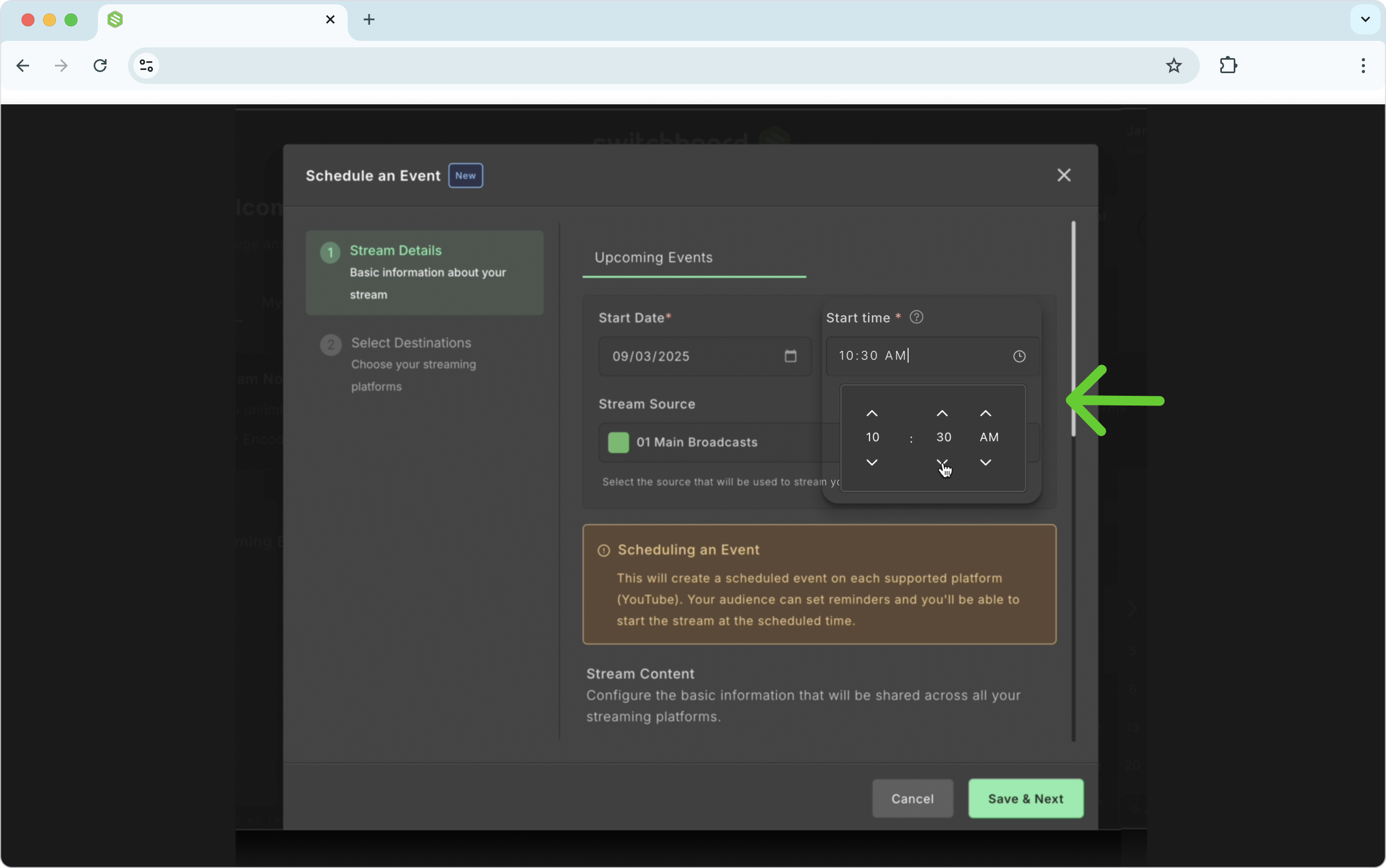
Enter Start Date and Time.
Provide a thumbnail. If you don’t provide one, a default thumbnail will be created for you.
Note on Thumbnails: . Here’s how to change the Thumbnail.

Click Save and Next.
Add Destinations to the Scheduled Event
Use the toggle button to add destinations that have already been saved to the Switchboard Account, or click Connect more to link to new socials to the Switchboard account.
Click Save and Next
Partner Destinations
Click the toggle next to the Partner Destinations you want to include in the Event.
New Update: A scheduled event page will be created for YouTube Partner Destinations.
Click Done.

Going Live
Navigate to the appropriate workflow, and click the Upcoming Events tab.
Start sending live video to the workflow.
Ensure the workflow is receiving video from the encoder.
Note: You can Go Live 30 minutes before the scheduled time of the Event.
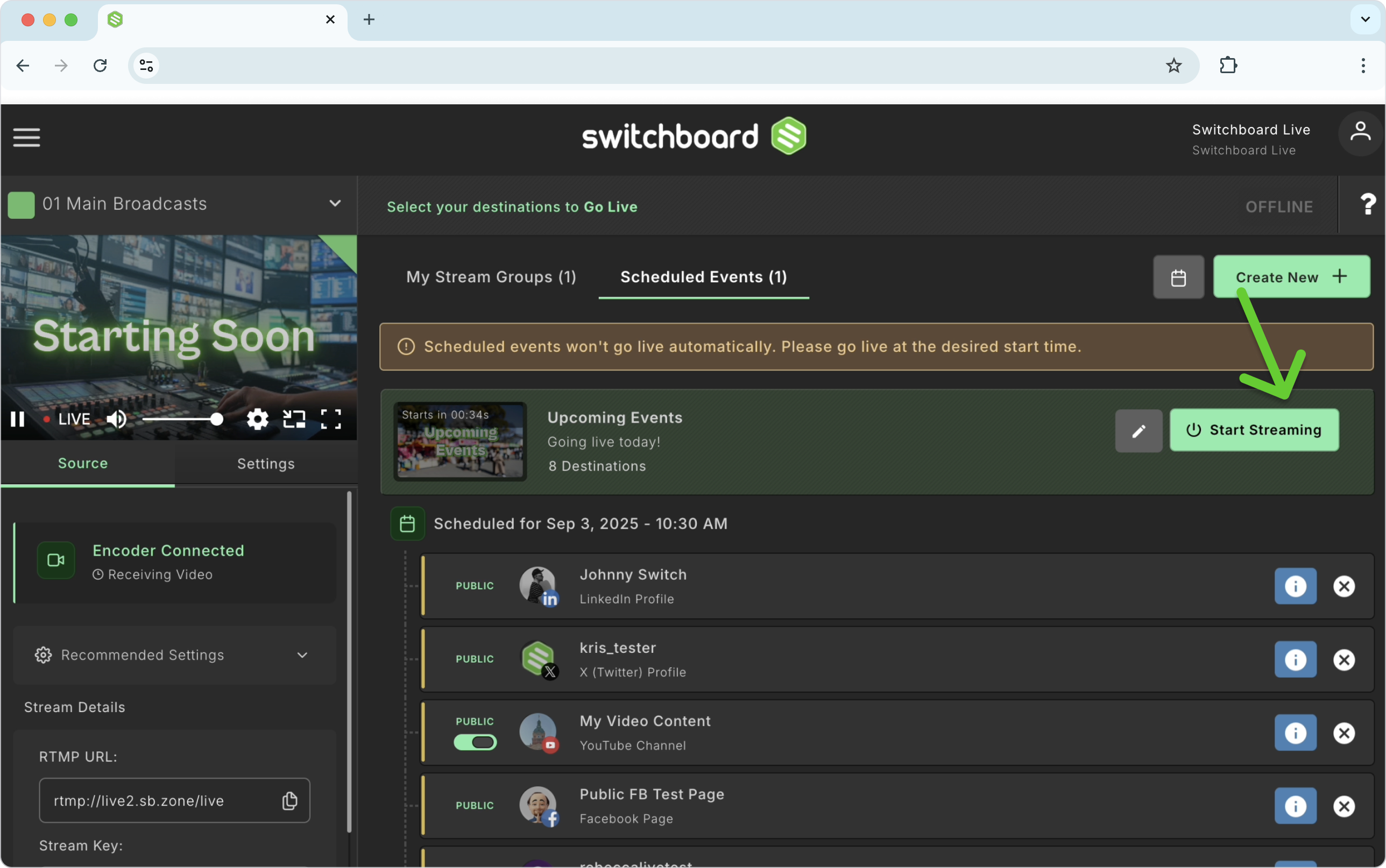
At the 30-minute mark, the Start Streaming button will change to green if there is video coming from the encoder.
Click Start Streaming to go live on all the destinations included in the Event Group. All destinations in the Stream Event Group will undergo the live process.
Note: Once you click the Start Streaming button, the destinations in the Scheduled Event group will go live!
Live Destinations will have a “live” icon next to them.
Ending the Live Video
To end the live video, click the Stop Streaming in the Event Header.
The destinations will stop streaming.
The Scheduled Event will be archived and removed from the workflow. You can access the post-event analytics by navigating to the Events Page Manager.
Promoting the Scheduled Event
Now that you’ve created the scheduled Event, you can grab the link and share it with your audience, add it to a newsletter, or share it on social media so people will be notified of the upcoming live Event.
Navigate to the Scheduled Event.
There are two ways that you can find the event link: via the Switchboard Event Link or from your YouTube channel share button.
Inside Switchboard:
While on the workflow, click the blue info button next to the YouTube destination.
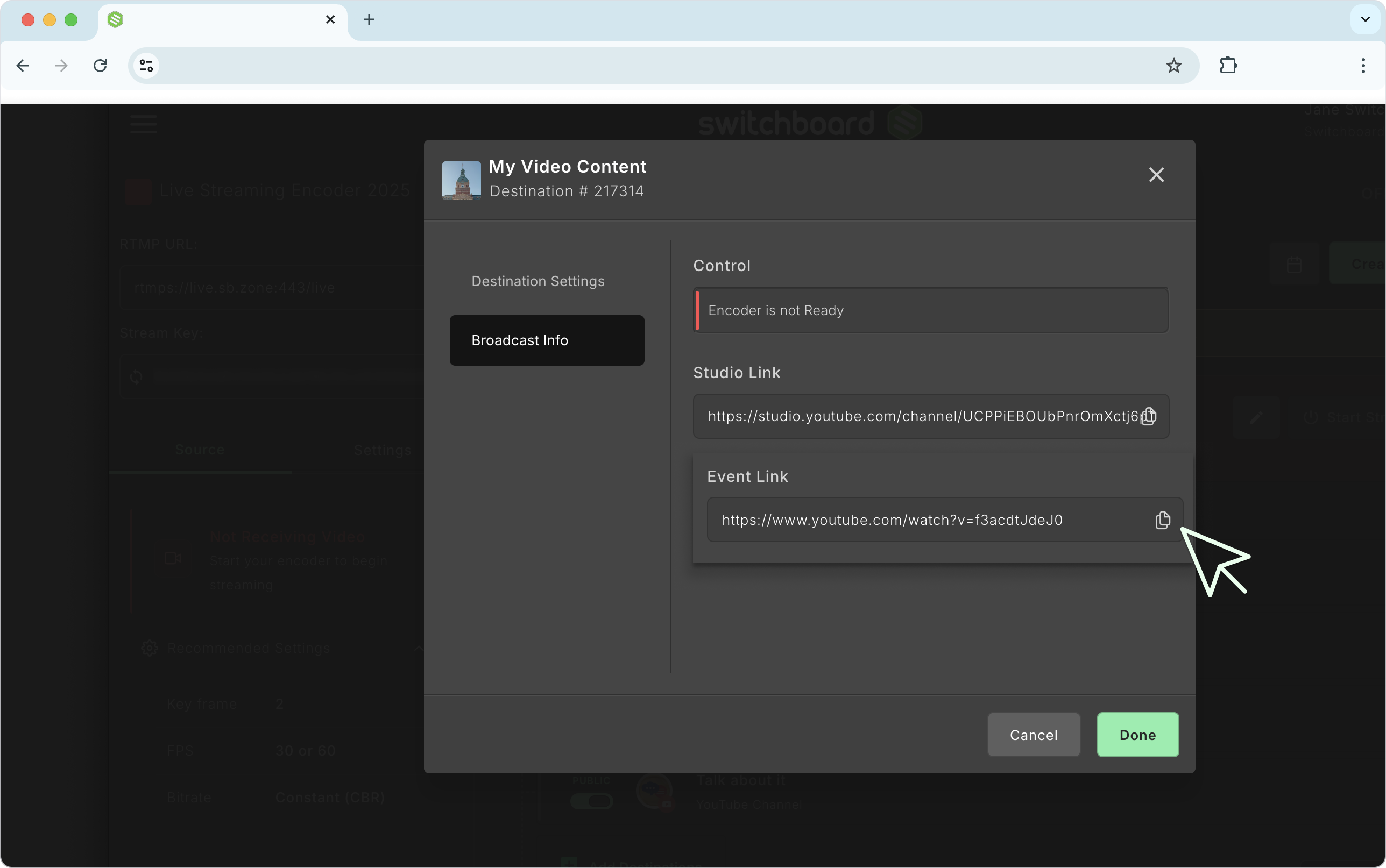
A new window will pop up; choose Broadcast info from the menu.
Under the Event Link, click to copy the shareable link.
Copy the link and share it with your networks.
YouTube Channel:
While on the workflow, click the YouTube destination icon within the event group.
This will open the scheduled event page on YouTube, under the preview window, click 'Share' to copy the link.

How Do I Edit My Scheduled Event?
Making changes is easy; you can make edits to all your events at once via the Event Page manager or navigate to an event on the workflow page.
Editing via the Global Events Page Manager
Open the Events Page Manager.
Select the Upcoming Events tab
Click Edit Event next to the Event you want to update.
Make changes to the Event, such as the schedule time, stream title, and destinations.
You can also delete the Scheduled Event at this step.
Editing via a Specific Workflow
Navigate to the desired Workflow.
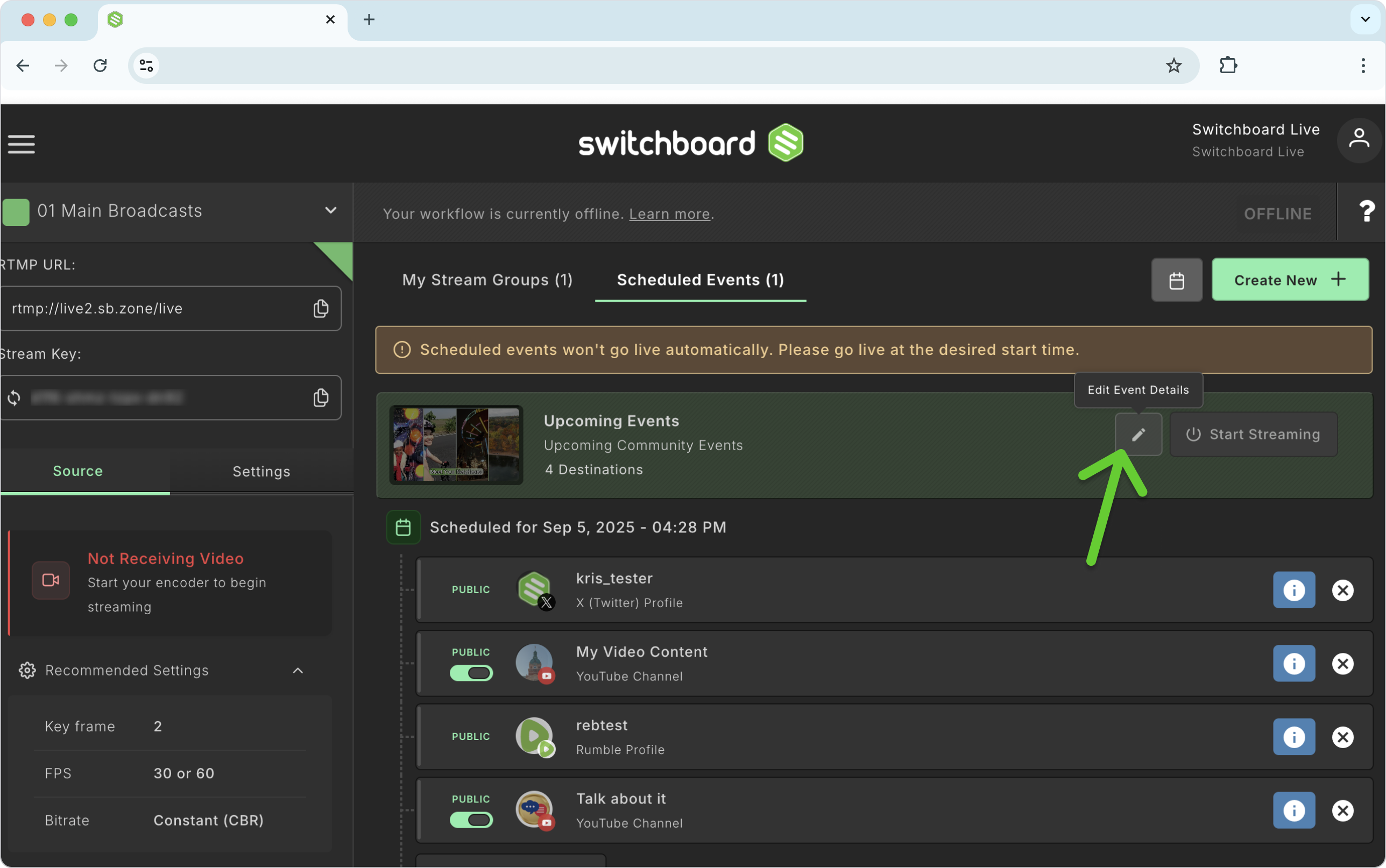
Select the Scheduled Events tab
Click the pencil icon in the header of an upcoming event.
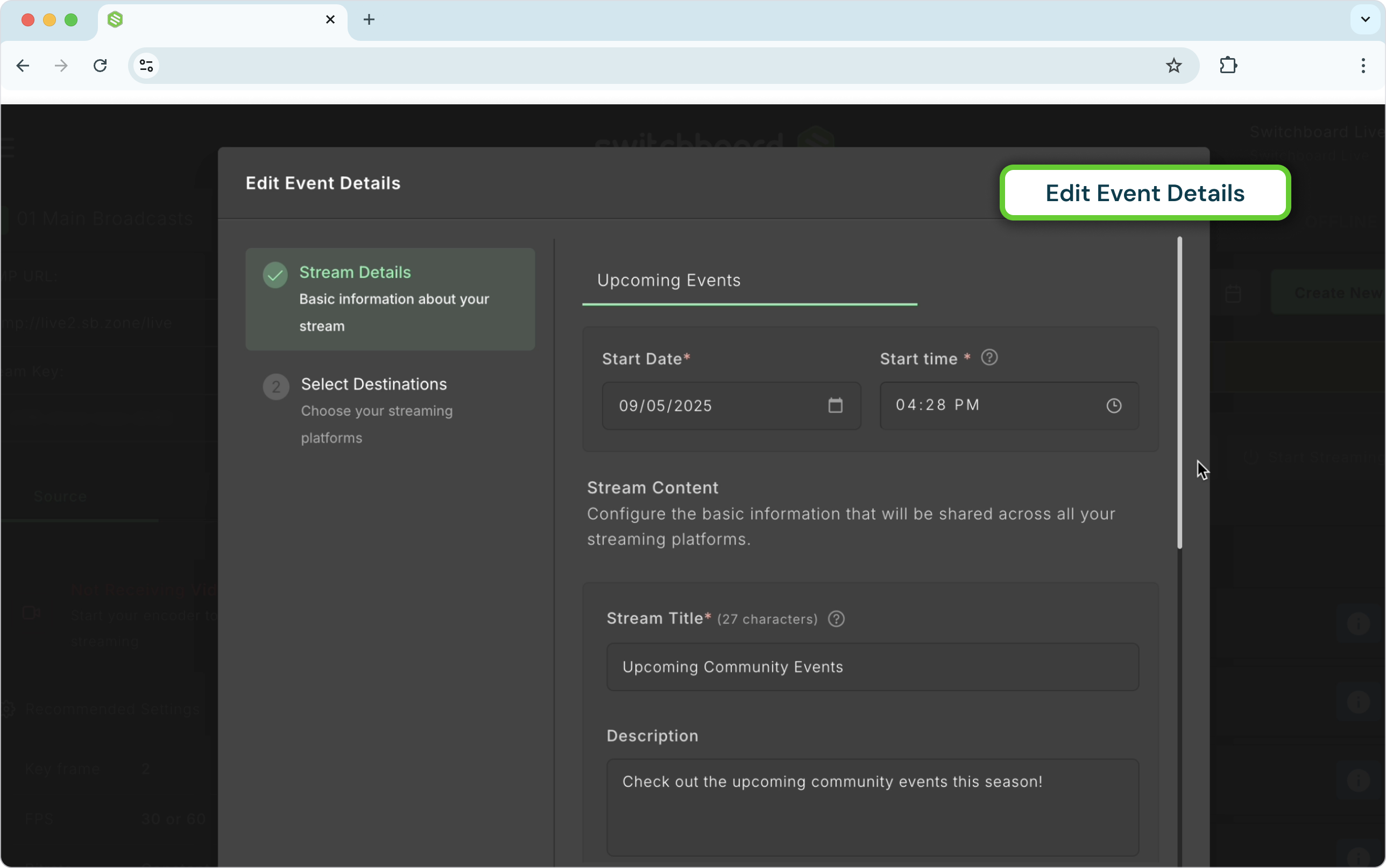
Make changes to the Event, such as the schedule time, stream title, and destinations.
You can also delete the Scheduled Event at this step. If you don’t see the scheduled event on the Workflow page, click the calendar icon in the header and select the date. All scheduled events on that date will appear.
How to Remove Destinations from a Scheduled Event
If you need to remove a destination from a scheduled event, you can do so at any time before you go live. There are a few ways to do this.
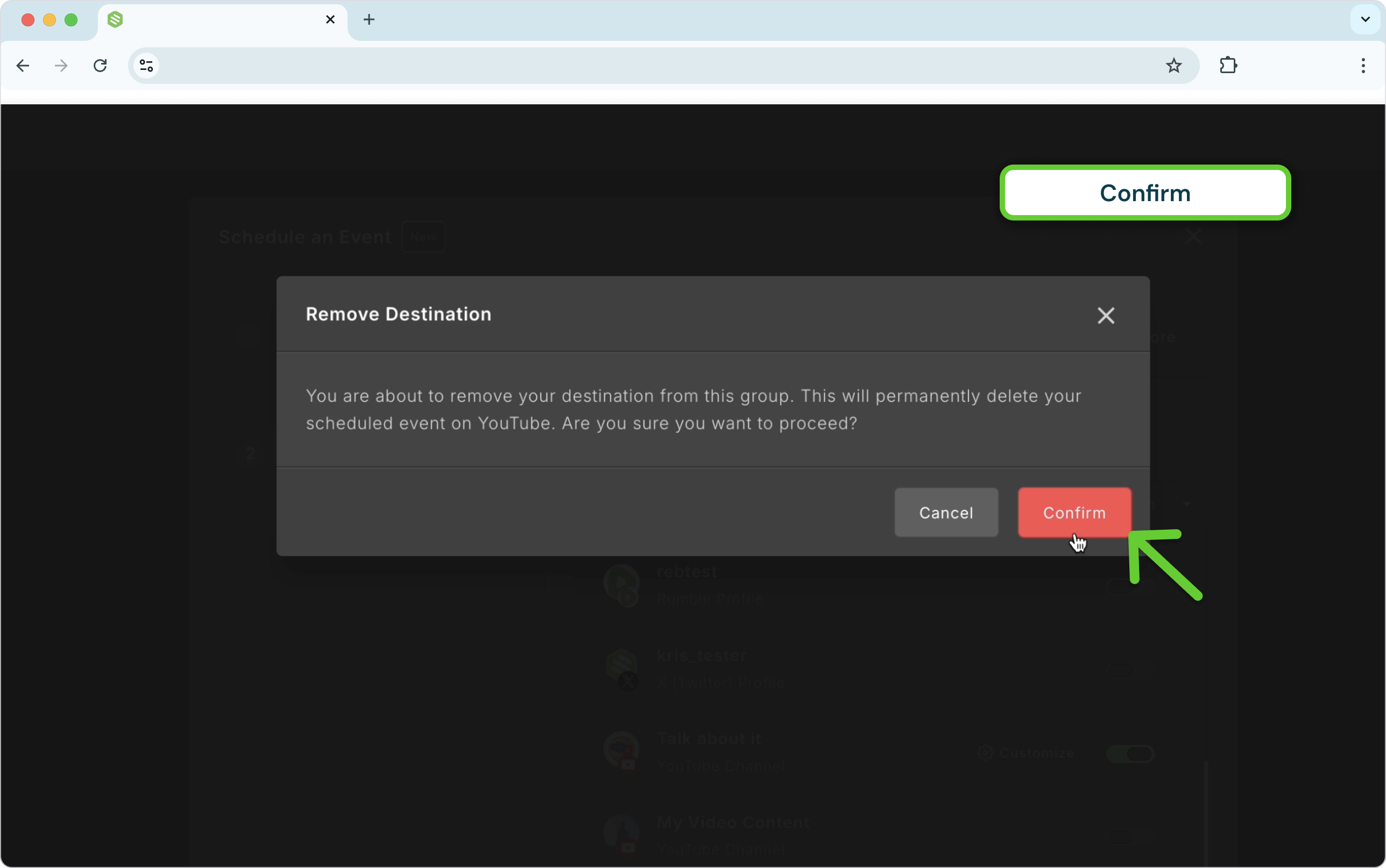
Important Note: Removing a destination (like YouTube ) will also permanently delete the public event page on that platform. Any promotional links you have shared for that specific destination will break, and anyone who has clicked "Notify Me" will no longer be subscribed to the event.
Method 1: Quick Removal from the Workflow
This is the fastest way to remove a single destination.
Navigate to the workflow containing your scheduled event.
In the event group, simply click the 'X' icon on the destination you wish to remove. It will be removed from the event instantly.

Method 2: Using the Edit Window from the Workflow
This method is helpful if you are already editing other event details.
Navigate to the desired workflow and click the pencil icon in the event's header to open the edit window.
Click the toggle button next to the destination(s) you want to remove, turning it from blue (on) to grey (off).
Click Save to confirm your changes.
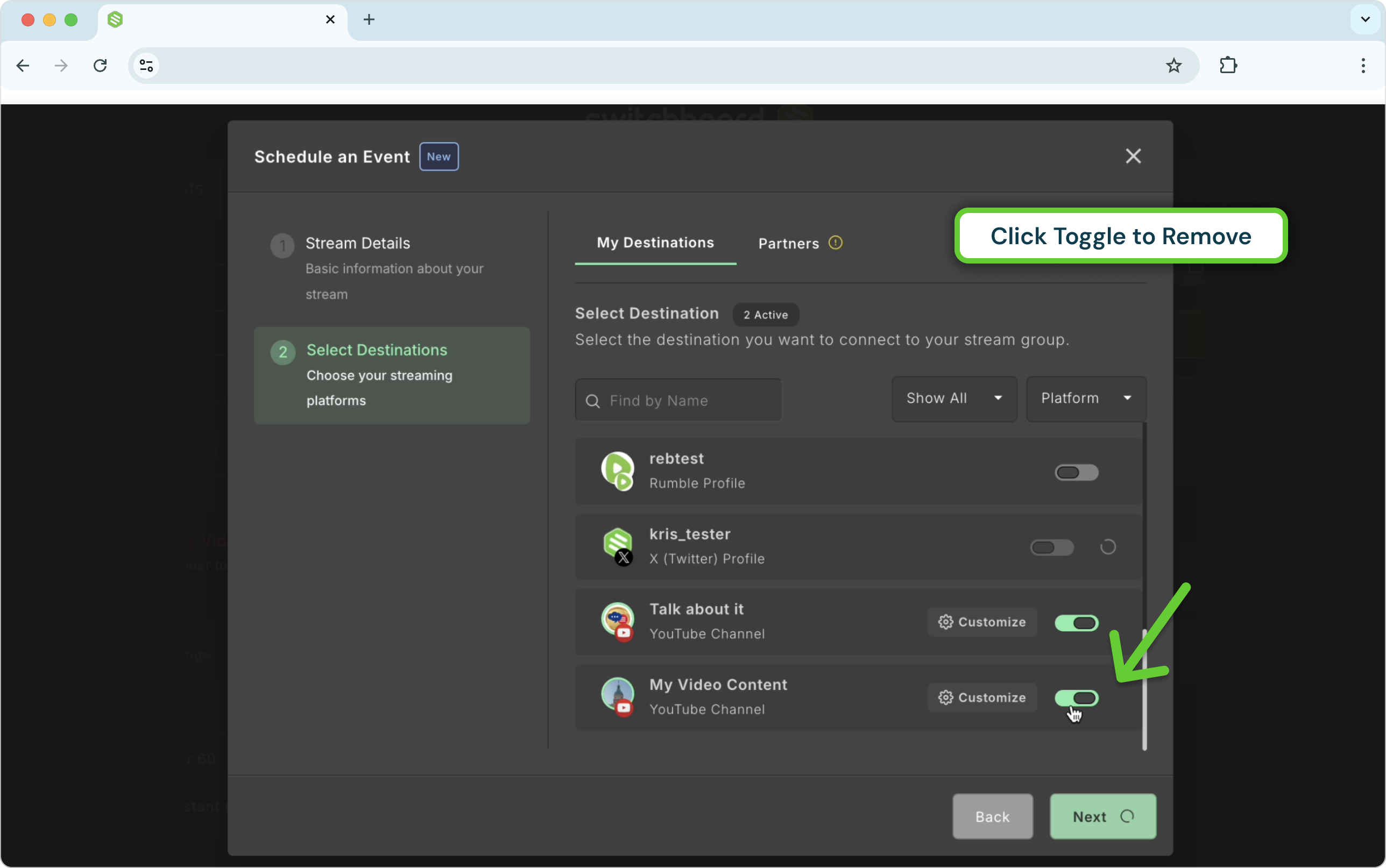
Method 3: Using the Events Page Manager
This method is ideal if you are managing multiple events from the main dashboard.
Open the Events Page Manager.
Find your event in the "Upcoming Events" tab and click Edit Event.
Click Save and Next to proceed to the "Add Destinations" screen.
Click the toggle button next to the destination(s) you want to remove.
Click Done to save the changes.
Updating the Thumbnail
Changing the Thumbnail is quick and Easy.
Click on the thumbnail image.
Choose a new Thumbnail.
Click Save.
Viewing Analytics
After your successful live scheduled event, you can view post-event analytics and stats for destinations that support it.
Post-event analytics aren’t available for Partner Destinations.
Navigate to the events page, Main menu > Events.
Click the Completed Events tab.
Click Event Summary to view the post analytics of the Completed Event.