How to Re-Authorize a Destination in Switchboard
Seeing a connection error or having trouble streaming to a specific social channel? For security reasons, platforms like Facebook and YouTube occasionally require you to 'refresh' your connection. Re-authorizing your destination in Switchboard takes just a few seconds and ensures your upcoming broadcasts go off without a hitch. This step-by-step guide will show you how to safely reconnect your accounts without losing your existing Stream Group setups.
Last updated 6 months ago
Social media platforms occasionally expire your security connection to keep your account safe, especially if it's been a few months or if you recently changed your Facebook/YouTube password. Re-authorizing simply tells the platform, "Yes, Switchboard still has my permission to stream here!
Choose your troubleshooting method below:
Method 1: The Stream Group Fix. Use this if you are on your Workflow page and see a yellow caution warning.
Method 2: The Destination Manager Fix. Use this if you are doing a routine account check before an event.
Method 3: Facebook Pages. Require a special set of steps listed below.
Facebook requires a specific reset process. Jump to this section if your Facebook Pages is disconnected.
Method 1: Reathorize Destinations via the Stream Group
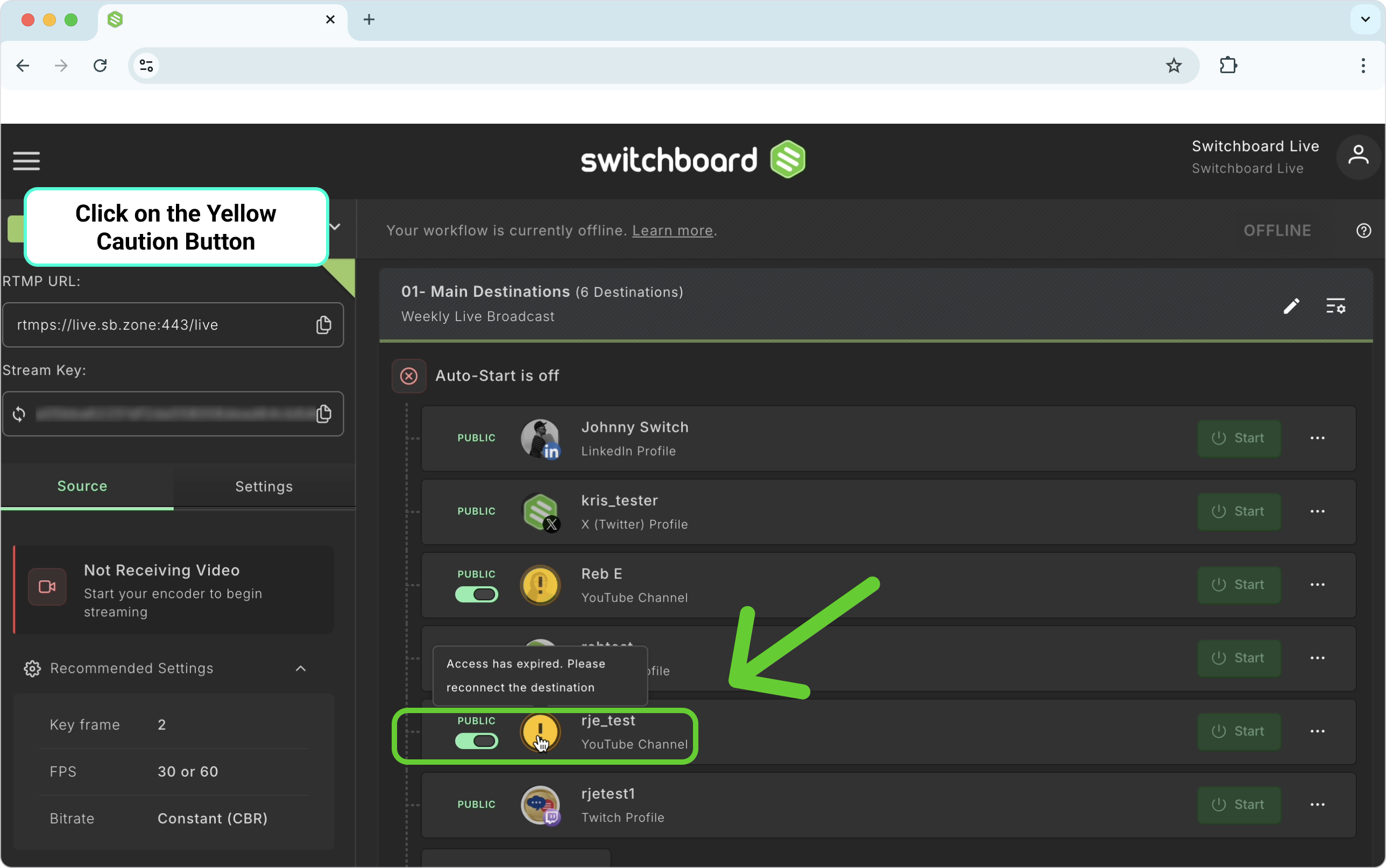
Hover over the yellow caution button.
Click on the yellow caution button.
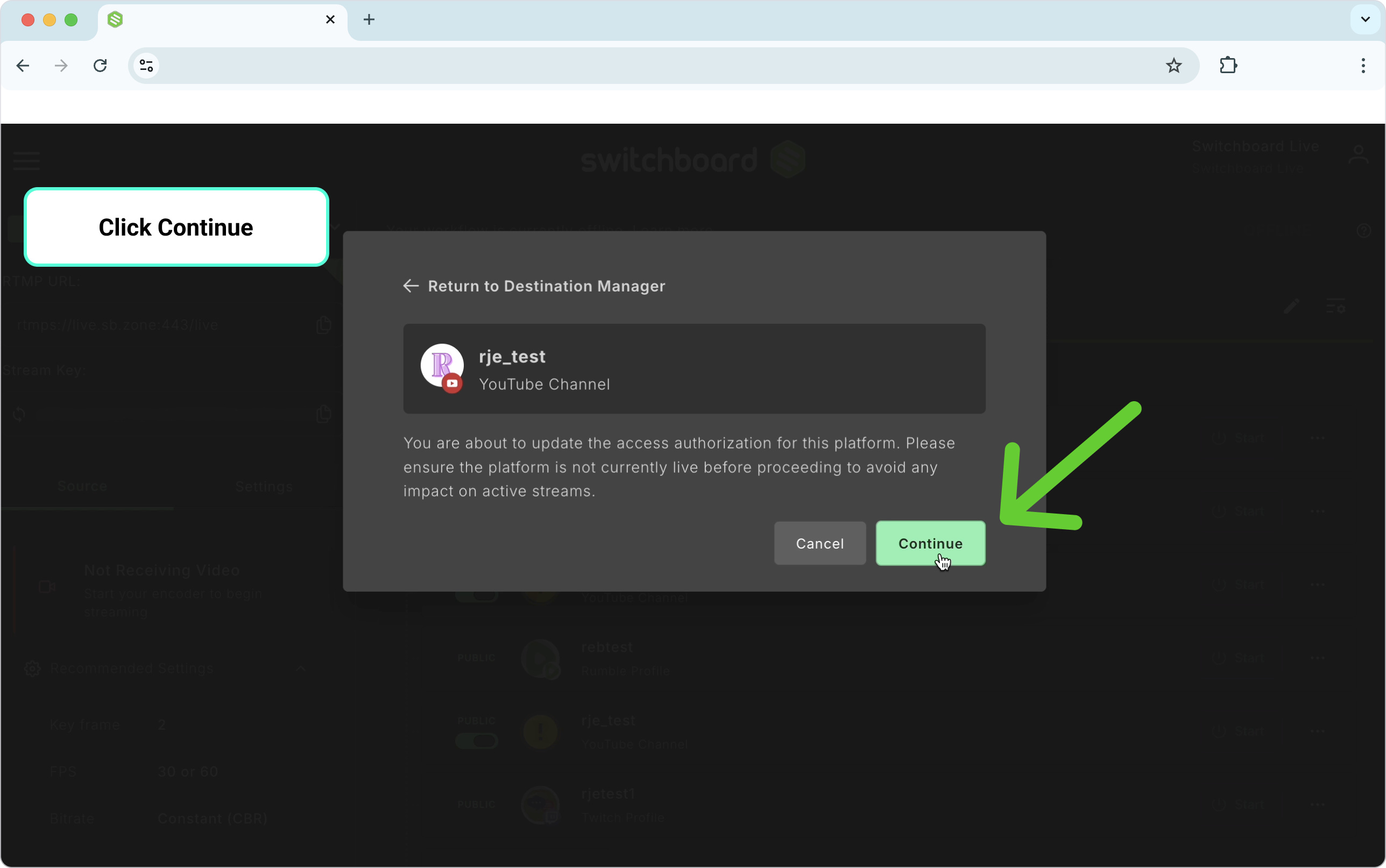
Click Continue.
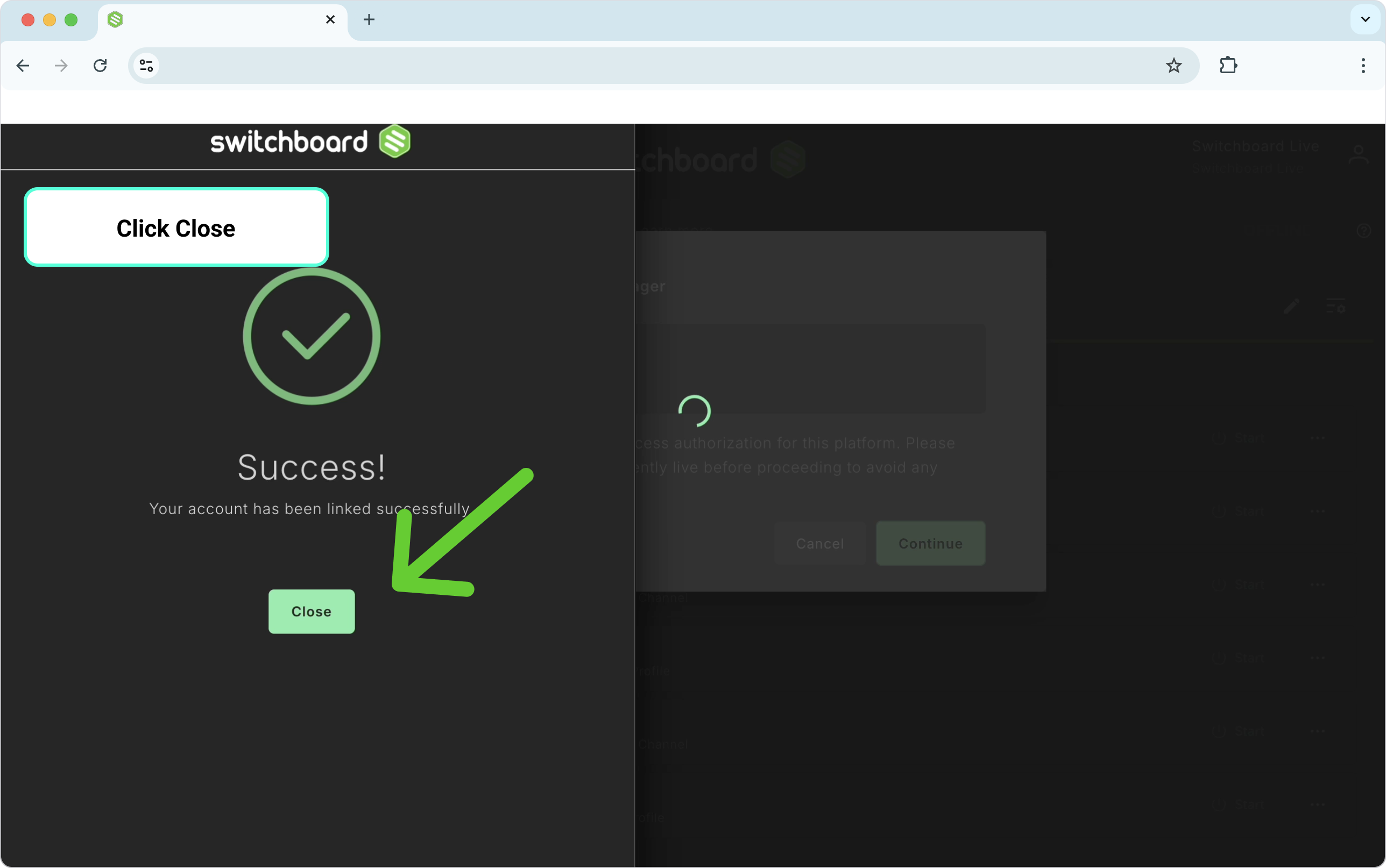
Follow the prompts until you reach the Success Screen.
Close the Success Screen.
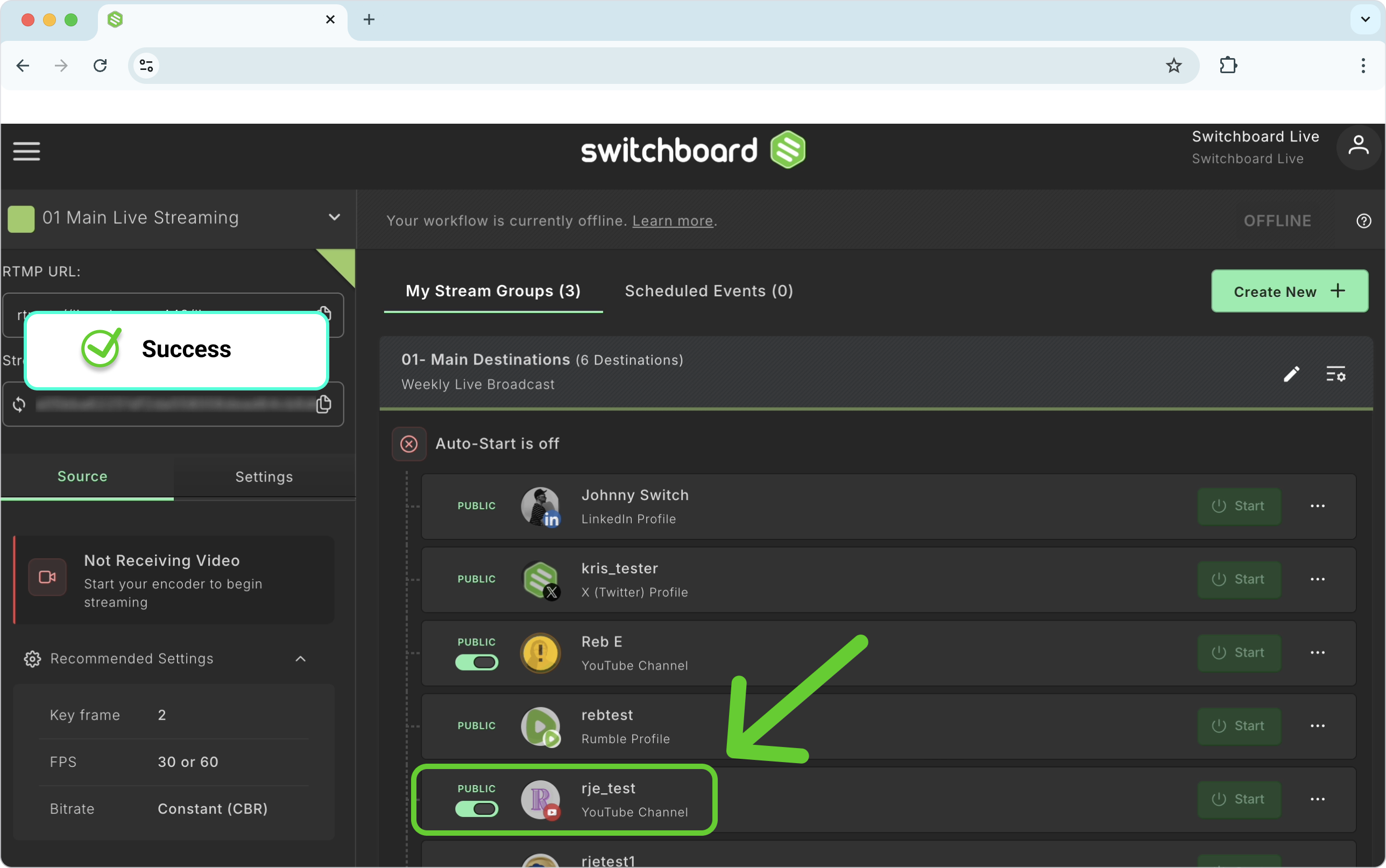
The Destination has successfully been reauthorized for your Switchboard Account.
Method 2: Reauthorize a Destination via the Destinations Manager Page
This is the best method for doing a proactive, routine check of all your connected platforms before a high-stakes broadcast.
Click the Left Navigation menu in the upper left.
Select Destinations from the flyout menu.
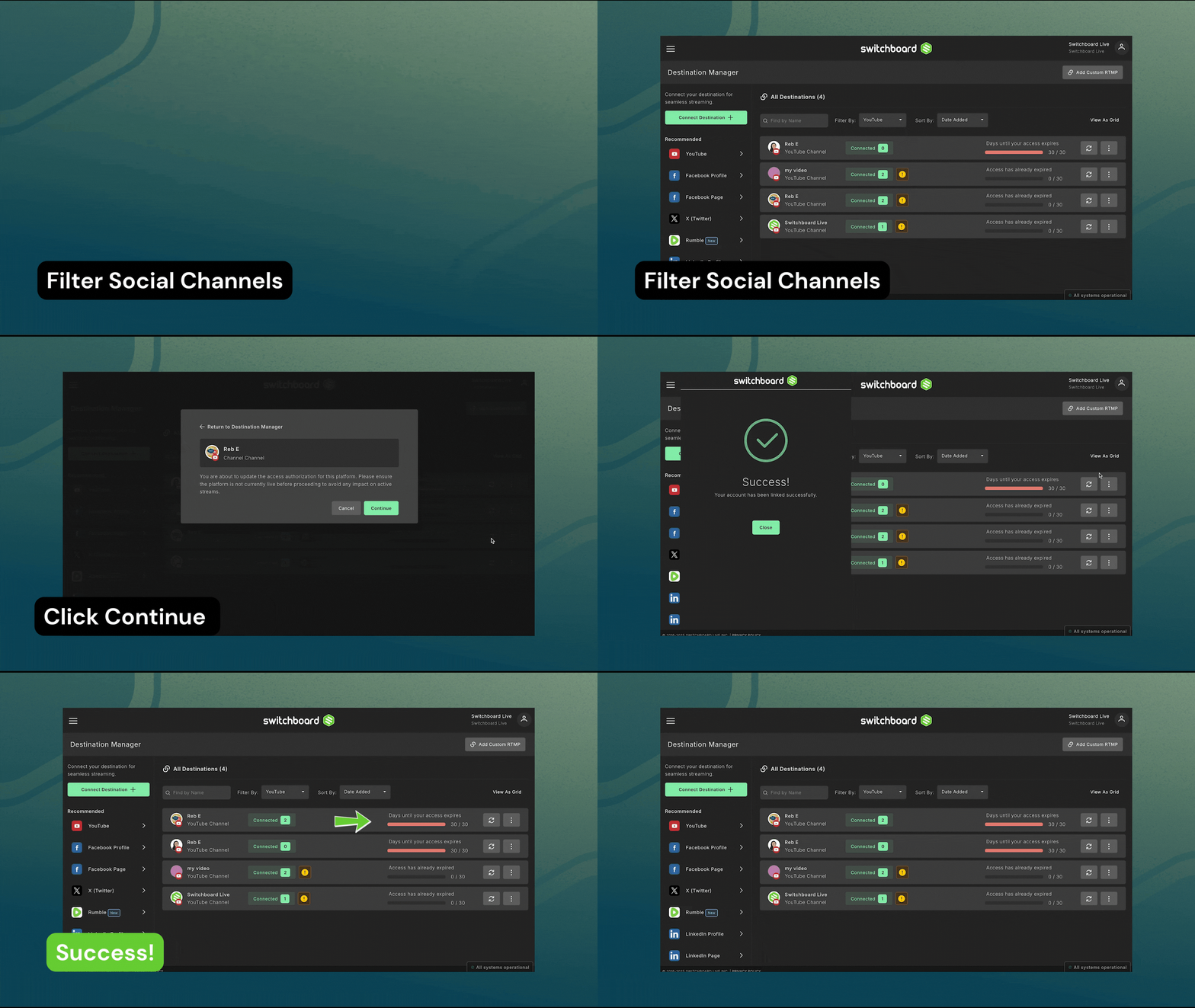
Identify the destinations that you want to reauthorize. (Tip: Use the filter option at the top of the page to quickly sort by platform.
Click the Re-authorize icon (the two circular arrows) located next to the destination's name.
Click Continue on the pop-up prompt.
A window for that specific platform (e.g., Facebook or YouTube) will open. Follow the on-screen prompts to log in and grant permission until you see the Success screen.
Repeat these steps for any other social channels you need to refresh.
Method 3: How to Reauthorize a Facebook Page
Note: Due to Facebook's security requirements, refreshing a Facebook Page requires you to completely remove the old connection and add it back as a new one.
🛑 Important Warning: Because you are removing the page from your account, it will also be removed from any Stream Groups it was attached to. You will need to re-add it to your groups at the end of this process.
Navigate to the Destinations Manager page (Main Menu > Destinations).
Find the disconnected Facebook Page in your list.
Click the three dots next to the destination and select Unlink.
Click Continue on the pop-up window.
Next, look at the menu on the left side of the screen and click the Facebook Page logo to add a new destination.
Follow the Facebook prompts to log in, select your Page, and grant Switchboard permissions until you reach the Success screen.
Final Step: Navigate back to your Workflow page and add your freshly connected Facebook Page back into your Stream Group!
Resources:
FAQ
Q: If I re-authorize a destination, will it delete my Stream Groups?
A: For most platforms (like YouTube or Twitch), re-authorizing only refreshes the security token in the background. The destination will remain perfectly in place within your Stream Groups. However, because Facebook Pages require you to remove and re-add the destination entirely, you will need to re-add your Facebook Page to your Stream Groups after re-authorizing.
Q: Do I need to re-authorize Custom RTMP destinations?
A: Generally, no. Custom RTMP destinations rely on a persistent Stream Key and Server URL rather than a direct account login. If a Custom RTMP is failing, double-check that your Stream Key hasn't been reset on the receiving platform.
Q: How often do I need to re-authorize my accounts?
A: This depends entirely on the security rules of the social media platform. As a best practice for reliable broadcasting, we recommend checking your Destination Manager page a few hours before your event to ensure no connections have expired.