Destination Manager Page
The Destination Manager page is a hub for all your saved social channels on your Switchboard account. It is similar to a bird's eye view that gives you an overview of all the authorized destinations that you've added to your Switchboard account. Whenever you add a new destination to your Switchboard account, it will automatically appear on the Destination Manager page.
Last updated About 1 year ago
The Destination Manager
Topics Covered
Access the Destination Manager Page
Navigating the Destination page
Add New Destinations
Sort and Filter Destinations
Permanently Delete Destinations
How to access the Destination Manager Page
Open the main menu on the top left.
Select Destinations from the flyout menu.
The Destination Manager Page will open.
Navigating the Destination Manager page
Add Destinations
Adding destinations through this menu can save time by allowing you to add multiple destinations at once. You can then add the destinations to a stream group later.
Note: Partner Destinations are not found on this page.
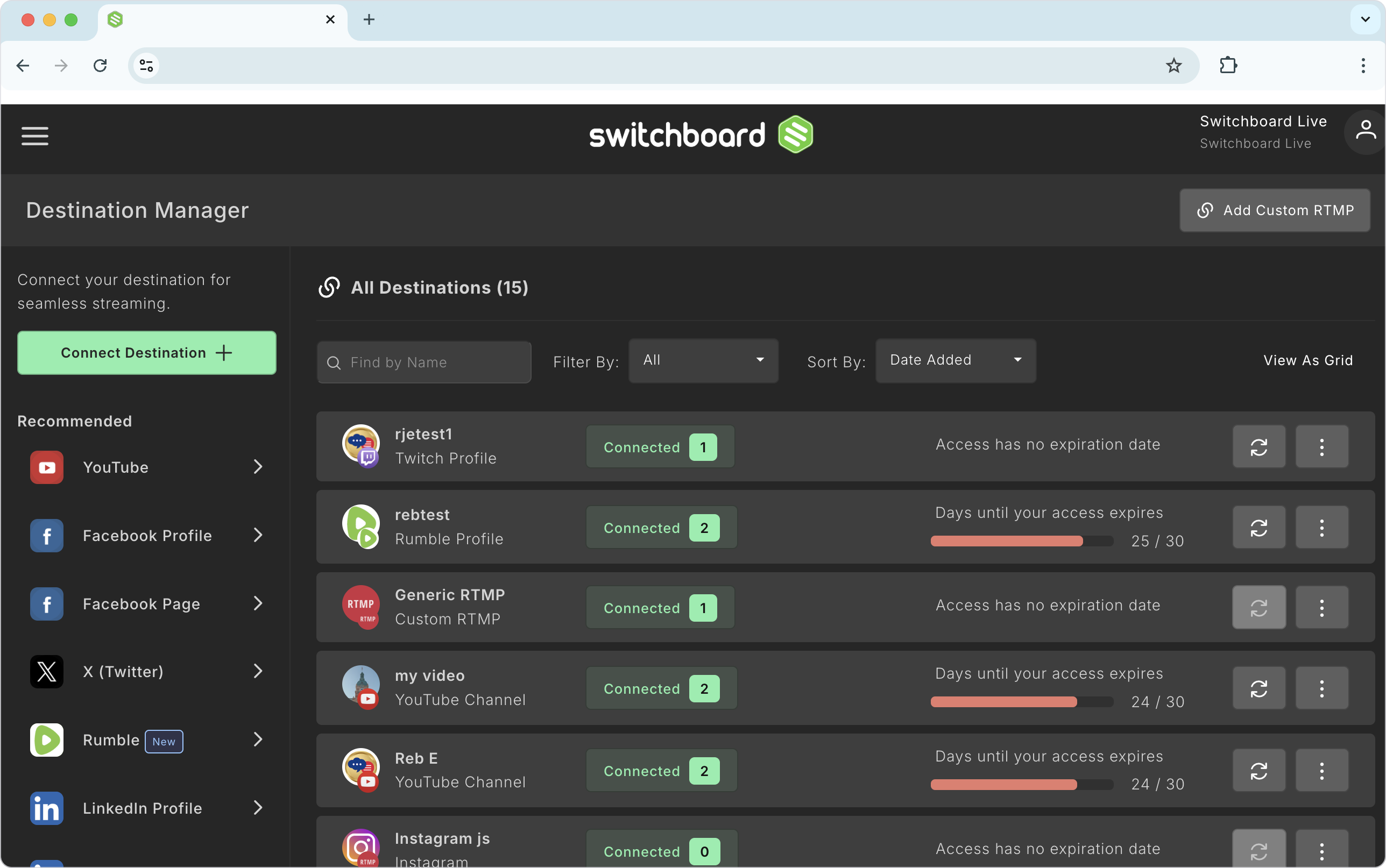
Click Connect Destination or click on the social icon on the left side to begin connecting a new social channel to the Switchboard account.
Connect Destination + opens a window to more destination options, including Instagram, dLive, Kick Streaming, Amazon, Subsplash, Vimeo, and SnapStream.
Click Add Custom RTMP Destination to begin connecting an RTMP Destination to the switchboard account.
Sort and Filter Destinations
These allow you to sort through social channels to narrow down specific information.
Search:
Search for destinations by name or stream key.
Searching by stream key is valuable for RTMP destinations.
Sort:
Aa - Zz: List destinations A-Z
By Platform: List destinations by the platform type
Live Destinations: This lets you see which destinations are currently live
Unauthorized: Quickly see which destinations are no longer authorized for live streaming from your Switchboard account.
Filter
Live: Will only display current live destinations.
Unauthorized: will display only the destinations no longer configured to your Switchboard account.
Change the layout view
View as Grid or List.
Destination Information
Access quick information about each destination, such as the workflow it is linked to, or update access. For RTMP destinations, you can view the stream URL and update the stream key.
Connected Workflows
This numbers gives tells you how many workflows the destination has been added to. Clicking on the button will open the window.
Click on a workflow name to open the workflow.
Update Access
If the destination token has expired, you can refresh the access. You can quickly update the access authorization for the social platform.
Click the double arrow button.
Click Continue.
Destination Details
Click the three dots and choose "View Details."
A pop-up window will display information about the destination.
RTMP destinations will display the RTMP info. You can update the stream key at this step.
Permanently Delete Destinations
Click the 3 dots next to a destination and choose unlink from the pop-up menu.
Confirm your choice.
