Connect your Switchboard Account with MixCloud
Last updated Over 1 year ago
This support article will go over the steps on how to connect your Switchboard Account to MixCloud.
Let's Get Started
STEP 1
Log into your Mixcloud Account.
Please note that you will need a subscription to Mixcloud Pro.
Create a new live stream by going to this link: www.mixcloud.com/live/new
Fill out the details for the live stream setup.
Press Save and Continue.

You will go back and forth between Mixcloud and Switchboard to complete the next step.
STEP 2
Add Mixcloud as a Custom RTMP destination in your Switchboard Destination Group.
On the Switchboard workflow page, press the "Add Destination" button.
Select New Destination.
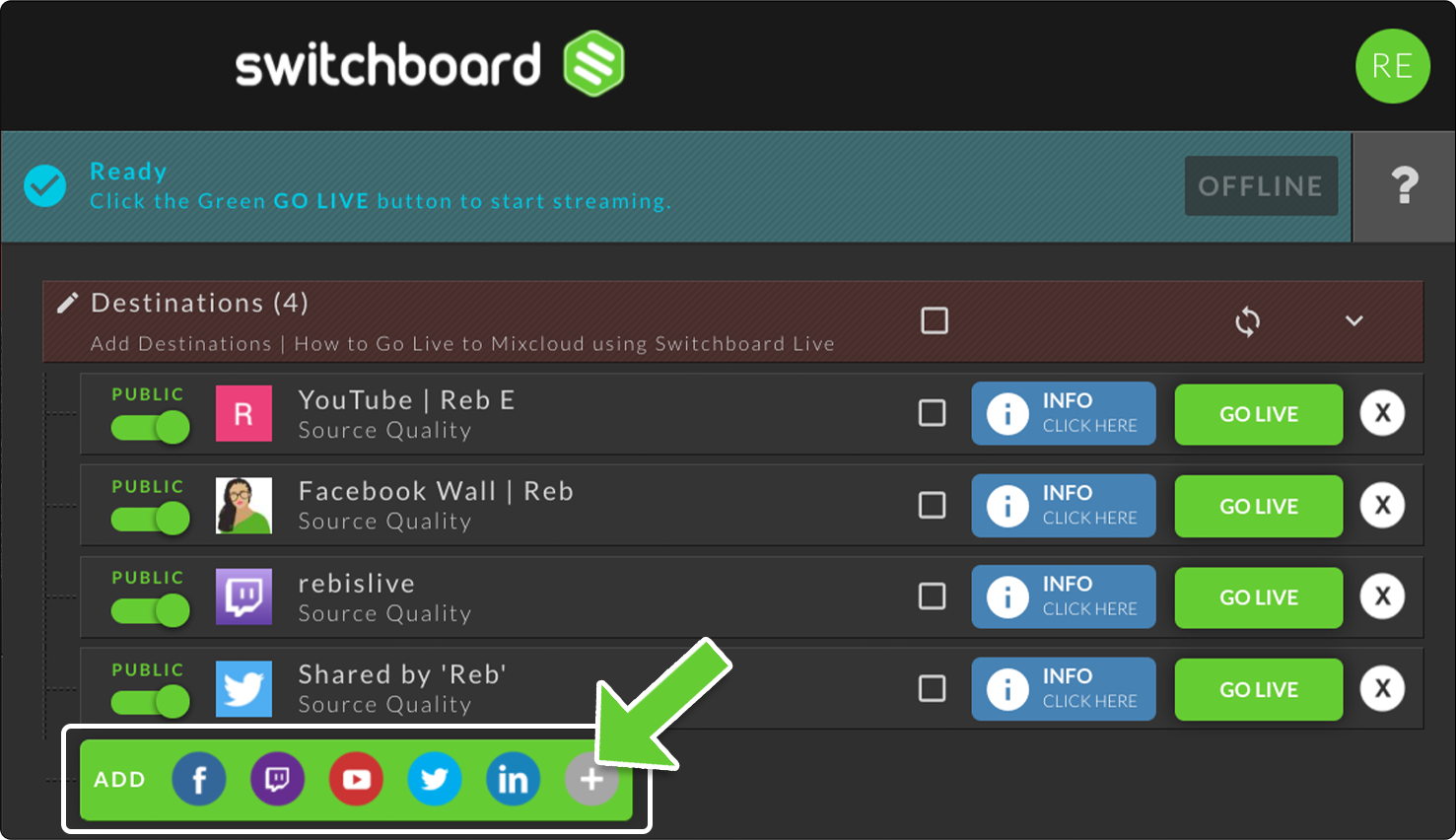

STEP 3
Choose RTMP from the list.

STEP 4
Copy the Stream Key and the Server URL from Mixcloud and paste them into the appropriate fields inside Switchboard.


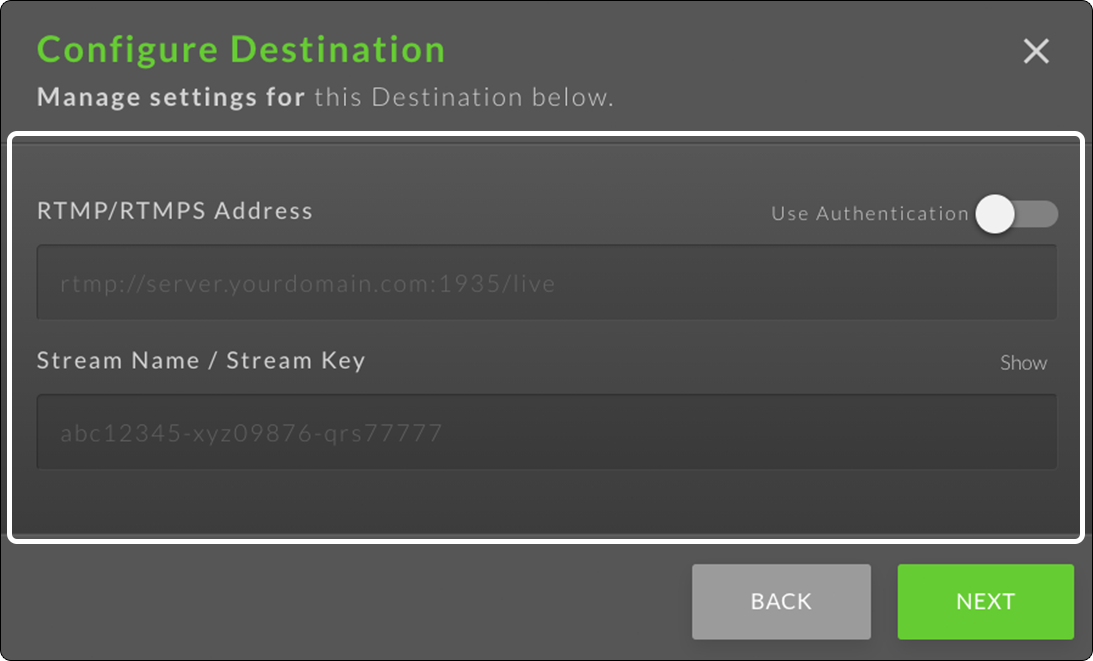
STEP 5
Rename the destination so that you can easily identify it as Mixcloud.
Press the blue INFO button. Type new name in the field.


Congratulations! You've successfully added Mixcloud as a destination in your Switchboard Account.
Mixcloud Recommended Encoder Configuration Settings
Video resolution: 720p and a visual ratio of 16:9
Video bitrate: Between 2500kbps to 3500kbps and using CBR not VBR
Frame rate: FPS to 30
Keyframe Interval: Set to 2
Audio bitrate: 320kbps
Ready to GO LIVE!
We recommend performing a speed test before going live.
1) Start sending video from your encoder to Switchboard.
2) Confirm that the video is showing on the confidence monitor.
3) Hit the GO LIVE button to start sending the live video into Mixcloud.
PRO TIP: Eliminate step 3 by enabling the Switchboard "Auto-start" feature.
Happy Multistreaming!