Troubleshooting: My embedded YouTube Live video will not play on my website
Last updated About 2 years ago
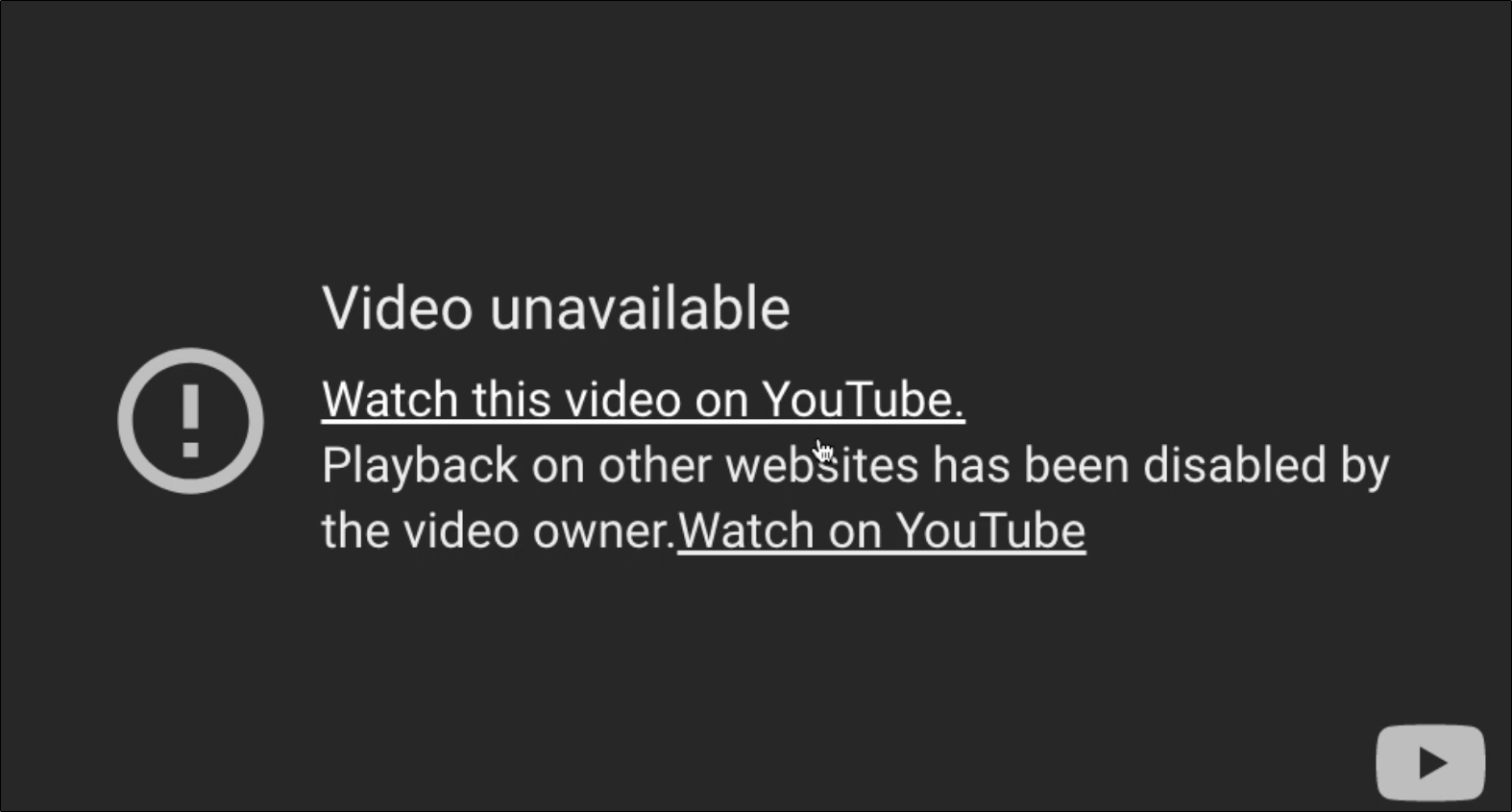
Have you embedded your YouTube live video on your website but the message "video unavailable" is shown instead of your awesome live broadcast?
You'll need to adjust the video settings and make sure the checkbox for "allow embedding" has been marked. Follow the steps below to learn how to enable this feature.
Sign in to YouTube Studio.
STEP 1
From the left menu, select Content.

STEP 2
Choose Live from the tab on the top.

STEP 3
Navigate to the video and press the pencil icon to open up the Details panel.

STEP 4
Scroll to the bottom until you reach “License and Distribution” ( you may need to click “show more” to see more options).
Check the box next to “Allow embedding”

STEP 5
Press the "Save" button to confirm.

STEP 6
Refresh the webpage and watch your awesome broadcast!
Check Out These Other Resources:
Customize your live stream with a stream title, description, and hashtags.
How to create a scheduled YouTube Event and Go Live with Switchboard
Expand your reach and share your live stream video on other social channels.