Workflow Page
The workflow page is where you'll spend the majority of your time when logged into your Switchboard account.
Last updated About 2 months ago
What's New on the Workflow Page
Six updates make the Workflow page faster to read, easier to control, and ready for the new SRT protocol:
Workflow Settings — Open a new window to change the name, color, and provider, or delete the workflow.
Stream Details — Check Stream Status, Bitrate, and FPS at a glance.
Encoder Setup — Choose your ingest protocol: RTMP, RTMPS, or the new SRT.
Live Header — Improved visibility into your Live Timer, Live Destinations, and Viewers.
Live Icon — Easily see which Stream Groups are actively live.
Auto-Start — Moved to the Stream Group for faster access during your broadcast.
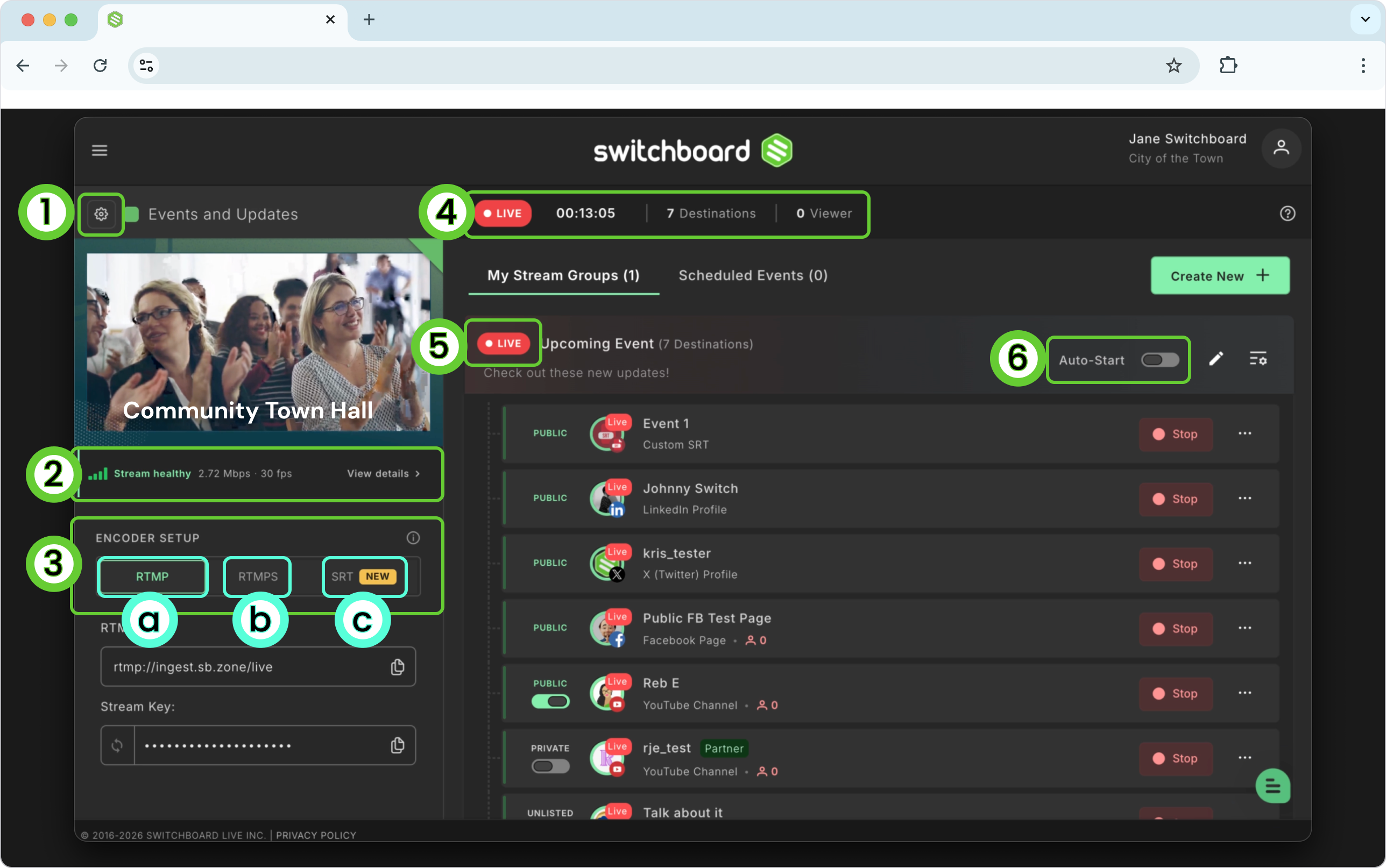
Parts of the workflow page
The Workflow Page is split into two main components:
Encoder Workflow Pane (left) — where you configure your encoder connection
Destinations Pane (right) — where you manage where your stream goes

Workflow Pane
Encoder Workflow Pane
The Encoder Workflow Pane is where you connect your live-streaming software (encoder) to Switchboard Live, select your ingest protocol, and monitor your incoming stream.
Workflow (Source) Name
The name of this encoder workflow — an internal label that's only visible to you. You can change it to anything that helps you stay organized.
Workflow Drop-down Menu:
Switch between encoder workflows, add a new one, or view all workflows in your account. Click the arrow above the preview window to open it.
From the drop-down, you can:
Open an existing workflow
Create a new encoder workflow (ingest point)
View all workflows to monitor all inbound streams at once
From the drop-down menu, you can quickly switch between the various encoder workflows in your account, add a new workflow, or view all encoder workflows to monitor all inbound streams.
Above the preview window, click the arrow to open the drop-down menu. From there, you have several options:
Click on one of the listed workflows to open it.
Create a new encoder workflow (ingestion point) in your Switchboard account.
You can view all of the encoder workflows in your Switchboard account.
Confidence Monitor ( preview window)
A live preview window that shows the video the Switchboard is currently receiving from your encoder.
When no encoder is connected, the confidence monitor displays your RTMP URL and Stream Key — the credentials you'll paste into your live streaming software.
Once your encoder starts sending video, the preview will show your live feed.
If the confidence monitor shows no activity and your status doesn't read "Encoder Connected," Switchboard isn't receiving any video and cannot send to your destinations until it does.
Encoder Setup — Pick Your Protocol
Switchboard now supports three ingest protocols. Choose the one that fits your setup:
RTMP
The reliable, widely supported standard. Works with virtually every encoder and streaming software on the market. Recommended for most users.
RTMPS
Encrypted RTMP for secure delivery. Ideal when your network or platform requires an added layer of security.
SRT (New)
Low-latency and resilient on unstable networks. SRT (Secure Reliable Transport) is purpose-built for challenging connection environments, including remote locations, cellular connections, and public sector field broadcasts. If you're streaming from an unpredictable network, SRT is worth exploring.
New to SRT? See our full guide: Connect an Encoder Using SRT Input →
Reveal or Hide Stream Key
The stream key is hidden by default. Click the field to reveal it.
Reset Stream Key
Click the double-arrow reset button to generate a new stream key. A confirmation window will appear — click Confirm to proceed.
Important: If you reset your stream key, you must copy and paste the new value into your encoder before your next broadcast.
Stream Details — Quick View
Once your encoder is connected and sending video, a Stream health indicator appears below the preview window with your bitrate and FPS inline — for example, 2.72 Mbps · 30 fps. Click View details → to see the full breakdown.
Bitrate — The data rate coming in from your encoder
FPS — Frames per second of your incoming signal
When no video is coming through, the preview window displays a camera-off icon with the message "Your source video will appear here," and a Learn How To Go Live button. The encoder pane shows a red "Not receiving video" indicator, and the top of the Destinations Pane shows OFFLINE. The Start buttons for your destinations will be visible but inactive until video is detected.
Workflow Settings
Click the gear icon next to the workflow name to open Workflow Settings in a new window. From here you can:
Rename the workflow — Update the internal label for this encoder workflow
Change the source color — Use color coding to visually organize multiple workflows
Migrate provider — Switch the ingest provider for this workflow (see steps below)
Delete the workflow — Permanently remove this workflow from your account
Rename the workflow
In Workflow Settings, type the new name in the field to rename the workflow.
Change the source color
In Workflow Settings, click on the color box to change the source color.
How to Change the Source Provider
If at any time you need to change the source provider, you can do so in a few steps.
Click the Gear icon located next to the workflow name to open Workflow Settings
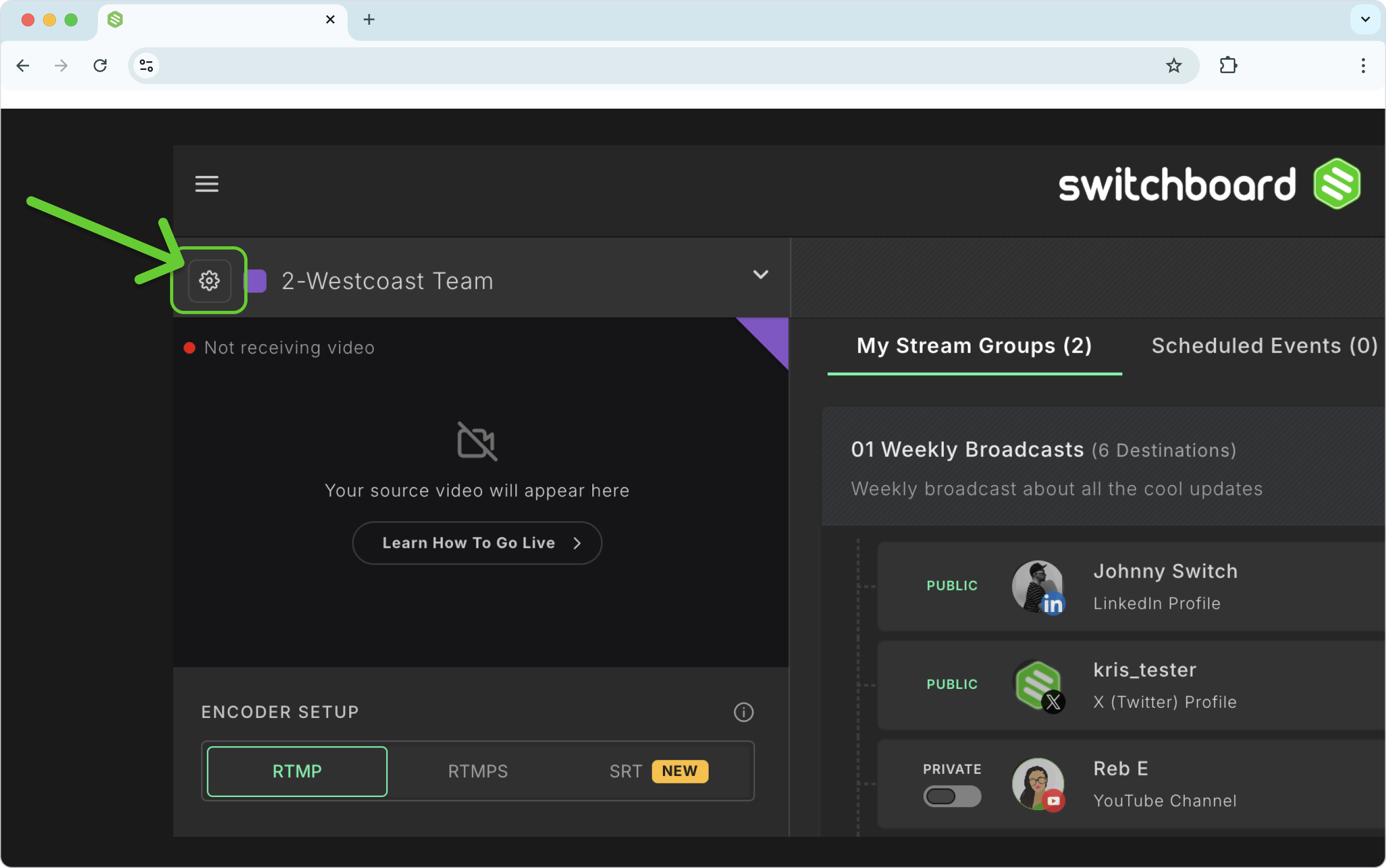
A new window will open. →Click Migrate provider.

Confirm and click Continue.
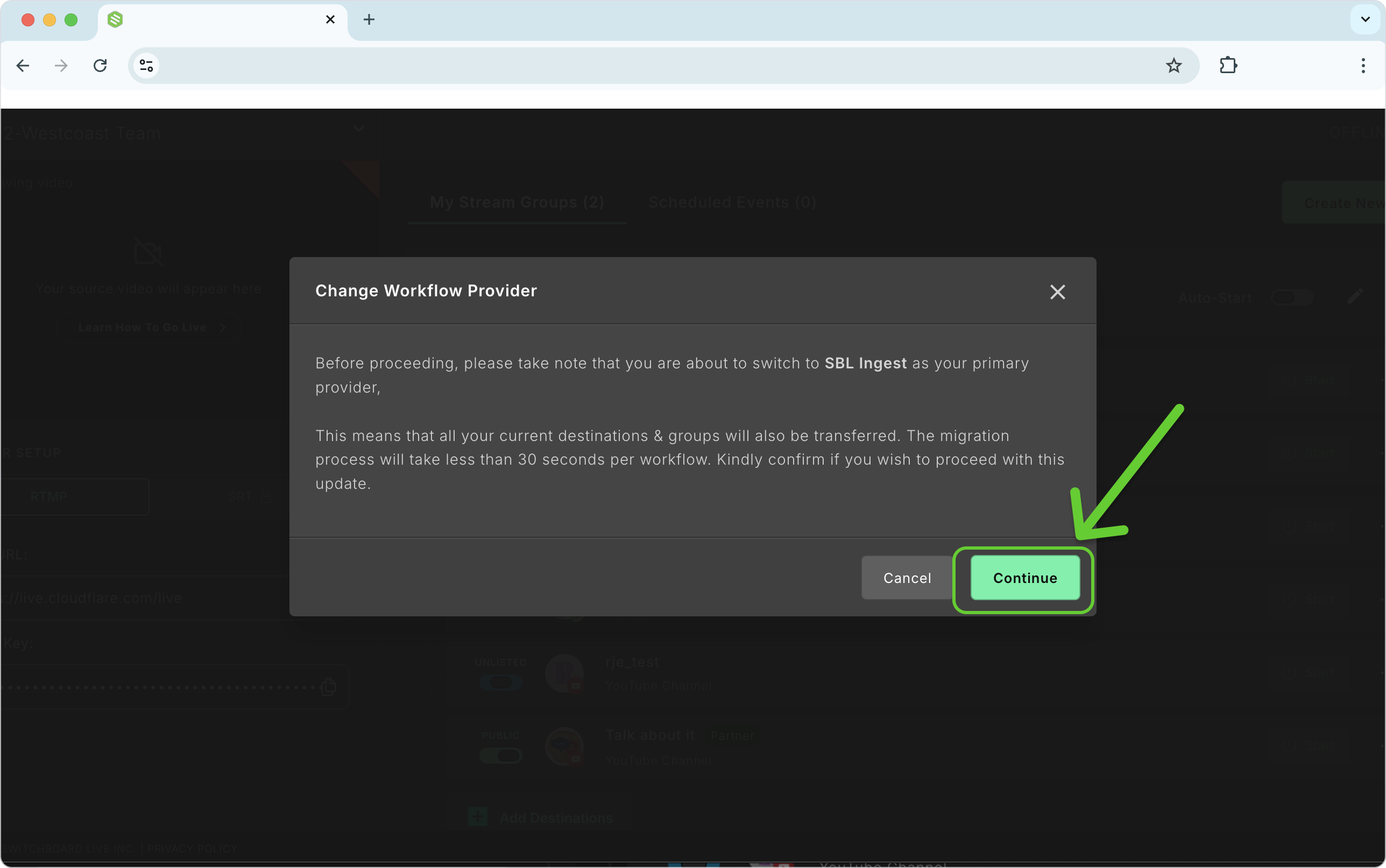
Important: Copy and paste the Stream URL and Stream Key into your live streaming software.
Check the connection between your live streaming software and your Switchboard account by sending a live feed to your updated workflow page.
Delete Workflow
In Workflow Settings, click Delete Workflow.
A confirmation window will appear.
Click Confirm to permanently remove the workflow from your Switchboard account.
This action cannot be undone.
Destination Pane
The Destinations Pane is where you manage every platform you're streaming to: YouTube, Facebook, LinkedIn, X (Twitter), Twitch, and more.
Live Header — Quick View
The top of the Destinations Pane shows a live status bar that updates as your broadcast progresses. When you're live, it displays:
LIVE badge — Confirms you are actively broadcasting
Timer — How long you've been live
Destinations — Total number of active destinations currently streaming
Viewers — Total number of viewers watching across all active destinations
When not live, this area shows OFFLINE along with your encoder connection status and any error messages. You can also create a new Stream Group or a Scheduled Event from the Create New button in this area.
Destination Header Bar: The Destination Header Bar shows your streaming status, error messages, and the option to Create a New Stream Group.
Encoder status
No Video Present: You’ll need to start streaming from the live streaming encoder to this specific Encoder Workflow to go live.
Video Present: This means you are ready to go live because video content comes through from the live-streaming software.
Live Streaming: Messaging displays that you are active and live streaming.
Error messages: If there is an issue going live to a destination or a connection has been lost between the live streaming encoder and this workflow.
Create New Button
Stream Groups enable grouping destinations based on user preferences. For example, creating a destination group for going live to certain channels on specific days of the week can be a helpful approach. You can create multiple Stream Groups on a workflow page.
Help button
Use the help button to access the knowledge base or submit a ticket
Live Streaming status visual indicator
Active Destinations: Total number of active live destinations on the workflow.
Total Number of Viewers: Total number of viewers currently watching the live stream.
Timer: Length of time for the current live-stream broadcast.
Stream Groups:
Stream Groups let you organize your destinations by any logic that works for you — by day of the week, event type, platform combination, or audience. You can have multiple Stream Groups on a single workflow.
Stream Group Header:
Live Icon
Each Stream Group now displays a Live icon so you can quickly see which groups are actively broadcasting — especially useful when you're managing multiple groups at once.
Group Name:
An internal label visible only to you. Name it whatever helps you find it quickly.
Stream Title
Stream titles are set per group and published natively to connected destinations (YouTube, Facebook, X, LinkedIn, Twitch, Rumble). Learn how to add a stream title and description →
Adding stream titles and descriptions can further help maintain consistent branding. Stream titles are applied per Stream group.
Auto-Start
Toggle it on or off before sending video from your encoder to automatically start streaming to all destinations in the stream group when your encoder connects.
Managing Stream Groups
Edit Group (Pencil Icon)
Opens the group editor where you can update the group name, activate Auto-Start, edit the stream title and description, add destinations, and add Partner Destinations.
Group Actions Menu (Sliders Icon)
Click the sliders icon in the Stream Group header to open the Group Actions menu. From here you can:
Start All — Start streaming to all destinations in the group at once
Sort By Platform — Reorder destinations by platform type
Sort By Live — Reorder destinations so active ones appear at the top
Collapse Group — Hide the group's destinations to reduce clutter
Add Destinations
Click the Add Destinations button at the bottom of any Stream Group to add existing destinations or connect new ones to your Switchboard account.
A new window will open, giving you the option to add existing destinations to the group (both regular and Partner Destinations) or to use the Connect More button to authorize new destinations for the Switchboard Account.
New Destinations: This gives access to the other Destination types that can be added to the group.
Existing destinations: Access to destinations already saved to the Switchboard account.
Destinations
Each Destination row in a Stream Group shows:
Icon — The platform's icon
Status Indicator — A yellow pulse means the destination is starting; other states reflect the current stream status
Viewers — Live viewer count for that specific Destination while broadcasting
Visibility Toggle — Change stream visibility for YouTube (Public / Unlisted / Private) and Facebook personal profiles (Public / Private). Note: Facebook Pages are set to public by default by Meta.
Destination Actions Menu (⋯)
Click the three-dot ellipsis (⋯) next to any Destination to open its Actions menu. From here you can:
Destination Details — View detailed information about the Destination, including direct links to the live video while broadcasting
View stream - to open and view the live broadcast video on the social platform.
Remove Destination — Removes the Destination from this Stream Group only. The Destination remains saved in your Switchboard account and can be re-added at any time.
Visibility Toggle:
You can change the stream's visibility for destinations like YouTube and Facebook profiles. Click on the visibility toggle to change the status.
YouTube destinations have three states: Public, Unlisted, and Private.
Facebook personal profiles have two states: Public and Private.
Note that Facebook Pages are public by default, a setting set by Meta.
Go Live and End Stream
Start / Go Live — The button stays gray until Switchboard detects incoming video from your encoder. Once live video is detected, it becomes active.
Click Start to begin streaming to that destination.
Stop Streaming — Click the Stop button to end the broadcast to a specific destination.
Frequently Asked Questions
Q: What's the difference between RTMP, RTMPS, and SRT?
A: RTMP is the standard ingest protocol supported by nearly all encoders. RTMPS is an encrypted version for secure delivery. SRT is a newer, low-latency protocol designed to stay stable on unreliable or congested networks. All three are available in Switchboard Live, you can choose the one that best fits your setup.
Q: What happens if I reset my stream key?
A: A new stream key is generated immediately. You must paste the new key into your encoder's settings before your next stream — the old key will no longer work.
Q: Can I have multiple Stream Groups in a single workflow?
A: Yes. You can create as many Stream Groups as you need on a single workflow and go live to each independently.
Q: Where did Auto-Start move?
A: Auto-Start now lives in the Stream Group header. Toggle it on or off there before sending video from your encoder.
Q: What does the Live Icon on a Stream Group mean?
A: It means that Stream Group is currently broadcasting. If you have multiple groups, the Live icon helps you quickly identify which ones are active.
Related articles: