Connecting YouTube to Switchboard Connect
This article will teach you how to link a YouTube channel to your Switchboard account for the first time.
Last updated 10 months ago
Follow the instructions below to learn how to stream to YouTube.
Topics covered:
Add a YouTube Channel to Your Switchboard Account for the First Time
Add YouTube to a Stream Group
Go Live on YouTube
Additional Resources
Let's begin!
IMPORTANT NOTE
Before you can authenticate your YouTube destinations, you must enable live streaming on your channel. Activating your account can take up to 24 hours.
Use this resource to learn How to enable YouTube Live Streaming
You can start with the clip below and follow the step-by-step instructions below.

How to Link YouTube to your Switchboard Account for the First Time
Log in to your Switchboard account from a desktop computer.
Step 1
Click the Add Destinations button at the bottom of the Stream Group. If you are creating a group for the first time, skip to Step 2.

Step 2
Click Connect More.
Select YouTube from the menu.

A new pop-up window will prompt you to choose the appropriate YouTube channel or log in to your Google account.
Step 3
Select the appropriate YouTube Account.

Step 4
Click Continue.

Step 5
Click "Close" when you reach the Success Screen.
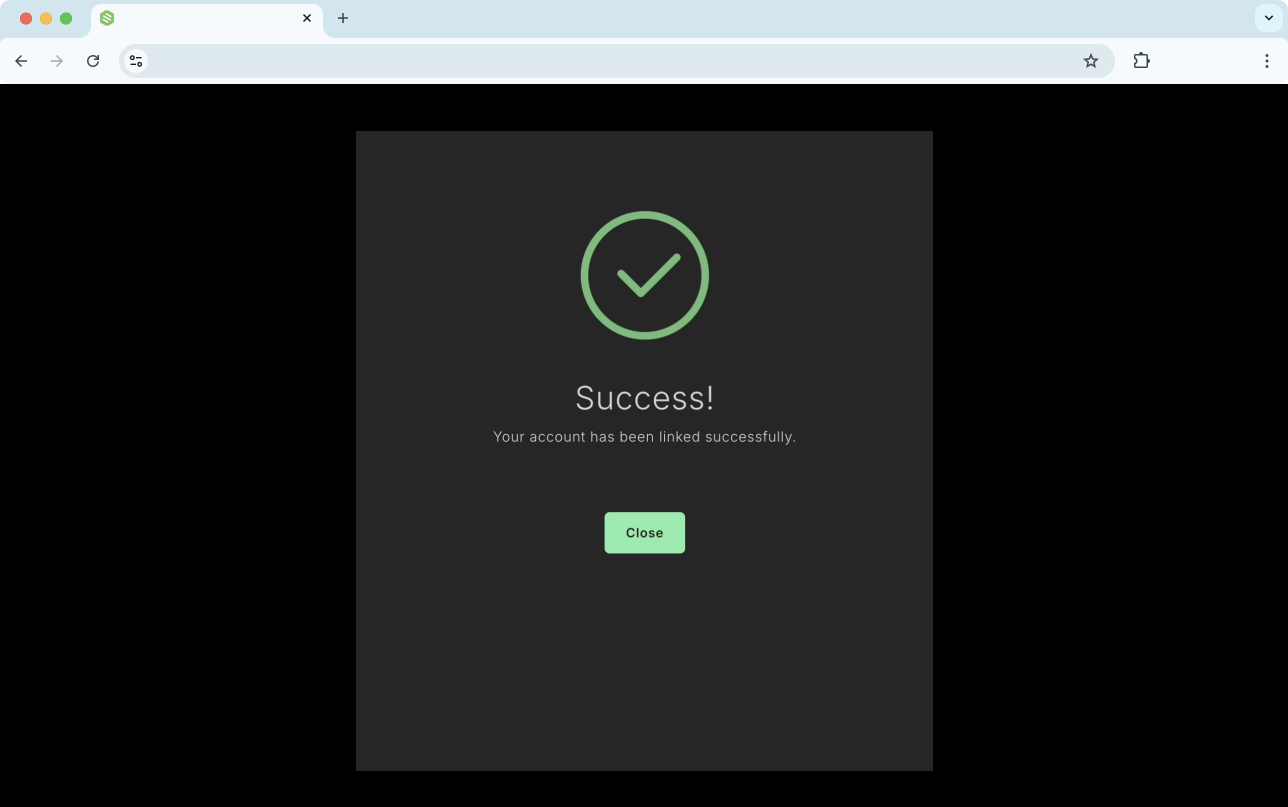
Congratulations! You've successfully linked a YouTube channel to your Switchboard Account.
✨Adding Multiple YouTube Channels
Repeat steps 2-5 to add another YouTube channel you can access using the same Google login.
Note: Switchboard Cloud's YouTube authorization process works through YouTube's API services. You agree to YouTube's Terms of Service and Google's Privacy Policy by authorizing. You can always revoke this authorization through Google's Security Settings page
How to Add YouTube to a Stream Group.
If your YouTube channel is already connected to your Switchboard account, you can easily add it to any stream group. Follow the steps below to do so, especially if you have multiple workflows and stream groups in your account.
Click the Add Destinations button at the bottom of the desired Stream Group.

Find the YouTube destination you want to add.
Enable the destination by clicking on the toggle next to it.
Click Submit to confirm your changes.
Ready to Go Live!
Going live on YouTube from the Switchboard Workflow
When ready to go live, send the video from your encoder into the appropriate workflow.
Double-check that the video shows on the Switchboard confidence monitor and that the "receiving" indicator is green.
Select the destination and press Go Live.