Stream to Facebook Groups with Switchboard Cloud
With Switchboard Cloud, you can stream live to any Facebook Group for which you have Admin permission. We'll cover the steps on how to live stream to a Facebook Group using the RTMP method.
Last updated Over 1 year ago
IMPORTANT UPDATE:
❗️According to Meta, the ability to post and live stream via 3rd party apps to Facebook Groups will be discontinued in April 2024.
Click here to read their update.
We recommend creating a Facebook Event and adding it to your Switchboard account via RTMP. The instructions are below.
Step 1
Navigate to your Facebook Group. Ensure you have the proper credentials to go live with the Facebook Group.
Step 2: Create the Event
Click Events at the top of the group header.
Click Create Event.

Step 3: Fill out Event Details
Start filling out the event details, such as the Start/End date and time.

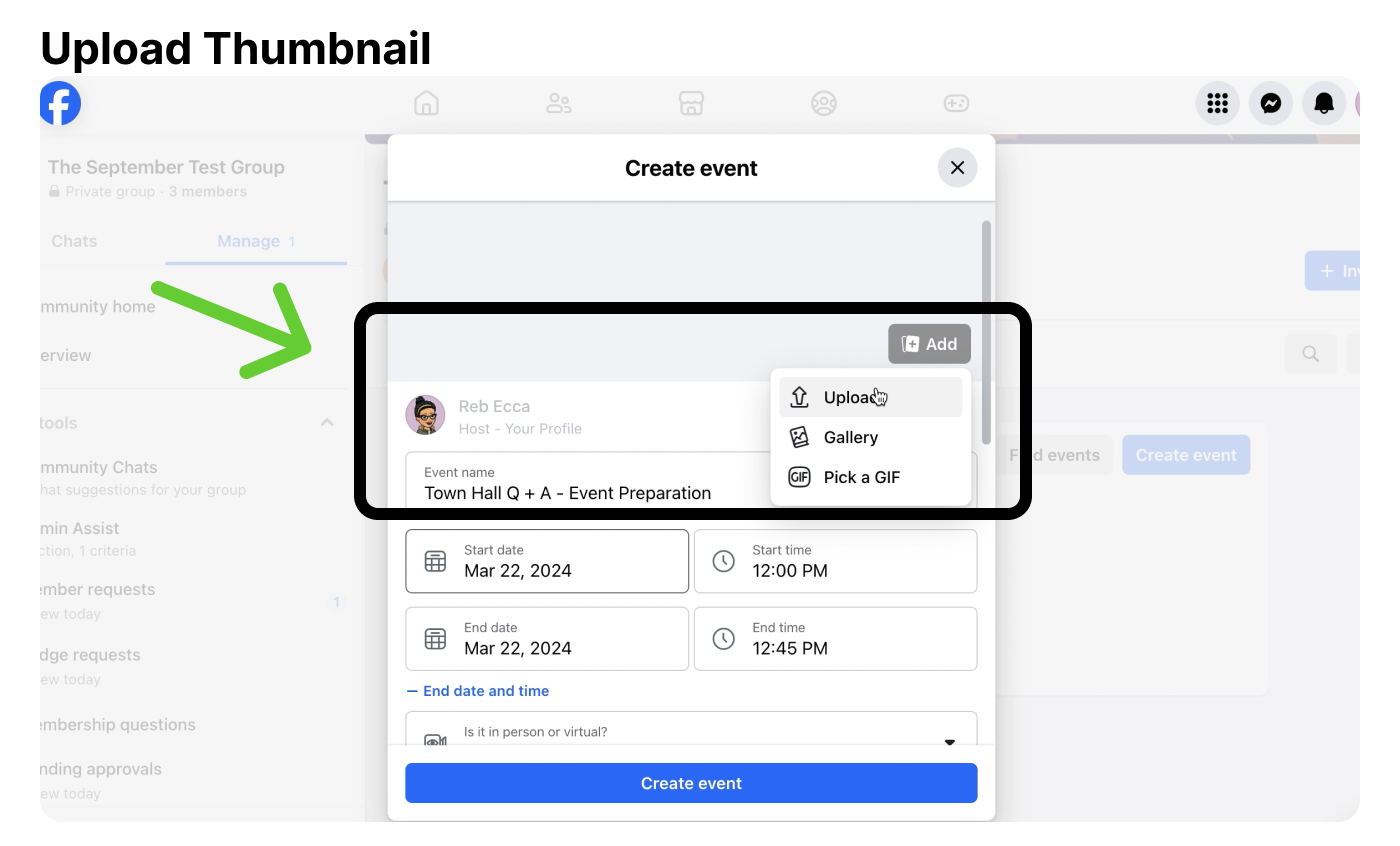
Step 4: Upload a Thumbnail.
Step 5:Select Virtual

Step 6
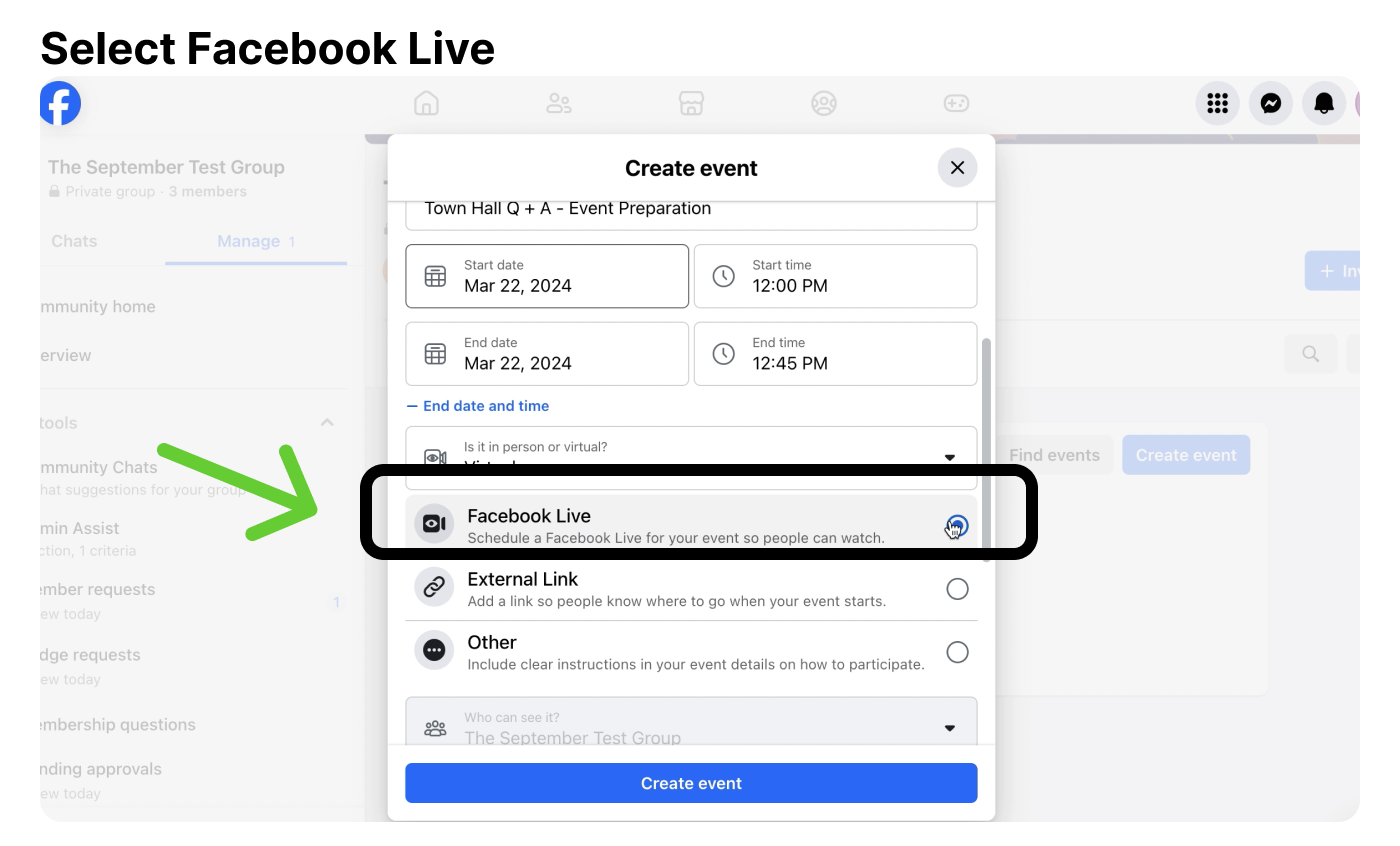
Select Facebook Live.
Step 7
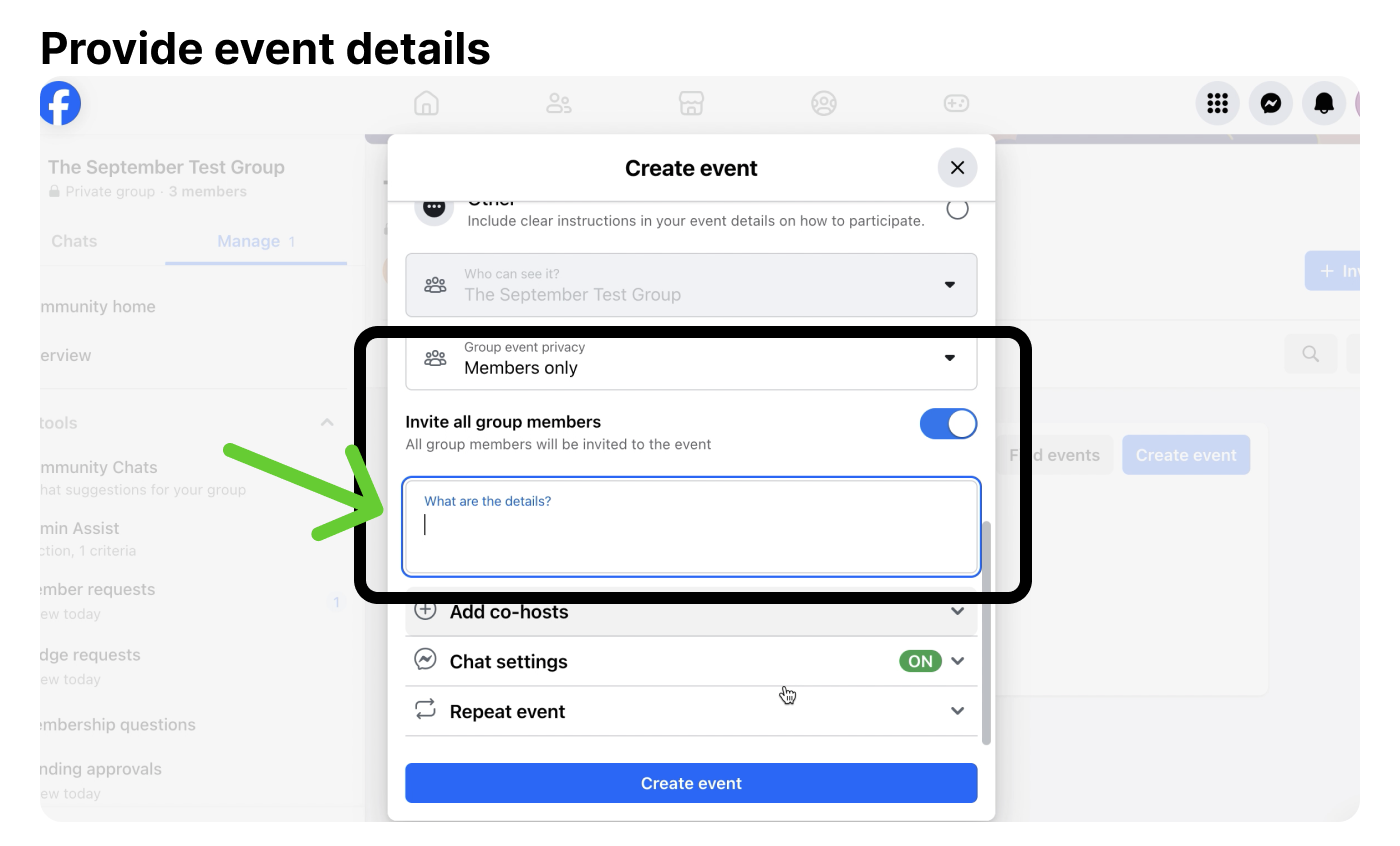
Select Members only. Click Create Event.
Step 8: Set Up Live Video
Click the Set Up Live Video Button.

Step 9
Automatically Go Live at the scheduled time or Go Live Now.

Step 10
Select Streaming Software.

Step 11: Create an RTMP destination in Switchboard.
In your Switchboard account, navigate to the desired Stream Group.
Click the Add Destination Button at the bottom of the group.
Click Connect More at the top right of the Edit Group Menu.
Select the Custom RTMP.
Step 12
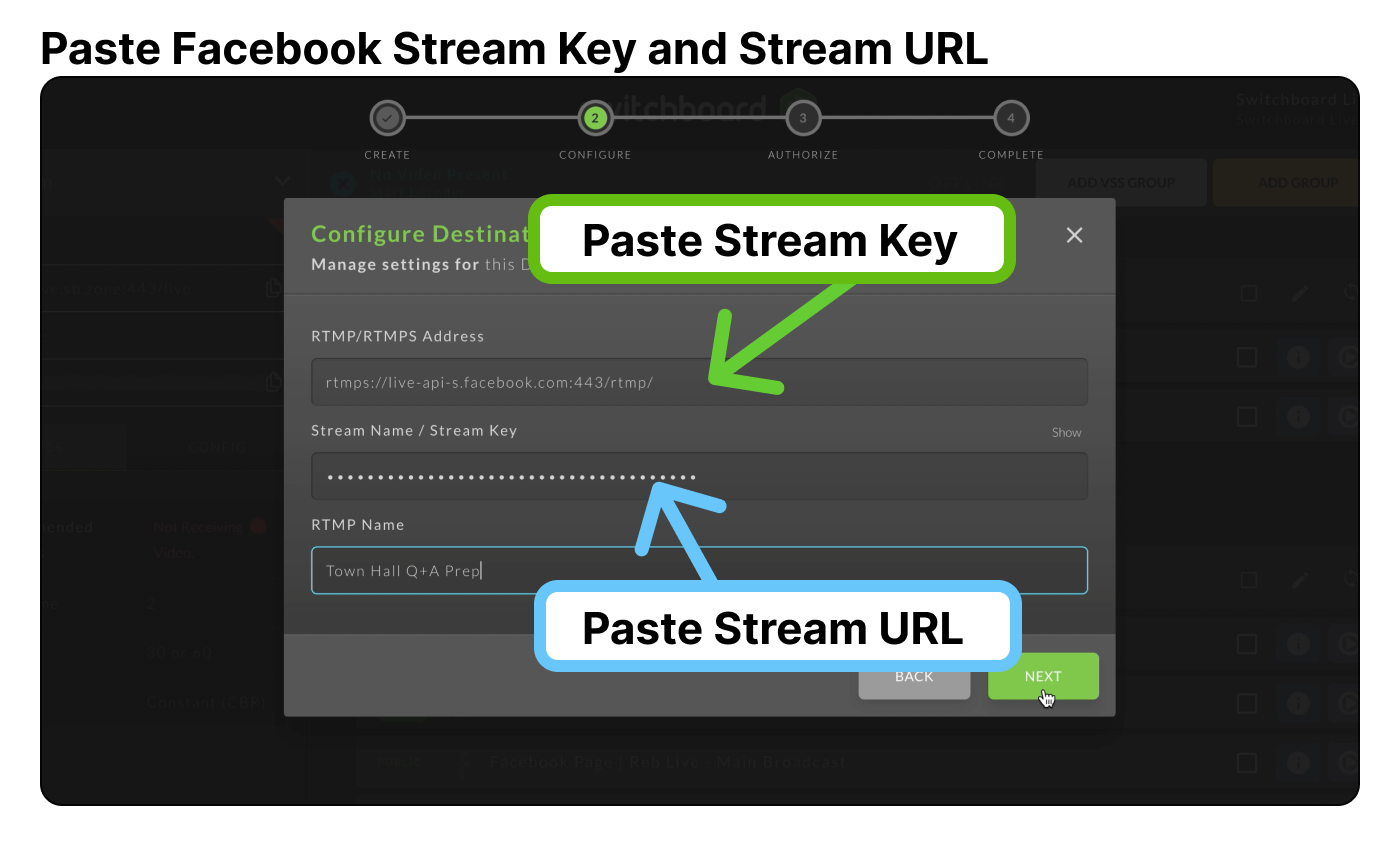
Next, you'll go back and forth between Switchboard and Facebook as you copy and paste the Facebook Stream Key and Stream URL.
Step 13
Under Stream Setup of the Facebook Event, Click Copy Stream Key. Return to Switchboard and paste the Stream Key in the correct field.

Step 14
Return to Facebook. Scroll down and click Advanced Settings.
We're setting up a one-time event, so we'll click "Copy Server URL." For recurring events, you can use the persistent key option.

Step 15
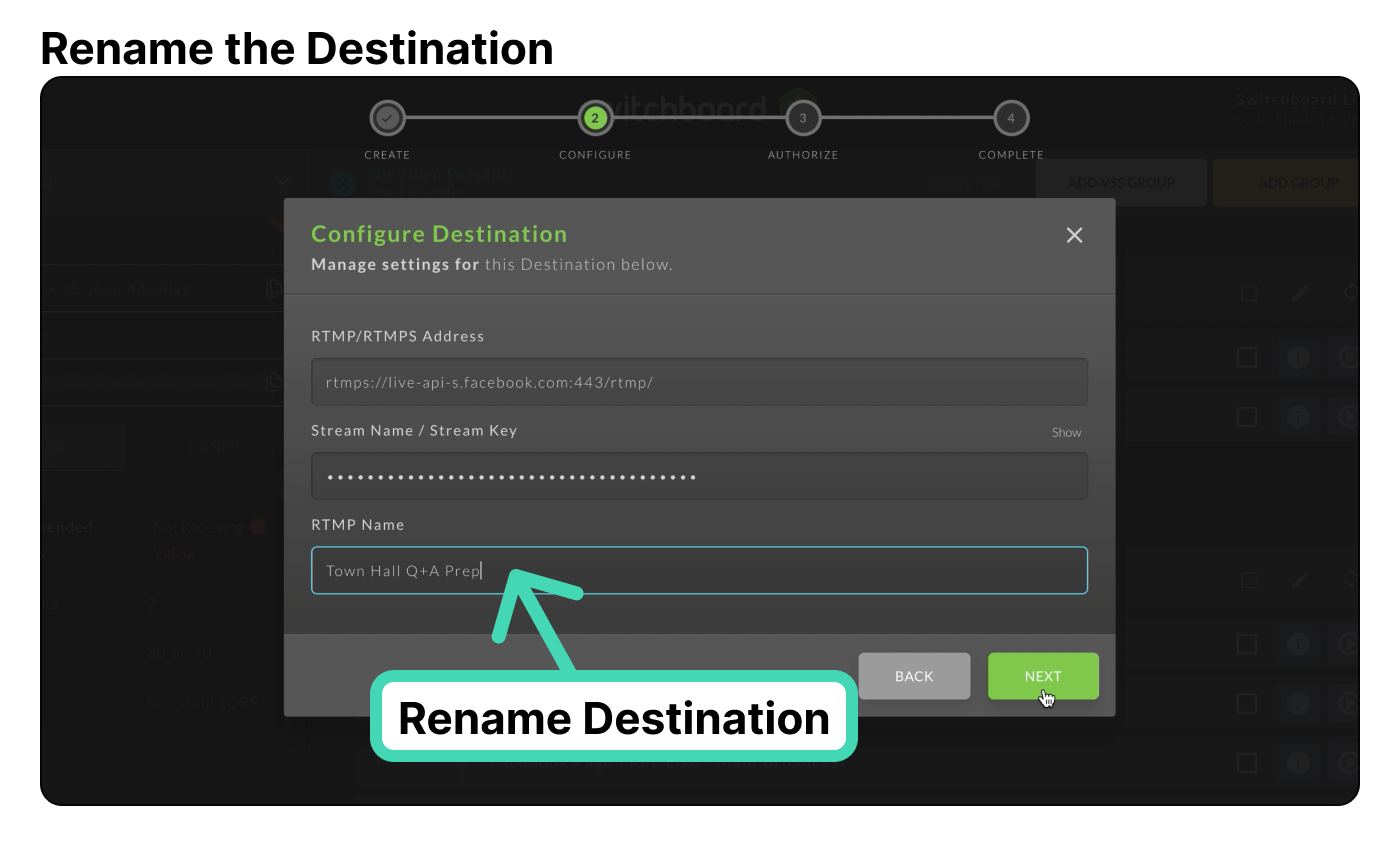
Return to Switchboard and paste the Facebook Server URL into the corresponding field. Rename the destination; we recommend the event name. Click Next. Then Close.
Step 16
Test the Connection Between the Switchboard and Facebook.
Start sending video to your Switchboard workflow and click the Go Live button next to the destination we've just added.

Step 17
Return to Facebook and verify that you're receiving the video from Switchboard.

Please note that you won't go live to the Facebook event until you click "Go Live Now" or at the Scheduled time on Facebook.
💡 PRO TIP: Enabling Switchboard Autostart and Facebook Autostart will automatically start your stream on both platforms without the need to press the GO live button. You'll only need to start streaming from your live-stream software.