How to Go Live on Rumble from your Switchboard Account
In this article, you'll learn How to add a Rumble channel to your Switchboard account and Go Live!
Last updated Over 1 year ago
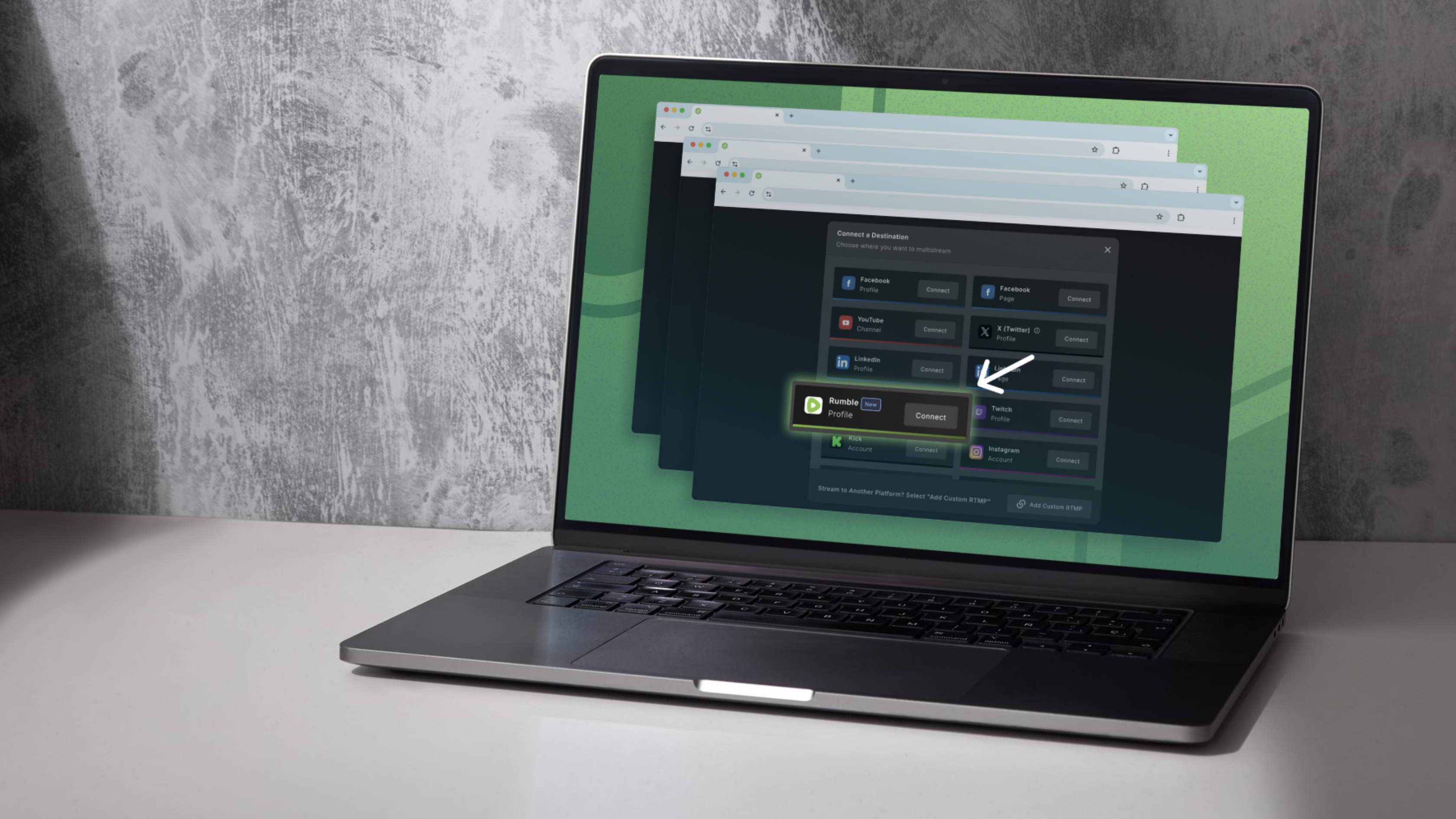
What's covered:
Rumble prerequisites for going live.
Connecting Rumble to your Switchboard account for the first time.
Adding Rumble as a destination to a Stream Group.
Going Live to Rumble.
Adding Rumble as an RTMP Destination.
What about my Previous Rumble Destination?
Rumble Live Streaming prerequisites
24 Hour Wait
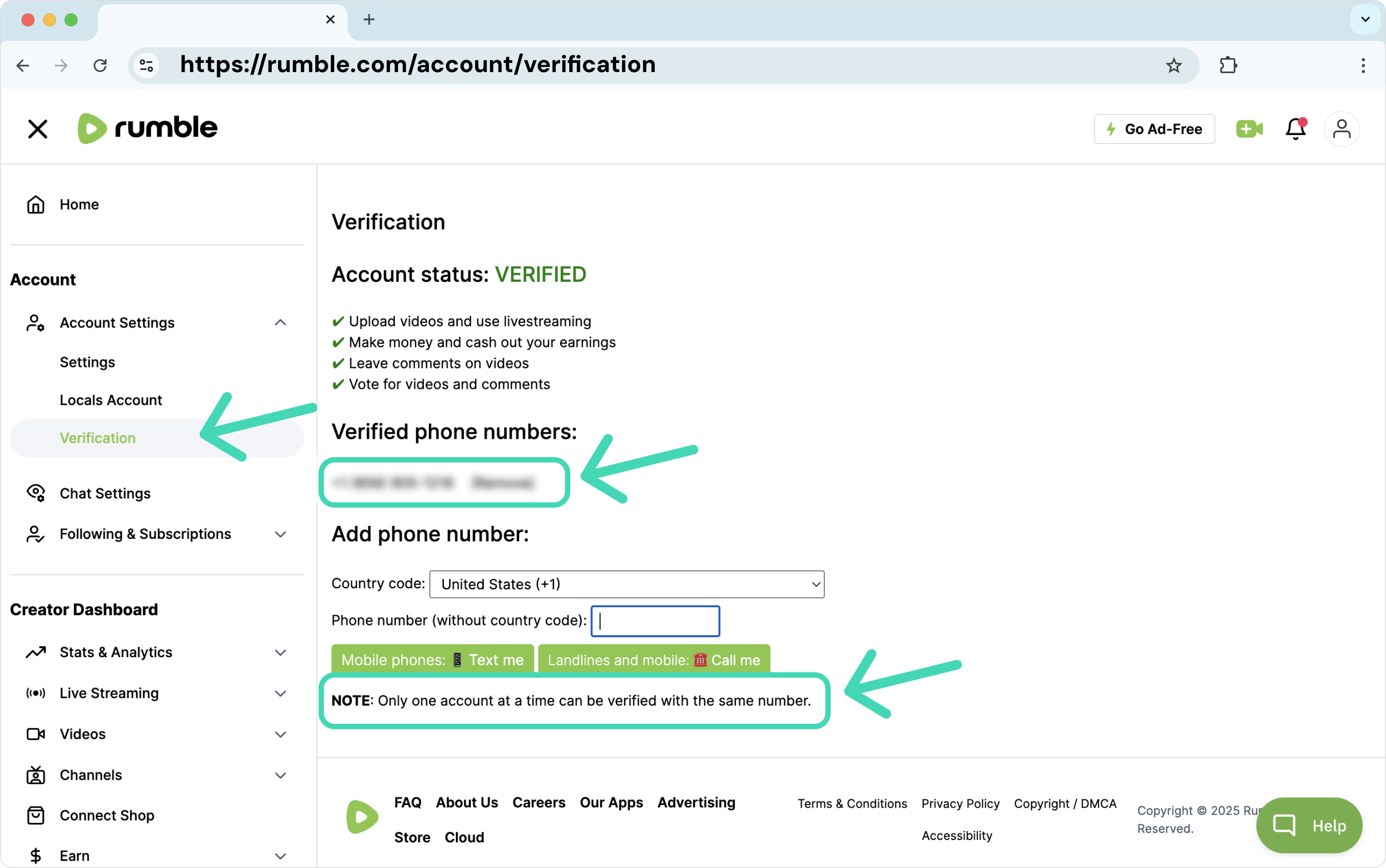
You'll need to enable live streaming for your Rumble Channel. This process can take 24 hours. To learn about this, please read it here:
Follow the steps here: https://rumblefaq.groovehq.com/help/how-to-setup-a-livestream
Rumble Verification - https://rumblefaq.groovehq.com/help/account-verification
Add Rumble as a New Destination in your Switchboard Account.
The steps below explain how to add Rumble to your Switchboard account for the first time. You only need to do this once. After it has been connected to your Switchboard account for the first time, you can add it to any destination group in your Switchboard Account.
Important Tips:
It helps to be logged in to your Rumble Channel and Switchboard in the same browser.
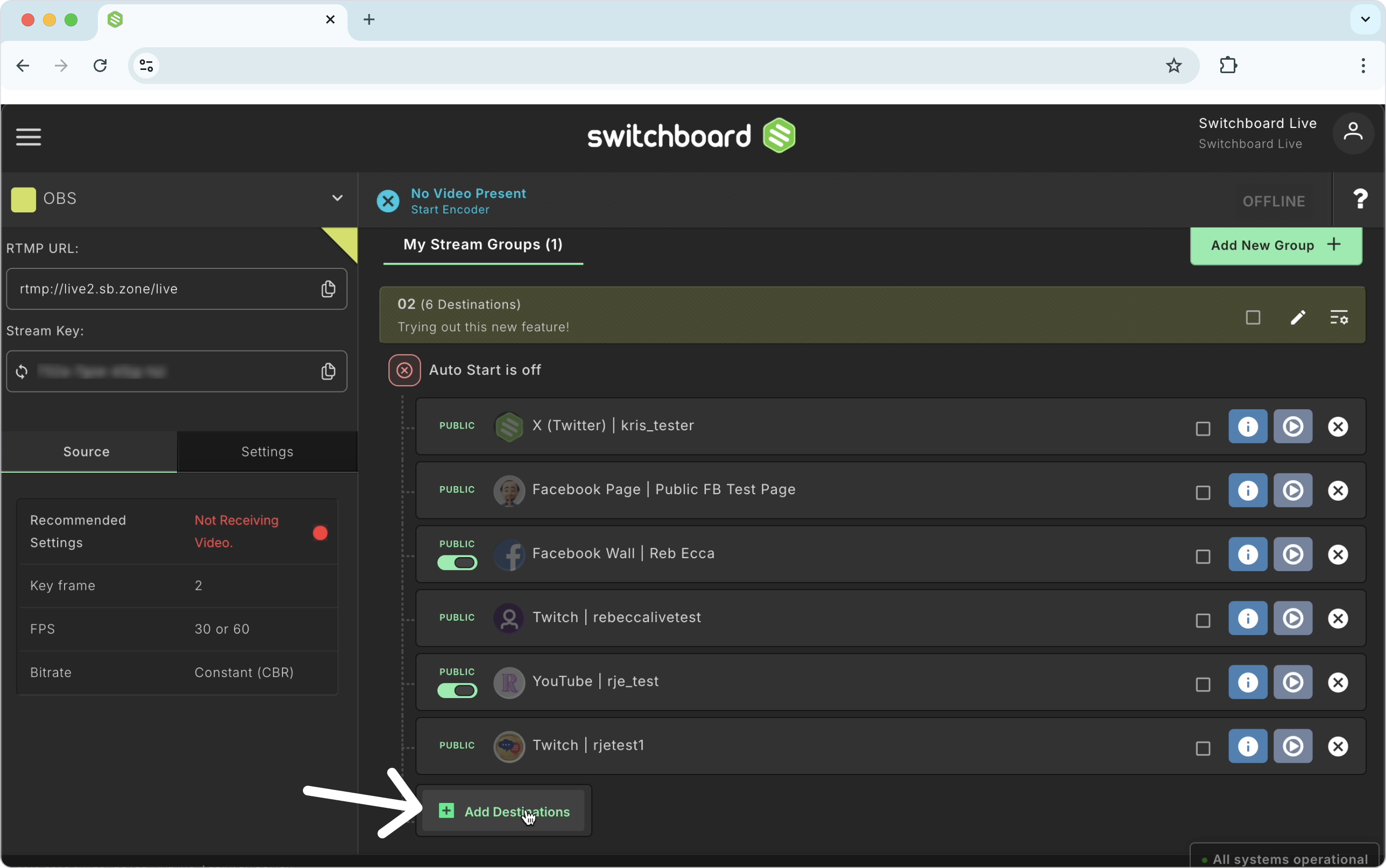
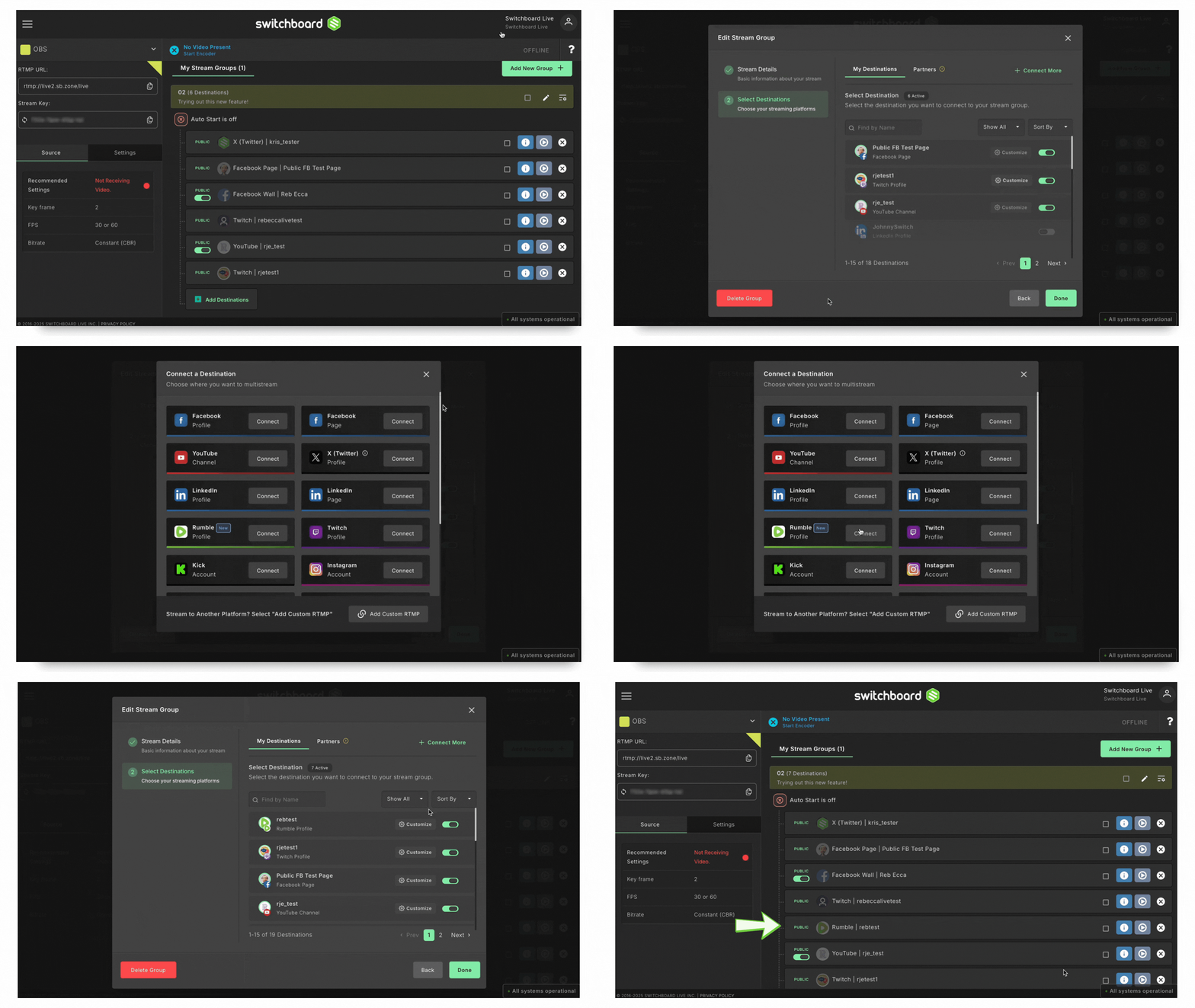
Click the Add Destination Button.
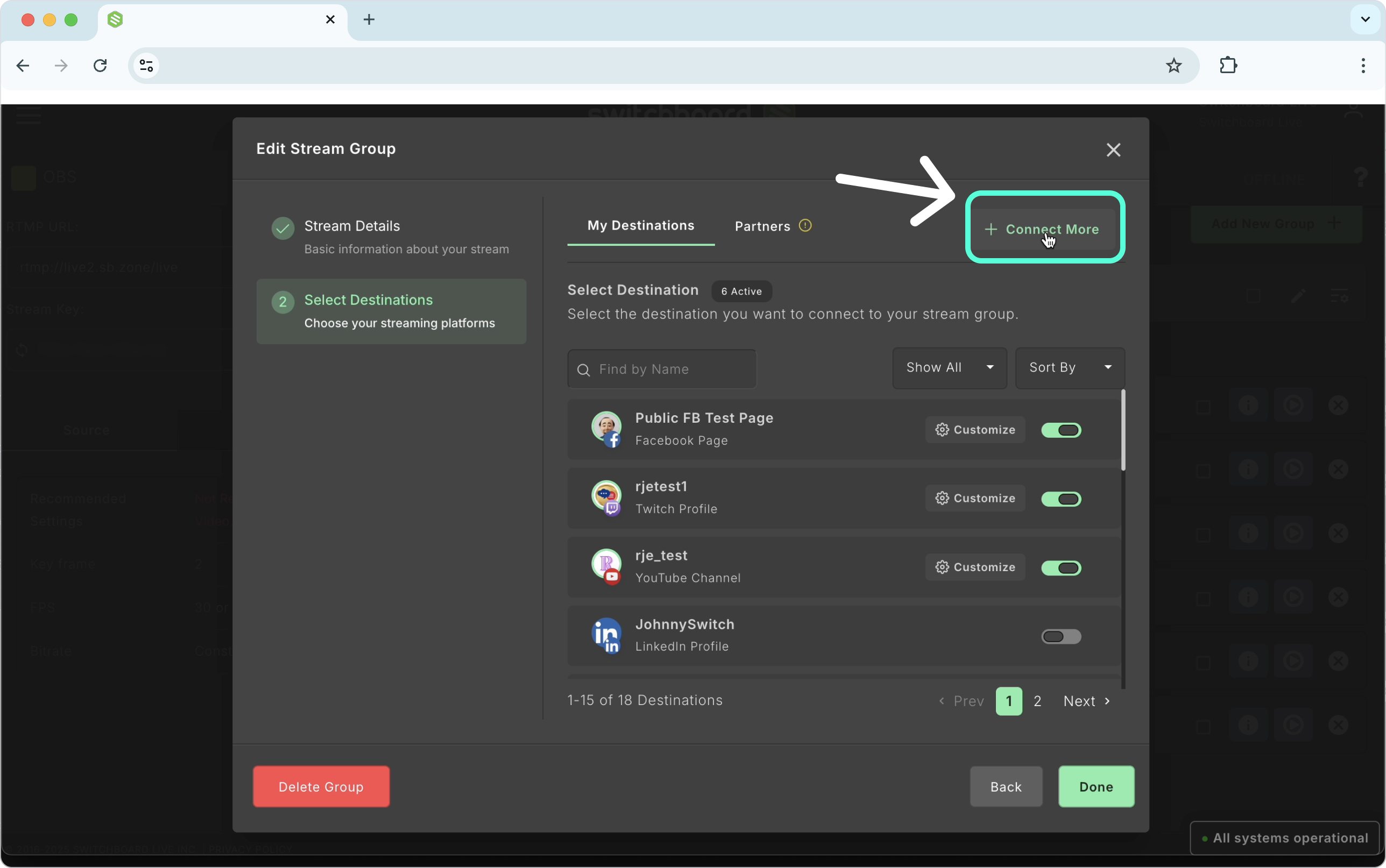
Select Connect More.
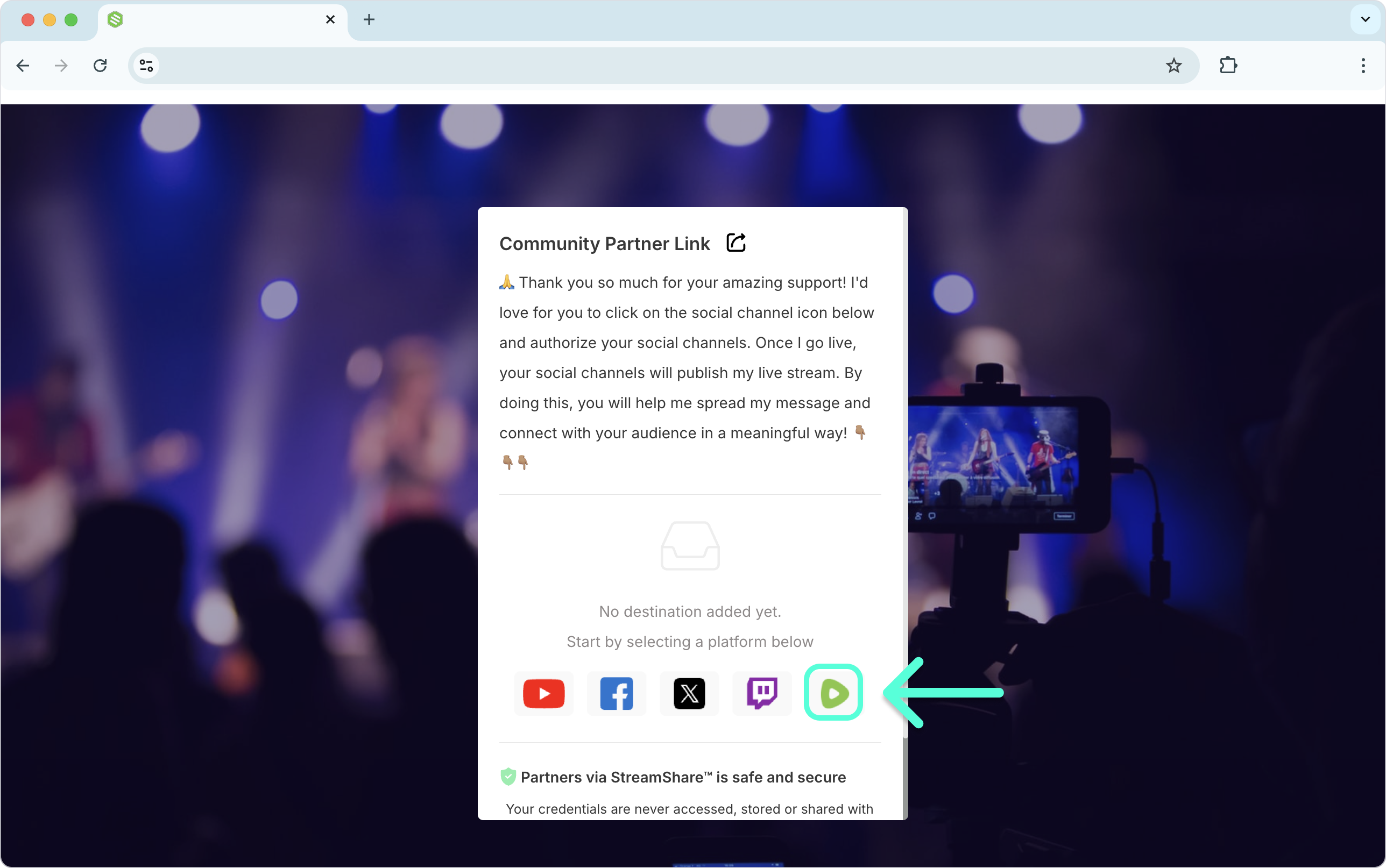
Choose Rumble from the Destination Menu.
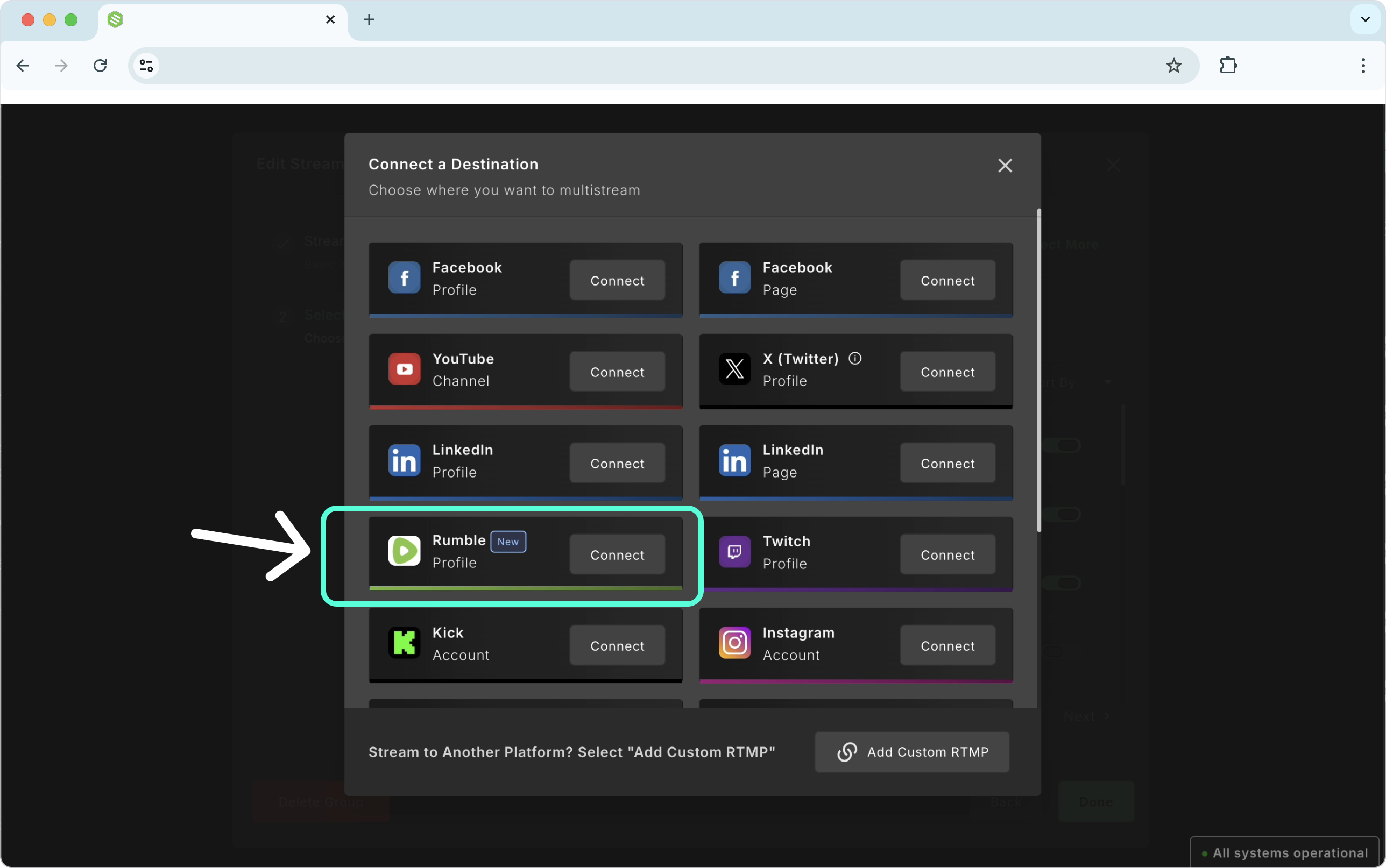
A pop-up window will display, and you'll be prompted to log into your Rumble Account. (If you're already logged in to Rumble in the same browser, this step will happen automatically.)
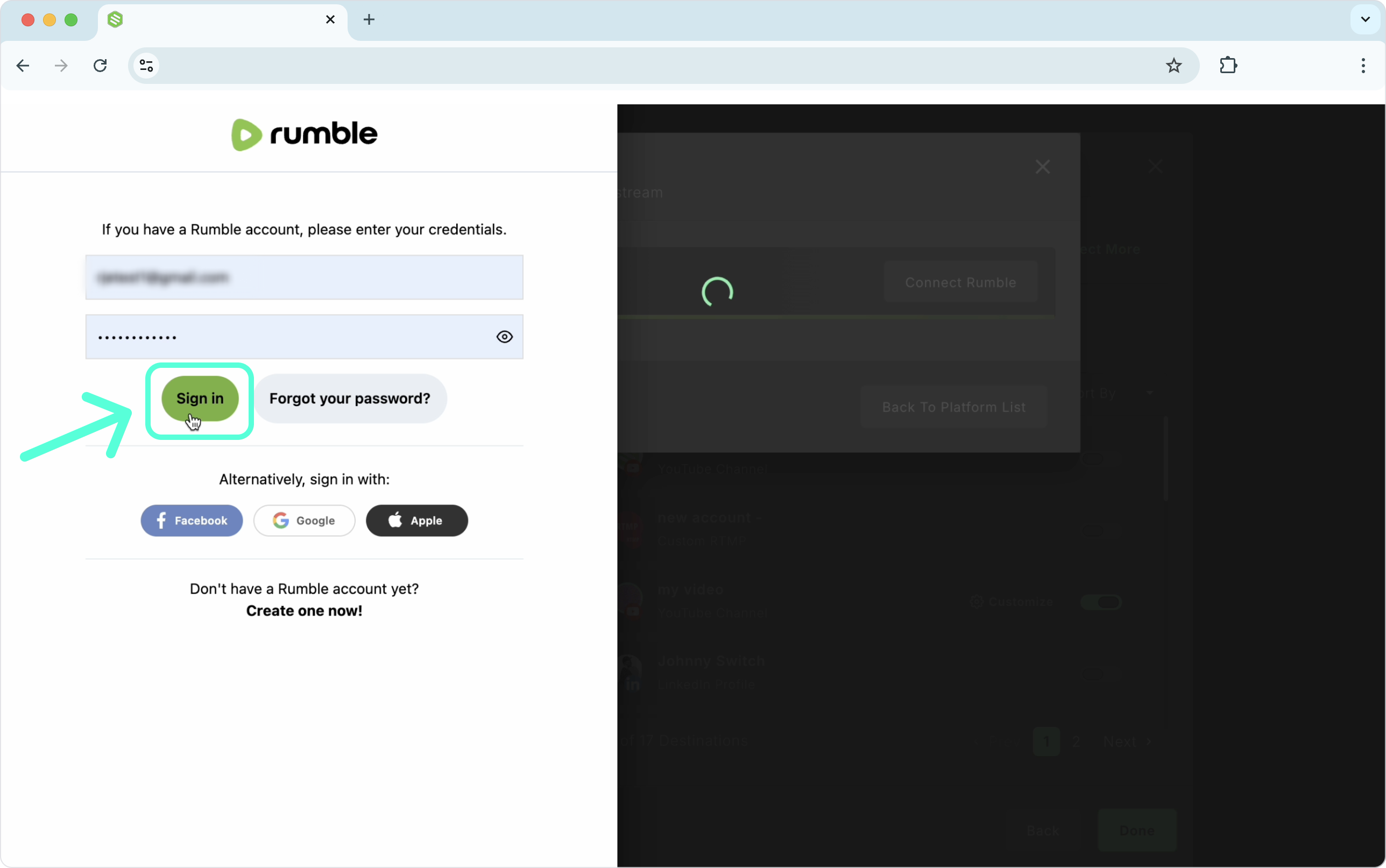
👉 If you don't see a pop-up window, ensure that pop-up blockers are turned off.
Sign in to your Rumble Account and follow the prompts until you reach the Success window.
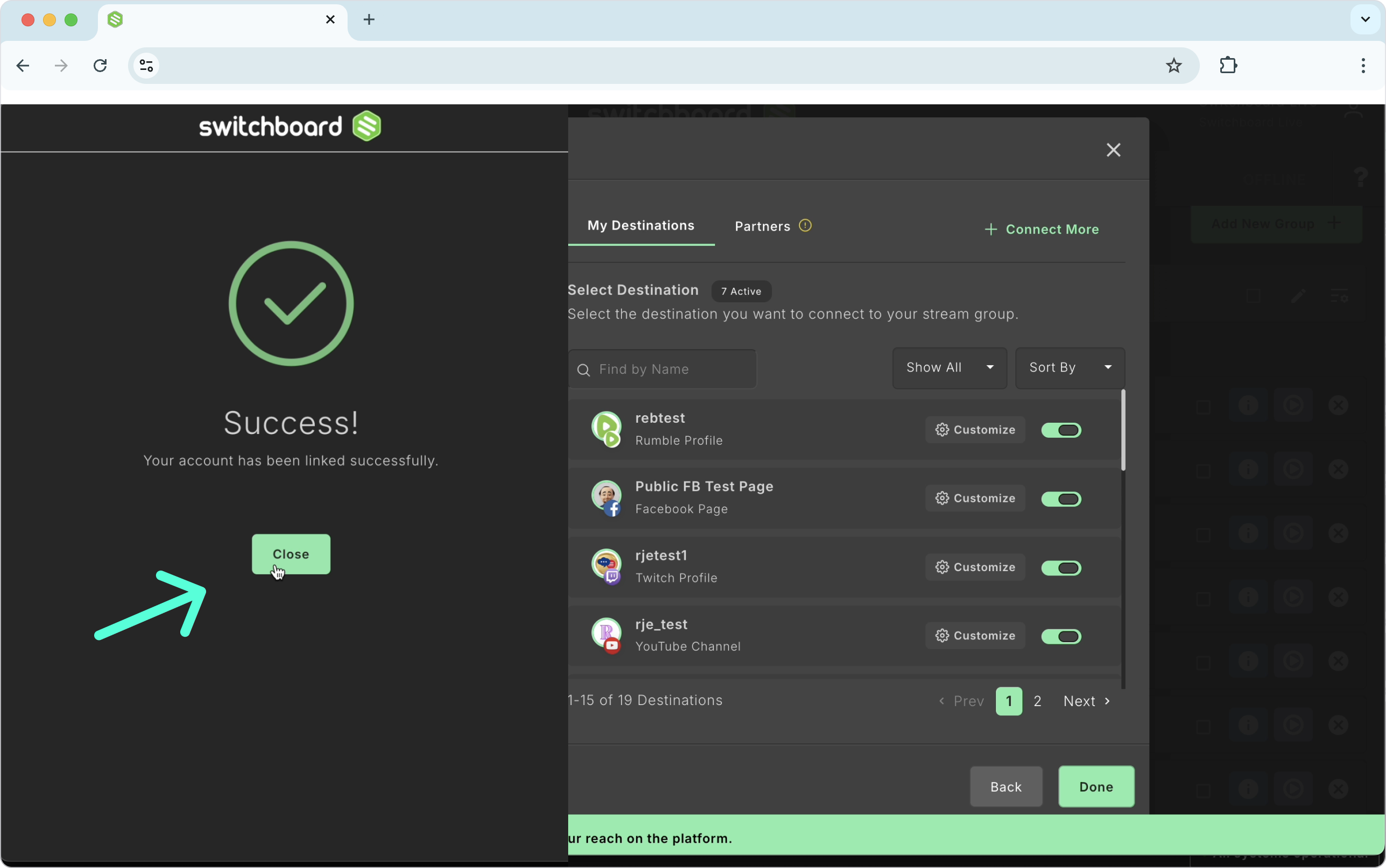
You've successfully connected Rumble as a Destination to your Switchboard account.
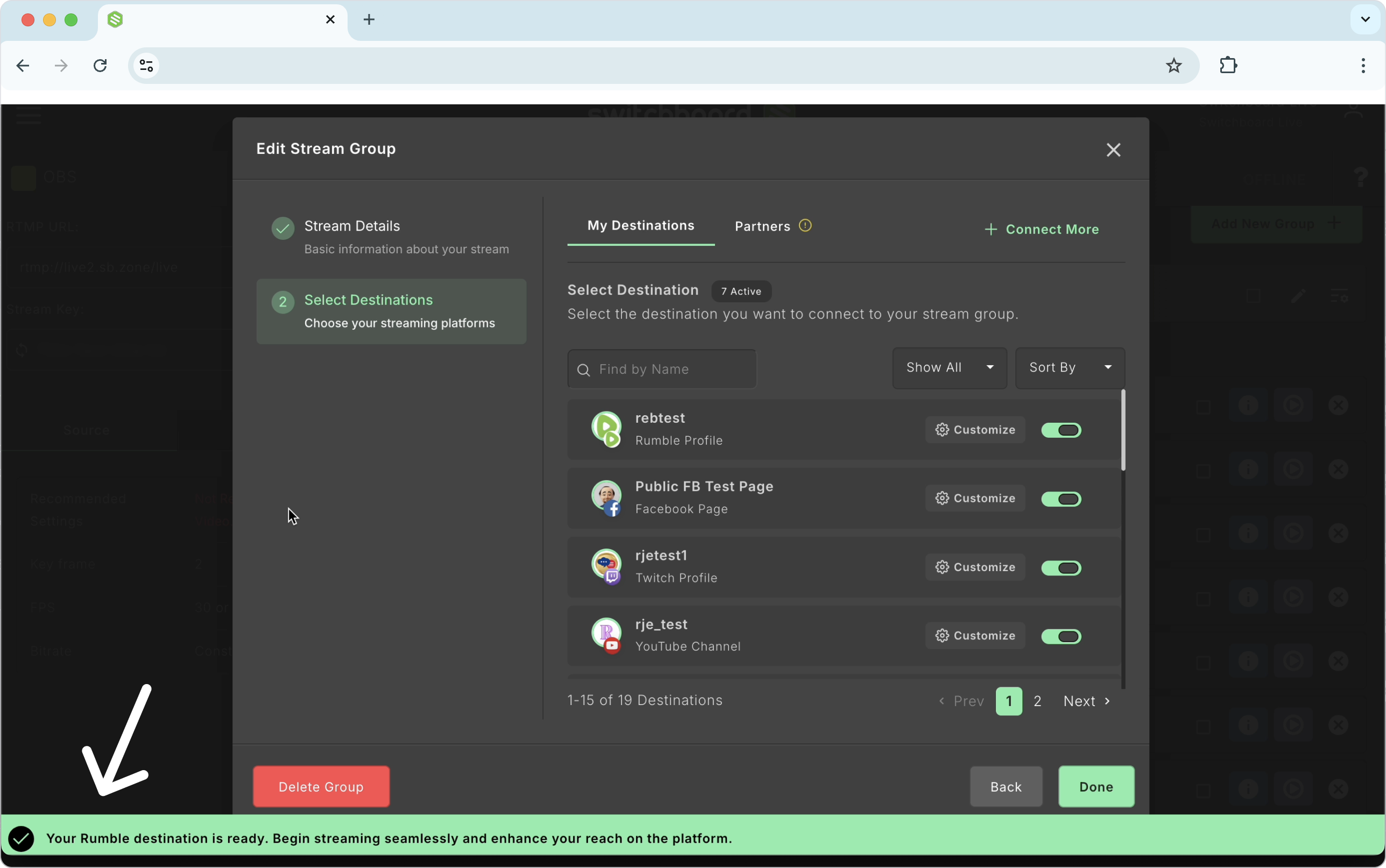
Adding Rumble to a Stream Group
The steps below explain how to add Rumble to a destination group after it's been connected to your Switchboard Account. You'll need to do this if you want to add Rumble to another Stream Group in your Switchboard Account.
Click the Add Destinations at the bottom of the Stream Group.
A new window will open; use the sort and filter features to find the Rumble channel you wish to add to the group.
Click the toggle button next to the Rumble channel to add it to the group.
Click Done.
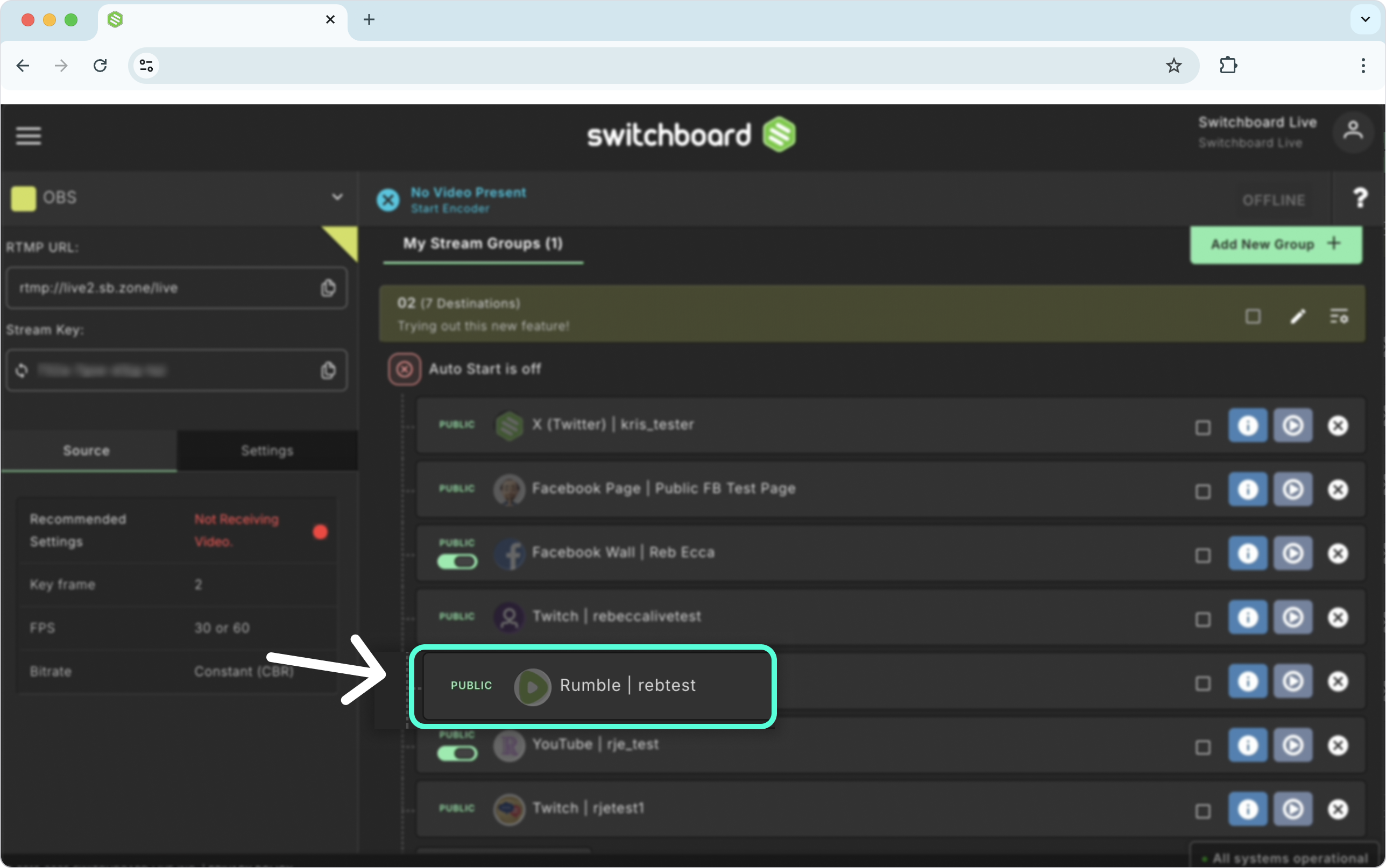
The Rumble Destination has been successfully added to the Stream Group.
Multistreaming to Rumble
Now that you've connected Rumble as a destination to your Switchboard account and have added it to a destination group, you're ready to go live.
Ensure video is sent from your live streaming software to your Switchboard Workflow.
Select the destinations you want to go live.
Click Go Live at the top of the workflow page.
After a few seconds, you'll be Multistreaming!
Rumble's Recommended Stream Settings
Please follow Rumble's recommended stream settings, which you can find here.
Live Stream on a Partner's Rumble Channel
Collaborating with a friend or colleague on a live-stream event? If they have a Rumble account, you can go live on their account simultaneously. You can achieve this using the Partner Invite feature in your Switchboard account. Once they've opted into their destination, you can livestream on both accounts simultaneously.
First, you'll need to set up the Partner Invite. If you haven't done so already, read the instructions here: How to Set up the Partner Invite in your Switchboard Account.
Once you've created the Partner Invite and shared the link, add the Shared Rumble channel to a Stream Group.
Set up the Stream Title and go live on your and your partner's Rumble channels simultaneously.
Adding Rumble to your Switchboard Account
What about my previous Rumble Destination?
Don't worry; the Rumble destination you previously added to your Switchboard account still exists in your Switchboard account. If you want, you can remove it from your Switchboard account by following the steps in this reference.
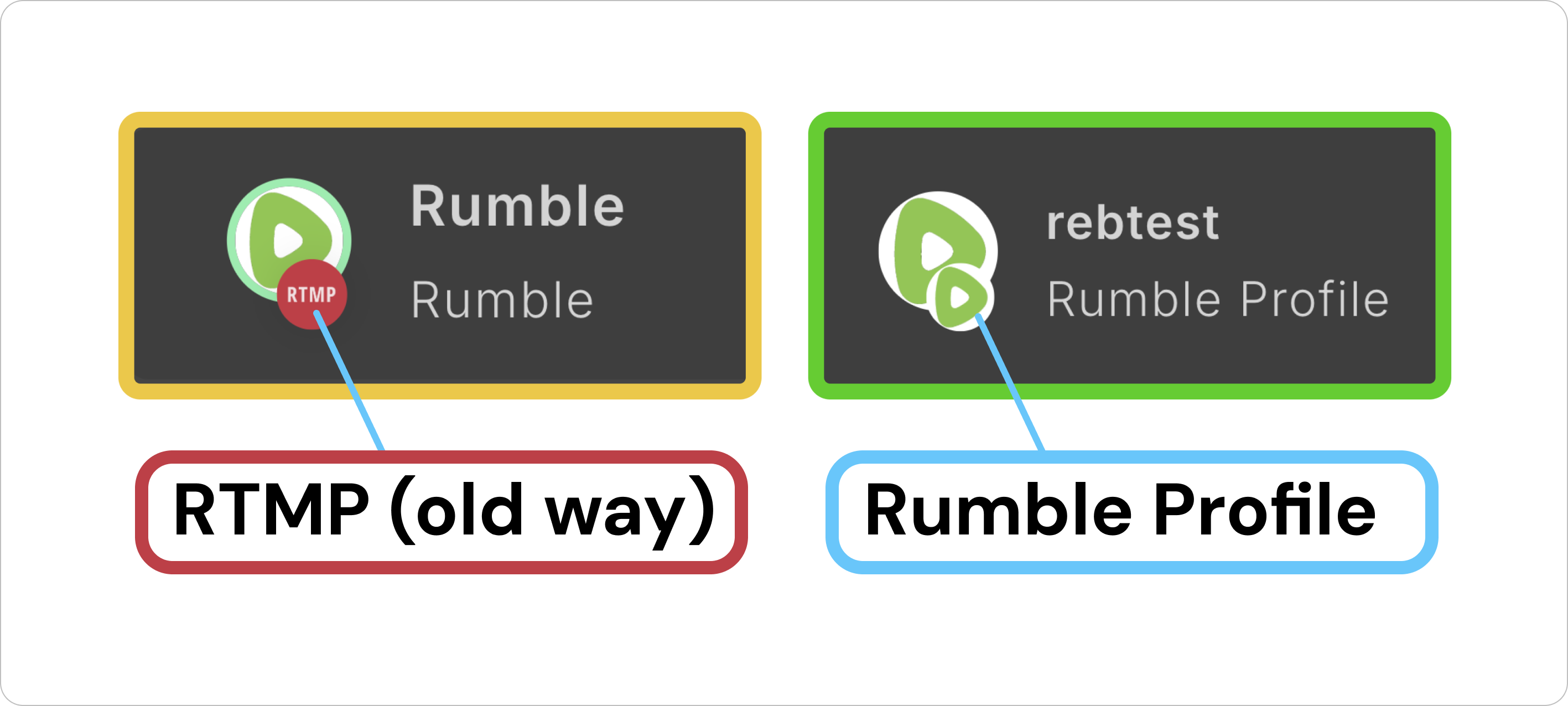
Rumble destinations added via RTMP (the old way) will display the letters RTMP above the Rumble icon.
Rumble destinations added using the new integration will show the channel's name and the words "Rumble Profile" below it.
See the image below for comparison:
Add Rumble as an RTMP Destination.
Alternatively, you can add Rumble as an RTMP destination. This section covers adding Rumble via RTMP and grabbing the Stream URL and Stream key from your Rumble channel. Note that when you add Rumble via RTMP, the stream title you create inside Switchboard will not be published on the Rumble channel when you go live.
We recommend adding Rumble as a Static Stream Key so that you won't need to update the Stream URL and Stream Key for each live streaming broadcast.
Create the Rumble Live Stream Event
Log in to your Rumble account.
Click the Camera Icon at the top right of the Rumble account, and select Go Live from the drop-down menu.
Or use this Link
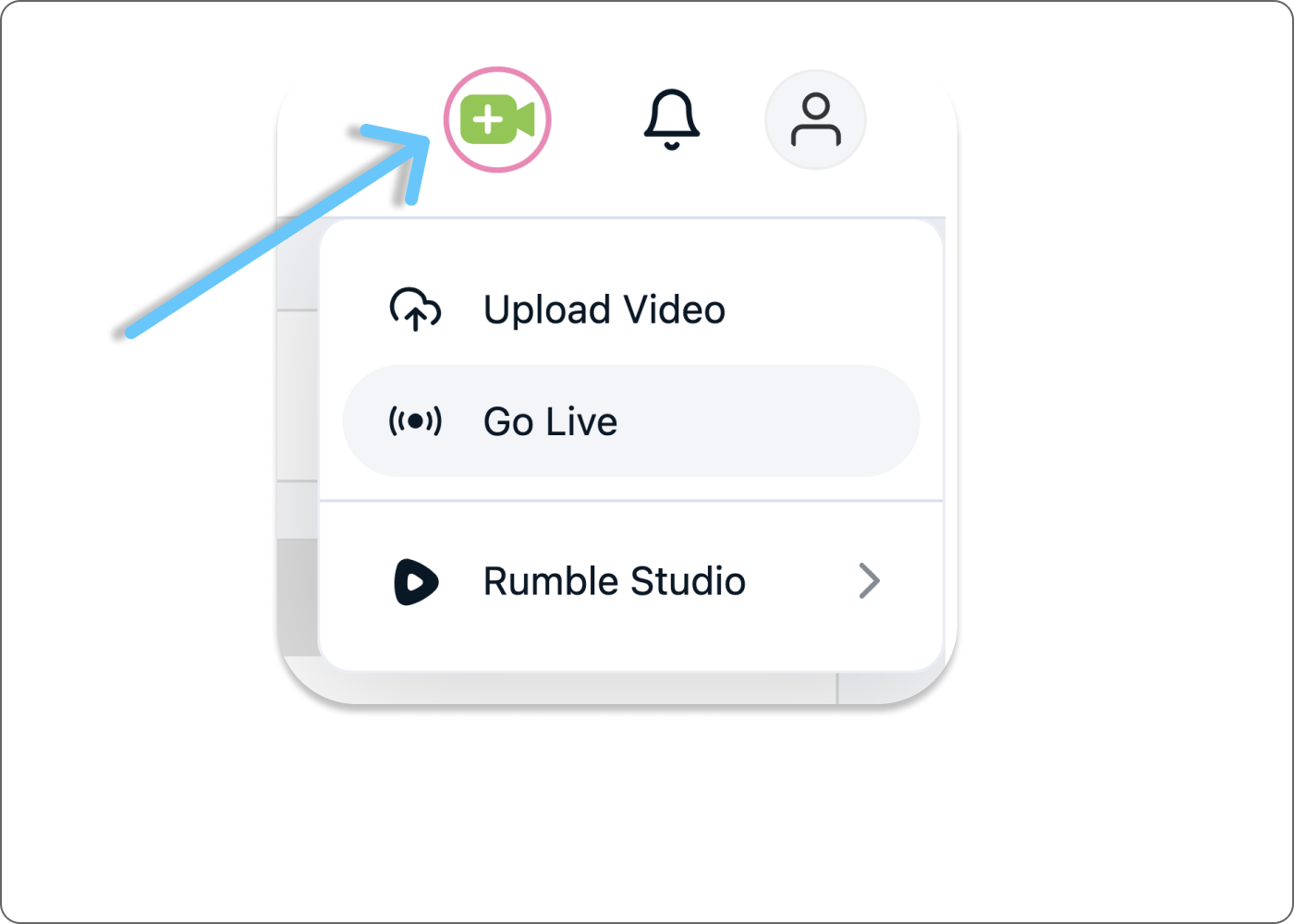
Click the live stream option or use a saved template in your Rumble account.
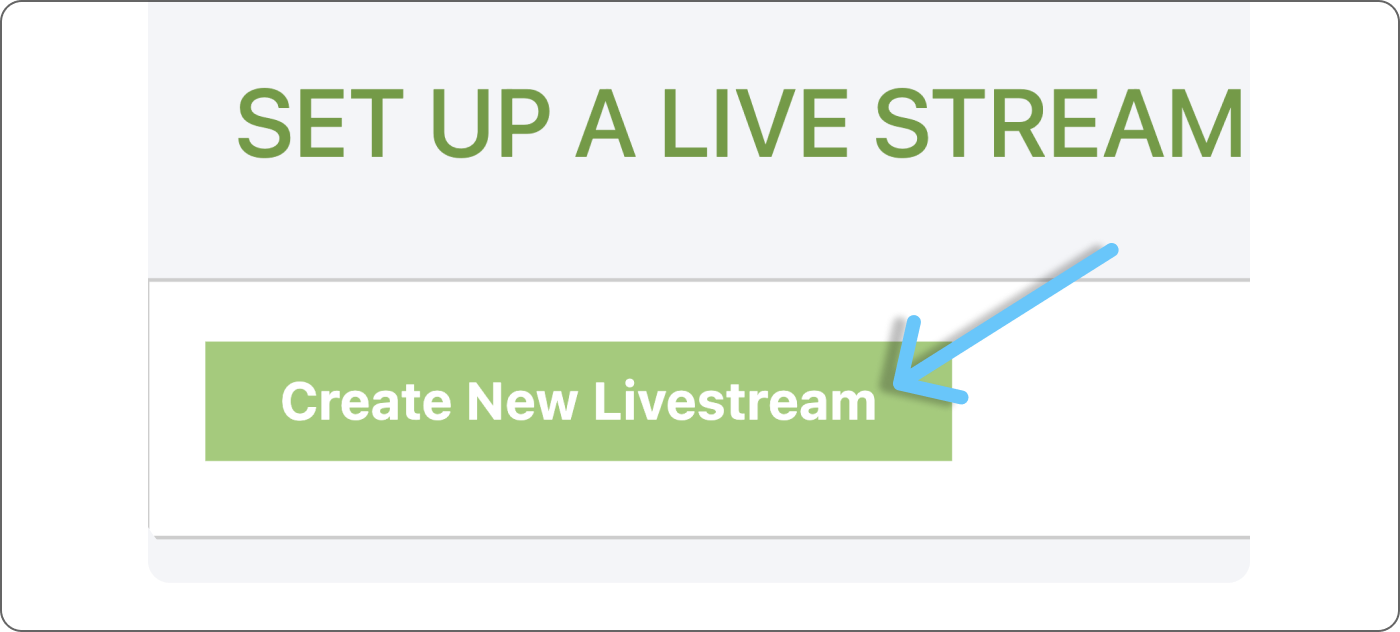
Fill out the live stream details, like the title, description, and content type.
Upload a short video. This video acts as a placeholder to display before the live stream begins or if the connection is lost during the broadcast.
TIP: Use a video that aligns with your agency's brand voice.Upload a thumbnail.
Insert tags for discoverability.
Depending on the Rumble account, choose who will stream.
Decide when you want the live stream to happen or schedule it in the future.
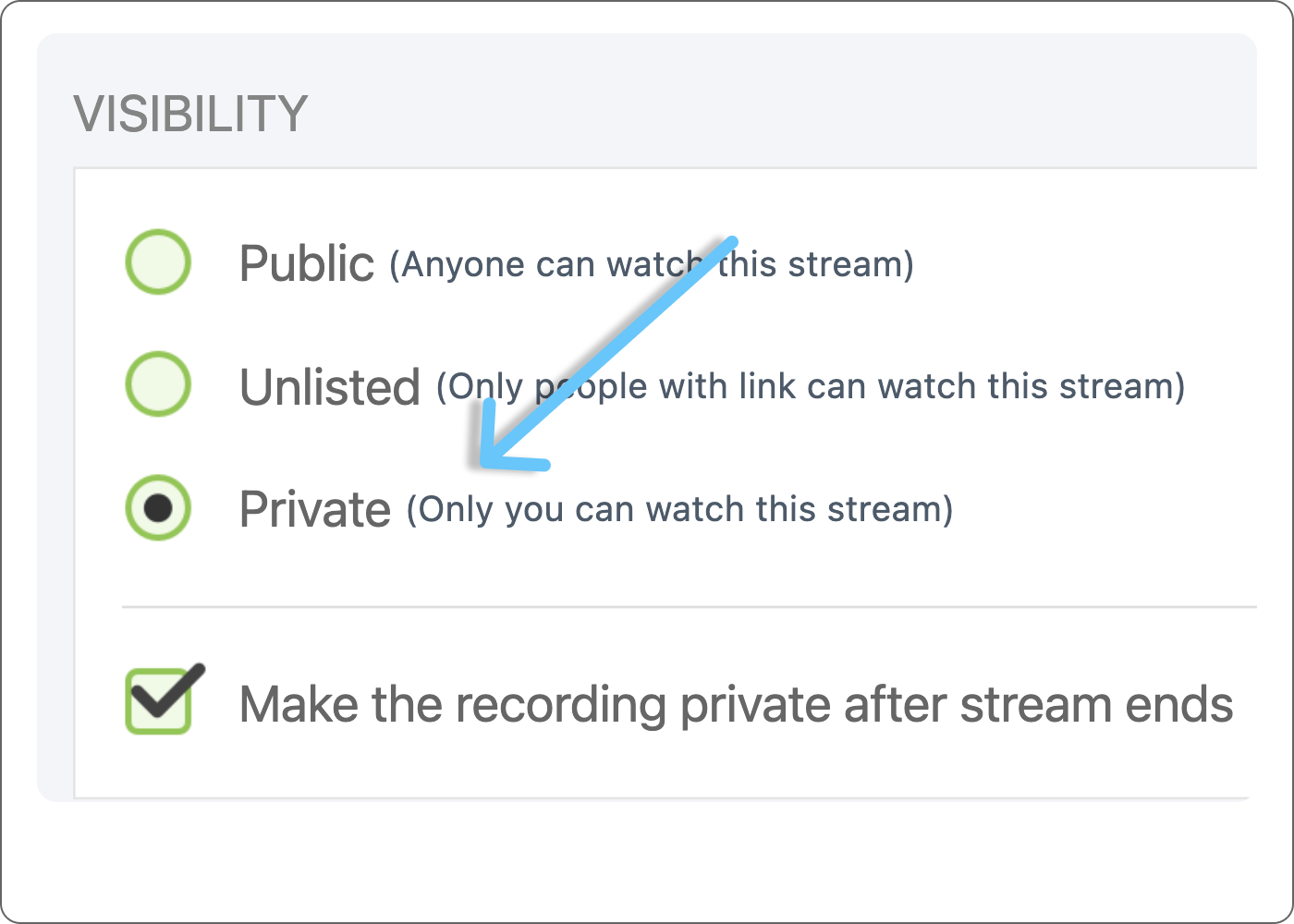
Next, choose visibility options: public, unlisted, or private.
You have the option to make videos private after the broadcast.
Click Next.
Decide on the licensing options, fill in additional information, and agree on the terms.
Click Submit.
Note: You'll be brought to the live stream page, where you are presented with video link-sharing options, embed options, and monetary embed options.
❗️Important Note: You must generate a new stream Key and Stream URL in Rumble before each live stream. Don't use the Rumble Static Stream Key.
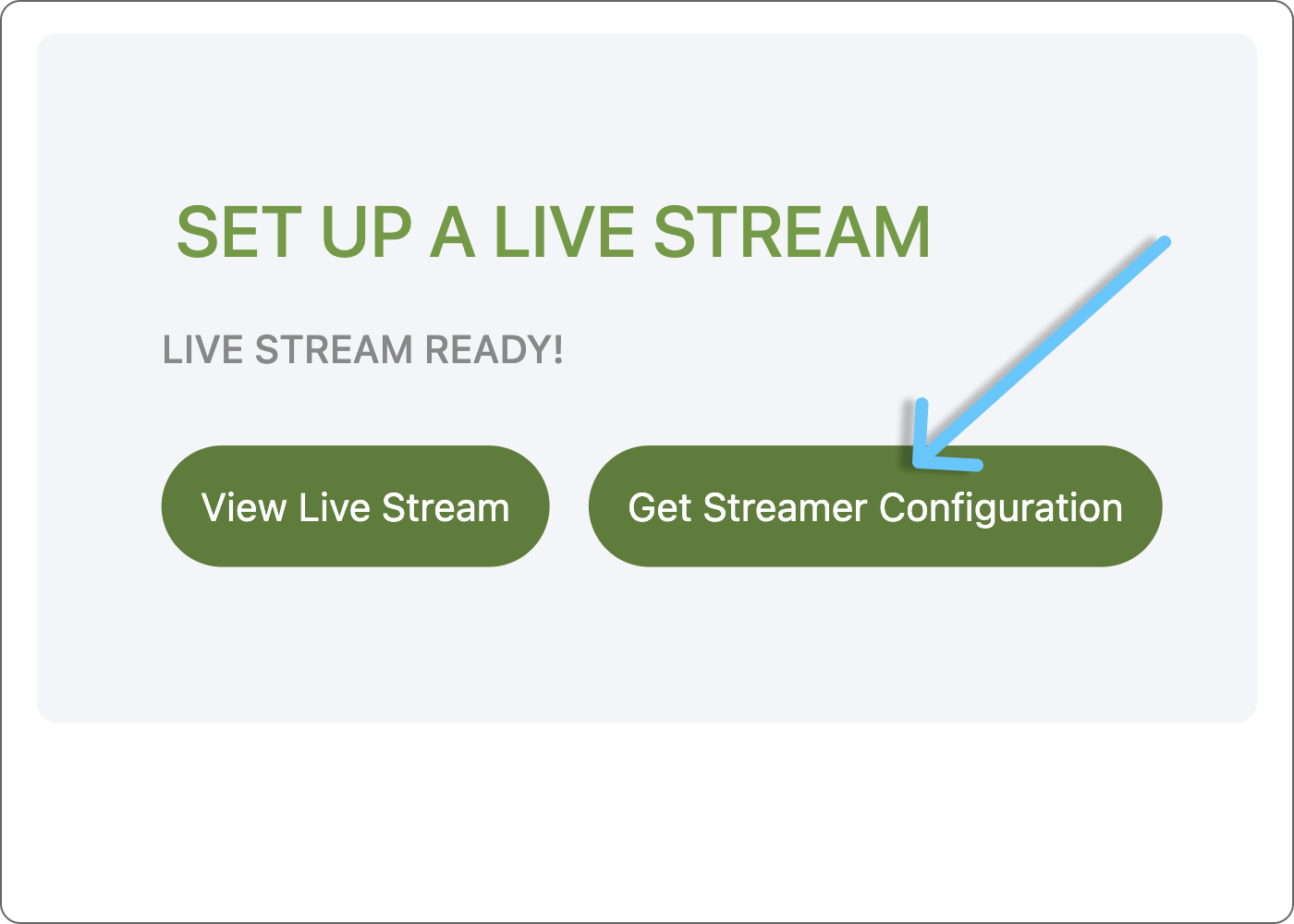
Next, click Get Streamer Configuration to get the event's Server URL and Stream Key. You'll need the information to add it to your Switchboard Account.
Add Rumble to a Stream Group
Log in to your Switchboard account using a new tab in your browser.
Click the ADD DESTINATIONS BUTTON at the bottom of the destination group.
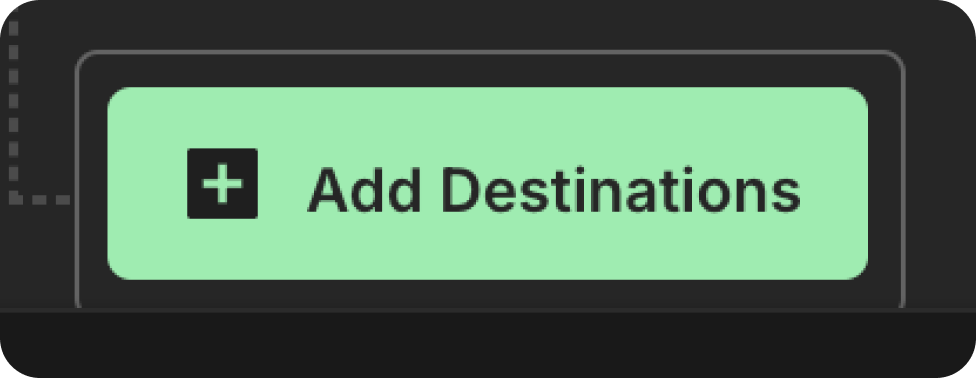
Click Connect More.
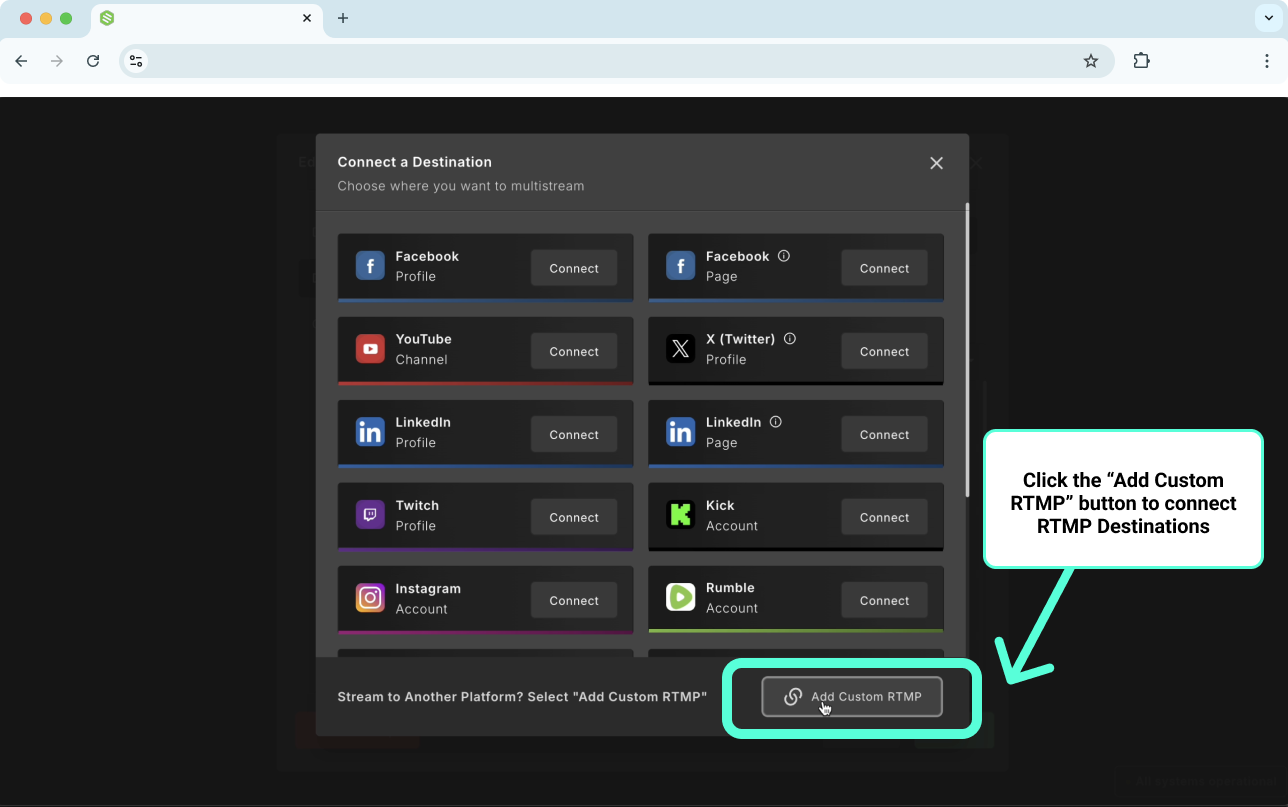
Choose RTMP from the list of Social Channels.
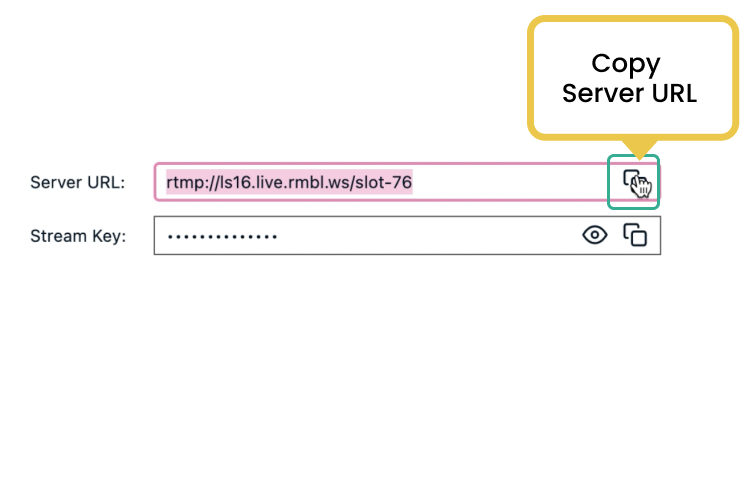
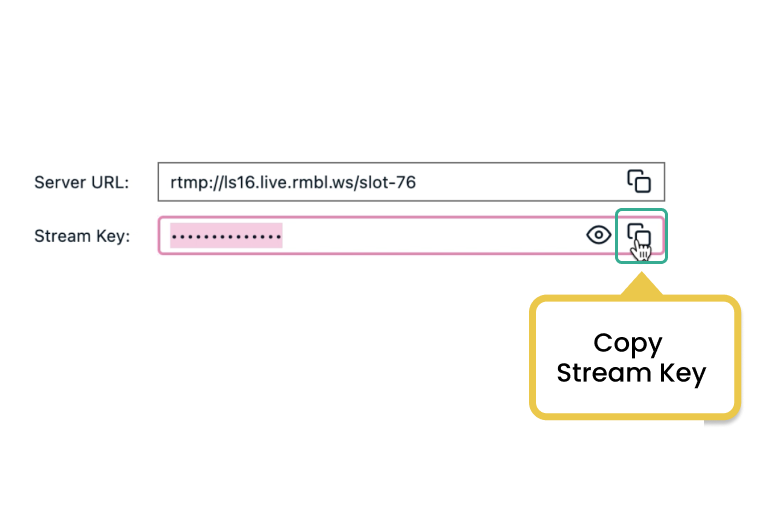
Copy and paste the Rumble Server URL and Stream Key into the appropriate fields.
❗️Important Note: Before each live stream, you must generate a new Stream Key and URL in Rumble (unless you add Rumble as a Static Stream Key).
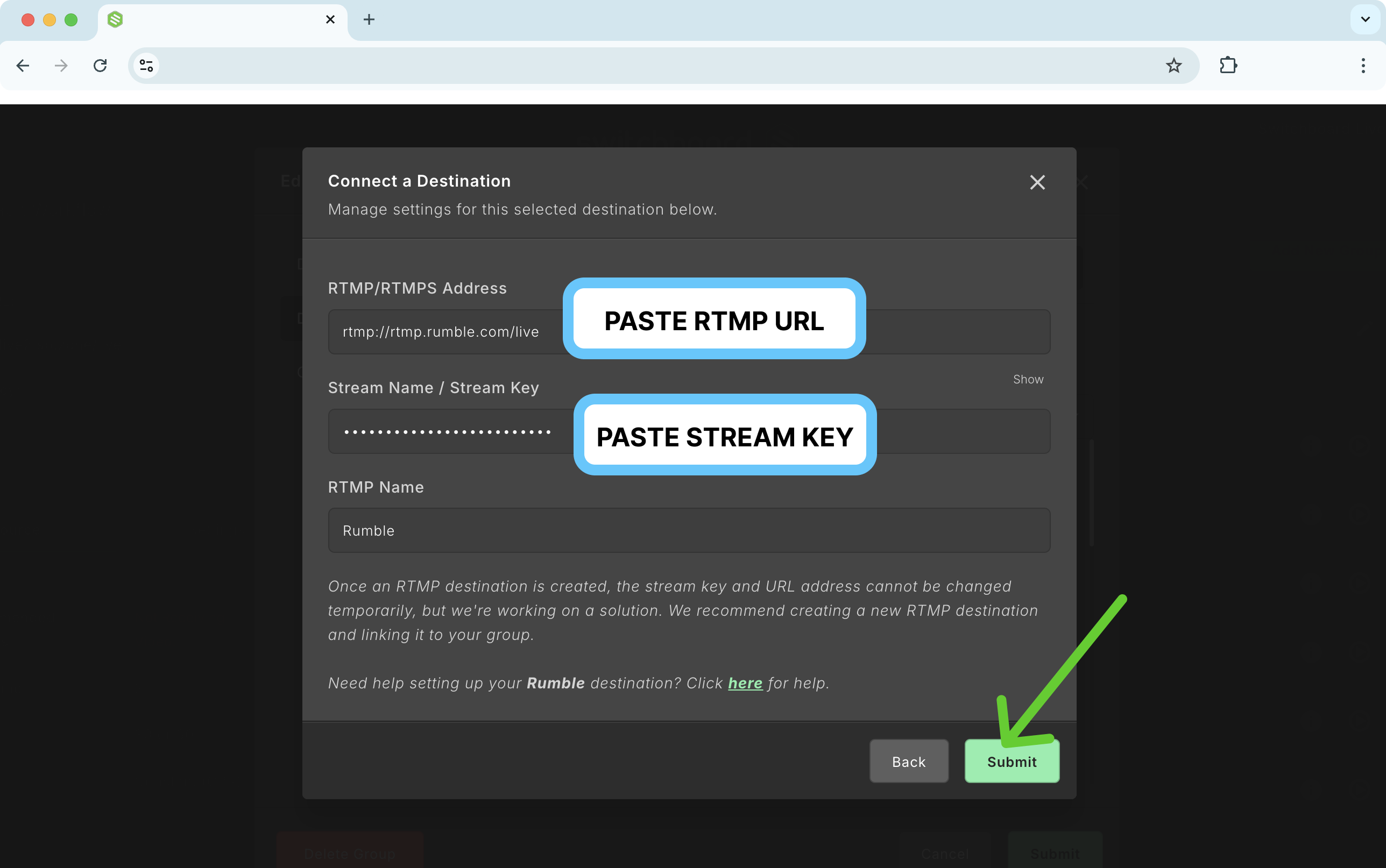
Give it a Name
Click Submit.
Rumble has been successfully added to the destination group in your Switchboard Account.
❗️Note: The next time you want to go live on Rumble, you'll need to repeat these steps unless you've added Rumble using the Static Stream Key.
Test the connection between your Switchboard and Rumble Accounts.
Create a private test stream from Switchboard to Rumble.
Under visibility in Rumble, choose the unlisted or private option. For this example, we've chosen Private.
Start sending a signal from your live stream encoder to your Switchboard workflow.
When a video appears on the Switchboard confidence monitor, click Go Live next to the Rumble destination you've just added.
The video should be displayed privately (or unlisted) on Rumble.
How to Go Live from Switchboard to Rumble
Now that you've added Rumble to your destination group, you're ready to go live!
Start sending the live stream from the live stream encoder to your Switchboard workflow, ensure the workflow receives the video feed, and click Go Live as usual.
👉🏽 Pro Tip: Enable the autostart feature on Switchboard so that the next time you go live, the video will automatically start on Rumble and your other destinations, saving you an extra step.
Add Rumble using a Static Stream Key.
Log in to your Rumble account.
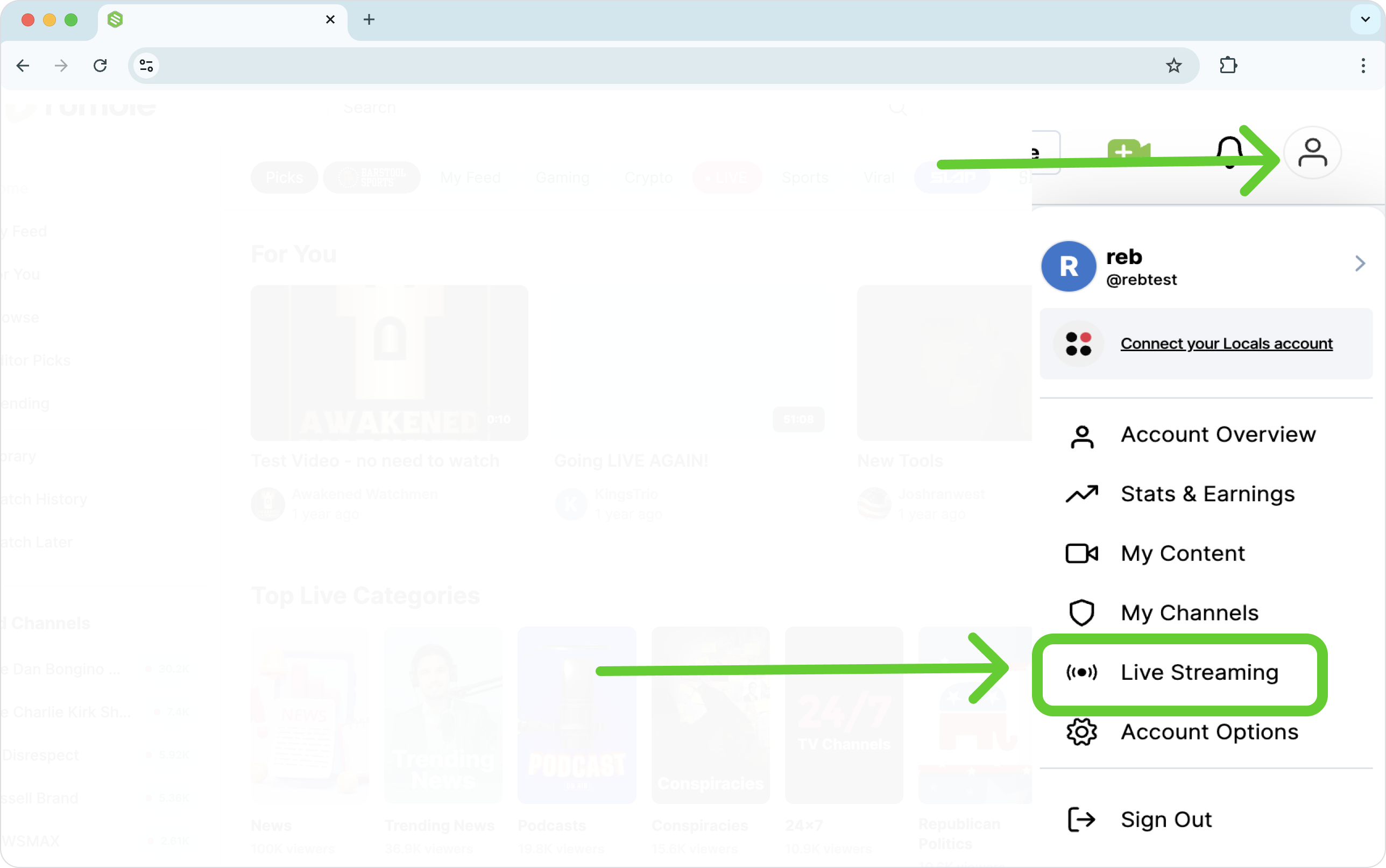
Click the profile icon on the top right.
Select Live streaming from the flyout menu.
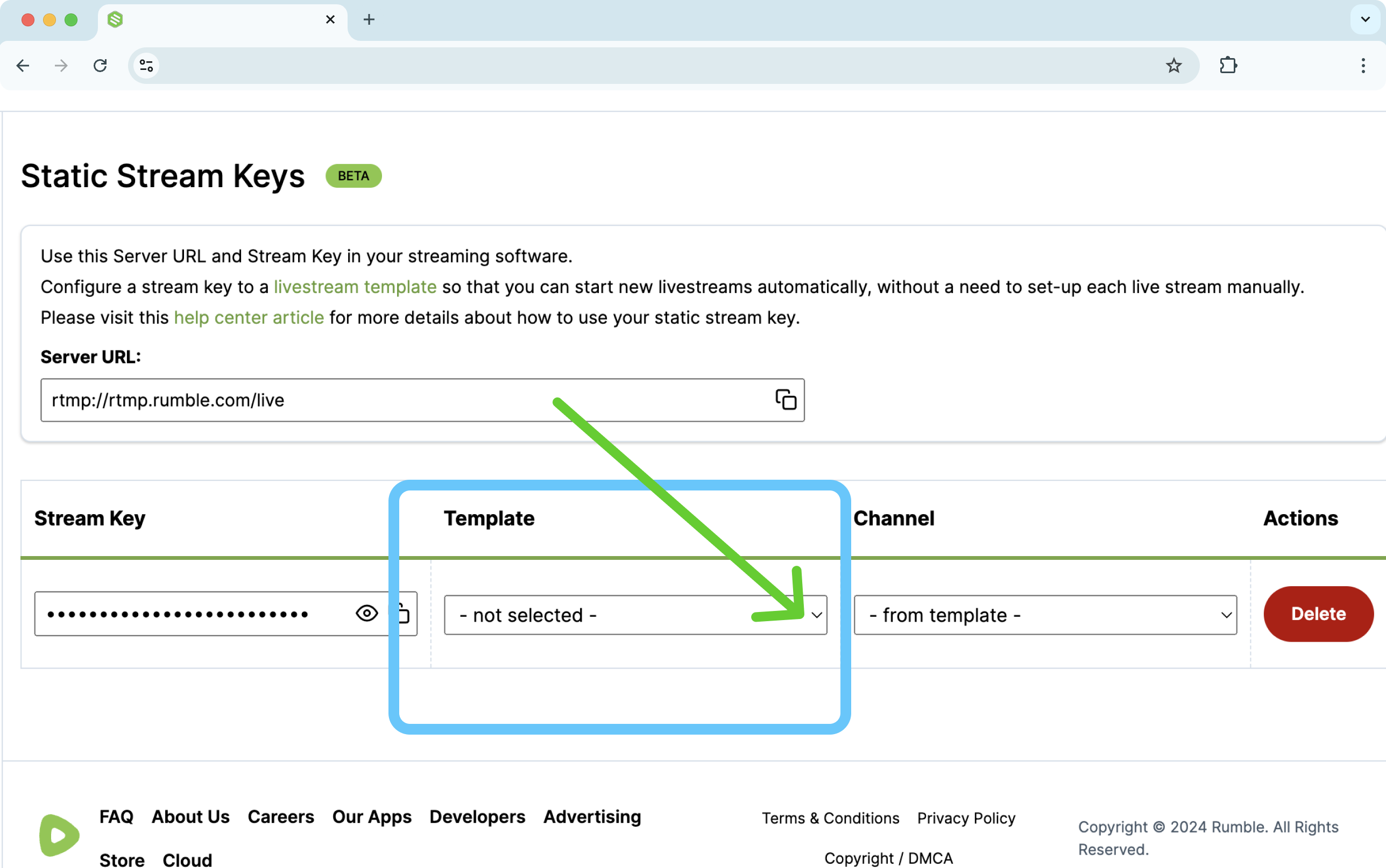
On the left side menu, select the Static Stream key (or use this link - https://rumble.com/account/static-stream-key)
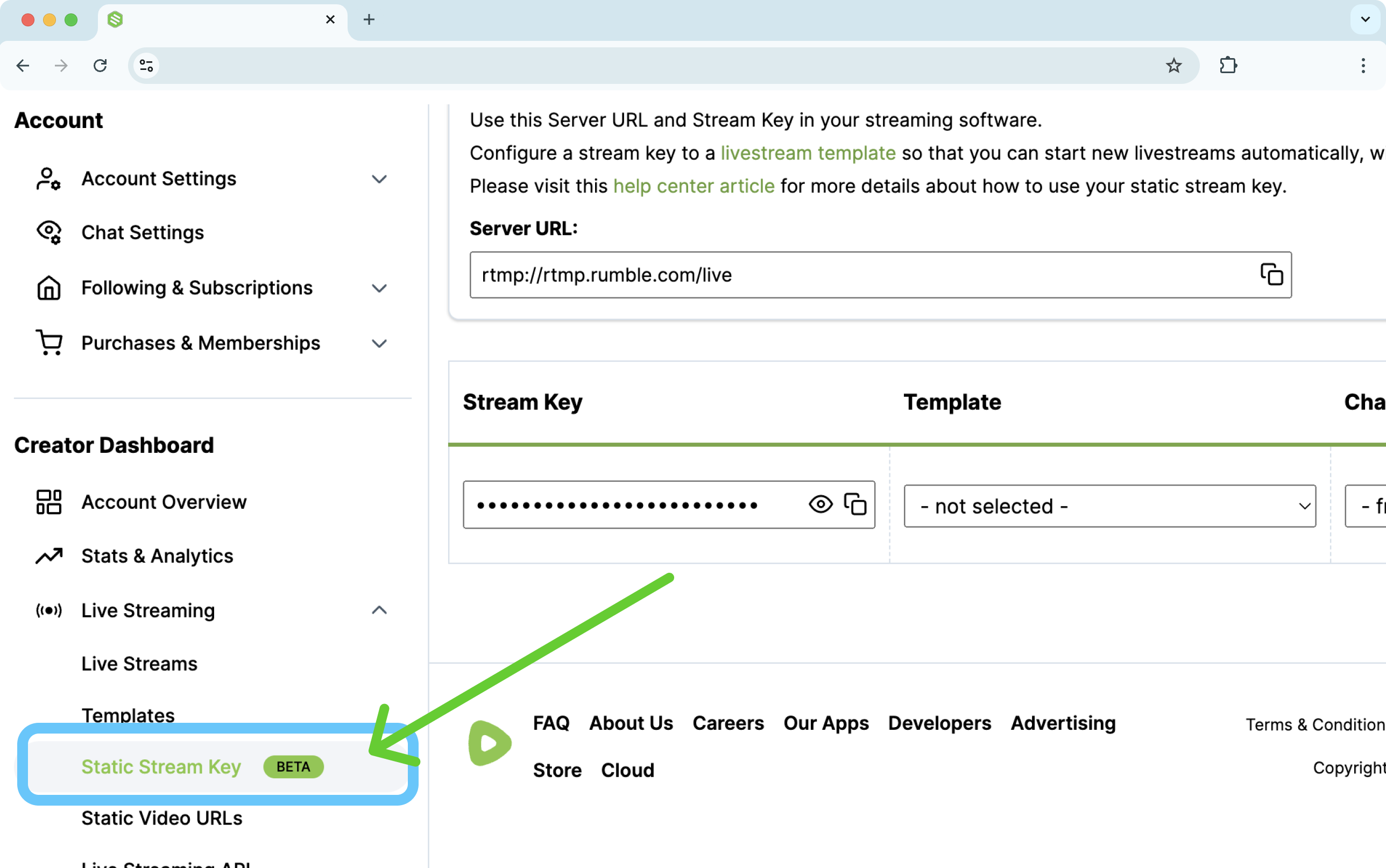
The Static Stream Key page will open.
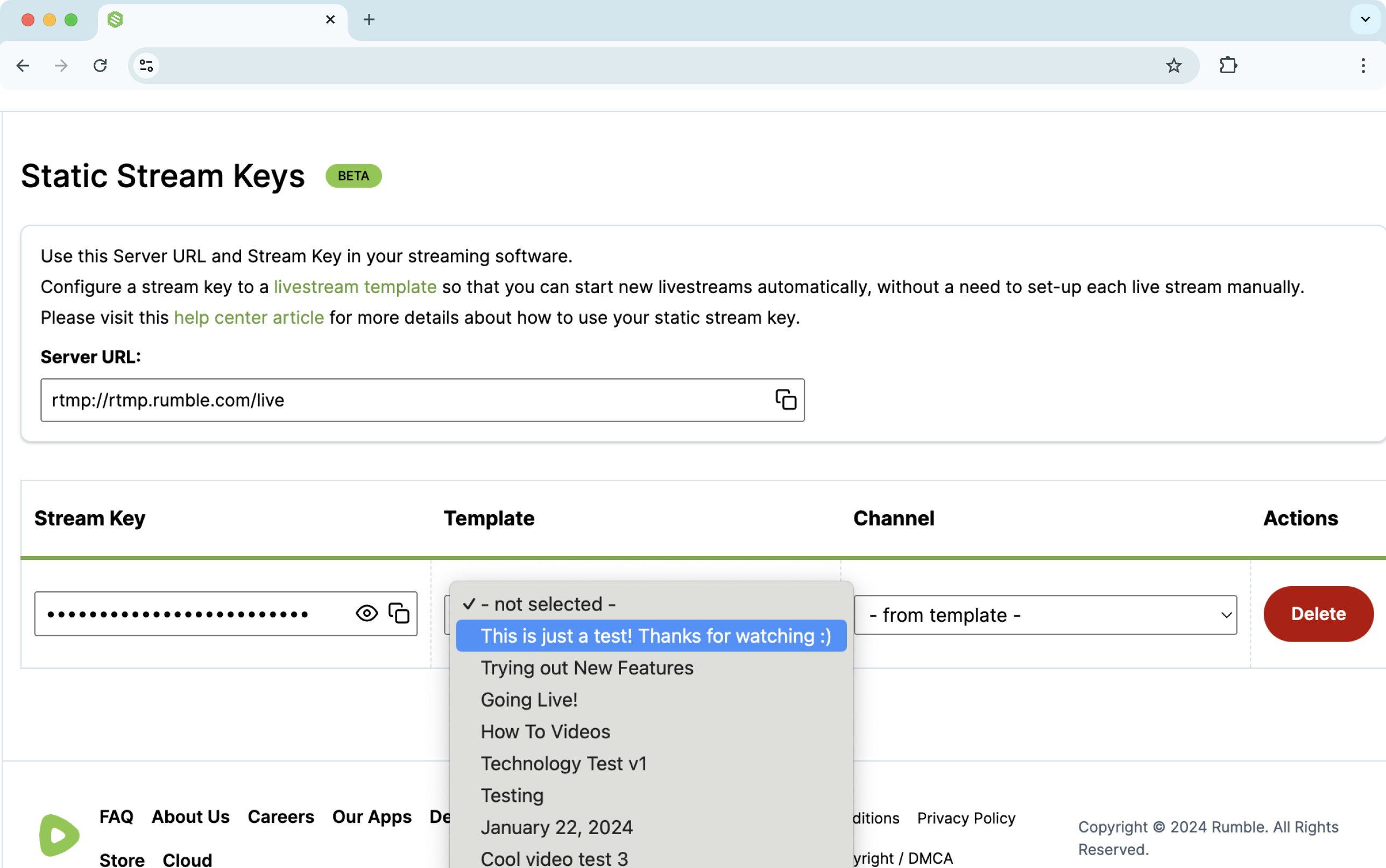
Choose a template under the drop-down menu. If this is the first time you've used Rumble, you must create a template first.
Add the Rumble Destination to your Switchboard Account
Once you've assigned the Static Stream Key to a specific template, you can copy and paste the RTMP URL and Stream Key information into your Switchboard account.
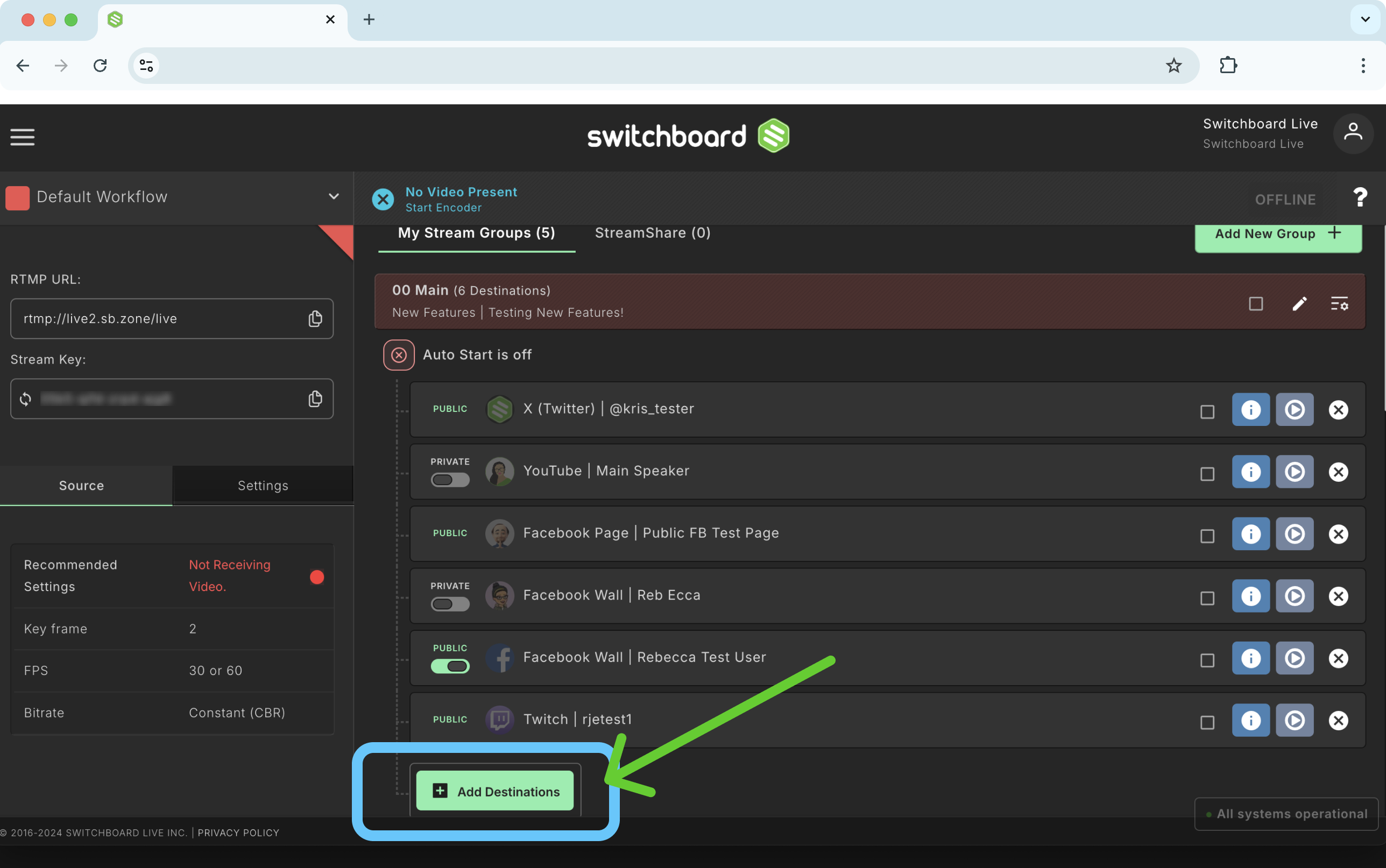
In Switchboard, Click the Add Destinations Button.
Click Connect More.
Select RTMP From the menu.
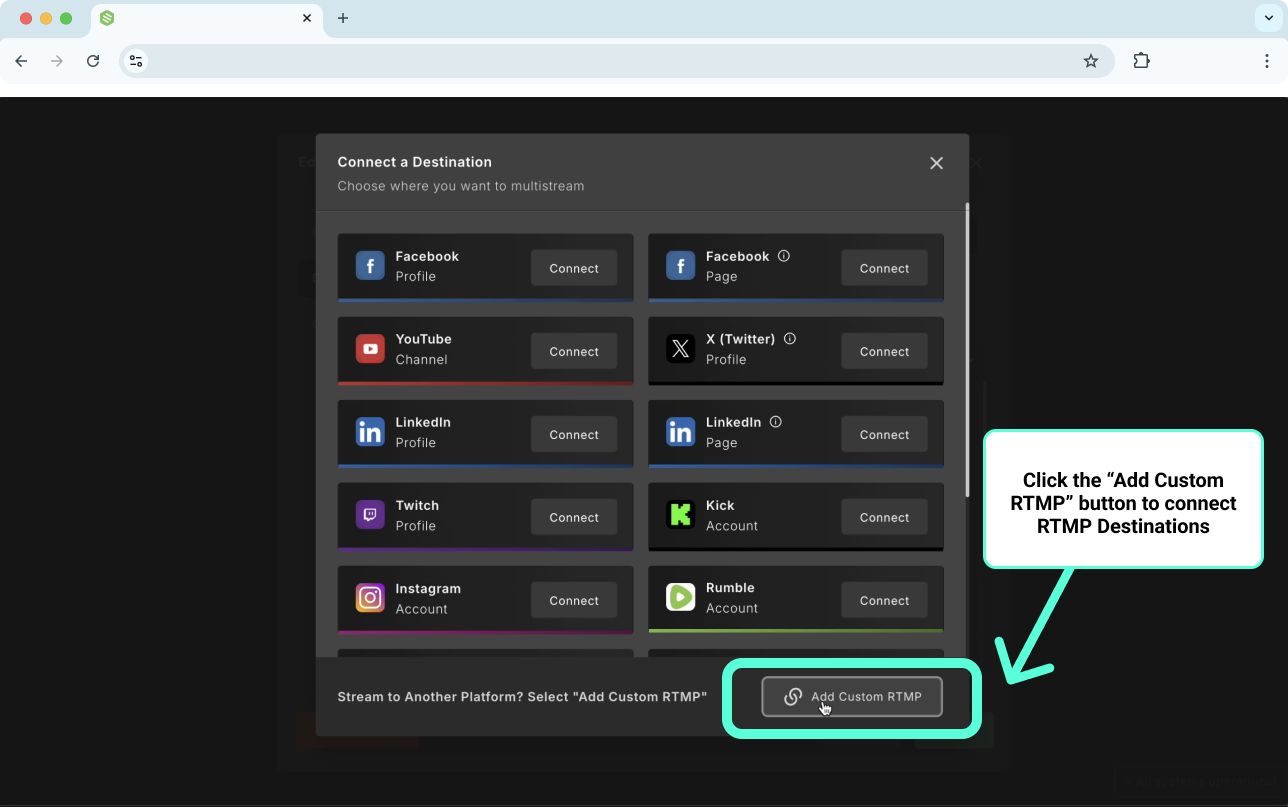
Copy and paste the RTMP URL and Stream Key from Rumble into the appropriate fields.
Click Submit.
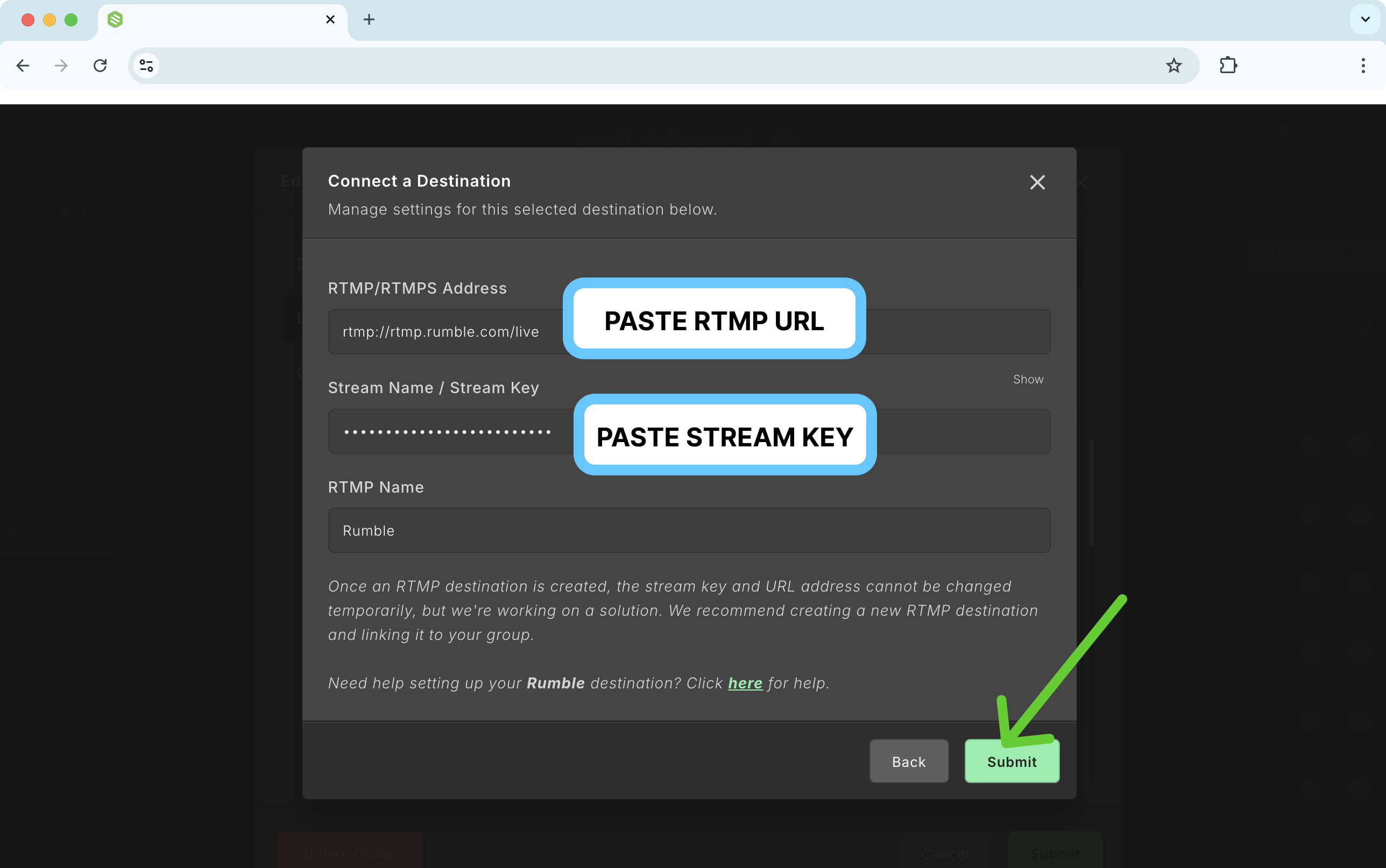
Click Submit to confirm the changes.
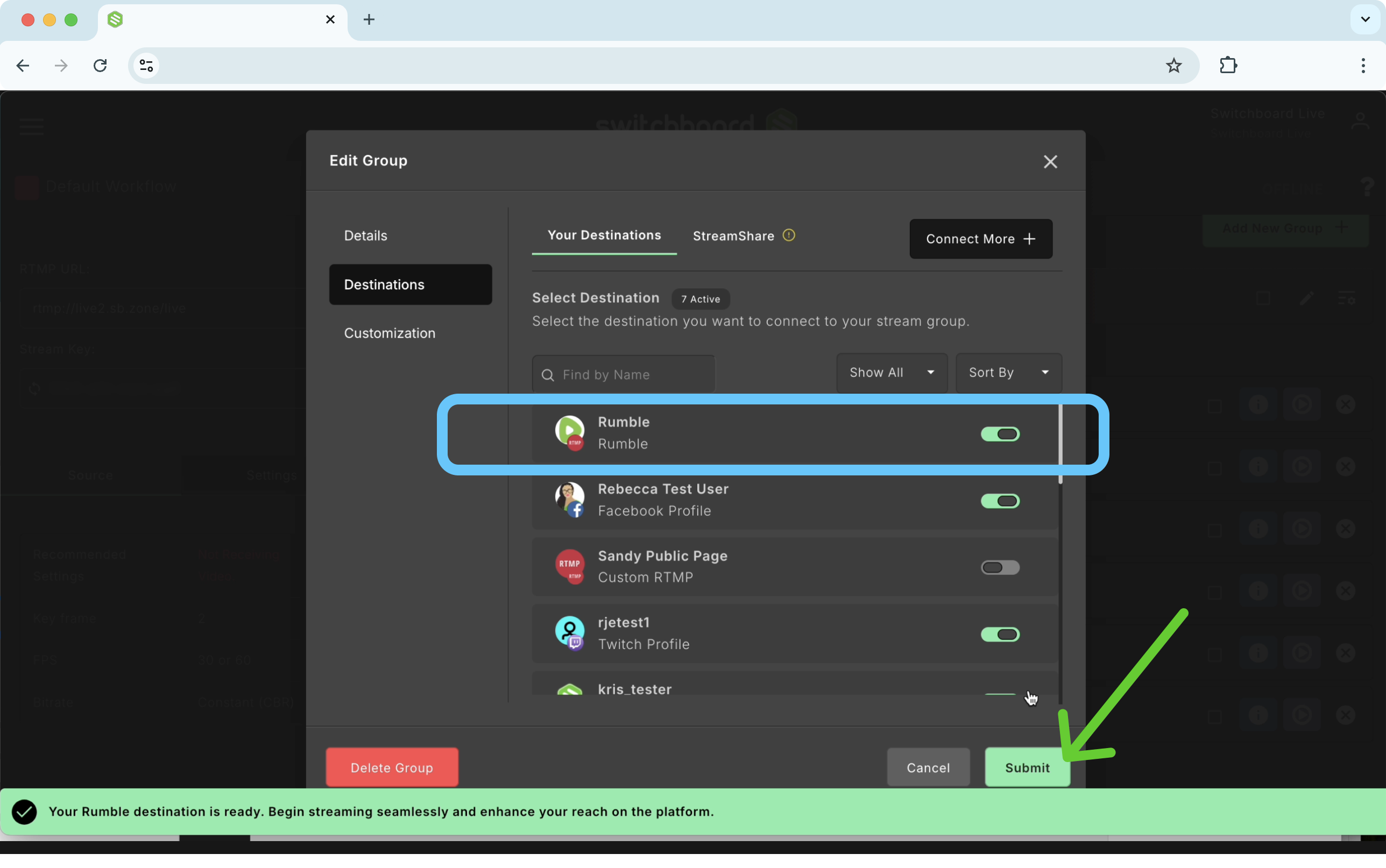
🥳 Successfully added to the Stream Group
Go Live!
When you're ready to go live, send live video from your encoder to your Switchboard account, select destinations, and click go live!