Connecting X ( Twitter ) to Switchboard
Connecting X (formerly Twitter) to Switchboard allows you to broadcast live video directly to your followers' timelines. This is a vital tool for delivering real-time community updates, breaking news, and event coverage instantly. This guide explains the one-time authorization process to link your accounts. Once connected, you can easily toggle X on or off for any Stream Group, ensuring your team is ready to go live at a moment's notice without needing to log in repeatedly.
Last updated 7 months ago

You can connect your X account in two ways. Add it directly from a Stream Group when your workflow is open, or use the Destinations Page to link multiple social platforms to your account at once. We'll walk you through both methods.
Topics Covered:
Adding X via the Stream Group
Adding X via the Destinations Manager Page
Add X (Twitter) Destination for the First Time to your Switchboard Account
How to Go Live on X(Twitter)
Add multiple X(Twitter) Channels to a Group
🎥 Quick Clip: How to Connect X(Twitter) for the first time
💡We recommend logging into the appropriate X(Twitter) account using the same browser before starting the authorization process.
Let's begin!
Connect X via a Stream Group
Step 1:
Click the Add Destinations button at the bottom of the Stream Group.
Select Connect More.


Step 2:
Choose X (Twitter) from the menu.
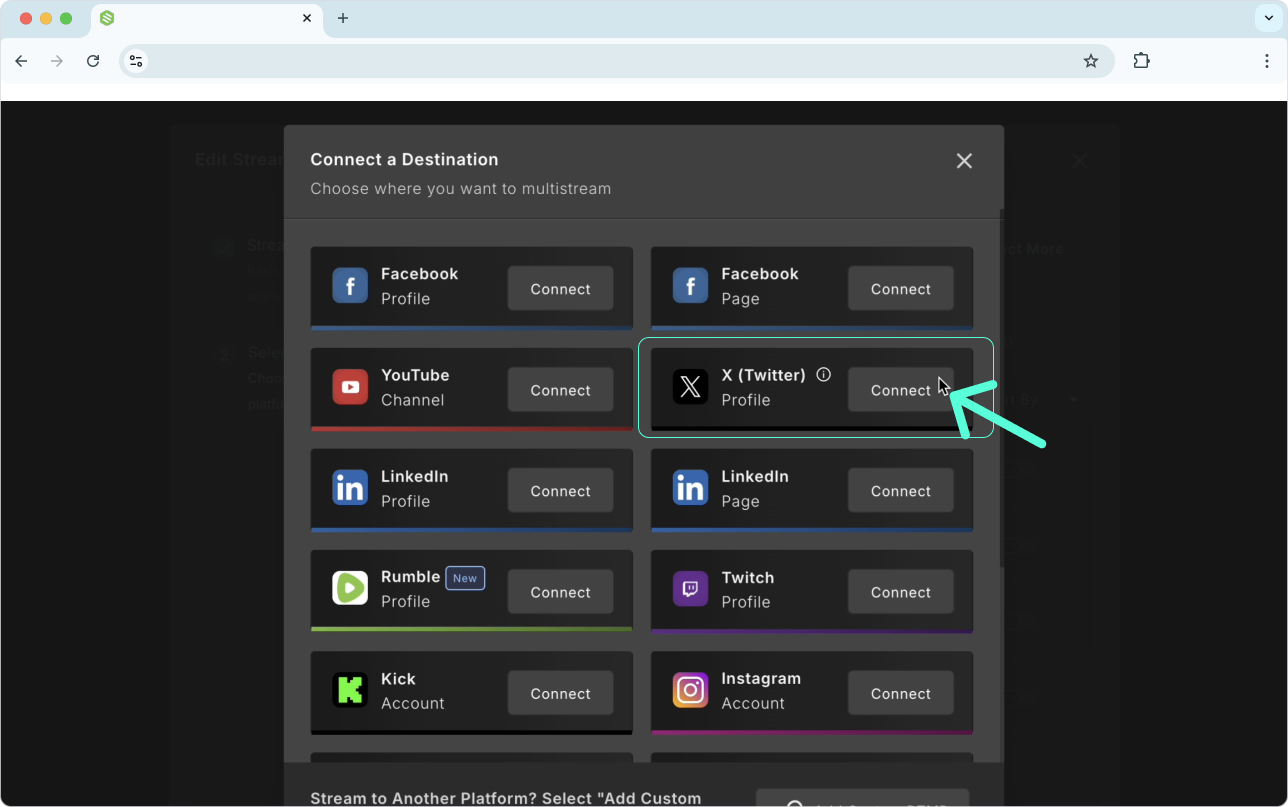
Step 3:
Authorize X(Twitter)
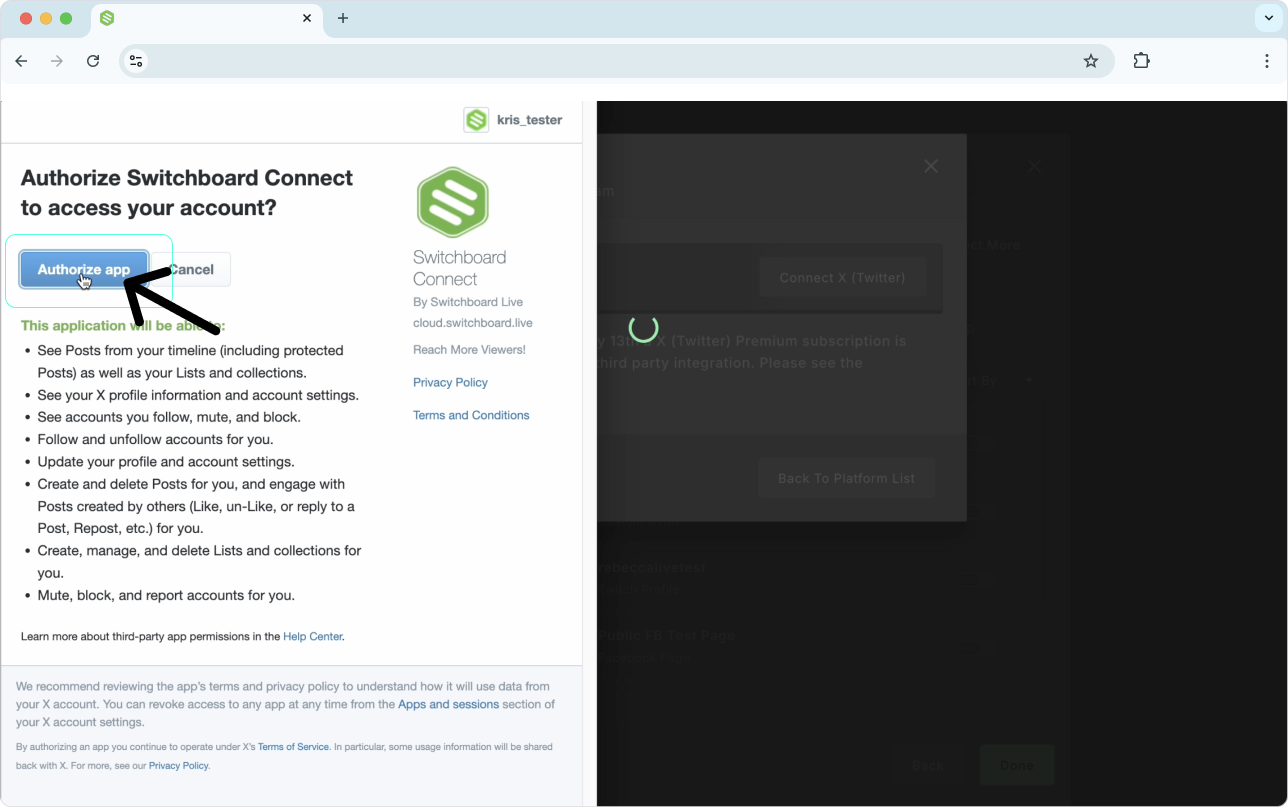
Next, an official X(Twitter) Authorize Application will open in a new browser tab.
If prompted, log in to your X(Twitter) account. It helps to disable pop-up blockers.
Click the Authorize app button.
A successful screen should appear. You can now close the window by clicking CLOSE.
The X(Twitter) Social Channel will automatically be added to the group.
Click Done (or Submit) to confirm the changes.

Congratulations! You've successfully connected X(Twitter) channel to your Switchboard account.

Connect X via the Destination Manager Page
Step 1
Select the Main Menu > Choose Destinations

Step 2
Select X from the side menu.

Step 3
Follow the prompts by logging in to your X profile and clicking “Authorize app” until you reach the success screen. Click Close when you reach the Success Screen.

Success
The X channel has been successfully added to the Switchboard Account. But it hasn’t been added to a stream group or scheduled event. When ready, add the X destination to any Stream Group or Scheduled Event.

Step 4: Add X to a Stream Group
Navigate to the Workflow. Main Menu, select Workflow.
Click Add Destinations at the bottom of the Stream Group.
Click the toggle button next to the X (Twitter) to add it to the Stream Group.
Click Done.


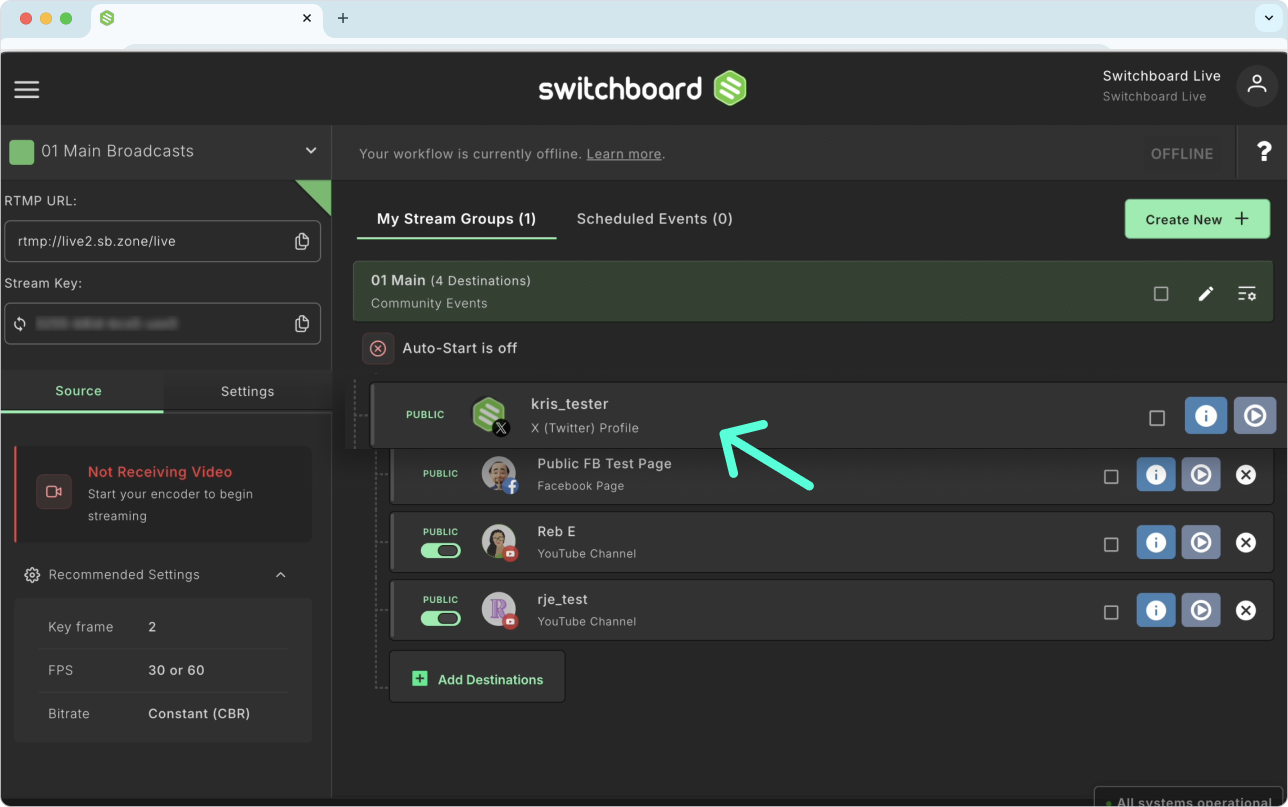
Success! The X destination has been successfully added to the stream Group, along with the other social channels already added.

Quick Clip: How to Connect X(Twitter) for the first time to your Switchboard Account

Ready to Go Live!
Going live to X(Twitter) from the Switchboard Workflow
When ready to go live, send the video from your live streaming software to your Switchboard Workflow.
Edit stream titles and descriptions for the live video.
Select the destinations and press Go Live.
💡Pro Tip: You can save time and eliminate the need to press Go Live in Switchboard by enabling the autostart feature here: Enable the autostart feature.
How to Add X Twitter to more than one Stream Group.
If your Switchboard account has multiple Workflows and Stream Groups, you can easily add the X(Twitter) channel to it.
Click the Add Destinations button at the bottom of the desired Stream Group.
Find the X(Twitter) destination you want to add.
Enable the destination by clicking on the toggle next to it.
Click Submit to confirm your changes.
How to add more than one X (Twitter) account as a destination in your Switchboard account.
Please Note: Logging out of your X(Twitter) account will revoke access to any applications connected to it. This is an X(Twitter) security feature. If you log out of your X (Twitter) account, you can quickly reauthorize it with your Switchboard account by following the steps in this support reference: Authorize destinations.
Step 1
When logged into X(Twitter) from a desktop, click the profile icon at the bottom left.
Step 2
Select Add an existing account.
Step 3
Follow the prompts. Ensure there's a check mark next to the X(Twitter) account you want to add to your Switchboard Account as a destination. Return to your Switchboard Account, then repeat the process to add the X (Twitter) channel as a new destination.
Bonus Materials
Add X(Twitter) as an RTMP Destination
Create Stream Titles and descriptions
How to use the PartnerShare Feature
‼️Troubleshoot
New update [Feb 2026]
The latest X update may prevent live streams from automatically appearing in your timeline. If your broadcast is active but no post was created, you can manually share it directly from the live viewer. This quick workaround ensures your audience can see and access your stream in real time without restarting or changing your setup.
Quick Fix: How to post your Live X Video to your X Timeline
Log in to your X account.
Go to your profile and tap your profile photo where the LIVE label appears.
Your active live stream will open.
Tap the Share button (bottom right).
Select “Post this.”
Add your title or caption.
‼️ Do not edit or remove the pre-filled link.
Tap Post. Your live stream will now appear on your timeline.

▶️ For previous live streams, you'll need to access X Live Producer, which displays a list of past live streams on X.
Open Live producer using this link - https://studio.x.com/producer/broadcasts
Find the live stream you want to make public on the live stream profile, and click on it.
A new window will open.
Click the link below preview the video.
The video will open. Click the share button > "Post This".
Provide a Title/Caption. Keep the Prefilled Link. > Post.
FAQ
Q: Why isn't my livestream showing up on my X profile?
A: Ensure you have an active X Premium subscription. Also, check that you have entered a Stream Title in Switchboard. X requires a title to generate the tweet that houses your video.
Q: Do I need to reconnect X for every event?
A: No. Once you authorize X, it is saved in your Destination Manager. You can simply toggle it on or off for specific Stream Groups.
Q: Will my livestream be saved on my X profile after the broadcast ends?
A: Yes. Once the livestream finishes, it automatically becomes a video-on-demand (VOD) tweet on your timeline. Viewers can watch the replay using the same link.
Q: How does my Switchboard Stream Title appear on X?
A: On X, your Stream Title becomes the text of the tweet that contains your video.
Q: What are the best video settings for streaming to X?
A: X recommends a maximum resolution of 1080p (1920x1080) and a bitrate between 3000-6000 kbps. Sending a stream above 1080p (e.g., 4K) may cause buffering or failure on the X platform.