Connecting Facebook Business Page with your Switchboard Account
This resource explains how to add a Facebook Business Page with your Switchboard Account.
Last updated About 1 year ago
There's been a Meta update affecting third-party apps that may cause an issue when trying to add a Facebook Business Page to your Switchboard Account. This does not appear to affect regular Facebook pages.
The goal is to have the appropriate person of your organization listed under "People with Facebook access" or "People with Task access" on the Facebook Business page. See the image below.

Topics covered on this page:
1. Check Facebook Page Access
2. Invite a person to have access to the Facebook Business Page
3. Invitee accepts the invite
4. Possible issues
Check the Facebook Page Access
Here's how to check.
Step 1
Log in to Facebook, select Pages on the left menu, and select the desired Facebook Page.
Step 2
‼️ Important Step: Once on the page, select "Switch" so that you are acting as the Facebook Page.

Please note that when you switch to acting as the Facebook page, ensure that the profile icon in the top right has changed to the Facebook Page's icon.

Step 3
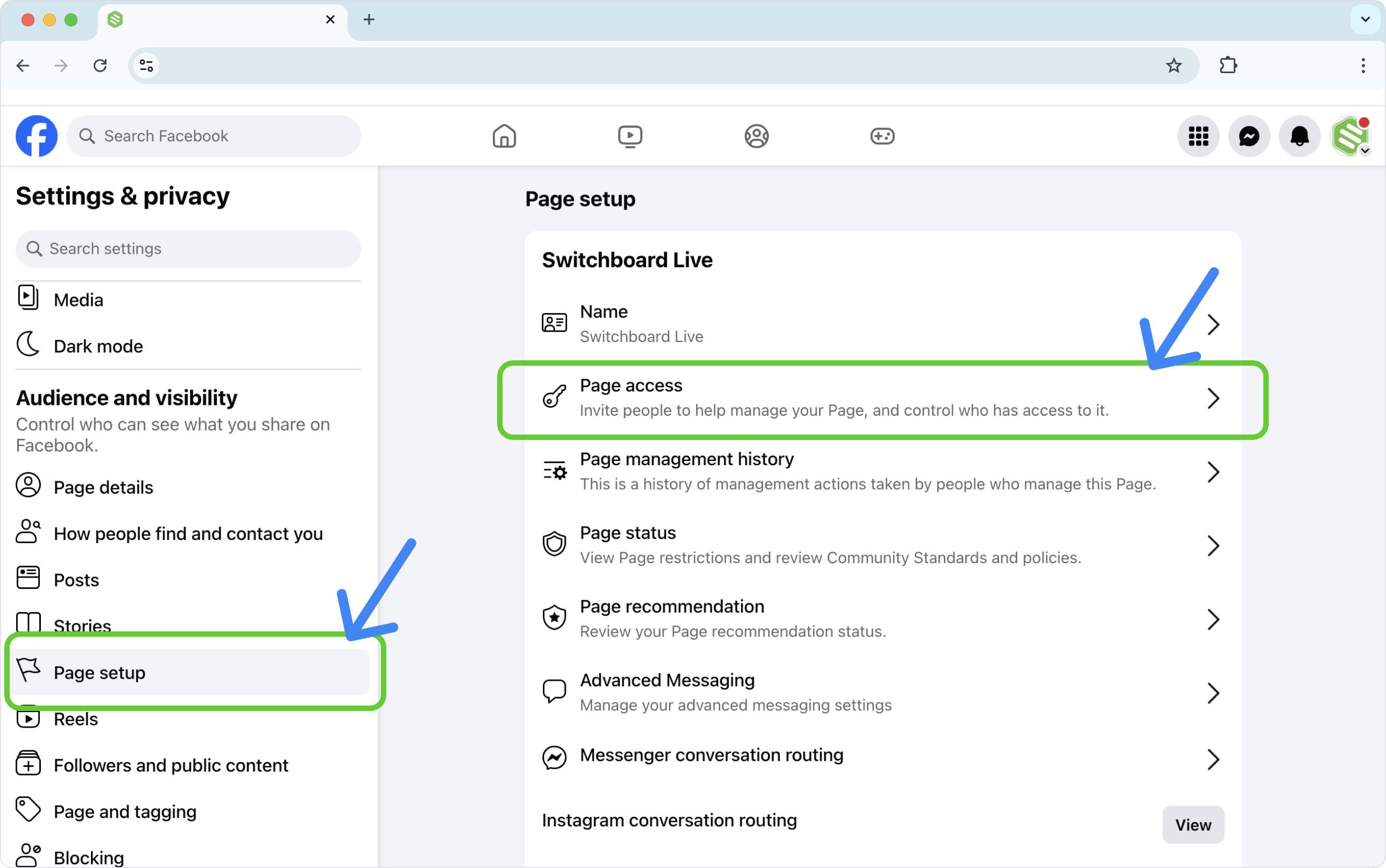
Select Settings > Page Setup > Page Access
Or use this link https://www.facebook.com/settings/?tab=profile_access
Step 4
You'll see two sections: "People with Facebook Access" and "People with Task Access"
Your goal is to have the desired person(s) listed in "People with Facebook Access" or "People with Task Access."
Invite a Person to have Facebook Page Access
Step 5
Click the "Add New" button on the top right to add someone.

Step 6
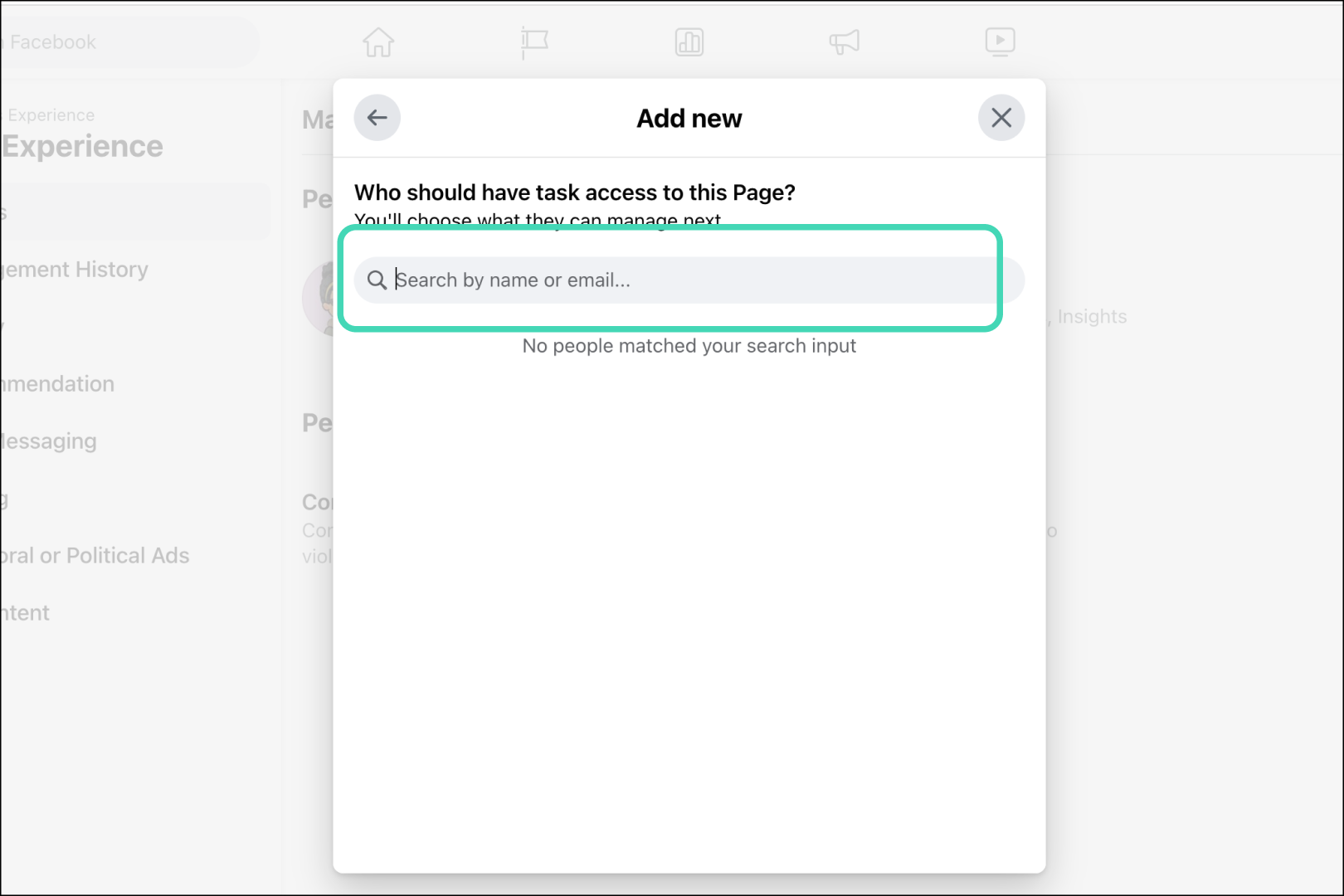
A search box will appear, prompting you to search for someone to invite. Type the person's email address or name in the search box. Click on the person from the list.

Step 7
Assign permissions by setting the toggle buttons to blue; click Give Access. Provide the password to confirm.


Accept the Invite
The invited person must log in to their Facebook account and accept the invitation.
Step 1
Look for the notification located next to the Facebook Profile icon, top right. Note: If a notification doesn't appear, navigate to the page and look for the "Review Invite" under the page banner.
Step 2
Click "Review Invite," then click "Next," and accept.


Add the Facebook Page to the Switchboard Workflow
Return to Switchboard and add the Facebook Business page to the workflow as usual.
Possible Issues You May Run Into:
A. Not being able to give yourself page access as the Facebook Page Owner or Admin.
If this happens, you may need to add a trusted colleague or friend with temporary "Full Control" to the page, review and accept the invite, and finally have them give you page access with Full Control.
Note: The trusted colleague cannot already have business account access.
Once you have Facebook Page access with Full Control.
Log into Facebook and "switch" to the page so that you're acting as the page.
Adjust the trusted colleague's page access.
B. You don't see the "Add New" button.
You'll need to Adjust the Assets for yourself in the Meta Business Suite.

Open Meta Business Suite or use this link: https://business.facebook.com/latest/
Select Settings > People > Click on your name > Assign assets( Full control)
Set permissions. Save it.

Additional Resources
Explore these Facebook resources for detailed explanations about the New Page experience, assigning roles, and giving access to Facebook Pages.
How to Switch into Your Page on Facebook
About Facebook Business Account Access
Facebook Access in the New Page Experience
Task Access in the New Pages Experience