Connect LinkedIn with your Switchboard Account
Wondering how to go live on LinkedIn? Connecting LinkedIn Live to Switchboard Live allows you to reliably multistream Town halls, webinars, and professional updates directly to your network. Note: To stream to a Company Page, you must first authorize your personal LinkedIn Profile, which acts as the page administrator. Because LinkedIn has strict technical requirements, this guide will walk you through exactly how to connect your Profile or Organization Page, navigate the new scheduling rules, and set your video specifications for a stable, disruption-Free broadcast.
Last updated 4 months ago
Important Information about streaming to LinkedIn Live
LinkedIn Live New Update: 2026:
👉 According to LinkedIn: “We’re evolving LinkedIn Live to make it simpler, more discoverable, and more impactful for our members. Starting June 22, 2026 all live events must be scheduled ahead of time. While the ability to go live spontaneously will no longer be available, you can still go live on short notice by scheduling your event just minutes in advance.” Read their announcement here: LinkedIn Live New Update 2026
Before You Begin: Check Your Approval Status
Before connecting to Switchboard, you must ensure your LinkedIn account is approved for live streaming. Use this resource to check out the LinkedIn Live Criteria
1. Use a desktop computer to log into your LinkedIn account.
2. Click this link to verify your approval status: https://www.linkedin.com/video/golive/now/
3. If approved, keep your LinkedIn tab open and proceed to the steps below!
How to Connect LinkedIn to Switchboard Live
You can connect a LinkedIn Profile or a LinkedIn Company Page in two different ways. Choose the method below that best fits your workflow.
Method 1: Connect Directly via a Stream Group
Best for users who are actively setting up a broadcast on their Workflow page.
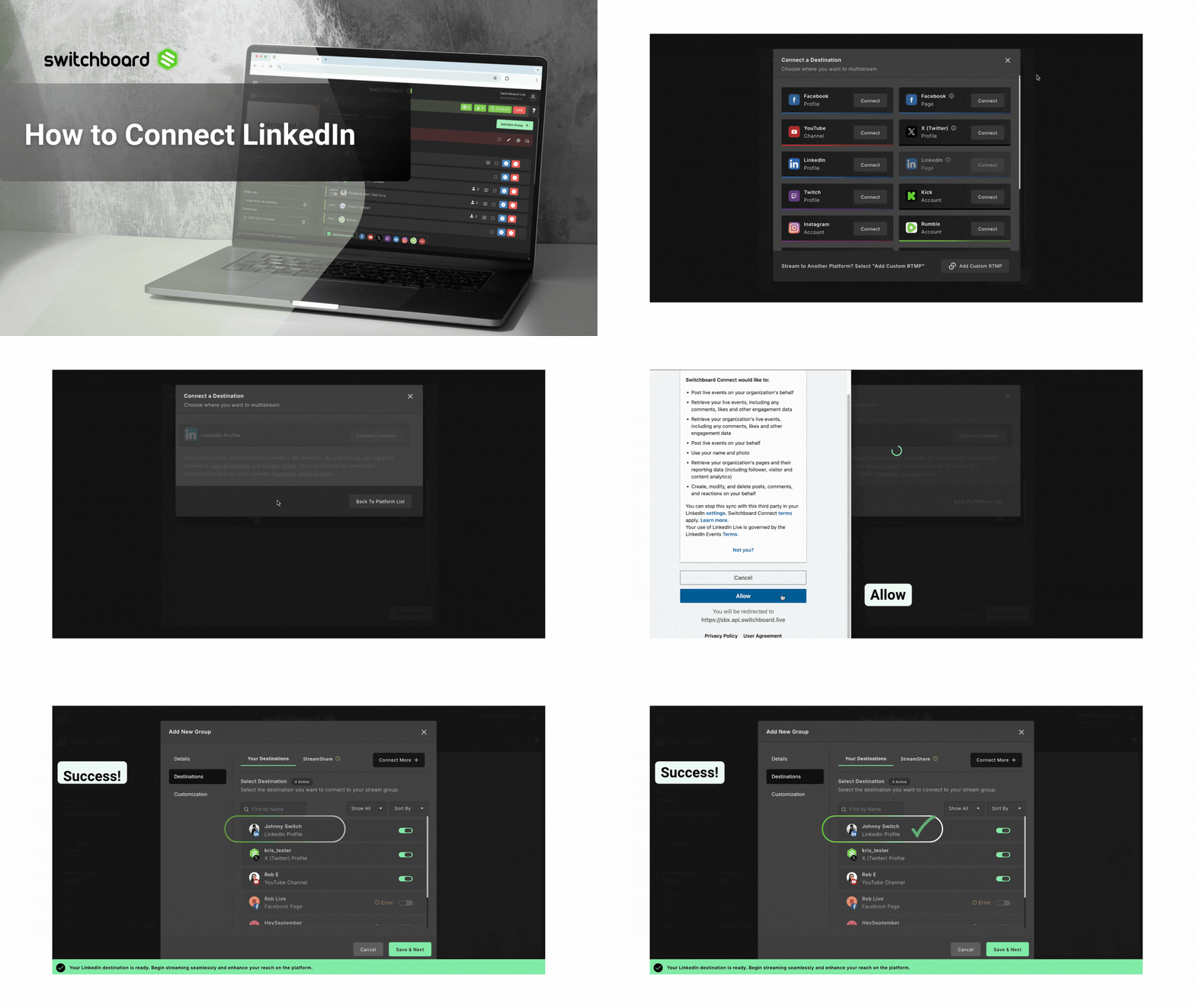
Open your Switchboard Live Workflow page.
Click the Add Destination button at the bottom of your desired Stream Group.
Click Connect More.
Select either LinkedIn Profile or LinkedIn Page from the menu.
An authorization window will appear. Follow the prompts to log in and grant Switchboard permissions. (Note: If adding a Company Page, check the box next to the specific page you want to add.
Click Close on the Success screen. Your LinkedIn destination is now connected and automatically added to your Stream Group!
Click Save & Next ( or Done) to continue, or "Connect More" to add New Destinations to your Switchboard Account.
Method 2: Connect via the Destination Manager
Best for teams adding multiple social channels at once, for later organization.
Click the Main Menu in the top-left corner and select Destinations.
From the side menu, select either LinkedIn Profile or LinkedIn Page.
Follow the prompts to log in, grant permissions, and click Continue until you reach the Success screen.
Your LinkedIn account is now saved to Switchboard!
Now you’ll need to add the LinkedIn destination to your Stream Group.
When you are ready to broadcast, simply go to your Workflow page.
Click Add Destination at the bottom of a Stream Group, and toggle your new LinkedIn destination. Hit Done.
How to livestream on LinkedIn
Start Your Live Streaming Software: Start streaming from your live stream software via your live streaming encoder, and send your video feed to your Switchboard workflow.
Go Live in Switchboard: Once you see your video in the Switchboard preview monitor, press the green Start button next to your LinkedIn destination ( or start streaming to the entire stream Group)
💡 Pro Tip: Save time broadcasts by enabling Switchboard's Auto-Start feature!
⚠️ Critical: Video Specifications for LinkedIn
LinkedIn is stricter than Facebook or YouTube. To prevent your stream from cutting out or buffering, ensure your encoder (OBS, vMix, etc.) matches these exact settings:
Resolution: 1280 x 720 (1080p is allowed, but 720p is the most stable)
Keyframe: 30 fps
Key Interval: 2 seconds (60 frames)
Audio: 48 kHz / 128 kbps
Encoding: H264 video / AAC audio
Video Bitrate: 3.5 Mbps
🛑 Warning: Sending a 4K stream or using the wrong Keyframe interval will cause LinkedIn to immediately reject your broadcast.
FAQ
Q: Why did LinkedIn reject my live stream?
A: The most common reason LinkedIn rejects a stream is incorrect encoder settings. Check your production software (OBS, vMix, etc.) and ensure your Keyframe Interval is set exactly to 2 seconds and your resolution is not pushing 4K video. See the Critical Video Specifications section above.
Q: Why isn't my LinkedIn Company Page showing up when I try to connect it?
A: To connect a LinkedIn Company Page to Switchboard Live, your personal LinkedIn profile must be designated as a "Super Admin" for that specific Company Page. If you are only a standard member, the page will not populate in the authorization window.
Q: Can I go live on LinkedIn instantly without scheduling?
A: Yes! While LinkedIn officially removed "spontaneous" live streaming on June 22, 2026, Switchboard Live handles this new requirement automatically behind the scenes. You do not need to manually schedule your event on LinkedIn or change your Switchboard workflow. Just use our direct integration and press "Start Streaming" as usual. (Note: Because Switchboard is instantly auto-scheduling this for you in the background, you may experience a brief delay before the live video appears on your LinkedIn feed.